
The best monitor for editing and gaming needs useful color controls, readable workspace, and smooth motion without making daily work awkward. Start with a 32-inch 4K IPS creator display for mixed SDR work, then consider OLED if contrast and gaming matter enough to accept panel care and a more demanding verification process.
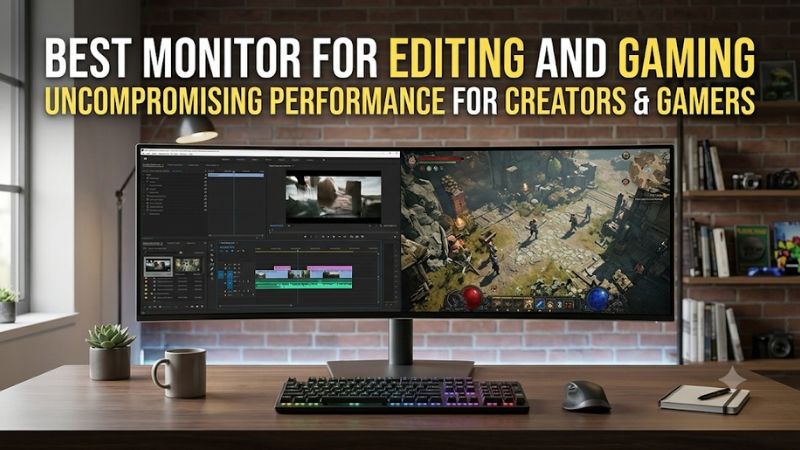
Quick verdict on the best monitor for editing and gaming
The BenQ PD3226G is the first model to compare when editing is the main job and gaming is a regular second use. It combines a 31.5-inch 4K IPS screen, creator-oriented color modes, and 144Hz. The ASUS ProArt PA32UCDM takes a different direction, pairing hardware-calibration support with 4K 240Hz QD-OLED.
Choose the Dell U3225QE when docking, connectivity, and a work-focused desktop matter more than the highest gaming refresh. The MSI MPG 321URX QD-OLED suits gaming-led ownership with editing alongside it. The Gigabyte M32U offers a conventional 4K IPS/KVM combination, while the ASUS XG27UCS puts 4K detail on a smaller desk.
This guide assumes photo editing, SDR video work, and general content production rather than guaranteed broadcast mastering or contract-critical print proofing. Those specialized tasks need a verified workflow and suitable measurement equipment. No fixed budget was supplied, so the recommendations prioritize fit without pretending all six deliver the same calibration tools or HDR capability.
Quick comparison of six dual-purpose displays
Start with the editing task and the connections your computers need, then compare refresh rate and panel technology. The table separates documented manufacturer features from the practical limitation attached to each model. A wide color gamut or calibration label does not eliminate the need to verify your own screen and software configuration.
| Monitor | Screen and maximum refresh | Main editing advantage | Gaming role | Main compromise |
|---|---|---|---|---|
| BenQ PD3226G | 31.5-inch 4K IPS, 144Hz | Creator color modes, Thunderbolt 4, 90W charging | High-refresh mixed use with documented VRR | DisplayHDR 400 is not proof of mastering-grade HDR |
| ASUS ProArt PA32UCDM | 31.5-inch 4K QD-OLED, 240Hz | Hardware-calibration support and creator presets | OLED contrast with high refresh and adaptive sync | OLED care and workflow validation |
| Dell UltraSharp U3225QE | 31.5-inch 4K enhanced IPS Black, 120Hz | Thunderbolt hub, KVM, up to 140W charging | Work-first gaming and smoother desktop motion | Lower refresh ceiling; input-specific VRR needs checking |
| MSI MPG 321URX QD-OLED | 31.5-inch 4K QD-OLED, 240Hz | Flat 4K canvas, USB-C 90W, KVM | Gaming-first OLED option | Gaming features do not establish a professional calibration workflow |
| Gigabyte M32U | 31.5-inch 4K IPS, 144Hz | Large standard-format workspace and KVM | Conventional high-refresh 4K gaming | Connection/DSC trade-offs; older model availability |
| ASUS ROG Strix XG27UCS | 27-inch 4K Fast IPS, 160Hz | Compact, dense 4K workspace | Smaller-desk high-refresh play | USB-C charging only 15W; small physical interface |
How these recommendations were selected
Selection focused on exact-model specifications, appropriate creative-work features, and refresh rates above basic 60Hz office operation. The shortlist includes both creator-led and gaming-led products because the balance differs between readers. This is research-based advice, with no claim of detailed research or matched laboratory measurements across all six units.
Six monitors for different work-and-play priorities
Choose a creator-led model when reliable editing operation is the main purchasing reason. Compare gaming-led alternatives when fast play and dark-scene presentation dominate your evenings. The right compromise depends on the time spent doing each task, the delivery color space, and whether one monitor must connect several computers.
BenQ PD3226G: Best monitor for editing and gaming with a creator-first IPS workflow
The PD3226G combines a 31.5-inch 3840 × 2160 IPS panel with a 144Hz ceiling. BenQ specifies 100% sRGB, 100% Rec.709, and 95% P3 coverage, with corresponding creator modes. It is a sensible starting point for an editor who wants a conventional LCD and useful motion headroom on the same desk.
The attraction is the combination rather than a claim that a mode name guarantees correct output. Choose the appropriate working and display settings for the job, and validate the result. BenQ’s software compatibility information distinguishes supported calibration workflows; using a physical colorimeter does not automatically mean adjustments are written into monitor hardware.
Thunderbolt 4 with 90W power delivery and KVM support make it relevant to a laptop-and-desktop arrangement. BenQ also documents VRR. Check the actual input, source capability, and supported mode rather than assuming that plugging into any dock preserves the full 4K144 configuration.
Buy if SDR editing, a large flat workspace, and gaming all matter. Skip if strong HDR finishing or a hardware-calibration requirement drives the purchase. Compare the ProArt for its different calibration capabilities, or the Dell when the hub and charging arrangement matter more than the additional refresh headroom.
ASUS ProArt PA32UCDM for calibration support and OLED gaming
The PA32UCDM pairs a 31.5-inch 4K QD-OLED panel with a 240Hz ceiling and ProArt hardware-calibration support. ASUS specifies 100% sRGB and 99% DCI-P3 coverage. It suits someone seeking creator controls and fast gaming in a single flat OLED display, rather than adapting a purely gaming-focused model afterward.
ASUS explains that supported ProArt calibration stores color parameters in the display, and supports SDR and HDR workflows. That is a meaningful distinction from relying only on an operating-system profile. It still requires compatible measurement hardware, software, and a validation process; the feature is not a substitute for checking the result.
The monitor offers Thunderbolt 4 connectivity with up to 96W charging, HDMI 2.1, and adaptive sync. OLED also introduces panel-care considerations during long sessions with static timelines and toolbars. Keep protection features active and confirm the applicable warranty for the exact US purchase.
Buy if its calibration functions, OLED presentation, and 240Hz capability all solve real needs. Skip if your workload is predominantly static or you cannot support the measurement workflow. The BenQ provides a conventional IPS alternative, while the MSI is worth comparing when gaming takes priority over ProArt’s creator tools.
Dell UltraSharp U3225QE for a connected editing workstation
The U3225QE offers a 31.5-inch 4K enhanced IPS Black panel with a 120Hz ceiling. Dell specifies 99% DCI-P3 coverage and a typical 3000:1 contrast ratio. It fits an editing workstation where the monitor also serves as the connection point for peripherals, networking, and more than one computer.
Its Thunderbolt hub, KVM, 2.5GbE connection, and up to 140W USB-C power delivery can simplify a suitable laptop setup. Confirm the laptop’s charging compatibility and video-output capabilities before treating it as a complete dock replacement. A charging number alone does not establish every supported display mode or peripheral function.
For gaming, 120Hz offers more refresh headroom than a basic 60Hz screen, but this remains the work-first option. Dell documents HDMI VRR in its input description; that should not be broadened into universal adaptive-sync certification across every input and graphics card. Check the actual connection you plan to use.
Buy if connectivity and an editing-friendly desktop are the main priorities. Skip if you specifically want 240Hz OLED play or gaming features verified for a particular GPU path. Compare the BenQ for a creator-led 144Hz alternative and the MSI for a more gaming-focused feature set.
MSI MPG 321URX QD-OLED for gaming-led ownership
The MPG 321URX QD-OLED combines a flat 31.5-inch 3840 × 2160 panel with 240Hz, USB-C video with 90W power delivery, and KVM support. It is the option for someone who primarily wants an OLED gaming monitor but also edits photos or video within a properly managed desktop workflow.
MSI specifies wide color coverage and color-performance targets, but those claims do not establish a reference-grade editing pipeline. Use suitable display modes and measurement rather than assuming saturated game visuals translate into accurate exports. Creator-focused hardware-calibration capability should not be inferred from the presence of color presets.
HDMI 2.1, DisplayPort, G-SYNC Compatible support, and FreeSync Premium Pro address gaming connectivity. Its USB hub is USB 2.0, which matters if you expect the KVM to handle fast external editing storage. Connect demanding storage to the computer or an appropriate high-speed dock instead.
Buy if gaming performance and OLED contrast lead the decision and you accept ongoing panel care. Skip if extensive static editing or a specific hardware-calibration requirement outweighs those benefits. Compare the ProArt for creator tools, or a conventional IPS model if LCD is a better ownership fit.
Gigabyte M32U for a conventional 4K IPS/KVM setup
The M32U provides a 31.5-inch 4K IPS panel with a 144Hz ceiling and a built-in KVM. It is a straightforward format for a desktop shared between editing applications and games, particularly when you already have a separate laptop charger and do not need a full Thunderbolt hub.
Gigabyte advertises 90% DCI-P3 and 123% sRGB. The latter must not be read as 123% coverage of sRGB: gamut volume and coverage are different ideas. Neither figure validates your unit’s white point, grayscale, or uniformity. Treat this as a flexible gaming display that needs an editing workflow around it.
Connection behavior deserves attention. Gigabyte documents 4K144 full-chroma output with DSC enabled, or a chroma-subsampled alternative under the specified HDMI conditions. For editing and fine desktop text, preserve RGB or 4:4:4 where supported rather than accepting a mode merely because the refresh number is correct.
Buy if the KVM, screen format, and current exact-model offer suit you. Skip if you need high-power laptop charging, stronger HDR, or creator calibration tools. This is an older model, so verify current condition and availability. The BenQ is the more directly creator-oriented comparison.
ASUS ROG Strix XG27UCS for a smaller 4K desk
The XG27UCS combines a 27-inch 3840 × 2160 Fast IPS panel with a 160Hz ceiling and height adjustment. It suits someone who wants dense 4K detail but cannot comfortably accommodate a 32-inch screen, particularly when the monitor must share desk space with speakers, a tablet, or other equipment.
The smaller physical image changes readability. You gain pixel density rather than the larger interface presentation of a 32-inch screen at the same resolution. Check application scaling, tool panels, and ordinary text from your actual seating position before deciding that compactness is automatically an advantage.
ASUS documents adaptive-sync support, DisplayPort, and USB-C video with 15W power delivery. That charging output is modest, so plan on a separate laptop power supply where required. Its DisplayHDR 400 certification and wide-gamut specification do not establish a professional HDR reference monitor or a hardware-calibration workflow.
Buy if size and fine detail are the key constraints and you can profile the display for editing. Skip if you need a larger preview, a more capable dock, or specialized creator controls. Compare the BenQ and Dell when the workstation’s daily operation matters more than fitting 4K into 27 inches.
How to balance editing requirements with gaming
Begin with the files you deliver and the software you use, then identify the gaming features that would change your experience. A screen should support that combined routine without introducing avoidable color or connection problems. Budget for measurement, suitable cables, and comfortable placement as part of the purchase.
Choose the output color space before the gamut claim
Different jobs have different output requirements, so a large gamut percentage is not a universal measure of suitability. Web images, SDR video, print work, and HDR delivery can require different targets. Identify the destination first, then check the monitor’s supported modes and how your applications manage color.
Gamut coverage describes how much of a target range a display can reproduce. Accuracy concerns how closely it renders intended values under specified conditions. A screen can have a wide native gamut and still show incorrect colors in an unmanaged application. More saturated appearance is not proof of a more accurate edit.
For print-sensitive work, check the required gamut and soft-proofing workflow rather than treating P3 as interchangeable with Adobe RGB. For video, validate the relevant color space, transfer characteristics, and monitoring path. A display’s preset list is a useful starting point, not a completed delivery specification.
Separate calibration, profiling, and hardware adjustment
Calibration brings a display toward chosen conditions, while profiling describes its resulting behavior for color-managed software. Hardware calibration adds a specific capability to store supported corrections inside the monitor. Using a colorimeter with software does not, by itself, prove that the display supports that internal adjustment route.
Adobe recommends calibrating and profiling before color-critical work. Keep the correct monitor profile associated with the display, and use applications that interpret it appropriately. Do not confuse a document’s working color space with the profile describing your particular monitor. They serve different roles in the color-management chain.
After changing modes or calibration settings, confirm that the profile still matches the display’s state. A gaming preset that alters gamma or saturation can invalidate the assumptions used for editing. Save separate, identifiable settings so returning to the work configuration is straightforward and repeatable.
Treat HDR editing as a separate qualification
HDR gaming and critical HDR finishing are different tasks. A display may provide enjoyable highlights and contrast without meeting the conditions required for a client-approved master. Investigate sustained brightness behavior, tone mapping, signal handling, and the monitoring pipeline before assigning that responsibility to a combined work-and-play screen.
OLED controls light per pixel, while conventional IPS uses a backlight. Those architectures create different strengths and limitations; neither a peak-brightness figure nor an HDR logo describes the whole result. Manufacturer specifications alone cannot validate a finished HDR production environment.
For serious delivery work, use measured validation and the requirements of the actual job. A dedicated reference display may remain appropriate alongside the gaming monitor. Buying one screen to do both jobs should not quietly lower the standard expected for paid color-critical work.
Check the complete connection at the intended mode
Resolution, refresh rate, color depth, chroma format, charging, and USB bandwidth share a connection path. A dock or adapter can change what remains available even when the monitor itself supports the desired mode. Check the source, cable, hub, and monitor together rather than relying on connector shape alone.
For desktop editing, preserve full chroma when possible so fine colored text and interface edges remain clear. Display Stream Compression and chroma subsampling are different techniques; do not treat them as equivalent sacrifices. Verify the actual output settings after connecting, especially at high refresh rates.
A KVM switches supported peripherals; it does not necessarily provide fast storage connectivity or high-power laptop charging. The MSI’s USB 2.0 hub illustrates that distinction. Keep editing drives on a sufficiently fast path, and check laptop power needs independently from video compatibility.
Match panel ownership and desk setup to your workday
Consider the hours spent in static applications as well as the games played afterward. OLED protection features and maintenance are relevant when toolbars, timelines, and taskbars remain visible for long periods. LCD can be a reasonable preference even when OLED is attractive for dark-room gaming.
Keep OLED care enabled and review the exact warranty, purchase region, and seller terms. MSI’s US material explicitly describes three-year OLED coverage including burn-in; that does not establish identical terms for every brand or product. Avoid assuming any warranty means unlimited coverage under all usage conditions.
For either technology, control reflections and maintain a consistent editing environment. Position the screen so reading and judging images do not require repeated leaning. A 32-inch 4K panel offers a larger physical workspace than a 27-inch version, while the smaller screen provides higher pixel density at the same resolution.
Frequently asked questions
The right compromise depends on whether work or gaming carries more weight and which shortcomings you can tolerate. These questions address refresh rate, factory calibration, and whether one screen can serve both purposes. Use them to check the actual job requirements before deciding which feature deserves the budget.
Is 144Hz enough for editing and gaming?
A 144Hz ceiling can be a useful balance for an editor who games regularly. It provides more refresh opportunities than 60Hz, but it does not make a video timeline contain more source frames. Preview cadence, application behavior, and the actual footage still matter when judging moving images.
Choose 240Hz when your gaming workload can use it and the editing features remain suitable. Do not buy extra refresh while overlooking poor connection compatibility or missing color controls. The monitor also cannot make an underpowered GPU render demanding 4K games at its maximum refresh rate.
Does factory calibration mean you never need a colorimeter?
Factory calibration is evidence about the manufacturer’s setup process, not a permanent guarantee for every application and environment. The display’s behavior, chosen mode, and viewing conditions can change. A colorimeter and suitable software let you verify whether the actual screen still meets the target required for your work.
Should you use one monitor or separate editing and gaming screens?
One well-chosen screen can reduce desk clutter and make sense for general SDR editing with regular gaming. It works best when the panel, modes, connections, and care requirements fit both tasks. Switching between clearly identified work and play configurations should be easy to manage.
Separate screens become attractive when the work requires specialized gamut, hardware calibration, or reference monitoring that conflicts with the gaming preference. Keeping an existing suitable editing display and adding a gaming monitor can be a better purchase than replacing both roles with a compromise you cannot validate.
Conclusion
Start with the BenQ PD3226G for creator-led IPS use, compare the ProArt PA32UCDM when hardware calibration and OLED are valuable, and choose the Dell U3225QE for a connected workstation. The MSI suits gaming-led ownership, the M32U offers a conventional IPS/KVM combination, and the XG27UCS fits a compact desk. Choose the workflow you can verify, then add the refresh, charging, and gaming features that improve your daily routine.









