
Finding the best monitor for ps5 under $200 means balancing three things: a clean 120Hz signal from the console, enough resolution for the screen size, and features that genuinely work over HDMI. A monitor advertised at 180Hz is not automatically better for PS5, and a FreeSync badge does not guarantee PlayStation VRR compatibility. The five monitors below cover different priorities, from affordable 1080p screens with explicitly documented PS5 modes to sharper 1440p displays for players who also use a gaming PC. Prices are US listings checked on November 9, 2026, before tax and shipping, and can change.
- Best monitor for PS5 under $200: ViewSonic VX2728J-2K
- Quick comparison: five monitors worth considering
- How we selected these PS5 monitors
- ViewSonic VX2728J-2K: Best overall 27-inch 1440p monitor
- KTC H24T7: Best compact 1440p option
- Alienware AW2725DM: Best near $200 for a shared PC and PS5 desk
- MSI G275L E14: Best 27-inch budget monitor with PS5 VRR
- MSI G242LW: Best low-cost 23.8-inch monitor
- How to choose the best monitor for PS5 under $200
- Set up your PS5 for 120Hz and 1440p
- Frequently asked questions
- Final verdict
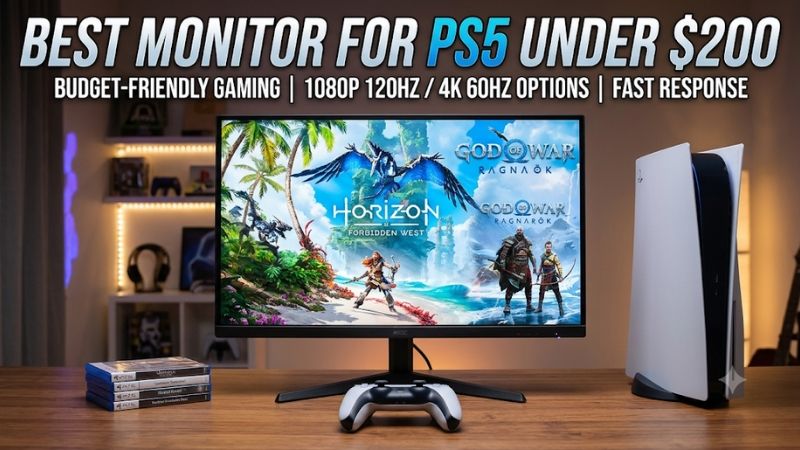
Best monitor for PS5 under $200: ViewSonic VX2728J-2K
For most players, the ViewSonic Omni VX2728J-2K is the strongest balance of screen size, resolution, HDMI refresh support, and price. It is a 27-inch IPS monitor with a native 2560 × 1440 resolution, and ViewSonic’s manual lists 1440p at 120Hz as a supported input timing. That matters more to a PS5 owner than the 180Hz maximum advertised for the monitor, because the console does not output games above 120Hz.
The current ViewSonic US listing shows it at $169.99. That leaves some room below the $200 limit for tax, a longer HDMI cable, or a headset, although the final delivered cost depends on the seller and location. Its two HDMI 2.0 inputs also make it practical if a PS5 shares the desk with another console or a streaming device.
The main compromise is VRR. This is not a full-bandwidth HDMI 2.1 monitor, so buyers should not assume it will provide PS5 VRR just because the panel supports adaptive refresh features for PC gaming. An independent CGMagazine review tested the monitor with a PS5 and reported solid 1440p console performance, while noting that FreeSync was unavailable in console use.
Choose it for a 27-inch 1440p image and a straightforward PS5 120Hz connection, not for advanced HDR or guaranteed console VRR. Its built-in 2W speakers are useful for basic audio, but they are not a substitute for a headset or dedicated speakers when sound quality matters.
Quick comparison: five monitors worth considering
Prices below are the US listing prices observed on November 9, 2026. They are snapshots, not guaranteed checkout totals. Tax, shipping, seller, and stock can change the final amount.
| Monitor | Screen and resolution | Best use | Important limitation | Observed price |
|---|---|---|---|---|
| ViewSonic VX2728J-2K | 27-inch, 1440p IPS | Best overall balance | No confirmed PS5 VRR | $169.99 |
| KTC H24T7 | 23.8-inch, 1440p IPS | Compact QHD gaming | No published PS5-specific validation | $149.99 |
| Alienware AW2725DM | 27-inch, 1440p Fast IPS | PS5 and PC desk setup | Weak HDR; no 4K at 120Hz | $199.99 |
| MSI G275L E14 | 27-inch, 1080p IPS | Large screen with documented PS5 VRR | Lower pixel density | $99.99 |
| MSI G242LW | 23.8-inch, 1080p IPS | Lowest-cost console setup | Basic stand and one HDMI input | $52.25 |
The 1440p monitors prioritize a sharper image, particularly on a desk where the display sits relatively close to the player. The two MSI models prioritize lower cost and have unusually useful manufacturer documentation for console owners: MSI lists 1080p at 120Hz and PS5 VRR support for both. That distinction is important because a monitor’s PC FreeSync specification does not by itself establish compatibility with the PS5’s VRR implementation.
How we selected these PS5 monitors
The shortlist focuses on actual console signal support rather than headline refresh-rate numbers. A monitor advertised at 180Hz or 185Hz may be a good PC display, but the additional refresh headroom is not directly useful to a PS5. The more relevant questions are whether the HDMI input accepts the resolution and refresh rate the console can send, and whether the manufacturer or a credible independent reviewer documents the relevant console behavior.
The first filter was a reasonable match for a sub-$200 US budget. The second was a native resolution and HDMI mode that make sense for console gaming. The third was whether the model offered a meaningful advantage over the others, such as 1440p sharpness, explicit PS5 VRR support, a more useful stand, or a strong price.
Manufacturer specifications and manuals were used for model-specific details. The ViewSonic manual is particularly helpful because it lists supported HDMI timings rather than leaving buyers to infer them from a maximum refresh-rate headline. MSI’s console-mode tables also make its two recommendations easier to evaluate. For the Alienware, independent RTINGS testing provides useful context about input lag, console compatibility, and HDR limitations. These are research-based recommendations, not claims of detailed research by this publication.
Five products make the cut. Some other monitors were considered but did not meet the price or evidence standard at the time of checking. For example, the AOC Q24G4RE has an attractive 23.8-inch 1440p specification and AOC documents a PS5 1440p/120Hz mode, but the US retailer price located during research was above the $200 ceiling. The Dell G2724D also appeared at an attractive price, but its listing was temporarily out of stock. Including either as a straightforward buy-now recommendation would make the roundup less useful.
Prices are reported as observed US listing prices before tax and shipping. They are not permanent price guarantees. The research did not establish a verified Amazon.com listing for every exact model and variant, so Amazon availability should be checked separately before adding affiliate product links. No product is ranked on commission or assumed popularity.
ViewSonic VX2728J-2K: Best overall 27-inch 1440p monitor
The VX2728J-2K is the best starting point for a PS5 owner who wants a fairly large display without dropping to 1080p. Its 27-inch IPS panel has a native 2560 × 1440 resolution. Compared with a 27-inch Full HD screen, the extra pixels make game interfaces, fine textures, and desktop text look sharper at typical desk distances.
The model’s headline 180Hz refresh rate needs context. ViewSonic advertises the higher maximum for PC use, but the PS5’s practical ceiling is 120Hz. The manual lists 2560 × 1440 at 120Hz among the supported timings, and HDMI 2.0 has sufficient bandwidth for that QHD signal. The monitor has two HDMI 2.0 inputs and one DisplayPort 1.2 connection, so the console should be connected through HDMI rather than using a DisplayPort adapter.
There are also useful everyday features. ViewSonic includes a height-adjustable stand with swivel, pivot, and tilt adjustment, plus two 2W speakers. Those features make it easier to position the panel properly and avoid buying a separate stand immediately. The speakers are best treated as a convenience for system sounds, casual video, and basic play. A headset or dedicated audio system will be a more satisfying choice for immersive games.
The main weakness is the lack of a confirmed PS5 VRR path. ViewSonic’s PC adaptive-sync features should not be confused with Sony’s HDMI VRR requirements. The panel also has the familiar limitations of an affordable IPS display: contrast is modest compared with a good VA panel or OLED, and HDR support should not be mistaken for high-end HDR performance. A monitor can accept an HDR signal without producing the deep blacks and bright highlights that make HDR compelling.
Buy it if you want a versatile 27-inch 1440p screen, play a mix of story-driven games and competitive titles, and may connect a PC later. Skip it if PS5 VRR is mandatory or if you specifically want a dramatic HDR upgrade. At the observed $169.99 price, the ViewSonic is the most balanced recommendation in this group.
KTC H24T7: Best compact 1440p option
The KTC H24T7 takes a different approach: it fits 2560 × 1440 into a 23.8-inch screen. That smaller panel gives it a high pixel density, making text and fine interface details look especially crisp when the monitor is close to the player. It is a sensible option for a compact desk, a bedroom setup, or a gaming station where a 27-inch screen would take up too much visual space.
The H24T7 uses a fast IPS panel and is advertised at 180Hz, with a higher overclocked maximum for compatible PC use. For PS5 owners, the important connection detail is that its HDMI 2.0 inputs are specified for QHD at up to 144Hz. That gives the HDMI connection enough refresh-rate headroom for a 1440p/120Hz console signal on paper. The PS5 does not need the monitor to run at its full PC refresh rate.
There is an important qualification: the available KTC material establishes the HDMI timing, but does not provide the same explicit PS5 console-mode confirmation found in MSI’s specifications. Buyers should therefore run the PS5’s built-in 1440p output test and verify that 120Hz is available before treating the setup as fully confirmed. Do not assume that its PC adaptive-sync claims automatically deliver PS5 VRR.
The monitor’s feature set is attractive for the price. The Best Buy listing observed during research was $149.99, and product documentation identifies two HDMI inputs alongside DisplayPort. The product is also marketed with HDR400 support and a height-adjustable stand. Those details make it more flexible than a basic tilt-only budget screen, although an HDR400 label alone does not guarantee a particularly impressive HDR experience.
Its most obvious trade-off is size. Some players prefer 27 inches for a more cinematic view, especially when sitting farther from the screen. A 23.8-inch QHD display can look very sharp but may feel physically small for split-screen play or games with dense menus. There is also no reason to pay extra for its PC overclocked refresh rate if the monitor will be used only with a PS5.
Buy it if you value a compact, sharp QHD image and are comfortable checking console output modes during setup. Skip it if you want a manufacturer-confirmed PS5 feature list, need VRR, or prefer a larger 27-inch display.
Alienware AW2725DM: Best near $200 for a shared PC and PS5 desk
The Alienware AW2725DM is the premium-feeling option in this shortlist, although it uses a Fast IPS panel rather than OLED. Dell’s US store listed the 27-inch QHD model at $199.99 during research, putting it right at the spending limit before tax and shipping. It offers a 2560 × 1440 native resolution and a maximum 180Hz refresh rate for suitable PC connections.
For PS5, the useful target is again 1440p at 120Hz. A console cannot use the monitor’s entire 180Hz capability, but the faster panel and responsive behavior still matter for PC gaming. RTINGS’ independent evaluation describes low input lag and broad support for common gaming signals. Its console testing is useful evidence for buyers who plan to use one desk for both systems.
Be careful with the HDMI 2.1 label, however. Dell’s specification lists HDMI 2.1, but the tested bandwidth is limited in practice and does not provide the full capability needed for 4K at 120Hz. This is not a 4K gaming monitor, and buyers should not read an HDMI version label as a guarantee of every feature associated with a full-bandwidth HDMI 2.1 connection. For a PS5 running at 1440p/120Hz, the relevant signal is a much more realistic target.
The biggest image-quality compromise is HDR. RTINGS notes weak contrast and limitations in the local-dimming behavior, so bright HDR highlights and dark scenes do not have the impact that a higher-end display can deliver. This is a monitor to buy for resolution, speed, and flexible PC use, not as a low-cost route to premium HDR. Also, do not treat its general adaptive-sync or VRR features as a guarantee that every PS5 VRR mode will be detected. Check the console’s video-output information after connecting it.
Buy it if you are spending close to $200 anyway, want a 27-inch QHD display, and will use it with a gaming PC as well as a PS5. Skip it if 4K/120Hz, class-leading HDR, or guaranteed PS5 VRR is your main requirement. At this price, it makes more sense as a dual-purpose gaming monitor than as a console-only purchase.
MSI G275L E14: Best 27-inch budget monitor with PS5 VRR
The MSI G275L E14 is the practical choice for players who want a large screen and explicitly documented PS5 compatibility without spending much. It uses a 27-inch IPS panel with a 1920 × 1080 native resolution and a 144Hz maximum refresh rate. MSI’s specification page lists 1080p at both 60Hz and 120Hz for console use, and it explicitly marks VRR as supported on PS5 and Xbox.
That is unusually clear information for a budget monitor. It avoids the guesswork that can arise when a manufacturer lists FreeSync for PC but says nothing about console operation. The monitor also supports HDMI CEC, which can help with compatible device-control behavior. Its HDMI 2.0 input is sufficient for the listed 1080p/120Hz mode, so the PS5 does not need an adapter or a DisplayPort connection.
The trade-off is pixel density. At 27 inches, 1080p produces a softer image than 1440p at the same size. Text and fine edges are less defined, and players who sit close to the panel will notice that difference more readily. It can still be a good fit for someone who values a larger viewing area over maximum sharpness, or who sits farther away than a typical desktop user.
The G275L E14’s stand is another cost-saving area. It offers tilt adjustment but not the more complete height and swivel movement found on the ViewSonic. The panel is also specified at 300 nits, with a 1ms MPRT claim. MPRT is a motion-blur reduction specification, not a guarantee that every pixel transition takes one millisecond under all settings. Keep that distinction in mind when comparing it with monitors advertised using gray-to-gray response-time figures.
MSI’s US store listed the monitor at $99.99 and in stock during research. That leaves a meaningful amount of the budget for a headset, a desk arm, or other accessories. A VESA mounting pattern also gives buyers the option to improve positioning later.
Buy it if you want 27 inches, 1080p/120Hz, and manufacturer-documented PS5 VRR at a lower price. Skip it if you sit close to the screen and value sharper image detail more than console VRR.
MSI G242LW: Best low-cost 23.8-inch monitor
The MSI G242LW is the simplest way into high-refresh PS5 gaming without using most of the $200 allowance. It is a 23.8-inch Full HD IPS monitor with a 144Hz maximum refresh rate. MSI documents console modes at 1080p/60Hz and 1080p/120Hz, and its specification page explicitly lists PS5 VRR support.
The smaller screen is a better match for Full HD than a 27-inch panel if the player sits at a conventional desktop distance. A 1920 × 1080 image on a 23.8-inch display has a higher pixel density than the same resolution stretched across 27 inches. It will not look as detailed as 1440p, but the image is less visibly coarse than on a large Full HD monitor.
The G242LW is deliberately basic. It has one HDMI 1.4b input, one DisplayPort 1.2a input, and a tilt-only stand. A 100 × 100mm VESA mounting pattern provides an upgrade path to a monitor arm, but buyers should not expect the adjustment range or convenience of a more expensive stand. The HDMI port is the one to use with the PS5, and the manufacturer’s console table is the reason this model qualifies despite its older HDMI version.
A Walmart listing for the exact G242LW model showed $52.25 during research. Because the listing interface can include different screen-size variations and marketplace sellers, verify that the selected option is specifically the 23.8-inch G242LW before paying. Do not assume that a price displayed beside a group of variants applies to every model in that group.
This monitor is best viewed as a budget-first choice. It is a good fit for a student room, a secondary console setup, or a player who would rather reserve money for games and accessories. It is not the right pick for someone who wants a large image, a height-adjustable stand, or QHD detail.
Buy it if the priority is a low-cost 1080p/120Hz monitor with MSI-documented PS5 VRR. Skip it if you need more than one HDMI input or want a more flexible ergonomic setup.
How to choose the best monitor for PS5 under $200
The right purchase depends less on the largest refresh-rate number on the box and more on how the monitor handles the PS5’s HDMI signal. Before buying, compare the native resolution, HDMI refresh timing, VRR support, screen size, and physical stand. Those details have a greater effect on everyday use than a PC-oriented feature that the console cannot fully use.
Choose 1080p or 1440p based on screen size and priorities
A 1080p monitor is still a reasonable match for PS5 gaming, particularly at 23.8 or 24 inches. It is usually the cheaper route, and a smaller Full HD panel can look acceptably sharp from a normal desk distance. The MSI G242LW is the compact version of this approach, while the G275L E14 gives you a larger 27-inch image for less money than the QHD models.
At 27 inches, 1440p is the more attractive resolution for players who sit close to the screen. It gives game environments, small text, and interface elements more detail. The ViewSonic and Alienware models are the larger QHD options here. KTC’s 23.8-inch QHD model is sharper still at close range, but some users may find its viewing area too small.
The choice is not simply about which resolution is technically better. Some PS5 games render internally at a lower resolution and then scale their output. A 1440p monitor does not force every game to render native 1440p detail. It does, however, give the console a higher-resolution display mode when the game and system support it.
Check HDMI refresh rates, not just the advertised maximum
Many gaming monitors advertise 144Hz, 180Hz, or even higher refresh rates. Those figures often describe the maximum supported through DisplayPort, a PC overclock mode, or a particular resolution and timing. A PS5 connects over HDMI, so the HDMI input’s supported modes are what matter.
Look for an explicit resolution-and-refresh combination. For a QHD monitor, the important target is 2560 × 1440 at 120Hz over HDMI. For a Full HD monitor, confirm 1920 × 1080 at 120Hz. A manual’s timing table is more useful than a retailer title that says only “180Hz gaming monitor.”
The console is also limited to a maximum 120Hz output. Buying a 180Hz display will not make a PS5 output 180 frames per second. The extra refresh capability is useful when the same monitor is connected to a gaming PC, but it is not a console performance upgrade by itself.
Understand PS5 VRR and HDMI 2.1
Variable refresh rate can help reduce visible tearing and make frame delivery feel smoother when a game supports it. However, three terms should not be treated as interchangeable: FreeSync, G-SYNC compatibility, and PS5 VRR. A monitor may work with one or more PC adaptive-sync technologies without supporting Sony’s VRR mode.
Sony documents VRR support for compatible HDMI 2.1 VRR displays. Its support material also provides a PS5 1440p output test, which checks combinations of 1440p, 60Hz, 120Hz, and VRR where the display supports them. That makes the console’s own output screen an important verification step rather than relying only on a monitor’s marketing badge.
The MSI G242LW and G275L E14 are notable here because MSI specifically lists PS5 VRR support in their console-mode information. For the other displays in this roundup, do not buy on the assumption that a PC adaptive-sync feature will automatically appear as PS5 VRR. If VRR is essential, verify the exact monitor’s behavior before the return window closes.
You do not need HDMI 2.1 simply to run 1080p/120Hz or 1440p/120Hz. HDMI 2.0 can handle those modes when the monitor supports the correct timing. HDMI 2.1 becomes more important for higher-bandwidth features such as 4K at 120Hz and Sony’s documented VRR requirements.
Treat budget HDR claims carefully
Affordable monitors often list HDR10 input support or a VESA DisplayHDR certification. Neither label alone tells you how convincing HDR will look in a dark game scene. Peak brightness, contrast, black levels, local dimming, and tone mapping all contribute to the result.
The monitors in this roundup are sensible budget gaming displays, not replacements for premium HDR televisions or high-end OLED monitors. The Alienware AW2725DM illustrates the point: it has a strong gaming feature set, but independent testing identifies weak contrast and limitations in its HDR presentation. The ViewSonic also has entry-level contrast characteristics. For most buyers under $200, it is safer to prioritize resolution, stable 120Hz input, and ergonomics before paying extra for an HDR label.
Consider the stand, audio, and desk layout
A monitor can have an excellent panel and still be frustrating to use if the stand is too low or lacks adjustment. Height adjustment is particularly useful because it helps align the screen with eye level. A tilt-only stand can work, but it may require a riser or an aftermarket arm. Check the VESA mounting pattern before purchasing an arm.
Integrated speakers are rarely a deciding reason to buy a budget monitor. The ViewSonic includes two small speakers, but most built-in monitor audio is best reserved for basic sound. The PS5 can be used with a compatible headset or a separate audio setup. Confirm how audio will be routed before assuming the monitor’s headphone output or speakers will meet your needs.
Finally, measure the desk and viewing distance. A 27-inch panel gives a more expansive image, but it also needs more space. A 23.8-inch panel may be more comfortable on a narrow desk and can be a better match for Full HD. A monitor that fits the room and can be positioned correctly is more useful than a larger display that dominates the desk.
Set up your PS5 for 120Hz and 1440p
Once the monitor is connected, use the PS5’s video-output settings to confirm the actual signal. Start by connecting the console directly to the monitor with the PS5’s included HDMI cable. Avoid adding an older receiver, capture device, or adapter during initial setup because an intermediate device can restrict the available modes.
Open Settings, select Screen and Video, and then choose Video Output. Set 120Hz Output to Automatic. If you have a QHD monitor, choose 1440p or Automatic for resolution and run the Test 1440p Output option. The test checks supported combinations and is especially useful for determining whether the display accepts 1440p at 120Hz.
After testing, review the Current Video Output Signal and the connected HDMI device information. Confirm the displayed resolution and refresh rate, and check whether VRR is reported when you expect it. If the monitor does not show a 120Hz mode, confirm that the correct HDMI input is selected, reconnect the cable, and verify that the monitor’s manual lists the desired timing on HDMI rather than DisplayPort only.
A monitor accepting a 120Hz signal does not mean every game will run at 120 frames per second. The game must support a 120Hz mode, and the relevant in-game performance or graphics setting may need to be selected. Some titles reduce resolution or visual effects to maintain a higher frame rate. That is a game-level trade-off, not a fault with the monitor.
If HDR looks washed out or too dim, test the PS5’s HDR calibration rather than assuming the feature is automatically beneficial. On an inexpensive IPS panel, a well-calibrated SDR image can look more consistent than an HDR mode with limited brightness and contrast.
Frequently asked questions
Can a monitor under $200 run PS5 games at 120fps?
It can accept a 120Hz signal when the monitor supports the correct HDMI mode, but that does not guarantee 120 frames per second in every game. The PS5 game must offer a 120Hz mode, and the player may need to select a performance-oriented setting. The monitor handles the display signal; it does not increase the console’s rendering performance.
Is 1440p better than 1080p for PS5?
1440p usually provides a sharper image, especially on a 27-inch screen used at a desk. A 23.8-inch 1080p monitor can still look good and costs considerably less. The better choice depends on screen size, viewing distance, price, and whether sharper detail or documented PS5 VRR is more important to you.
Do I need HDMI 2.1 for 120Hz gaming on PS5?
No. Compatible HDMI 2.0 monitors can accept 1080p/120Hz and 1440p/120Hz signals. HDMI 2.1 is relevant for higher-bandwidth features such as 4K/120Hz and Sony’s documented VRR support requirements. Always check the exact monitor’s supported HDMI timing rather than relying on the port label alone.
Will a 180Hz monitor make my PS5 run faster?
No. The PS5’s supported output ceiling is 120Hz. A 180Hz monitor can still be useful for a connected gaming PC, but the console will not take advantage of the extra refresh cycles. Check the HDMI mode at the resolution you plan to use instead of paying more for a high DisplayPort maximum.
Is HDR worth prioritizing on a $200 PS5 monitor?
Usually not ahead of resolution, HDMI refresh support, or VRR. Entry-level HDR support does not necessarily provide strong highlights or deep blacks. A monitor with good 1440p/120Hz compatibility and solid everyday image quality can be a better purchase than a model chosen mainly for an HDR badge.
Final verdict
The ViewSonic VX2728J-2K is the best all-around choice for most PS5 players under $200. Its 27-inch 1440p IPS panel, documented HDMI support for 1440p/120Hz, useful stand, and $169.99 observed price make it a strong balance of image quality and console compatibility.
Choose the MSI G275L E14 or G242LW instead if PS5 VRR is a priority and 1080p is acceptable. The G275L E14 offers a larger 27-inch picture, while the G242LW is the budget-first 23.8-inch option. For a compact QHD setup, consider the KTC H24T7 after checking 1440p/120Hz on the PS5 itself. The Alienware AW2725DM is the premium-feeling dual-use option at the budget ceiling, but its HDR limitations and lack of 4K/120Hz support deserve consideration.
There is no perfect sub-$200 monitor that combines every premium console feature. Decide whether you value sharper 1440p detail or explicitly documented PS5 VRR more. That single choice will narrow the shortlist far more effectively than the biggest refresh-rate number printed on a monitor’s box.









