
Searching for best gaming monitors tested trusted lync conf? Start with your gaming resolution, then check the connections you need for work and video calls. This independent shortlist compares six real models and explains their trade-offs, without claiming that we or LyncConf directly tested the products featured here.
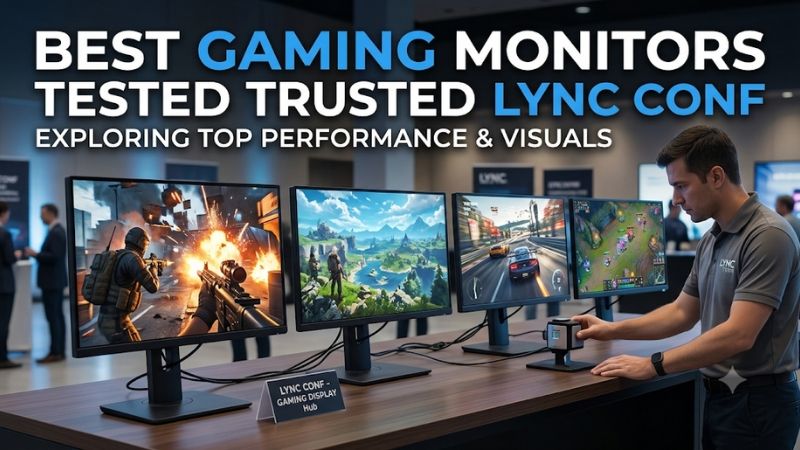
Best gaming monitors tested trusted Lync Conf: The shortlist
Choose a 27-inch IPS model for an everyday work-and-play desk, a 4K screen for finer detail, or a high-refresh OLED for specialized gaming. The MSI MAG 274QRF QD E2 is a useful starting point when laptop connectivity matters. The Dell G2724D offers a simpler 1440p alternative with fewer peripheral conveniences.
For sharper desktop text and console use, consider the LG 27GR93U-B. The MSI MPG 321URX QD-OLED suits a larger flat OLED desk, while the Alienware AW3225QF adds a curved presentation. Competitive PC players who can use exceptionally high refresh rates should investigate the ASUS ROG Swift OLED PG27AQDP.
The search phrase points toward LyncConf content, but this article is an independent buying guide. It does not reproduce another site’s ranking or certify compatibility with a particular conferencing service. A monitor displays your call; camera quality, microphone quality, software permissions, and network performance require separate checks.
Quick comparison of the recommended monitors
These six displays serve different priorities, so the table emphasizes practical fit rather than an unsupported overall score. Maximum refresh rates refer to display capabilities under suitable connection conditions. They do not establish measured input lag or guarantee that your computer will render games at the same frame rate.
| Exact model | Panel and resolution | Maximum refresh | Recommended use | Main limitation |
|---|---|---|---|---|
| Dell G2724D | 27-inch IPS, 2560 × 1440 | 165Hz DisplayPort; 144Hz HDMI | Straightforward desktop gaming | No integrated USB-C docking workflow |
| MSI MAG 274QRF QD E2 | 27-inch Rapid IPS, 2560 × 1440 | 180Hz | Laptop work and PC gaming | USB-C power may not meet demanding laptop needs |
| LG 27GR93U-B | 27-inch IPS, 3840 × 2160 | 144Hz | Detailed work and 4K gaming | Limited HDR ambitions compared with OLED |
| MSI MPG 321URX QD-OLED | 32-inch-class QD-OLED, 3840 × 2160 | 240Hz | Flat OLED gaming across devices | Static desktop usage requires OLED consideration |
| Alienware AW3225QF | 32-inch-class curved QD-OLED, 3840 × 2160 | 240Hz | Immersive gaming | Curve and large format may not suit every desk |
| ASUS ROG Swift OLED PG27AQDP | 26.5-inch WOLED, 2560 × 1440 | 480Hz | Competitive PC gaming | High refresh brings little benefit to ordinary calls |
How this research-based roundup was selected
Selection prioritizes exact model specifications, a distinct gaming use case, and realistic everyday limitations. Manufacturer documentation establishes the core panel, resolution, refresh, and connection claims. This article contains no original detailed research, invented benchmark figures, or claim that every recommendation has passed a common laboratory test protocol.
The LyncConf page associated with the query discusses gaming and conferencing together, but its accessible text does not identify specific recommended models with corresponding measurement tables. Consequently, it is not the technical evidence for these selections. Product facts come from the manufacturers rather than assumed endorsement by that publisher.
No budget was supplied, and comparable current US checkout prices were not verified for every model. Therefore, the categories describe suitability instead of cheapest or best-value rankings. Check the actual selling price, condition, return policy, and warranty before deciding whether an established model remains attractive against newer alternatives.
Individual gaming monitor recommendations
Your workday should influence the choice as much as your favorite game. An ordinary LCD can be easier to live with during long sessions of fixed application windows, while OLED offers attractive contrast for gaming. The following recommendations explain what each model adds and which buyer should consider another option.
Dell G2724D: For a straightforward 1440p desk
The Dell G2724D combines a 27-inch IPS panel with 2560 × 1440 resolution. Dell specifies up to 165Hz through DisplayPort and 144Hz through HDMI. It suits buyers who want an uncomplicated gaming screen and already have a separate plan for their webcam, headset, and laptop power connection.
At this size, 1440p gives useful desktop space without the rendering load of 4K. It can be a sensible match for a system that runs your games comfortably at that resolution. The monitor cannot create frames your computer does not produce, so evaluate your actual game settings before making refresh rate the deciding specification.
The main work-related compromise is connectivity. This is not a one-cable USB-C docking solution. A work laptop may require its charger plus a separate display connection, and peripherals may need to connect directly to the computer or a hub. That arrangement is perfectly workable when you understand the cable requirements beforehand.
Buy if a simple LCD and conventional desktop setup fit your routine. Skip if laptop charging and peripheral switching are major priorities. Compare the MSI MAG model for USB-C functionality or the LG for denser 4K detail. Do not mistake the Dell’s HDMI version label for unrestricted support for every higher-resolution signal.
MSI MAG 274QRF QD E2: For laptop work and gaming
The MSI MAG 274QRF QD E2 uses a 27-inch Rapid IPS panel with 2560 × 1440 resolution and a 180Hz maximum refresh rate. Its USB-C input supports DisplayPort Alt Mode and 65W power delivery. That makes it relevant to desks that alternate between gaming and a compatible work laptop.
A suitable laptop can receive video connectivity and charging through one USB-C cable, reducing the number of connections you handle each day. However, the computer must support video output through that port. A USB-C connector by itself does not prove the required capability, and the selected cable also needs appropriate support.
Charging is another separate check. A demanding laptop may draw more than 65W, especially under heavy workloads, and may still need its own adapter. Likewise, an HDMI connection does not carry the USB data needed for a webcam attached through a monitor hub. Plan video, USB upstream, and power as distinct functions.
Buy if USB-C convenience solves a daily problem and 1440p gaming suits your PC. Skip if you need more charging power or prioritize cinematic HDR. Compare the Dell for a simpler setup and the MSI MPG 321URX for a larger, higher-resolution OLED alternative with a different ownership profile.
LG 27GR93U-B: For detailed desktop work and 4K games
The LG 27GR93U-B offers a 27-inch IPS panel at 3840 × 2160 with a 144Hz maximum refresh rate. Two HDMI 2.1 inputs make it a useful candidate for a computer and compatible console sharing one screen. Its defining attraction is a compact, dense 4K image rather than specialist conferencing hardware.
Fine text and detailed game interfaces can benefit from the higher pixel count. At normal desktop distances, you may prefer operating-system scaling to keep interface elements comfortably sized. More pixels create potential detail, but they do not mean that every application automatically becomes easier to read without adjusting its layout.
The graphics workload also rises substantially from 1440p. Keep that in mind if you want both demanding games and high frame rates. Running selected games below native resolution or using supported reconstruction can help performance, but image quality depends on the method. A 4K panel does not guarantee a native 4K gaming experience from every system.
Buy if sharp desktop detail and conventional LCD ownership are priorities. Skip if the reason for upgrading is deep-black HDR presentation. Its DisplayHDR 400 specification should not be confused with sophisticated local dimming or OLED contrast. Compare the MAG for easier laptop connection or the MPG for a larger OLED picture.
MSI MPG 321URX QD-OLED: For a flat 4K OLED setup
The MSI MPG 321URX QD-OLED combines a flat 4K panel, 240Hz maximum refresh, and USB-C with 90W power delivery. MSI also documents HDMI console features including 120Hz support and VRR. It fits a mixed-device desk where a larger OLED serves gaming and occasional laptop work.
OLED’s per-pixel light control is the main picture-quality attraction. Dark game scenes can place bright objects against black backgrounds without the boundaries of LCD backlight zones. That can be compelling in atmospheric games, although the effect is separate from advertised response times and does not establish a universal HDR winner.
For work, the larger panel makes the image physically bigger than a 27-inch screen at the same resolution. It also occupies more space and exposes the usual OLED questions around persistent taskbars, application panels, and cumulative static content. Panel-care features reduce risk rather than guaranteeing immunity to burn-in.
Buy if flat OLED gaming is the priority and USB-C adds useful flexibility. Skip if fixed dashboards occupy the screen throughout most workdays. Compare the Alienware for a curved alternative or the LG for an LCD workhorse. Confirm the exact US warranty terms rather than assuming that every regional policy is identical.
Alienware AW3225QF: For curved 4K immersion
The Alienware AW3225QF is a curved 32-inch-class 4K QD-OLED with a 240Hz maximum refresh rate. Dell explicitly documents HDMI 4K/120Hz console operation. It suits someone who primarily wants an immersive gaming display and is comfortable building a separate camera and audio setup around it.
The curve is the reason to consider it instead of another flat OLED. Sitting centrally can make the wide image feel more enveloping, but this is a preference rather than a measured advantage in every game. People who frequently share the screen with someone beside them should consider viewing positions before choosing the format.
For video meetings, camera placement matters more than the panel’s maximum refresh. A tall or deep display arrangement can put a webcam above a comfortable eye line. A separately positioned camera may produce a more natural angle. The monitor’s appearance on your desk does not determine what your colleagues see from that camera.
Buy if curved OLED gaming is the goal and the desk has enough depth. Skip if you prefer flat application windows or need a compact work-first arrangement. Compare the MSI MPG for flat OLED use. A PlayStation cannot use the full 240Hz capability, so do not buy the panel expecting 240fps console output.
ASUS PG27AQDP: For dedicated competitive PC gaming
The ASUS ROG Swift OLED PG27AQDP uses a 26.5-inch 2560 × 1440 WOLED panel with a native 480Hz refresh rate. It belongs on this shortlist for competitive players whose systems and games can exploit very high frame rates. Ordinary office work and video calls provide little justification for this refresh ceiling.
At 480Hz, a refresh interval is approximately 2.08 milliseconds, compared with about 6.06 milliseconds at 165Hz. Those values are simple timing calculations, not measurements of total input latency. Game rendering, input processing, scanout, and pixel behavior all affect the final experience, so the refresh difference must not be presented as an equal reduction in response delay.
Its lower resolution than the 4K models can make high frame rates more attainable, but demanding titles remain dependent on the full system. Spending heavily on this screen while your preferred game runs at modest frame rates may offer less benefit than changing the settings or choosing a more balanced monitor.
Buy if high-refresh competitive PC play is the clear priority. Skip if your schedule is mostly meetings and static applications. Compare the Dell or MAG for mixed-use LCD ownership, and the MPG for 4K detail. The ASUS OLED-care features are useful maintenance tools, not proof that static-content risk disappears.
How to evaluate best gaming monitors tested trusted Lync Conf claims
Treat the word “tested” as a request for evidence rather than a quality badge by itself. A useful review identifies the exact model, test conditions, and measurements behind its conclusions. Check whether the evidence answers your actual questions about games, text, connections, and daily use before relying on a ranking.
Separate specifications from measured performance
A manufacturer’s gray-to-gray response-time claim describes pixel transitions under specified conditions. Input lag describes delay elsewhere in the display pipeline, and end-to-end latency includes the computer and input device too. These are related concepts, but one advertised number cannot substitute for all three when comparing products.
For motion evaluation, look for behavior across multiple refresh rates and overdrive settings. A mode that looks clean near maximum refresh may behave differently at lower frame rates. Without matched tests, it is more honest to describe the feature set than declare one panel objectively faster across every scenario.
Match resolution and refresh to your real workload
A 1440p screen contains about 3.7 million pixels, while 4K contains about 8.3 million. The extra detail can help desktop work, but gaming demand rises too. Use performance information for your own GPU, game, and settings rather than assuming a monitor recommendation establishes the right rendering target for every PC.
Refresh rate also needs perspective. Moving from an old 60Hz screen to a capable high-refresh display can matter more to everyday gaming than chasing the highest available ceiling. For someone who plays slower games after work, a suitable 144Hz or 180Hz LCD may be a more balanced purchase than a specialist esports OLED.
Build video calls around the camera and microphone
A sharper monitor helps you view shared documents and participants, but it does not upgrade the camera feed sent to other people. Camera placement, face lighting, exposure, microphone positioning, and room acoustics shape that feed. Treat these as separate purchasing decisions instead of expecting a gaming panel to improve every part of a meeting.
Check your chosen camera’s USB requirements and your conferencing application’s supported device settings. A monitor hub can provide a connection point only when its upstream USB link reaches the active computer. Changing video inputs does not necessarily move USB devices automatically, so verify the exact switching behavior you need.
Check laptop power and cable routing before buying
For a one-cable laptop setup, confirm video support, charging requirements, and USB data behavior together. A computer can accept power through USB-C yet lack the display-output configuration you expect. Conversely, it may display an image while receiving insufficient power for demanding workloads. Test with the supplied or correctly specified cable.
Desktop-and-laptop owners should map where each device connects before ordering. Decide which screen input carries video, which link handles peripherals, and whether a separate dock is necessary. The most convenient monitor is the one that supports your actual switching routine, not simply the one listing the largest number of ports.
Consider readability, ergonomics, and OLED ownership
A monitor that works well for an evening of gaming must also support comfortable daytime use. Check text at your usual distance, adjust scaling, and place the screen so the camera and top edge do not force an awkward posture. An adjustable stand or compatible arm can help, provided it fits the desk.
OLED deserves particular consideration when the same interface remains visible for hours. Follow the manufacturer’s maintenance guidance and review the current US warranty, including burn-in coverage and exclusions. LCD removes that specific OLED concern, although reflections, image settings, and ordinary hardware reliability still deserve attention on any display.
Frequently asked questions
The final decision usually comes down to a few practical differences rather than a single winning specification. Use these questions to check whether you need a new panel, a better peripheral setup, or both. Buying a monitor cannot fix problems caused by a poor camera angle or an unsuitable connection path.
Does this shortlist represent LyncConf’s tested rankings?
No. It is an independent comparison based on verified product specifications and stated use cases. The exact search phrase helps identify the topic, but it does not establish affiliation or access to another publisher’s test data. No LyncConf endorsement or original laboratory testing is claimed for the six products.
Do gaming monitors need built-in webcams for meetings?
No. A separate webcam can serve the same purpose and offers flexibility in placement and replacement. Choose the screen for its display and connection requirements, then verify the camera and microphone independently. None of the recommendations here is being promoted on the basis of an integrated conferencing-camera system.
Is OLED the right choice for a work-and-play desk?
It can be when gaming image quality is the priority and you accept the maintenance and static-content considerations. For long workdays with fixed application layouts, an IPS LCD is often easier to justify. Compare your cumulative usage and the applicable warranty before paying for OLED primarily because it appears in a gaming ranking.
Conclusion
Start with the MSI MAG 274QRF QD E2 for laptop connectivity or the Dell G2724D for simpler 1440p gaming. Choose the LG 27GR93U-B for compact 4K detail, the MSI MPG 321URX or Alienware AW3225QF for flat or curved OLED immersion, and the ASUS PG27AQDP for specialized competitive play. Verify current offers and connection requirements, and build call quality around the camera, microphone, and workspace rather than the monitor’s refresh-rate label.









