
Choosing the best things to look for in a gaming monitor starts with understanding your PC, the games you play, and the experience you expect from your display. A high refresh rate is valuable for competitive shooters, while resolution, contrast, and HDR can matter more for cinematic games. Response time, adaptive sync, connectivity, and ergonomics also influence whether a monitor feels like a worthwhile upgrade. Instead of paying extra for impressive marketing numbers, prioritize features that work together and match your graphics card, desk setup, and budget.
- The best things to look for in a gaming monitor: start with your PC
- Resolution and screen size determine image detail
- Refresh rate and frame rate affect gaming smoothness
- Pixel response time and input lag determine responsiveness
- Variable refresh rate helps prevent screen tearing
- Panel technology changes contrast, colors, and viewing angles
- HDR, brightness, and color quality deserve attention
- Connectivity determines which display modes you can use
- Screen shape, ergonomics, and desk space affect everyday use
- How to prioritize the best things to look for in a gaming monitor
- Frequently asked questions
- Final verdict
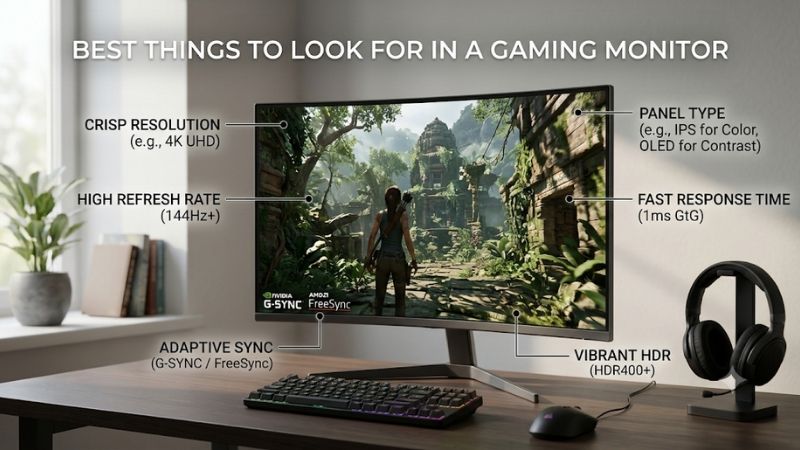
The best things to look for in a gaming monitor: start with your PC
The most important purchasing decision is matching the monitor to your gaming hardware. A 4K 240Hz monitor offers impressive specifications, but it may be an inefficient purchase if your graphics card struggles to maintain high frame rates at 4K. Similarly, a competitive player with a powerful PC may benefit more from a 240Hz or 360Hz 1080p display than from spending the same money on a slower 4K model.
Here is the priority order most buyers should follow:
| Feature | What to check | Why it matters |
|---|---|---|
| Resolution and size | 1080p, 1440p, or 4K; physical screen size | Determines image detail and GPU workload |
| Refresh rate | 144Hz, 165Hz, 240Hz, or higher | Affects motion smoothness and display update intervals |
| Pixel response time | Actual transition performance and overshoot | Determines ghosting and motion clarity |
| Input lag | Independent measurements | Affects how quickly inputs appear on screen |
| Adaptive sync | G-SYNC, FreeSync, or Adaptive-Sync | Helps reduce tearing and inconsistent presentation |
| Panel technology | IPS, VA, OLED, or Mini LED-backed LCD | Influences contrast, colors, viewing angles, and motion |
| HDR and color | Brightness, contrast, gamut, certification | Affects visual quality in supported games |
| Connectivity and ergonomics | HDMI, DisplayPort, USB-C, stand adjustments | Determines compatibility and everyday usability |
The table is a starting point rather than a universal ranking. Competitive players should place more weight on refresh rate, pixel response, input lag, and VRR. Single-player gamers may prefer higher resolution, better contrast, and effective HDR. Someone using the same display for gaming, work, and content creation needs a more balanced specification set.
The most expensive monitor is not necessarily the best purchase. A well-balanced 1440p 165Hz display can be a better upgrade than a premium 4K model if the latter forces you to lower graphics settings or compromises the frame rates you actually want.
Resolution and screen size determine image detail
Resolution should be one of the first specifications you compare because it affects both image sharpness and GPU workload. The three most common choices for PC gaming are Full HD (1920 × 1080), QHD (2560 × 1440), and 4K UHD (3840 × 2160).
Each has a different hardware requirement and ideal screen size.
| Resolution | Approximate pixel count | Common screen sizes | Best use |
|---|---|---|---|
| 1080p | 2.07 million | 24–25 inches | Budget and competitive gaming |
| 1440p | 3.69 million | 27–32 inches | Balanced gaming and productivity |
| 4K | 8.29 million | 27–32 inches | Detailed visuals and premium gaming |
The pixel count explains why 4K demands more rendering performance. It contains four times as many pixels as 1080p, while 1440p contains approximately 78% more pixels than Full HD. These differences do not translate directly into identical percentage changes in FPS, because game engines, graphics settings, CPUs, and GPU architectures also influence performance.
1080p for affordable high-refresh gaming
Full HD remains relevant for competitive gamers who want high frame rates without placing an unnecessarily heavy rendering workload on their graphics cards.
A 24-inch 1080p monitor has approximately 92 pixels per inch (PPI). That is reasonably sharp for conventional desktop gaming, especially when sitting at a normal viewing distance.
The drawback becomes more obvious at 27 inches. The same resolution drops to approximately 82 PPI, making fine details and text look less defined. If you are buying a large display, moving to 1440p is generally worth considering.
1440p for the best overall balance
QHD is a strong middle ground for modern gaming PCs. A 27-inch 1440p monitor provides approximately 109 PPI, offering a visibly sharper desktop image than 27-inch Full HD.
It also provides more room for interface elements, detailed environments, and multitasking. You can enjoy competitive shooters at high refresh rates while retaining sufficient resolution for cinematic games.
The main consideration is GPU performance. A graphics card that comfortably handles 1080p may need lower graphics settings or upscaling to maintain the same frame rate at 1440p.
For many buyers, 27-inch 1440p is the most sensible starting point. A 32-inch QHD monitor is another option, but its approximately 93 PPI is closer to the pixel density of 24-inch Full HD.
4K for detailed graphics and premium systems
A 4K monitor displays approximately 8.29 million pixels. On a 27-inch screen, the resulting density is around 163 PPI, producing very detailed text and game visuals.
The trade-off is the additional rendering workload. To enjoy 4K at 144Hz or 240Hz, you need a graphics card capable of delivering appropriately high frame rates at the intended settings.
Upscaling technologies can help, but distinguish between native rendering and upscaled output when evaluating performance. DLSS, FSR, and XeSS can improve achievable frame rates, but they do not mean the GPU is rendering every frame natively at the monitor’s full resolution.
Choose 4K because you value image detail and have the hardware to support it, not because the resolution number is automatically superior.
Refresh rate and frame rate affect gaming smoothness
Refresh rate measures how many times a monitor can update its image each second. It is expressed in hertz (Hz). Frame rate, measured in frames per second (FPS), describes how frequently the graphics card produces new frames.
A 240Hz monitor can refresh 240 times per second, but it cannot force a PC to render 240 FPS. The experience depends on both the display and the system delivering the frames.
| Refresh rate | Time between refreshes | Typical gaming use |
|---|---|---|
| 60Hz | 16.67ms | Basic gaming |
| 120Hz | 8.33ms | Console and general gaming |
| 144Hz | 6.94ms | Affordable PC gaming |
| 165Hz | 6.06ms | Midrange competitive gaming |
| 240Hz | 4.17ms | Competitive shooters |
| 360Hz | 2.78ms | High-end esports |
| 500–600Hz | 2.00–1.67ms | Specialized competitive setups |
These intervals describe the time between refreshes, not total system latency. A faster display can reduce the time between opportunities to show a new frame, but the GPU, game engine, and monitor processing still affect the final result.
RTINGS explains that higher refresh rates can reduce the monitor’s contribution to input latency, although the gains become smaller as refresh rates increase. The theoretical frame-time difference between 60Hz and 120Hz is much larger than the difference between 240Hz and 360Hz.
Choose a refresh rate your graphics card can sustain
A high refresh-rate monitor makes the most sense when your PC can deliver corresponding frame rates in the games you actually play.
For example, someone regularly achieving 180–220 FPS in competitive shooters may benefit from a 240Hz display. A gamer whose system usually produces 80–120 FPS may get more practical value from investing in better resolution, contrast, or HDR rather than a 360Hz panel.
Do not base this decision entirely on average FPS. Look at demanding scenes, frame-time consistency, and performance during actual matches. A monitor cannot compensate for major frame-rate drops caused by an underpowered CPU, thermal throttling, or poorly optimized game settings.
Understand native and overclocked refresh rates
Some gaming monitors advertise two refresh-rate specifications. The lower figure may be the native maximum, while the higher figure is available through an overclock setting.
For example, a manufacturer might specify 165Hz native and 180Hz overclocked. The additional refresh rate may work, but it is not a guarantee that every unit, cable, graphics card, or configuration will support it without instability.
Check whether the overclock requires DisplayPort, a specific color-depth setting, or an option in the monitor’s on-screen display. Also verify that Windows actually exposes the higher refresh rate after enabling it.
Pay attention to the resolution at which the maximum refresh rate is available. Some monitors support different refresh limits at 4K, 1440p, and 1080p.
Pixel response time and input lag determine responsiveness
Refresh rate is important, but it does not tell you everything about motion quality. Two monitors rated at 240Hz can produce noticeably different results depending on how quickly their pixels transition between colors and how much processing delay the display introduces.
Gray-to-gray response time
Gray-to-gray (GtG) measures how long pixels take to change from one shade of gray to another. Manufacturers frequently advertise response times of 1ms or lower, but those figures often represent selected operating conditions rather than typical performance across every pixel transition.
A slow transition can produce ghosting, where moving objects leave visible trails. This is especially noticeable in fast shooters, racing games, and situations involving rapid camera movement.
Look for independent tests that measure multiple pixel transitions rather than relying on one manufacturer headline. RTINGS evaluates response behavior, overshoot, and motion artifacts to assess how well different monitors handle moving images.
Input lag is different from response time
Input lag measures the delay between receiving a signal and beginning to display the corresponding image. It is not the same as the time required for pixels to complete their color transitions.
A monitor can have fast pixel response but still introduce unnecessary processing delay. Conversely, a monitor with low input lag can still show distracting ghosting if its pixel transitions are slow.
For competitive games, look for independent input-lag measurements at the monitor’s native resolution and maximum refresh rate. Testing at 60Hz or 120Hz alone does not necessarily describe its behavior at 240Hz.
RTINGS uses specialized measurement equipment to record the time between a display receiving an image signal and beginning to show it. Its methodology also distinguishes the monitor’s measured latency from the minimum delay imposed by the refresh cycle.
Check overdrive and overshoot
Overdrive is a feature that pushes pixels to change colors more quickly. Manufacturers use different names, including Response Time, Over Drive, and OD.
However, maximum overdrive is not always the best choice. An excessively aggressive setting can cause overshoot, also called inverse ghosting, in which pixels move beyond their intended color before settling.
A monitor with Normal, Fast, and Extreme modes may perform best at the middle setting. The right option depends on the exact model and refresh rate.
Ideally, read independent reviews that test overdrive at both maximum refresh and lower refresh rates with VRR enabled. Some monitors have different behavior when frame rates fluctuate.
Variable refresh rate helps prevent screen tearing
Variable refresh rate (VRR) allows a compatible display to adjust its refresh timing to match the frame delivery of the graphics card.
Without VRR, a monitor refreshes at fixed intervals. If the GPU completes a frame at the wrong moment, the display may show part of one frame and part of another, creating screen tearing.
VRR helps reduce this problem by allowing the monitor to synchronize with the source’s changing frame rate.
Common gaming technologies include:
-
NVIDIA G-SYNC and G-SYNC Compatible.
-
AMD FreeSync, FreeSync Premium, and FreeSync Premium Pro.
-
VESA Adaptive-Sync.
These technologies serve a similar purpose, but certification and implementation differ. AMD explains that FreeSync uses industry standards such as DisplayPort Adaptive-Sync and can also operate through supported HDMI connections.
NVIDIA also documents support for compatible Adaptive-Sync monitors through DisplayPort on supported GeForce graphics cards, while HDMI VRR support depends on the display and connection.
Check the VRR operating range
Do not stop at finding a FreeSync or G-SYNC logo. Check the minimum and maximum refresh rates covered by the monitor’s VRR implementation.
For example, a monitor may advertise a 48–240Hz VRR range. If a game drops below the lower limit, ordinary VRR may stop operating within its supported range.
Low Framerate Compensation (LFC) can help by multiplying frames to keep the effective refresh behavior within the supported VRR range. However, the exact behavior depends on the monitor and graphics configuration.
Also confirm which inputs support VRR. Some displays offer different adaptive-sync capabilities over HDMI and DisplayPort.
If you regularly experience frame-rate fluctuations, prioritize a monitor with reliable VRR over a slightly higher maximum refresh rate that your graphics card cannot consistently use.
Panel technology changes contrast, colors, and viewing angles
Panel type influences how a monitor looks beyond its resolution and refresh rate. The three main categories buyers encounter are IPS, VA, and OLED.
None is automatically the best choice for every gamer. Each has strengths and limitations that become more obvious in particular games and viewing environments.
| Panel type | Main advantage | Main limitation | Best for |
|---|---|---|---|
| IPS | Wide viewing angles and balanced colors | Relatively low native contrast | Competitive and mixed-use gaming |
| VA | Higher LCD contrast | Potentially slower dark transitions | Dark-room and cinematic gaming |
| OLED | Excellent blacks and pixel response | Burn-in risk and higher cost | Premium visual experiences |
IPS for competitive and all-around gaming
IPS monitors are popular because they combine relatively wide viewing angles with consistent color reproduction. They are available across a wide range of prices, resolutions, and refresh rates.
Modern Fast IPS displays can provide excellent gaming performance, making them attractive for competitive shooters and everyday use. They also tend to offer better text clarity than many OLED monitors at comparable pixel densities.
Their main weakness is contrast. Blacks can appear gray in a dark room, particularly when the display has limited backlight control.
Choose IPS if you want a versatile monitor for multiplayer games, general productivity, and mixed workloads. It is often the most straightforward option for buyers who do not need premium HDR or OLED contrast.
VA for deeper blacks and immersive games
Vertical Alignment (VA) panels generally provide higher native contrast than IPS LCD displays. That can make dark environments and shadow-heavy scenes look more convincing.
VA is particularly appealing for single-player games, horror titles, and curved ultrawide displays. The stronger contrast can provide a more immersive picture without necessarily paying for OLED.
The main concern is motion performance. Some VA panels have slower dark transitions, producing black smearing behind fast-moving objects. This varies between models, so independent response-time testing is important.
Choose VA if you prioritize contrast and immersive visuals over the absolute best motion handling.
OLED for contrast and exceptionally fast pixel response
OLED displays use self-emissive pixels rather than a traditional LCD panel with a backlight. Individual pixels can turn off completely, producing deep blacks and excellent contrast.
OLED also offers extremely fast pixel transitions. This helps reduce motion trails, making high-refresh OLED monitors appealing for both competitive and cinematic gaming.
However, there are trade-offs. OLED monitors can cost more, and prolonged exposure to static interface elements can create a risk of permanent image retention or burn-in. Text clarity can also differ depending on the subpixel layout.
Some OLED displays experience VRR flicker when frame rates fluctuate significantly, particularly in darker scenes. Buyers should also examine the exact manufacturer’s warranty and whether it explicitly covers burn-in.
OLED is attractive for players who prioritize visual quality, but IPS or VA may be a more practical choice for a workstation that displays static windows throughout the day.
HDR, brightness, and color quality deserve attention
HDR can improve supported games by displaying brighter highlights, richer colors, and greater contrast between bright and dark areas. However, a monitor advertising HDR10 is not automatically a good HDR display.
HDR10 describes an HDR signal format. It does not independently certify the monitor’s ability to reproduce convincing HDR images.
Look for meaningful VESA DisplayHDR certification
VESA’s DisplayHDR program establishes measurable performance requirements for certified displays. Its certification tiers include DisplayHDR 400, 500, 600, 1000, and 1400, alongside DisplayHDR True Black categories.
The criteria cover more than peak brightness. They include full-screen brightness behavior, color reproduction, black levels, and other image-performance measurements.
DisplayHDR 400 is an entry-level certification. It can be useful as a minimum reference, but it should not be treated as evidence of premium HDR performance. A good HDR gaming monitor benefits from strong contrast and effective local dimming, not just a short-lived brightness peak.
Mini LED backlighting can improve LCD HDR performance by controlling multiple zones of backlight illumination. However, the number of zones, brightness behavior, and visible blooming still differ between models.
Check color gamut and color accuracy separately
Color gamut describes the range of colors a monitor can reproduce. Common specifications include sRGB, DCI-P3, and Adobe RGB coverage.
Color accuracy describes how closely the displayed colors match their intended values. A monitor can have a wide gamut without displaying every color accurately.
For general gaming, a wide color gamut can make supported content look more vibrant. For photo editing, video production, and design work, calibration and accurate color modes become more important.
If you work with color-sensitive content, look for independent calibration measurements and the availability of a useful sRGB mode. Do not assume that a claim such as 99% DCI-P3 guarantees professional color accuracy.
Connectivity determines which display modes you can use
A gaming monitor can have excellent specifications and still become a poor purchase if its inputs cannot support the resolution, refresh rate, and color depth you need.
DisplayPort and HDMI are the main connections to examine.
DisplayPort is commonly used for high-refresh PC gaming. The DisplayPort 2.1b standard supports higher bandwidth modes through Ultra-high Bit Rate (UHBR) implementations, with maximum payload bandwidth reaching 77.37Gbps. However, a DisplayPort version label alone does not guarantee that every UHBR rate is supported by a particular product.
HDMI is particularly important when connecting gaming consoles, TVs, and PCs to the same display. HDMI 2.1 features include VRR and Auto Low Latency Mode, while the newer HDMI 2.2 specification increases maximum bandwidth to 96Gbps. Actual supported features depend on the exact monitor and input configuration.
Before buying, check:
-
The maximum resolution and refresh rate supported by each input.
-
Whether VRR works through HDMI, DisplayPort, or both.
-
Whether DSC is required for particular high-resolution modes.
-
Supported color depth and chroma formats.
-
Whether USB-C supports video output and how much Power Delivery it supplies.
-
Whether a KVM switch, USB hub, or headphone output is included.
A USB-C connector does not automatically provide video or laptop charging. Verify its specific DisplayPort Alt Mode and Power Delivery capabilities.
Likewise, do not assume that a monitor with an HDMI 2.1 label automatically supports every HDMI 2.1 feature. The manufacturer’s timing and compatibility tables are more useful than the version number alone.
Screen shape, ergonomics, and desk space affect everyday use
Monitor size is not just a question of visual preference. You need enough desk depth and width to position the screen comfortably.
A 24-inch monitor works well on a compact desk and suits competitive gaming. A 27-inch display provides a more expansive view while remaining manageable for most desktop setups. A 32-inch monitor or ultrawide display requires more space and may be better suited to larger desks.
Curved monitors can make ultrawide screens feel more immersive by bringing their edges closer to the viewing position. However, a curve does not improve resolution, refresh rate, or response time.
Aspect ratio is also important. Standard 16:9 displays offer broad game compatibility. Ultrawide 21:9 and 32:9 monitors provide additional horizontal space, but some games may not support the full aspect ratio correctly or may restrict the field of view in competitive modes.
Ergonomics deserve similar attention. A height-adjustable stand, tilt, swivel, and pivot options make positioning easier. A VESA-compatible mounting pattern gives you the option to install a monitor arm later.
The US Occupational Safety and Health Administration recommends positioning a monitor directly in front of the user, with the top of the screen at or slightly below eye level. Its workstation guidance also discusses viewing distance, glare, and screen angle.
Check the stand’s footprint and adjustment range before ordering. A monitor that fits the desk but cannot be positioned properly may become frustrating during long gaming sessions.
How to prioritize the best things to look for in a gaming monitor
A useful buying strategy is to prioritize features according to your actual gaming habits rather than trying to maximize every specification.
For competitive FPS and esports
Prioritize a high refresh rate, fast pixel response, low input lag, and reliable VRR. A 24- to 27-inch Full HD or QHD display with 240Hz can be a practical choice, depending on your graphics card.
Do not pay a premium for 4K if doing so substantially reduces your frame rate. Competitive gaming benefits from responsive, consistent motion more than from an unnecessarily demanding resolution.
For cinematic and single-player games
Prioritize resolution, contrast, HDR quality, and color reproduction. A 27-inch 1440p or 32-inch 4K display can provide a more detailed image than a budget Full HD model.
OLED is particularly attractive for dark environments and cinematic games. A quality Mini LED monitor is another option when you want strong HDR brightness without choosing OLED.
For mixed gaming and productivity
Consider a 27-inch 1440p IPS monitor or a 32-inch 4K display. These configurations provide useful desktop space, reasonably sharp text, and enough refresh-rate options for gaming.
Pay attention to USB-C connectivity, charging power, adjustable stands, and color calibration if you also use the monitor for editing, streaming, or office work.
For a limited budget
Spend money on the features you will actually use. A good 144Hz or 165Hz IPS monitor with low input lag and reliable VRR is a better purchase than a cheap display advertising 300Hz with poor motion handling.
It is also worth checking previous-generation models. A discounted monitor with independently verified performance can offer more practical value than a newer model with features your PC cannot use.
Frequently asked questions
Is 144Hz enough for gaming?
Yes. A 144Hz display is a substantial upgrade over a conventional 60Hz monitor and is suitable for many competitive and casual games. Higher refresh rates are useful when your PC can consistently produce more frames, but they are not essential for every player.
Is 1440p better than 4K for gaming?
Neither is universally better. A 1440p monitor is generally easier to drive at high frame rates and offers a good balance between sharpness and performance. A 4K monitor provides more image detail but requires substantially more GPU rendering performance.
Is IPS or OLED better for gaming?
OLED generally provides stronger contrast, deeper blacks, and faster pixel transitions. IPS is usually more affordable, offers good viewing angles, and avoids OLED-specific burn-in concerns. Choose according to your budget, games, and everyday usage.
Do I need G-SYNC or FreeSync?
VRR is useful when your frame rate fluctuates because it helps synchronize the monitor with GPU output. You do not necessarily need an expensive proprietary G-SYNC module. A compatible FreeSync or VESA Adaptive-Sync monitor can also provide a good experience, provided it works with your graphics card.
Is a 1ms response time important?
Fast pixel transitions are useful for reducing ghosting, but an advertised 1ms response time is not enough to establish actual motion performance. Check independent response-time and overshoot measurements at the refresh rates you intend to use.
Should I buy a curved gaming monitor?
A curved display can improve immersion on large ultrawide screens by bringing the edges closer to your viewing position. It is not necessary for conventional 24- or 27-inch gaming monitors, and a curved panel does not automatically offer better image quality.
Final verdict
The most important monitor features are resolution, screen size, refresh rate, pixel response, input lag, VRR, panel technology, HDR quality, connectivity, and ergonomics. The right combination depends on your PC hardware and the games you enjoy.
For most desktop gamers, a 27-inch 1440p monitor with a 144Hz–180Hz refresh rate, good measured response times, and adaptive sync is an excellent starting point. Competitive players can prioritize 240Hz or higher, while cinematic gamers may prefer OLED or Mini LED with stronger HDR performance.
Do not buy a monitor based on one impressive specification. Evaluate how its resolution, refresh rate, panel, connections, and real-world performance work together. That approach will help you spend your budget on improvements you can actually see and use.









