
The best gaming monitor over 40 inches should fit your games, viewing distance, and graphics card. A tall 42-inch 4K screen serves a different purpose than a wide 49-inch OLED. These six picks explain the differences, helping you choose useful immersion without sacrificing readable text, desk space, or realistic performance.
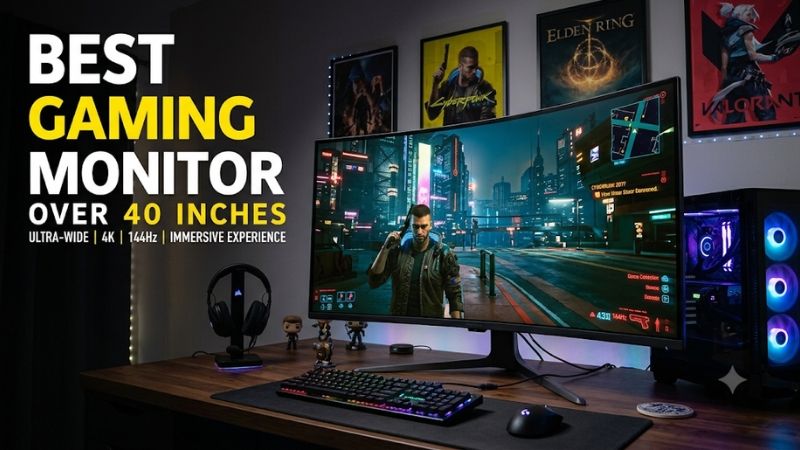
Which best gaming monitor over 40 inches should you buy?
Choose the LG 45GX950A-B for a high-resolution OLED ultrawide, the ASUS PG42UQ for a conventional 4K OLED layout, or the Samsung Odyssey Neo G9 G95NC for an expansive LCD workspace. Your preferred aspect ratio should narrow the choice before refresh rate or advertised response time does.
The Samsung Odyssey OLED G9 G95SC suits wide-format PC gaming with a less demanding resolution than the 57-inch Neo G9. The Corsair XENEON FLEX 45WQHD240 prioritizes adjustable curvature and 240Hz gaming. The Gigabyte AORUS FV43U is the large 16:9 LCD alternative for buyers who want to avoid OLED ownership considerations.
There is no universal winner across these formats. A 49-inch 32:9 panel is not simply a larger version of a 43-inch 16:9 display: it spreads its diagonal across a much wider, shorter image. Pick for the games and workspace you actually use rather than the largest number printed on the box.
Quick comparison of the six large gaming monitors
Every selection exceeds 40 inches, including the ASUS model’s actual 41.5-inch panel. The comparison separates screen shape, resolution, and maximum refresh so that unlike products are not mistaken for direct substitutes. Refresh specifications describe supported display modes, not frame rates your computer is guaranteed to deliver.
| Exact model | Size and format | Native resolution | Maximum refresh | Best fit | Main compromise |
|---|---|---|---|---|---|
| LG UltraGear 45GX950A-B | 44.5-inch, 21:9 OLED | 5120 × 2160 | 165Hz native resolution; 330Hz lower-resolution mode | Detailed ultrawide gaming | High rendering demand and strong 800R curve |
| ASUS ROG Swift OLED PG42UQ | 41.5-inch, 16:9 OLED | 3840 × 2160 | 120Hz base; up to 138Hz overclocked | Large conventional 4K setup | Needs viewing depth; OLED care matters |
| Samsung Odyssey Neo G9 G95NC | 57-inch, 32:9 Mini LED LCD | 7680 × 2160 | 240Hz with compatible source configuration | Simulators and extensive desktop space | Exceptional width and demanding signal requirements |
| Samsung Odyssey OLED G9 G95SC | 49-inch, 32:9 QD-OLED | 5120 × 1440 | 240Hz | Panoramic PC gaming | Limited vertical resolution versus 2160-line options |
| Corsair XENEON FLEX 45WQHD240 | 45-inch, 21:9 OLED | 3440 × 1440 | 240Hz | Adjustable curvature and immersive gaming | Low pixel density for close text work |
| Gigabyte AORUS FV43U | 43-inch, 16:9 VA LCD | 3840 × 2160 | 144Hz PC; 120Hz console | Large LCD gaming and mixed use | HDR specification does not establish precise local contrast |
How these monitors were selected
This is a research-based buying guide using manufacturer specifications and published documentation, without original detailed research. Each selection has a genuine gaming purpose and a panel larger than 40 inches. Different categories reflect practical fit rather than a measured ranking of response times, input lag, or HDR performance.
The shortlist includes both conventional and ultrawide formats because the query does not specify an aspect ratio. Productivity-first 60Hz displays and models below the size threshold were excluded. Gaming televisions can also work at a desk, but this comparison concentrates on products marketed as computer gaming monitors.
Current US prices, shipping, taxes, and exact retailer stock were not verified across all six models. Therefore, no display receives a cheapest or best-value label. Several are established designs, so compare their actual offers against newer alternatives and confirm the exact model before buying remaining inventory or refurbished stock.
Large gaming monitor recommendations
Start with screen shape, then decide how much resolution and panel maintenance you want. The product sections explain why each model belongs on the shortlist and where its defining feature becomes a disadvantage. Buying a specialist display works best when you already know which problem it solves.
LG 45GX950A-B: For detailed OLED ultrawide gaming
The LG 45GX950A-B combines a 44.5-inch OLED panel, 5120 × 2160 resolution, and a pronounced 800R curve. Its native-resolution refresh reaches 165Hz, with a separate lower-resolution 330Hz mode. This is the choice for players who want a large ultrawide without settling for 1440 vertical pixels.
Its additional pixels matter for fine game detail and desktop layouts. Compared with a similarly sized 3440 × 1440 display, it offers a much denser image rather than simply enlarging the same information. Text rendering still depends on scaling, application behavior, and OLED subpixel characteristics; resolution alone does not guarantee identical results to an LCD.
The trade-off is graphics workload. Its native image contains roughly one-third more pixels than ordinary 4K, so matched game settings can be demanding. Upscaling or selective settings reductions may be necessary. The 330Hz mode exchanges detail for speed and should never be described as 330Hz at native 5120 × 2160.
Buy if your PC and games justify a detailed 21:9 OLED. Skip if you prefer a flat screen or mainly use a console. Compare the Corsair for adjustable curvature and lower native rendering demand, or the ASUS if a conventional 16:9 image better matches your content.
ASUS PG42UQ: For a large conventional 4K OLED
The ROG Swift OLED PG42UQ uses a 41.5-inch 3840 × 2160 panel in a familiar 16:9 format. Its 120Hz base refresh can be overclocked up to 138Hz. It suits players who want a large OLED without ultrawide compatibility questions or a superwide desktop stretching far beyond the central view.
A 16:9 image makes this format straightforward for console games, ordinary video, and PC titles designed around conventional screens. OLED’s per-pixel light control also makes dark scenes appealing: illuminated objects can appear against black backgrounds without depending on shared backlight zones. That benefit is separate from the refresh overclock.
Its physical height is the challenge. On a shallow desk, menus and interface elements near the corners can require frequent eye or head movement. The anti-glare surface is useful context, but it cannot replace sensible placement away from strong reflections. Measure your seated eye position before assuming that a monitor arm will solve every fit problem.
Buy if you want a substantial 4K OLED for varied gaming. Skip if your normal seating position is very close or your day is dominated by fixed desktop layouts. Compare the FV43U for an LCD alternative. Use the ASUS manual’s input-specific timing limits rather than assuming every port and VRR mode supports 138Hz.
Samsung Odyssey Neo G9 G95NC: For a panoramic LCD setup
The 57-inch Odyssey Neo G9 G95NC uses a 7680 × 2160, 32:9 LCD panel with Mini LED backlighting and a 240Hz maximum refresh specification. Its resolution is equivalent to two 4K images side by side. Choose it for an extensive workspace or supported simulation games, not simply because it is the biggest option.
The height and pixel count distinguish it from 49-inch 5120 × 1440 superultrawides. You gain substantial vertical information as well as width, useful for detailed application windows and expansive game views. However, a single continuous panel does not automatically behave like independent monitors when sharing screens or maximizing applications.
The signal path needs careful checking. Samsung specifies source-interface requirements for full dual-UHD 240Hz operation; a generic DisplayPort 2.1 label on a graphics card is not enough information. Verify the card’s actual link capabilities, supported timing, driver behavior, and cable. Even a working 240Hz signal does not mean demanding games will render 240fps.
Buy if you have a large desk and a concrete use for dual-UHD width. Skip if you mainly play console games or cannot validate your source configuration. Compare the OLED G9 for lower rendering demand. Mini LED local dimming can improve LCD contrast, but its zones do not provide OLED’s individual-pixel control.
Samsung Odyssey OLED G9 G95SC: For wide-format PC gaming
The 49-inch Odyssey OLED G9 G95SC combines a 5120 × 1440 QD-OLED panel, 32:9 shape, 1800R curve, and 240Hz refresh. It suits PC players seeking a panoramic view with fewer pixels to render than the dual-UHD Neo G9. Confirm the G95SC designation because other OLED G9 versions are separate products.
Its wide canvas can be compelling in racing games, supported adventures, and other titles that genuinely expand the field of view. Compatibility remains game-specific: some titles constrain their interface or cutscenes, and competitive games may limit ultrawide presentation. Check your actual library before treating every extra inch as usable gameplay space.
The compromise is vertical resolution and physical shape. A 49-inch diagonal sounds enormous, yet the image remains relatively short because it is so wide. People seeking larger vertical game interfaces or more lines in documents may prefer the LG’s 2160-line format. OLED also needs consideration when persistent toolbars occupy the same areas every day.
Buy if 32:9 gaming is the goal and your favorite titles support it. Skip if conventional video, consoles, or tall application windows dominate your use. Compare the Neo G9 for substantially more vertical detail, or the LG for a less extreme aspect ratio with OLED contrast.
Corsair XENEON FLEX 45WQHD240: For adjustable curvature
The XENEON FLEX 45WQHD240 is a 45-inch, 3440 × 1440 OLED with a 240Hz refresh rate. Its distinctive feature is a panel that adjusts from flat to an 800R curve. It fits buyers who want different screen shapes for different tasks rather than committing permanently to one curvature.
For example, a flatter presentation may suit desktop layouts, while a stronger curve can bring the edges into a more enveloping gaming view. Adjustment is a physical process, so follow Corsair’s handling instructions and provide adequate clearance. Do not assume every desk arrangement allows convenient access to its adjustment handles.
The central compromise is pixel density. Spreading 3440 × 1440 across 45 inches creates a visibly coarser desktop than the LG’s higher-resolution panel. Small text and fine interface elements deserve particular scrutiny during the return period. The lower native pixel count can ease rendering demand, but that advantage does not restore missing image detail.
Buy if adjustable curvature and large-format gaming matter more than crisp close-up text. Skip if spreadsheets, coding, or detailed document work dominate your day. Compare the LG for resolution, and check the Corsair’s integrated stand and available mounting arrangements before planning a monitor-arm installation.
Gigabyte AORUS FV43U: For a large 16:9 LCD
The AORUS FV43U uses a 43-inch 4K VA LCD panel with a 144Hz maximum refresh rate. Gigabyte documents 120Hz console operation and HDMI 2.1 connectivity with specific signal qualifications. It belongs here as a conventional large-screen LCD alternative for buyers who prefer to avoid OLED burn-in considerations.
Its shape suits ordinary games and video without requiring ultrawide support. A large 4K desktop can also accommodate multiple application windows, although the viewing distance still determines whether small text is comfortable. This is closer to placing a television-sized surface on a desk than upgrading to another ordinary desktop monitor.
Do not equate its DisplayHDR 1000 designation with the Neo G9’s Mini LED system or an OLED’s pixel-level blacks. Peak brightness and local contrast describe different parts of HDR performance. Likewise, Gigabyte’s HDMI specifications qualify high-refresh color handling; check the exact combination needed rather than assuming unrestricted 4K/144Hz operation from every source.
Buy if you want a large flat LCD and the current offer is attractive. Skip if precision dark-room HDR is your primary goal or the size forces an uncomfortable seating position. Compare the ASUS for OLED contrast. Check exact stock condition and warranty eligibility carefully when considering an older model.
How to choose the best gaming monitor over 40 inches
The right purchase should improve immersion without making your desk or computer harder to use. Treat aspect ratio, pixel density, supported signals, and mounting as linked decisions. A display can meet every headline specification yet remain a poor fit when your normal seating position or favorite games conflict with its design.
Compare physical shape before diagonal size
Diagonal measurements hide major differences in height and width. A 16:9 screen allocates more of its diagonal to height, while a 32:9 model spreads farther sideways. That changes where interfaces sit, how much of the image fits your central view, and how much desk space remains for speakers or accessories.
Tape out the manufacturer’s width and stand footprint on your desk before ordering. Also check depth: curved screens and large feet can consume more usable space than a front-view photo suggests. If you cannot move the panel back far enough to see its edges comfortably, a smaller display may deliver the better experience.
Use pixel density to judge text clarity
Resolution and size work together. Calculated from nominal diagonal sizes and native resolutions, the Corsair is about 83 pixels per inch, the FV43U about 102, the ASUS about 106, the OLED G9 about 109, the LG about 125, and the Neo G9 about 140. These are approximate geometry figures, not measured text-quality scores.
Higher density generally preserves finer detail at a given distance, but scaling and subpixel arrangement also matter. A productivity buyer should inspect actual text in familiar applications. A simulation player sitting farther back may accept a coarser image in exchange for a larger view and lower graphics workload.
Budget for pixels and the complete signal path
The Neo G9’s native image contains about 16.6 million pixels, compared with approximately 11.1 million on the LG and 8.3 million at standard 4K. The OLED G9 uses about 7.4 million, while the Corsair uses about 5 million. Those counts explain workload differences without predicting any particular game’s frame rate.
Check graphics-card outputs before buying, including the resolution-refresh combination supported by the monitor input. Docks, adapters, switches, and capture devices can introduce additional limits. Start with a direct connection, then verify refresh rate and VRR in the operating system and monitor information screen before adding other equipment.
Match OLED and LCD to your everyday routine
OLED makes sense when dark scenes and precise light control are priorities. LCD is easier to consider for long periods with static application layouts. OLED care routines can reduce burn-in risk, but they do not eliminate it; choose based on cumulative usage rather than assuming that a screensaver solves every concern.
HDR comparisons also need context. A bright highlight specification does not tell you how a full bright scene behaves or how much blooming appears around small objects. Without matched independent measurements, treat technology and specifications as selection clues rather than proof that one monitor wins every HDR scenario.
Check mounting, returns, and ownership costs
A monitor arm must support the exact screen weight, VESA pattern, and any adapter requirements. Size alone is not a load rating. Large curved displays can also stress an arm differently from a small flat panel, so follow the arm manufacturer’s compatibility guidance and confirm that the desk can accept the clamp.
Include any stand, arm, stronger desk, audio equipment, and necessary cable in your real budget. Check the current US warranty and return conditions for the exact seller and purchase condition. Confirm burn-in coverage separately for OLED models, and retain packaging until you have tested the screen in your actual setup.
Frequently asked questions
These final checks help distinguish useful screen area from a specification that sounds impressive but does little for your setup. Before upgrading, compare your current monitor against the limitation you want to fix. Clearer text, a wider game view, and a taller image require different solutions.
Is a screen over 40 inches too big for competitive gaming?
It can be if you must constantly scan distant corners. Competitive players often benefit more from an easily surveyed image than maximum screen area. A large monitor may still work with suitable seating distance or a smaller supported display mode, but do not assume immersion automatically improves awareness or reaction speed.
Should console players choose a superultrawide?
Usually, a 16:9 display is the simpler choice. PS5 and Xbox Series consoles do not provide native 21:9 or 32:9 gameplay output. Correct aspect-ratio handling leaves unused space on ultrawides, while stretching distorts the image. Confirm console-specific HDMI, VRR, and HDR support separately before purchasing any model.
Is 1440p enough at 45 inches?
It depends on distance and workload. The Corsair’s 3440 × 1440 image can suit immersive gaming, but close desktop text is coarser than on a similarly sized higher-resolution panel. The LG offers a substantial resolution increase for mixed use, at the cost of a heavier rendering workload.
Conclusion
Choose the LG 45GX950A-B for detailed OLED ultrawide gaming, the ASUS PG42UQ for a conventional large 4K OLED, or the Neo G9 G95NC for an expansive dual-UHD LCD setup. The OLED G9, Corsair XENEON FLEX, and FV43U serve panoramic gaming, adjustable curvature, and large LCD use respectively. Measure your desk, verify source compatibility, and choose the format that solves your actual viewing problem.









