A Samsung T7 can work as external USB extended storage on a PlayStation 5 after the console detects and formats it. Its USB 3.2 Gen 2 interface exceeds Sony’s minimum connection speed, and the T7’s 500GB, 1TB, 2TB and 4TB capacities sit within the PS5’s supported range. There is one major limitation: PS4 games can run directly from the T7, but PS5 games stored there must be copied back to console or compatible M.2 storage before you can play them. Here is how to connect the drive, format it safely and avoid common compatibility problems.
- Is Samsung T7 SSD compatible with PS5?
- What the PS5 can do with a Samsung T7
- Check the T7 capacity and cable before connecting
- Use a SuperSpeed USB port on your PS5
- How to format the Samsung T7 for PS5
- Install and play PS4 games from the T7
- Move PS5 games to the T7 and copy them back
- Is Samsung T7 SSD compatible with PS5 when password protection is enabled?
- Troubleshoot a Samsung T7 that the PS5 does not recognize
- Safely disconnect the T7 and reuse it with a computer
- Is the Samsung T7 a good external drive for PS5 owners?
- Frequently asked questions
- Final verdict
Is Samsung T7 SSD compatible with PS5?
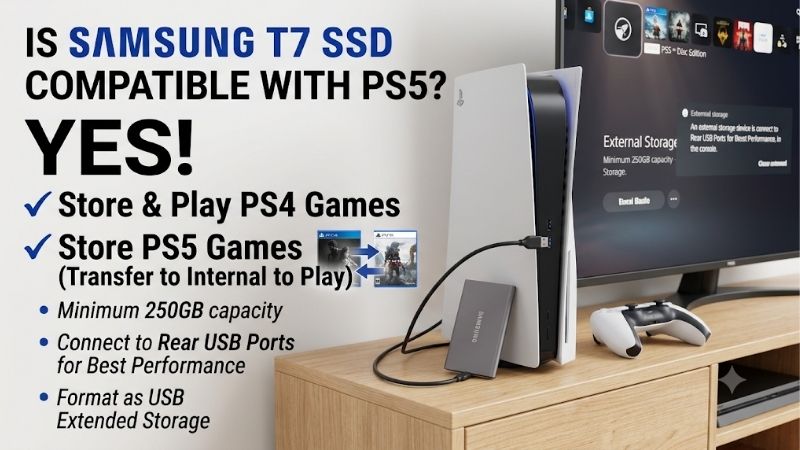
Yes, the standard Samsung Portable SSD T7 meets the PS5’s published USB extended-storage speed and capacity requirements. The T7 uses USB 3.2 Gen 2 at 10Gbps. Sony requires a SuperSpeed USB drive rated for at least 5Gbps and a capacity between 250GB and 8TB. A standard T7 in one of its supported capacities clears both thresholds.
That is a standards-based assessment, not a guarantee for every T7 unit or PS5. Sony warns that not all USB storage devices are guaranteed to work, and does not publish a model-by-model list naming every T7 revision. Samsung describes the T7 as compatible with gaming consoles but says host-device support can vary. The T7 should work as extended storage, but your console must detect and format the specific drive.
This guide covers the standard Samsung Portable SSD T7, not every similarly named model. The T7 Touch adds fingerprint security, while the T7 Shield has a ruggedized enclosure, so check the label before following instructions. Samsung’s current US range includes 1TB, 2TB and 4TB standard T7 options; its manual also documents an earlier 500GB model. All fit Sony’s capacity limits.
The T7 is an external USB drive, not an M.2 expansion SSD. It cannot be installed in the PS5’s internal expansion slot or used to launch PS5 games directly. Think of it as a place to keep PS4 games ready to play and PS5 installations available for later transfer, rather than a replacement for the console’s internal storage.
What the PS5 can do with a Samsung T7
“Compatible” can mean that the console detects a drive, formats it, stores games on it or launches games from it. Those are separate capabilities. Once formatted as USB extended storage, the T7 supports the following uses:
| Content or task | PS5 behavior with USB extended storage |
|---|---|
| PS4 games | Store, install and play directly from the T7 |
| PS5 games | Move installed game data to the T7; copy it back before playing |
| PS5 saved data | Not stored on USB extended storage |
| General PC files | Not available as a shared file volume after PS5 formatting |
PS4 games are the straightforward use case. You can set USB extended storage as the installation location for eligible PS4 games, then launch them while the T7 remains connected. That leaves more of the console’s internal SSD available for PS5 titles. Individual PS4 game compatibility is still determined by the game and Sony’s backward-compatibility support.
PS5 games follow a different rule. You can move an installed title to the T7 when you are finished playing it or need room on the internal drive. The game data stays on the external drive, but the title cannot launch from there. When you want to play again, copy it back to console storage or a compatible internal M.2 SSD. Keeping a local copy can be more convenient than downloading the full game again, but transfer time depends on the installation size and system conditions.
Saved progress is separate from installed game data. Moving a PS5 game to the T7 does not move its save file; Sony manages PS5 saves separately, including through PlayStation Plus cloud storage. A PS5-formatted T7 is also not a general-purpose file drive for moving documents or music between a console and computer.
Check the T7 capacity and cable before connecting
Check the label on the drive or its packaging. A 500GB T7, where available, meets Sony’s 250GB minimum; 1TB, 2TB and 4TB versions also fit under the 8TB maximum. More capacity lets you keep more installations on hand, but it does not change the rule that PS5 games must be copied back before play.
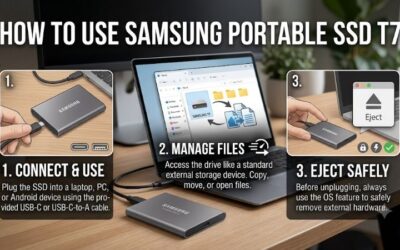
Samsung includes a USB-C-to-A cable and a USB-C-to-C cable with the T7. The supplied USB-C-to-A cable is usually the simplest option: connect its USB-C end to the SSD and the USB-A end to a SuperSpeed USB-A port on the PS5. Use the original cable where possible. A cable that only supports charging, an unstable adapter or a hub can interfere with detection.
Samsung rates the T7 for sequential reads up to 1,050MB/s and writes up to 1,000MB/s. Those are manufacturer ratings, not PS5 game-loading results. Actual performance depends on the console, port, game workload and transfer direction; do not use the figures to predict a loading time.
Use a SuperSpeed USB port on your PS5
The PS5 has ports with different speeds. Sony’s port guide identifies the rear USB-A connections as SuperSpeed USB 10Gbps on the model groups it documents. The front layout varies. Original CFI-1000 consoles have a front USB-A Hi-Speed port and a front USB-C SuperSpeed 10Gbps port. CFI-2000 and CFI-7000 models have two front USB-C ports, one Hi-Speed and one SuperSpeed 10Gbps.
For a simple setup, connect the T7 to a rear USB-A port with the included cable. Avoid the front USB-A port on an original PS5; it is Hi-Speed, not SuperSpeed. On newer models, the two front USB-C ports have different speeds.
Connect the T7 directly to the console, not through a USB hub. Sony says extended storage cannot be used through a hub and only one USB extended-storage drive can be active at a time. Other USB accessories can remain connected, but do not expect two external drives to operate as simultaneous extended-storage volumes.
How to format the Samsung T7 for PS5
The PS5 must format a new T7 as USB extended storage before you can use it for games. You do not need to create a partition in Windows, install Samsung Magician or manually select NTFS or exFAT first.
Back up the contents of the T7 before starting. Samsung normally ships the drive formatted as exFAT for computer use, but formatting it for PS5 erases the data already on it. Sony warns that data erased during formatting cannot be recovered. Copy documents, photos or any other files you need to a separate drive and verify that the backup opens.
Use this sequence:
-
Back up the T7’s files and confirm the backup is readable.
-
If Samsung’s optional password-based Security Mode is enabled, connect the drive to a supported computer and turn that mode off with Samsung Portable SSD software. The PS5 cannot run Samsung’s unlock application.
-
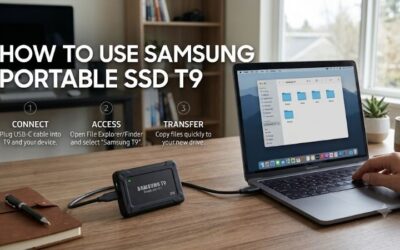
Connect the T7 directly to a SuperSpeed port, preferably a rear USB-A port using the supplied USB-C-to-A cable.
-
On the PS5, open Settings, then Storage.
-
Select USB Extended Storage and choose Format as USB Extended Storage.
-
Check that the correct external drive is selected, then confirm.
-
Keep the drive connected and do not turn off the console until formatting is complete.
The T7 should then appear in the PS5 storage menu as USB extended storage. The console manages the drive’s format from that point. You should not expect to browse the installed games on a Windows PC or Mac as ordinary exFAT files. To return the T7 to computer use later, safely remove it and format it as exFAT; that erases the PS5 game installations.
A format prompt is destructive, not a harmless test. Cancel it until you have a verified backup and have confirmed that the correct drive is selected.
Install and play PS4 games from the T7
After formatting, you can set the T7 as the installation location for PS4 games. On PS5, open Settings and find Installation Location. Select USB Extended Storage for PS4 Games if that option appears in your system software. This changes where eligible PS4 installations are directed; it does not make PS5 games playable externally or move PS5 save files.
To move an existing PS4 title, open Game Library, highlight the game, press the controller’s Options button, and select Move Games and Apps. Choose the eligible items to move to USB extended storage, then confirm. Menu labels may vary slightly after system software updates, so follow the current on-screen wording.
Leave the T7 connected while playing a game installed on it. If it disconnects, the console may show the game as unavailable until the drive is reconnected.
Move PS5 games to the T7 and copy them back
The T7 is useful as an archive for PS5 games you do not need every day. Moving an installation off the internal drive frees space while keeping the game data available for a later transfer.
To archive an installed PS5 game, open Game Library, highlight the title, press Options and choose Move Games and Apps. Select the game data eligible for USB extended storage and confirm Move. If your console also has an internal M.2 SSD, pay attention to the destination tabs so you select the external T7.
To play the archived game, find it in Game Library under USB Extended Storage. Highlight it, press Options and choose Copy. Select the console storage or compatible M.2 destination, then wait for the transfer to finish before launching the game. The T7 stores the installation, but the PS5 still requires PS5 games to run from console storage or supported M.2 storage.
If your main goal is to install and launch more PS5 games without copying them back and forth, research an internal M.2 NVMe SSD that meets Sony’s separate requirements. A portable USB SSD is not a substitute, regardless of its advertised sequential speed.
Is Samsung T7 SSD compatible with PS5 when password protection is enabled?
The PS5 may detect the T7, but Samsung’s optional password-based Security Mode can prevent the console from accessing the protected data. Samsung explains that a locked drive needs its Portable SSD software and password-unlock process. Its manual warns that devices outside supported computer and mobile environments may not be able to enter the password. A PS5 cannot run the desktop unlock application.
If Security Mode is on, connect the T7 to a supported Windows PC or Mac first. Use Samsung Portable SSD software to unlock the drive, open its settings and switch Security Mode off. You must know the password to change that setting. Do not try to solve a locked-drive problem by formatting the SSD if you need its contents: formatting erases the data, and Samsung warns that a forgotten password can require a factory reset that also erases stored files.
The standard T7 can be used without password-based Security Mode. That is the simpler configuration for a drive dedicated to a console. If you need password protection for personal files, keep a separate protected copy on another device rather than expecting the PS5 to unlock the T7 at startup.
Troubleshoot a Samsung T7 that the PS5 does not recognize
If the T7 is missing from USB Extended Storage, check the connection before changing partitions or formatting it on a computer.
First, connect it directly to a rear SuperSpeed USB-A port. Make sure both cable ends are fully seated, and test with the supplied Samsung USB-C-to-A cable rather than an adapter, hub or extension. If the drive is plugged into the front USB-A port on an original PS5, move it to a SuperSpeed port. A port can provide power but still be the wrong speed for extended storage.
Next, check for Security Mode. If a computer shows only a small setup partition or asks for a password, unlock the T7 with Samsung software on a supported PC or Mac and disable Security Mode before trying the PS5 again. Do not initialize the drive or erase the small partition unless you have a backup and understand that the process can destroy the data.
If the console detects the T7 but will not format it, verify its capacity and port speed. Disconnect other USB extended-storage drives while testing, then safely remove and reconnect the T7.
If the format fails repeatedly or the drive disconnects, test it on a computer. Check whether the full capacity appears and whether the cable remains stable. Samsung’s manual recommends a secure connection and the included cable, noting that some third-party cables can prevent recognition. If the T7 is also unreliable on a computer, contact Samsung support. If it works normally on the computer but not on the PS5 after the port, cable, capacity and password checks, remember that Sony does not guarantee every USB drive. No setting can force the console to accept a device it does not support.
Do not unplug the T7 while formatting or moving game data. If the console displays a repair or improper-disconnection message, let its recovery process finish. Repeatedly unplugging the drive to force detection can turn a connection issue into a data-corruption problem.
Safely disconnect the T7 and reuse it with a computer
To remove the T7 while the PS5 is on, go to Settings, then Storage, select USB Extended Storage and choose Safely Remove from PS5. Wait for confirmation before unplugging the cable. Alternatively, turn the console off completely and wait until its power indicator is fully off. Do not treat Rest Mode as the same as a full shutdown for this purpose.
Removing an active external drive can interrupt writes and corrupt game data. Use the console’s safe-removal control before moving the T7.
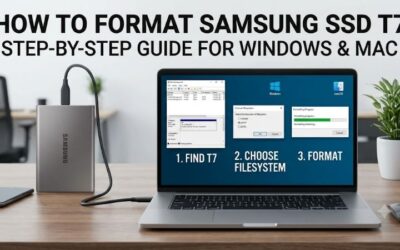
To reuse it as an ordinary portable drive, back up anything you want to keep and format the T7 as exFAT on a computer. Sony also provides a Format as exFAT option in the PS5 USB Extended Storage menu. Either route erases the PS5 game installations. The same drive cannot remain a PS5 extended-storage volume and an ordinary cross-platform file volume at the same time.
Is the Samsung T7 a good external drive for PS5 owners?
The T7 makes sense if you want to play PS4 games externally or archive PS5 installations. Its interface and capacities meet Sony’s published thresholds. Existing owners can reasonably try it after backing up files and disabling any password lock.
It is a poor fit if your only goal is to launch PS5 games directly from more storage. USB extended storage cannot do that, even when the drive is an SSD with a high sequential-speed rating. In that case, choose a compatible internal M.2 SSD. If you only play a few PS5 games at a time, deleting completed titles and reinstalling them later may be enough; you do not automatically need another drive.
When choosing an external drive, prioritize reliable recognition, the right port and enough capacity. Paying extra for a faster USB model does not remove Sony’s PS5-game playback restriction.
Frequently asked questions
Can I play PS5 games directly from a Samsung T7?
No. PS5 games can be moved to the T7, but they must be copied back to console storage or a compatible internal M.2 SSD before you can launch them. PS4 games can run directly from the T7.
Can I use a 500GB Samsung T7 with PS5?
Yes, 500GB is above Sony’s 250GB minimum and below its 8TB maximum. The drive still needs a SuperSpeed USB connection, formatting by the PS5 and successful detection by the console. Sony does not guarantee every USB storage device.
Do I need to format the T7 as exFAT before using it?
No. Samsung normally ships the T7 as exFAT, but the PS5 must format it as USB extended storage. Back up the drive first because the console’s format process erases existing files.
Can I use the Samsung T7 on both PS5 and PC?
Not as one shared file volume while it is formatted as PS5 extended storage. You can safely remove it and reformat it as exFAT for computer use, but that erases the PS5 game data.
Which PS5 USB port should I use for the T7?
Use a SuperSpeed port. The rear USB-A ports are the simplest choice across the PS5 model groups in Sony’s port guide. Avoid the front USB-A port on original PS5 consoles because it is Hi-Speed, not SuperSpeed.
Why does my Samsung T7 ask for a password on PS5?
The T7’s optional Security Mode requires Samsung software to unlock the protected volume. The PS5 cannot enter that password through Samsung’s desktop tool. Unlock the drive on a supported computer and disable Security Mode before formatting it for the console.
Can I leave the T7 connected to the PS5?
Yes. Leave it connected while playing games installed on it. Use Safely Remove from PS5 before unplugging it while the console is on, and never disconnect it during formatting or a data transfer.
Final verdict
The standard Samsung Portable SSD T7 meets the PS5’s published USB extended-storage speed and capacity requirements, making it a reasonable external drive for PS4 games and PS5 game archives. It must be formatted by the PS5, which erases existing files, and Sony does not guarantee every USB drive. PS4 games can play from the T7; PS5 games cannot. Disable password-based Security Mode, use a direct SuperSpeed port and safely remove the SSD before unplugging it. Choose an internal M.2 SSD instead if you want expanded storage from which PS5 games can launch directly.