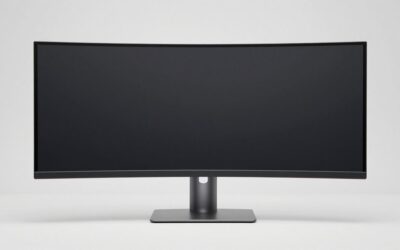
The best monitor for 3d modeling and gaming should give your software enough usable workspace, display materials predictably, and support the gaming experience your computer can deliver. For many users, that means a flat IPS display with a refresh rate above 60Hz. The right resolution and connectivity depend on whether you prioritize modeling, texture work, competitive games, or a workstation shared between multiple computers.
Quick answer: For most people in 2026, the best monitor for 3d modeling and gaming is the Gigabyte M32U — our #1 rated choice. See the full ranked comparison, alternatives and buying advice below.
Quick verdict: Which monitor should you choose?
Start with the Gigabyte M32U if you want a large 4K workspace and high-refresh gaming in one display. Its combination of resolution, refresh rate, and KVM functionality makes it a practical starting point for a desktop-centered setup.
Choose the ASUS ProArt PA278CGV if you prefer 1440p, want creator-oriented color controls, and need useful USB-C charging. It is particularly relevant when demanding 4K gameplay would stretch your graphics budget.
The Dell UltraSharp U3225QE suits a work-first desk where connectivity and a 120Hz desktop matter more than chasing the highest gaming refresh rate.
For specialized HDR production, consider the ASUS ProArt PA32UCG-K. Its calibration and backlight features address a different requirement from ordinary modeling and recreational gaming.
These recommendations reflect documented features and workflow suitability. They are not laboratory performance rankings or claims that any model is the cheapest current purchase.
Quick comparison table
| Monitor | Best suited to | Defining specifications | Main consideration |
|---|---|---|---|
| Gigabyte M32U | Large mixed-use desktop workspace | 31.5-inch IPS, 3840 × 2160, 144Hz, KVM | High-refresh 4K needs a compatible signal path |
| ASUS ProArt PA278CGV | Creator-oriented 1440p use | 27-inch IPS, 2560 × 1440, 144Hz, 90W USB-C | Less pixel workspace than 4K |
| Dell UltraSharp U3225QE | Work-first laptop and desktop setups | 31.5-inch IPS Black, 3840 × 2160, 120Hz, Thunderbolt hub | Lower refresh ceiling than gaming-focused alternatives |
| ASUS ROG Strix XG27UCS | Compact 4K gaming and modeling | 27-inch Fast IPS, 3840 × 2160, 160Hz | USB-C power delivery is only 15W |
| BenQ MOBIUZ EX3210U | Modeling, gaming, and integrated audio | 32-inch IPS, 3840 × 2160, 144Hz, built-in 2.1-channel speakers | No USB-C input listed |
| ASUS ProArt PA32UCG-K | HDR production alongside gaming | 32-inch IPS, 4K, Mini-LED, 120Hz, hardware calibration | Specialized features may exceed ordinary modeling needs |
Manufacturer specifications establish these configurations; they do not establish identical color accuracy, motion clarity, or HDR quality across the six displays.
How we selected the monitors
This shortlist focuses on displays that combine useful modeling resolution with refresh rates of at least 120Hz. It includes distinct configurations rather than six nearly interchangeable gaming screens.
The selection considers workspace, documented color features, computer connections, and practical limitations. All six use IPS-based panels, although their backlights, contrast characteristics, and intended workflows differ.
No detailed research was performed for this article. Manufacturer color specifications are attributed as claims, and no response-time marketing figure is treated as a measured result.
Current US prices and Amazon listings were not verified. Consequently, the categories describe workflow fit rather than budget or value rankings.
The six monitors in detail
Gigabyte M32U: A large 4K option for mixed use
The M32U is the most straightforward starting point here for someone who wants substantial screen area without separating modeling and gaming onto different displays.
Key specifications include a 31.5-inch IPS panel, 3840 × 2160 resolution, and a maximum 144Hz refresh rate. Gigabyte also lists KVM functionality, DisplayPort 1.4 with DSC, USB-C, and two HDMI 2.1 inputs. Its HDMI specification explicitly distinguishes 4K 144Hz with DSC and full chroma from a subsampled alternative.
For modeling, the attraction is room to arrange a viewport, properties, and reference material. For gaming, the high-refresh specification offers flexibility beyond a conventional 60Hz work display.
The connection detail matters. Before purchase, confirm that your graphics output supports the intended resolution, refresh rate, and color format together. A compatible connector shape alone is insufficient.
Pros: Large 4K workspace; high-refresh capability; KVM for sharing peripherals between computers.
Cons: More desk space than a 27-inch display; connection requirements need attention; no basis here to treat it as a calibrated reference monitor.
Buy if: You want one large screen for modeling, general creative work, and gaming.
Skip if: You need strong laptop charging from the monitor or a smaller physical footprint.
Alternative: Consider the PA278CGV for a 1440p workflow with explicitly documented 90W USB-C charging.
ASUS ProArt PA278CGV: A creator-oriented 1440p choice
The PA278CGV makes sense when modeling and material work share time with gaming, but 4K is not essential.
ASUS specifies a 27-inch IPS panel, 2560 × 1440 resolution, and a maximum 144Hz refresh rate. It lists 100% sRGB and 95% DCI-P3 coverage, a manufacturer color-accuracy claim of Delta E below two, Adaptive-Sync, and USB-C power delivery up to 90W.
The useful combination is creator-oriented controls with a refresh rate suitable for more than occasional gaming. It avoids forcing every buyer into the higher pixel load of 4K.
Its main trade-off is workspace. Tool panels and reference windows consume a larger proportion of a 1440p desktop than a 4K desktop at comparable scaling.
For texture decisions, use the appropriate color preset and application settings. The factory accuracy claim does not guarantee that every preset, brightness setting, or software pipeline produces the same result.
Pros: Creator-oriented presets; 144Hz capability; useful USB-C charging for compatible laptops.
Cons: Lower resolution than the other picks; a smaller canvas for dense interfaces; gaming motion quality cannot be inferred from refresh alone.
Buy if: You want a balanced 1440p display and regularly connect a compatible laptop.
Skip if: Your work needs detailed 4K inspection or extensive simultaneous panels.
Alternative: Choose the M32U when a larger 4K desktop matters more than the ProArt’s charging capability.
Dell UltraSharp U3225QE: A work-first 4K hub
The U3225QE suits users whose main purchase is a workstation display, with gaming as an additional requirement.
Dell documents a 31.5-inch 3840 × 2160 IPS Black panel, 120Hz refresh rate, Thunderbolt hub connectivity, and up to 140W power delivery for compatible equipment. Dell also specifies a typical 3000:1 contrast ratio. These are manufacturer specifications rather than measurements from this article.
For a laptop-centered modeling desk, connectivity can justify more attention than an extra refresh-rate tier. Consolidating display and peripheral connections may simplify switching between mobile and desktop work.
Its 120Hz ceiling is a compromise for buyers primarily interested in fast competitive games. It should be evaluated as a work-first display rather than assumed equivalent to a gaming-focused model.
Check your laptop’s supported charging protocol and display output before expecting a single cable to provide every function.
Pros: Large 4K workspace; extensive hub functionality; higher refresh than traditional 60Hz productivity monitors.
Cons: Lower refresh ceiling than the gaming-oriented picks; hub features add little if you use only one desktop; gaming latency is not established here.
Buy if: You prioritize a connected workstation and want room for gaming afterward.
Skip if: Your main objective is maximizing competitive gaming responsiveness.
Alternative: The M32U is a more gaming-oriented starting point when workstation docking is less important.
ASUS ROG Strix XG27UCS: Compact 4K with gaming emphasis
The XG27UCS is the option to examine when you want 4K detail in a smaller enclosure.
ASUS identifies the original XG27UCS as a 27-inch 3840 × 2160 Fast IPS monitor with a 160Hz refresh rate. Its documentation lists USB-C display input with only 15W power delivery. Do not confuse this model with the separately named XG27UCS Gen2, also identified as XG27UCSR.
The smaller diagonal can suit limited desk space, but you may want operating-system scaling to make dense creative interfaces comfortable. Higher pixel density does not automatically mean more usable workspace at your preferred text size.
Its gaming emphasis is attractive for users who spend substantial time playing. For color-sensitive texture work, investigate the exact display modes and independently verify the configuration you intend to use.
Pros: Compact 4K format; 160Hz specification; USB-C video connectivity.
Cons: Limited USB-C charging; scaling may be necessary; gaming branding does not establish production color accuracy.
Buy if: You want a smaller 4K display and gaming is a major part of the workload.
Skip if: You need a laptop docking monitor with substantial charging power.
Alternative: The PA278CGV trades 4K resolution for more useful USB-C charging and creator-oriented controls.
BenQ MOBIUZ EX3210U: Large-screen use with integrated audio
The EX3210U suits a desk that combines modeling, entertainment, and gaming without separate desktop speakers.
BenQ lists a 32-inch IPS panel, 3840 × 2160 resolution, 144Hz refresh rate, FreeSync Premium Pro, and a 2.1-channel speaker system. Its specifications include HDMI 2.1, DisplayPort 1.4, USB upstream and downstream connections, and an sRGB picture mode. No USB-C input is listed.
The large panel provides physical room for a substantial viewport, while integrated audio may simplify casual playback and gaming. Speaker inclusion, however, is a convenience feature rather than evidence of studio monitoring quality.
For creative work, start with a suitable neutral mode. Features designed to alter game visibility or saturation should not become your default basis for judging materials.
Pros: Large 4K format; high-refresh gaming specification; integrated speakers and USB hub.
Cons: No listed USB-C video input; substantial desk footprint; game-oriented image adjustments need care during creative work.
Buy if: You want a large mixed-use display and built-in audio is useful.
Skip if: Your priority is single-cable laptop connectivity or a dedicated calibration workflow.
Alternative: Consider the U3225QE when workstation connections outweigh integrated entertainment features.
ASUS ProArt PA32UCG-K: A specialized HDR production option
The PA32UCG-K belongs on the shortlist for a narrower audience: creators who need documented HDR production features and still want high-refresh gaming capability.
ASUS specifies a 32-inch 4K IPS panel with Mini-LED backlighting, 120Hz refresh, Adaptive-Sync, and ProArt hardware calibration. Its documentation lists 1,152 local-dimming zones and support for HDR10, HLG, and Dolby Vision. The specification page also distinguishes its HDMI 2.1 input from the more limited HDMI 2.0 connections.
These features address lighting and output evaluation rather than accelerating mesh editing. They are difficult to justify if your work consists mainly of geometry, UV layouts, and ordinary SDR previews.
Hardware calibration support is a meaningful distinction, but it still requires compatible tools, correct targets, and a managed workflow.
Pros: Hardware calibration support; documented Mini-LED backlight; production-oriented HDR features alongside 120Hz operation.
Cons: Specialized complexity; input-dependent limitations; unnecessary capability for many modeling tasks.
Buy if: HDR asset evaluation is a real production requirement.
Skip if: You simply want smooth gaming and a comfortable modeling viewport.
Alternative: The PA278CGV is the more restrained creator-oriented choice when SDR work and 1440p are sufficient.
How to choose the best monitor for 3D modeling and gaming
Match resolution to your applications and graphics hardware
A 4K panel contains 8.29 million pixels, compared with 3.69 million for 2560 × 1440. That is 2.25 times as many pixels, although it does not imply an identical increase in every workload’s processing cost.
For modeling, resolution can improve detail and interface arrangement. For gaming, it increases the rendering target your GPU must handle.
Test the software layout you actually use. Blender, Maya, CAD tools, sculpting applications, and texture editors can place very different demands on screen space.
Scaling also matters. A 27-inch 4K monitor at comfortable scaling may provide less additional workspace than you expect, while still improving fine-detail presentation.
Separate geometry work from color-critical work
Geometry editing needs clear edges, readable controls, and enough viewport space. Texture authoring and final look development introduce stronger requirements for color consistency.
Wide gamut describes the range of colors a display can reproduce. Accuracy describes how closely it reproduces a target. Neither specification alone establishes uniformity across the screen.
Choose the relevant output target, configure the application correctly, and validate important color decisions. A vivid image can be attractive while still being inappropriate for judging an SDR deliverable.
Understand what refresh rate can improve
Higher refresh can make navigation and animation appear smoother when the application supplies enough frames.
It cannot make a slow render finish sooner, increase available VRAM, or resolve a CPU-bound simulation. A complex viewport running slowly remains limited by the workload and computer.
For gaming, examine independent motion and latency testing before treating two similarly rated monitors as equivalent. Advertised gray-to-gray and motion-picture response figures are not interchangeable measurements.
Check full-color output and the complete signal path
Fine text and colored interface elements deserve attention when configuring high-refresh 4K.
Verify the GPU, input, cable, dock, resolution, refresh rate, and color format together. Chroma subsampling can affect fine colored detail, so avoid assuming every advertised high-refresh mode is equally suitable for desktop work.
DSC capability can be relevant to demanding modes, as the M32U specification illustrates. Check compatibility rather than reducing the decision to HDMI versus DisplayPort.
For laptop charging, compare the monitor’s power delivery with your laptop’s actual requirements. A display connection and sufficient charging are separate capabilities.
Budget and setup considerations
Without verified comparable US prices, “best budget” and “best value” would be unsupported labels.
Instead, decide which feature prevents you from completing your work comfortably. That might be more workspace, better connectivity, a validated color workflow, or stronger gaming performance.
Include tax, shipping, necessary cables, and any mounting equipment in your spending limit. A calibration device or separate dock can also change the total.
Avoid buying the most specialized display merely because it has the longest specification sheet. If your existing monitor is adequate for modeling, improving the computer or adding a suitable secondary screen may solve the more important limitation.
Frequently asked questions
Is 4K necessary for 3D modeling?
No. A 1440p display can work well when its interface space and detail suit your tasks. Choose 4K when its additional pixels improve your workflow and your computer can support the gaming settings you expect.
Does a gaming monitor work for professional modeling?
It can. Check resolution, image consistency, controls, and connectivity rather than relying on the product category. Color-sensitive deliverables require additional validation beyond a gaming monitor’s wide-gamut claim.
Will a faster monitor make Blender render faster?
No. Monitor refresh rate does not accelerate rendering calculations. It affects how frequently the screen can update, which may improve the presentation of responsive viewport movement and playback.
Should I choose 27 inches or 32 inches?
Choose around viewing distance, available desk space, and scaling. A 32-inch 4K display offers a larger physical canvas; a 27-inch 4K model fits smaller spaces but may need larger interface scaling.
Final verdict
For a large mixed-use desktop, start with the Gigabyte M32U. Choose the ASUS ProArt PA278CGV when 1440p, creator-oriented controls, and laptop charging better match your needs.
The Dell U3225QE suits a connected work-first desk, while the XG27UCS prioritizes compact 4K gaming. The EX3210U adds integrated audio, and the PA32UCG-K addresses specialized HDR production. Make the final purchase around your software, connection path, color requirements, and complete setup cost.
Ready to decide? Our #1 pick for 2026 is the Gigabyte M32U.
Live price & availability on Amazon.