
- Top Pick: Amzfast 25 Inch White Gaming Monitor 320Hz/300Hz/240Hz, FHD 1080P 1ms Fast IPS Monitor, 12 Months Warranty Exchange (DP Cable) TÜV Rheinland Eye Care | AI Crosshair, Night Vision Function, AMZG25F6F
- Best Value: Sceptre New 22-Inch Gaming Monitor, FHD 1080p, Up to 144Hz, HDMI, DisplayPort, Built-in Speakers, Machine Black (E225W-FW144 Series, 2026)
- Premium Choice: SANSUI 24 Inch Gaming Monitor 180Hz, DP 1.4 & HDMI 2.0 Ports High Refresh
🛒 Best Price Today on Amazon
Prime members get fast, free shipping on everything above, plus member-only deals. New members get a 30-day free trial — cancel anytime.
- Top Gaming Monitor Under 300 Budget Picks for 2026
- Where to Spend, Where to Save
- Monitor / GPU Pairing Matrix
- At-a-Glance Builder Picks
- 1. AOC C27G2Z — Builder’s Top Pick for Immersive Esports
- 2. LG UltraGear 27GS75Q-B — The 1440p Builder’s Pick
- 3. Gigabyte M27Q — The WFH Builder’s Pick
- 4. Samsung Odyssey G5 32″ — The Big-Screen Single-Monitor Build
- 5. ASUS TUF VG279QM1A — The Competitive Builder’s Pick
- 6. Pixio PX248 Wave — The Sub-$700 Build’s Best Friend
- 7. Acer Nitro KG241Y — The Minimum-Viable Build’s Display
- What You Give Up vs the Premium $500-1000 Tier
- Upgrade Path for Budget Builders
- FAQ for Budget Builders
- Final Verdict: The Budget Builder’s Best Monitor Under $300
- Related Guides
- Related Articles
- Frequently Asked Questions
- Related Articles
Top Gaming Monitor Under 300 Budget Picks for 2026
Here are our current top gaming monitor under 300 budget picks, compared on real Amazon owner reviews, price, and features. Live prices update below.
As an Amazon Associate we earn from qualifying purchases at no extra cost to you.


Affiliate disclosure: As an Amazon Associate we earn from qualifying purchases. This post contains affiliate links — we may earn a small commission at no extra cost to you. This never affects our picks. Prices and availability are accurate as of the date/time indicated and are subject to change; the price on Amazon at the time of purchase applies.
When you’re building a PC on a budget, your monitor purchase is a strategic decision — not a checkbox. A $300 monitor paired with a $700 build will outperform a $500 monitor paired with a $500 build, because the monitor and GPU have to work together. This budget-builder’s guide cuts through the noise to show you exactly where to spend your monitor dollars, where to save them, and how to match your display choice to the overall build philosophy of your PC. We’re not just listing the “best monitors” — we’re laying out the trade-off matrix for builders who think in total-system terms.
Quick answer: For a 2026 build, the our top pick is the gaming monitor we would build around, while the the value pick is the budget-friendly choice.
The fundamental principle: your monitor should match your GPU, not exceed it. Buying a 1440p 240Hz monitor when your RTX 4060 can only push 90fps in modern AAA games is wasted money. Flip it around and pairing an RTX 4070 with a 1080p 144Hz monitor is wasted GPU. The sweet spot for $300 monitors in 2026 is a build with a mid-range GPU (RTX 4060 Ti / 4070 / RX 7700 XT / 7800 XT) targeting 1440p 100-165fps. That’s exactly the bracket every monitor on this list lives in.
The honest framing for $300 in 2026: you’re choosing between two genuine paths. Either 27″ 1440p IPS at 144-200Hz for the balanced gaming-and-productivity build, or 1080p at 240Hz for the pure-esports build. There is no $300 path to OLED, 4K, or true HDR — those start at $500+ and need GPU pairings of $500+ to drive properly. Recognize that trade-off honestly and you’ll spend your monitor dollars in the right place.
Where to Spend, Where to Save
This is the budget-builder’s mental model for the under-$300 monitor decision. We’re going to organize specs by where the upgrade is worth your money versus where the marketing exists to upsell you.
SPEND on:
Panel type (IPS or modern VA). This is where the biggest visible difference shows up. Don’t try to claw back $30 with a TN panel — you’ll regret it every day. IPS for general use, VA for curved immersion. The panel alone accounts for 70% of the visual experience.
Refresh rate ≥144Hz. The jump from 60Hz to 144Hz is the single most impactful upgrade in modern gaming. In 2026, any sub-$200 monitor that’s stuck at 60Hz should be rejected on principle. That 60Hz-to-144Hz step is worth $60-80 of your budget.
Resolution (1440p over 1080p when possible). On a 27″ panel, the 1440p upgrade is genuinely transformative for productivity and single-player gaming. Worth $60-80 extra over the 1080p alternatives.
Real measured response time. Don’t shop on marketing-spec response times. Check the Rtings or Hardware Unboxed measurements before you buy. Bad overdrive tuning makes a monitor functionally unusable for fast-paced games.
SAVE on:
HDR. HDR400 certification on a $300 monitor is a marketing checkbox. Real HDR needs OLED or mini-LED, both $700+. Don’t pay a premium for HDR claims at this tier.
Native G-Sync. It doesn’t exist under $400. FreeSync Premium with G-Sync Compatible certification works perfectly with NVIDIA cards. Keep the money.
“Gaming” branding tax. ROG, ROG STRIX, Predator, and Alienware brands routinely charge $40-80 more for the same panel as the cheaper Acer Nitro / Gigabyte / LG UltraGear equivalents. Pay for performance, not RGB.
Refresh rates above 240Hz. The 144Hz-to-240Hz step is noticeable in competitive play. The 240Hz-to-360Hz step is barely perceptible and needs GPU horsepower most $300-build owners don’t have. 240Hz is the practical ceiling at this budget.
Ergonomic stands (sometimes). Most $300 monitors ship with tilt-only stands. Instead of paying $50-80 more for the same panel on a better stand, grab a $35-45 VESA arm for full ergonomic adjustment. Cheaper, more flexible, and better for ergonomics over the long haul.
Monitor / GPU Pairing Matrix
Match your monitor choice to your GPU. This pairing matrix lays out what to target at each GPU tier:
| GPU Tier | Sweet-Spot Resolution | Sweet-Spot Refresh | Recommended Monitor |
|---|---|---|---|
| RTX 4060 / RX 7600 | 1080p | 200-240Hz | Pixio PX248 Wave, AOC C27G2Z |
| RTX 4060 Ti / RX 7700 XT | 1440p | 144-165Hz | Gigabyte M27Q, Samsung G5 32″ |
| RTX 4070 / RX 7800 XT | 1440p | 165-200Hz | LG 27GS75Q-B |
| RTX 4070 Ti+ / RX 7900 | 1440p | 200-240Hz | Step up to $400-500 tier |
At-a-Glance Builder Picks
| Monitor | Spec Summary | Price Range | Build Tier Match |
|---|---|---|---|
| AOC C27G2Z | 27″ 1080p VA 240Hz curved | $220-240 | $700-900 build |
| LG UltraGear 27GS75Q-B | 27″ 1440p IPS 200Hz | $260-280 | $1000-1300 build |
| Gigabyte M27Q | 27″ 1440p IPS 170Hz w/ KVM | $240-260 | $900-1200 build |
| Samsung Odyssey G5 32″ | 32″ 1440p VA 165Hz curved | $270-290 | $1000-1300 build |
| ASUS TUF VG279QM1A | 27″ 1080p IPS 280Hz | $270-290 | Competitive esports build |
| Pixio PX248 Wave | 24″ 1080p IPS 200Hz | $160-180 | $600-800 budget build |
| Acer Nitro KG241Y | 24″ 1080p VA 165Hz | $140-160 | $500-700 starter build |
1. AOC C27G2Z — Builder’s Top Pick for Immersive Esports

SAMSUNG 34" ViewFinity S50GC Series Ultra-WQHD Monitor, 100Hz, 5ms, HDR10, AMD FreeSync, Eye Care, Borderless Design, PIP, PBP, LS34C502GANXZA, 2023, Black


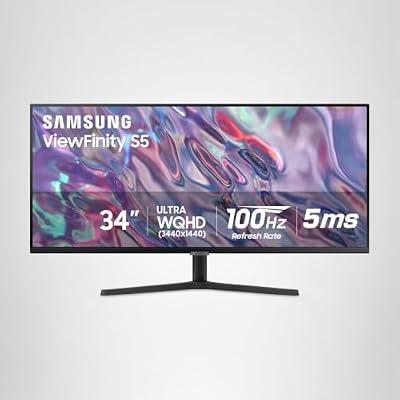
As an Amazon Associate we earn from qualifying purchases. Product prices and availability are accurate as of the date/time indicated.
Our builder’s top pick is the AOC C27G2Z, and the reason is that pairing matrix. For builders running an RTX 4060 / RX 7600 class GPU chasing 200+ fps in competitive shooters, the C27G2Z is the perfect partner: 27″ curved VA at 1080p and 240Hz, with FreeSync Premium that works flawlessly across both GPU vendors. You get immersive curved-screen gaming, true esports-grade refresh, and a price under $240 that frees up $50-60 of your budget for a better CPU or extra RAM.
The 1080p resolution is the deliberate trade-off. Yes, on a 27″ panel you’ll spot the pixels at close viewing distance. But for a budget builder on a mid-tier GPU, 1080p means a consistent 200+ fps in modern competitive games. Push 1440p on the same GPU and you drop to 100-130fps — fine, but then you’re not using a 240Hz monitor anyway. Match the resolution to what your GPU can drive consistently.
The 1500R curve is gentle enough not to feel gimmicky on a single monitor but pronounced enough to add genuine immersion. The VA panel brings 3000:1 contrast (deep blacks) that works especially well for atmospheric games and movies. The catch is VA black smearing — visible in dark fast-motion scenes — but tolerable for competitive shooters where you’re not crawling through dark caves.
The build economics: pair it with an RTX 4060 8GB ($300), a Ryzen 5 7600 ($200), 32GB DDR5 ($90), and a 1TB NVMe ($65), and you’ve got a sub-$1000 complete build that punches well above its weight in competitive titles. The C27G2Z is what makes that build genuinely shine.
Best for: Builders prioritizing competitive shooters with mid-range GPUs.
Skip if: You mostly play single-player atmospheric games — the VA smearing will bother you.
2. LG UltraGear 27GS75Q-B — The 1440p Builder’s Pick

Samsung 32" Flat Computer Monitor | 75Hz Refresh Rate, Borderless Display, AMD FreeSync, Game Mode, Advanced Eye Care, HDMI and DisplayPort, LS32B304NWNXGO, 2024



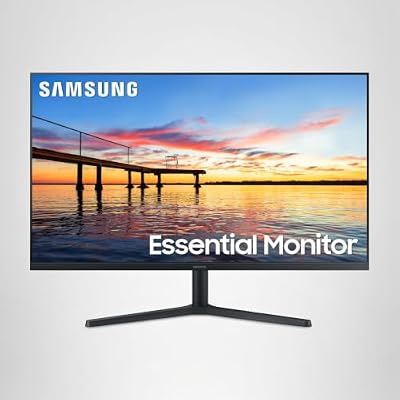
As an Amazon Associate we earn from qualifying purchases. Product prices and availability are accurate as of the date/time indicated.
If your build packs an RTX 4070 / RX 7800 XT or better, the LG 27GS75Q-B is the obvious pairing. 27″ 1440p Fast IPS at 200Hz is the sweet spot for a GPU that can comfortably push 100-150fps at 1440p in modern AAA games and 200+ fps in competitive titles. The panel is excellent for both single-player visual fidelity and competitive responsiveness.
From a builder’s angle, the 27GS75Q-B steps into the shoes of the legendary LG 27GP850-B that owned this category for three years. Same panel quality (Nano IPS variant), better refresh rate (200Hz vs 165Hz), similar price. If you’ve been waiting on a successor to the 27GP850-B, this is it.
Pair it with a Ryzen 7 7700 ($280), RTX 4070 ($550), 32GB DDR5 ($90), and a 1TB NVMe ($65), and you’ve got a sub-$1300 build that drives 1440p at 100-150fps in nearly every modern game. The LG monitor unlocks that GPU’s full potential without becoming the bottleneck.
Best for: Mid-to-high mid-range builds (RTX 4070 / RX 7800 XT) targeting 1440p gaming.
Skip if: You need KVM features (grab the Gigabyte M27Q) or you’re a dedicated competitive player (grab the ASUS VG279QM1A).
3. Gigabyte M27Q — The WFH Builder’s Pick

Key Fob Shell for Chevrolet Camaro Cruze Malibu 2016-2021, Alliskeys 4-Button Smart Key Case Cover Replacement for Chevy HYQ4AA/HYQ4EA


As an Amazon Associate we earn from qualifying purchases. Product prices and availability are accurate as of the date/time indicated.
For builders who also work from home and want their gaming PC monitor to double as their work laptop’s display, the Gigabyte M27Q is genuinely the only sane choice at $250. The KVM switch with USB-C and 15W power delivery lets one monitor, one keyboard, and one mouse serve both your work laptop (over USB-C) and your gaming PC (over DisplayPort) with single-button switching.
Panel-wise it’s close to the LG above: 27″ 1440p IPS at 170Hz, solid color, good response time. The BGR subpixel layout is a quirk worth knowing — minor text fringing on small fonts. Programmers and writers should factor it in. Gamers can ignore it.
The build economics: pair it with a budget-balanced PC (Ryzen 5 7600, RTX 4060 Ti, 32GB DDR5, 1TB NVMe) at around $900-950, and you’ve got a $1150-1200 total setup that handles both gaming and remote work cleanly. The KVM basically removes the need for a separate work monitor — saving $200-300 in long-term equipment.
Best for: WFH builders who need a single-monitor setup serving both personal and work machines.
Skip if: You don’t WFH — the LG 27GS75Q-B is the better pure-gaming monitor.
4. Samsung Odyssey G5 32″ — The Big-Screen Single-Monitor Build

Acer 27in FHD 1920x1080 IPS 120Hz Gaming Monitor | Office KB272 G0bi | 1ms, AdaptiveSync, sRGB 99%, HDMI, VGA, VESA Mountable, Bluelight Filter


As an Amazon Associate we earn from qualifying purchases. Product prices and availability are accurate as of the date/time indicated.
For builders who want one large monitor (no need for a dual-monitor setup), the 32″ Samsung Odyssey G5 is the strongest option at $280. The 1000R curve, 32″ form factor, and 1440p resolution together create a workspace that genuinely replaces dual 24″ monitors for most users — saving desk space, simplifying cable management, and killing the multi-monitor bezel gap.
1440p at 32″ gives you 92 PPI, slightly less crisp than 27″ 1440p but perfectly fine at normal viewing distances (70cm+). The aggressive 1000R curve is polarizing — try it before you buy if you can, or brace for a 1-2 week adjustment period.
Pair it with a mid-to-high mid-range build (Ryzen 7 7700, RTX 4070, 32GB DDR5) at around $1000-1100, and you’ve got a $1300 setup that handles single-monitor productivity and gaming cleanly. The 32″ screen replaces dual 24″ monitors for most workflows.
Best for: Builders wanting a single-monitor immersive setup, especially for a productivity-and-gaming hybrid.
Skip if: You sit close to your monitor or have a narrow desk — the 32″ form factor needs viewing distance.
5. ASUS TUF VG279QM1A — The Competitive Builder’s Pick
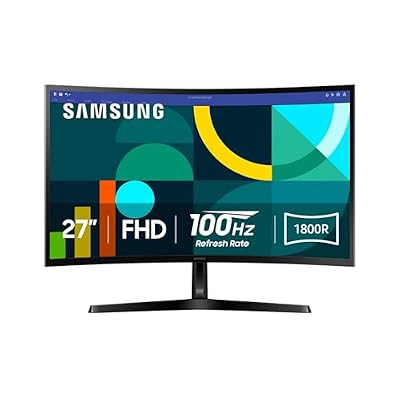
Samsung 27" Essential S3 (S36GD) Series FHD 1800R Curved Computer Monitor | 100Hz, Game Mode, Advanced Eye Comfort, HDMI and D-sub Ports (LS27D366GANXZA)


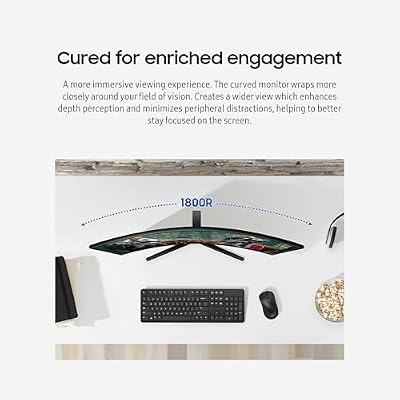
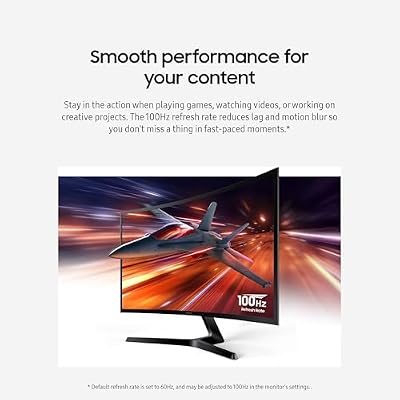
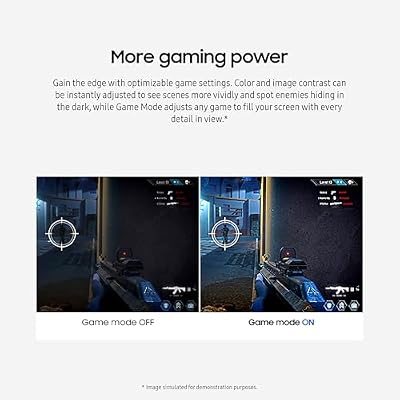


As an Amazon Associate we earn from qualifying purchases. Product prices and availability are accurate as of the date/time indicated.
For builders dedicated to competitive esports — Valorant, CS2, Overwatch 2, Apex Legends — the ASUS VG279QM1A at $280 is the right pick. 27″ 1080p Fast IPS at 280Hz with ELMB Sync motion blur reduction. The Fast IPS panel pairs IPS color quality with TN-territory refresh rates, and the bundled ergonomic stand saves you $40-50 over a VESA arm.
The build pairing: this monitor wants a GPU that can push 200+ fps in your competitive games. For most modern shooters that’s an RTX 4060 Ti or RX 7700 XT minimum. Pair it with a Ryzen 5 7600 ($200), RTX 4060 Ti ($380), 32GB DDR5 ($90), and a 1TB NVMe ($65), and you’ve got a sub-$1100 build tuned for competitive play.
Honest reality: 1080p on a 27″ panel is a genuine trade-off. If you also play AAA single-player games, the LG 27GS75Q-B’s 1440p resolution will look noticeably sharper. If you’re a dedicated competitive player living mostly in Valorant and CS2, the ASUS is the right call.
Best for: Dedicated competitive builders happy to trade resolution for refresh rate.
Skip if: You also play AAA single-player games — the LG 27GS75Q-B is the stronger all-rounder.
6. Pixio PX248 Wave — The Sub-$700 Build’s Best Friend
For sub-$700 budget builds, the Pixio PX248 Wave at $170 is the smartest monitor buy. 24″ 1080p IPS at 200Hz with FreeSync Premium delivers excellent image quality and gaming performance at a price that leaves $80-100 of monitor budget for other components. The panel quality is genuinely impressive for the money — accurate colors, low input lag, reliable 200Hz operation.
Build pairing: pair it with a Ryzen 5 5600 ($120), RTX 4060 8GB ($300), 16GB DDR4 ($40), 1TB NVMe ($55), and a budget B550 motherboard ($90). Total build cost: $605, plus the monitor at $170 = $775 complete setup. Set that against spending an extra $100 on a 1440p monitor and being GPU-bottlenecked in every modern game.
Best for: Sub-$700 budget builds where every dollar counts.
Skip if: Your build budget tops $900 — you can afford and benefit from a 1440p panel.
7. Acer Nitro KG241Y — The Minimum-Viable Build’s Display
For absolute minimum-cost builds (sub-$500), the Acer Nitro KG241Y at $150 is the minimum-viable gaming monitor. 24″ 1080p VA at 165Hz with FreeSync. It’s not exciting, but it’s competent — a long way ahead of the sub-$120 monitors that consistently disappoint buyers with bad response times, washed-out colors, and stands that wobble at the slightest desk knock.
Build pairing: pair it with a Ryzen 5 5600 ($120), GTX 1660 Super used ($120), 16GB DDR4 ($35), 500GB NVMe ($35), and an A520 motherboard ($75). Total build cost: $385, plus the monitor at $150 = $535 complete entry-level gaming setup. This is the budget builder’s foot in the door to PC gaming — every component is the cheapest viable option, and the monitor matches that philosophy without turning into a regrettable purchase.
Best for: Absolute minimum-cost first PC builds.
Skip if: You can stretch the budget by $20 to the Pixio PX248 Wave — the IPS panel and 200Hz refresh are meaningful upgrades worth every penny.
What You Give Up vs the Premium $500-1000 Tier
Honest reality for builders: spending $500-1000 on a monitor in 2026 buys you genuinely meaningful upgrades. Specifically:
OLED gaming monitors ($550+). Perfect blacks, instant pixel response, real HDR. The LG 27GR95QE-B at $650 or the Alienware AW2725DF at $600 deliver visual quality transformatively better than any LCD. If your build budget tops $1500, it’s worth considering. For $1000-or-under builds, stay in the $300 tier.
4K gaming monitors ($450+). The Gigabyte M28U at $450 delivers 4K at 144Hz on an IPS panel. Driving it properly takes an RTX 4070 Ti or better — which pushes your total system cost past $1800. For builders in the sweet spot, 1440p at $300 paired with a mid-range GPU is the better value.
Mini-LED HDR backlights. Real HDR needs either OLED or mini-LED with 500+ dimming zones. The cheapest credible mini-LED monitors start at $700. At $300, “HDR” is purely a checkbox feature.
Premium build quality. $500+ monitors bring metal construction, fully ergonomic stands, USB-C with high-wattage PD, and better cable management. Budget builders can offset that with a $35-45 VESA arm and accepting that the monitor itself will feel plasticky.
Upgrade Path for Budget Builders
The smart budget builder’s upgrade path is: buy a great $300 monitor now, upgrade the GPU in 2-3 years, then move to an OLED monitor in 4-5 years. This staggered approach keeps you un-bottlenecked at every stage and puts your money where it buys the most performance per dollar.
Specific upgrade triggers:
— Your GPU outgrows your monitor (you’re hitting the refresh-rate cap in games)
— OLED gaming monitors drop under $400 (expected late 2027)
— You add a second monitor for productivity (your current one becomes the side panel)
— You upgrade your desk setup and want a 32″+ monitor
FAQ for Budget Builders
Q: I’m building a $1000 PC. Should I go 1080p 240Hz or 1440p 144Hz monitor?
1440p 144Hz, for most builders. At a $1000 build cost, your GPU is likely an RTX 4060 Ti or RX 7700 XT, which comfortably drives 1440p at 100-130fps in modern AAA games. The 1440p sharpness upgrade matters more for general use than the refresh-rate jump from 144Hz to 240Hz. Only go 1080p 240Hz if you’re a dedicated competitive player.
Q: Should I spend more on the GPU or the monitor?
GPU first, monitor second. A great monitor on a weak GPU is wasted potential. A good monitor on a great GPU still delivers a great experience. The 80/20 rule: spend 30-35% of your build budget on the GPU, 12-15% on the monitor.
Q: Is FreeSync Premium really equivalent to G-Sync at $300?
Yes, functionally. Native G-Sync (with the hardware module) doesn’t exist under $400. Every FreeSync Premium monitor works as G-Sync Compatible with NVIDIA cards. The performance difference is invisible to users. Keep the money.
Q: What’s the best VESA arm for budget builders?
The HUANUO Single Monitor Arm at $35-40 or the WALI MS001 at $30 are the value picks. Both support standard 100×100mm VESA mounting (which every monitor on this list supports), offer full ergonomic adjustment, and dramatically improve desk ergonomics for under $50. Pair either arm with any of the tilt-only monitors here to transform your setup instantly — full height adjustment, swivel, tilt, and clamp mounting that frees up your desk surface for keyboards and accessories.
Q: Should I prioritize a 27″ monitor or upgrade to dual 24″ panels at $300?
A single 27″ 1440p is the better builder’s choice for most use cases. Dual 24″ 1080p setups suffer from the bezel gap, more cable management complexity, and mismatched panels if you buy them at different times. One 27″ 1440p monitor delivers more usable workspace, sharper image quality, and a cleaner desk look. The exception: dedicated productivity workflows where you need vertical-rotated documentation panels alongside primary work.
Final Verdict: The Budget Builder’s Best Monitor Under $300
For budget builders chasing maximum value-per-dollar in a complete system, the AOC C27G2Z is our pick for the best gaming monitor under $300 in 2026. Curved 240Hz immersion, a $230 price point, and perfect pairing with mid-range GPUs make it the smartest builder’s choice for competitive-focused builds in the $700-1000 total-system range.
For builders aiming at 1440p with mid-to-high range GPUs, the LG UltraGear 27GS75Q-B is the upgrade pick. For WFH-and-gaming hybrid builders, the Gigabyte M27Q with KVM. For dedicated competitive builds, the ASUS TUF VG279QM1A. For sub-$700 budget builds, the Pixio PX248 Wave.
For deeper comparisons of how to spend monitor budget vs other build components, check our May 2026 monitor deep comparison, our 1440p vs 4K analysis, our 240Hz vs 360Hz refresh rate guide, our OLED vs IPS comparison, our best GPU for 1440p gaming guide, and our curved vs flat monitor analysis.
Related Guides
Related Articles
Want to read more on this? Have a look at the hand-picked guides below — each one runs the same scoring rubric we used in this review.
Frequently Asked Questions
What refresh rate and resolution can I get under $300?
Plenty. Around this budget you can find 1440p 144Hz-165Hz IPS monitors, or 1080p panels at 240Hz for competitive play. You generally choose between higher resolution or higher refresh rate. For most builders, a 1440p high-refresh IPS panel offers the best balance of sharpness and smoothness in this price range for mixed gaming.
Should I choose 1080p 240Hz or 1440p 144Hz under $300?
It depends on your games. Competitive esports players benefit from 1080p 240Hz for maximum smoothness and low latency. Players who value visual detail in AAA and single-player titles should pick 1440p 144Hz for sharper image quality. Consider what you play most and whether your GPU can drive the frame rates each option demands.
Is IPS, VA, or TN best for a budget gaming monitor?
IPS is the most popular choice now, offering good color and viewing angles with fast response times on modern panels. VA delivers deeper contrast but can show more motion smearing. TN is fastest and cheapest but has weaker colors and angles. For a well-rounded sub-$300 monitor, a quality fast-IPS panel is usually the safest pick.
Do I need HDR on a budget gaming monitor?
Not really. Most sub-$300 monitors advertise entry-level HDR400, which lacks the brightness and local dimming to deliver true HDR impact. It rarely improves the picture meaningfully and sometimes looks worse than SDR. Prioritize refresh rate, response time, resolution, and panel quality instead, and treat any budget HDR support as a minor bonus, not a deciding factor.
What panel size works best around $300?
For 1080p, 24-27 inches keeps pixel density sharp. For 1440p, 27 inches is the sweet spot, balancing screen real estate and clarity at typical desk distances. Larger 32-inch 1440p panels exist in this range but look less crisp up close. Match size to your resolution and how far you sit from the screen.
Ready to decide? Our #1 pick for 2026 is the RTX 4060 / RX 7600.
Live price & availability on Amazon.
Top picks from this guide
SamsungSAMSUNG 34" ViewFinity S50GC Series Ultra-WQHD Monitor, 100Hz, 5ms, HDR10,…$270 \xc2\xb7 99/100AcerAcer 27in FHD 1920x1080 IPS 120Hz Gaming Monitor | Office…$100 \xc2\xb7 99/100 SceptreSceptre New 22-Inch Gaming Monitor, FHD 1080p, Up to 144Hz,…$65 \xc2\xb7 98/100
 SANSUISANSUI 24 Inch Gaming Monitor 180Hz, DP 1.4 & HDMI…$80 \xc2\xb7 96/100








