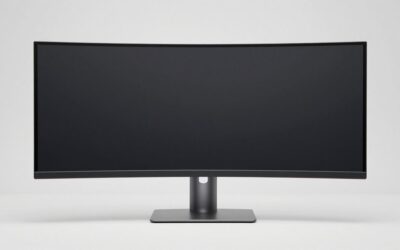
Choosing the right ultrawide curved monitor for video editing means balancing timeline space, pixel density, color accuracy, and connectivity rather than simply buying the largest screen. A 34-inch 3440 × 1440 display can make everyday editing more comfortable, while a 40-inch 5120 × 2160 monitor offers substantially more vertical workspace for detailed timelines, preview windows, and color adjustments. OLED models add excellent contrast but introduce long-term burn-in considerations. This roundup compares six curved monitors with different strengths, explains which editing workflows suit them, and identifies the limitations that matter before spending money on a new display.
- Best ultrawide curved monitor for video editing: quick verdict
- Quick comparison table
- How we selected these monitors
- Dell UltraSharp U4025QW: Best overall for video editing
- LG 40WP95C-W: Best for a connected creative workstation
- ASUS ProArt PA34VCNV: Best for SDR and Rec.709 editing
- Dell UltraSharp U3425WE: Best 34-inch editing and productivity monitor
- MSI MPG 341CQPX QD-OLED: Best for editing and gaming together
- Samsung ViewFinity S95UC: Best for an exceptionally wide timeline
- How to choose an ultrawide curved monitor for video editing
- Frequently asked questions
- Final verdict
Quick answer: Our top pick in 2026 is the Monitor — our #1 rated choice. See the full ranked comparison, alternatives and buying advice below.
Best ultrawide curved monitor for video editing: quick verdict
The Dell UltraSharp U4025QW is the strongest all-around choice for editors who want high pixel density, a broad color gamut, smooth desktop navigation, and extensive connectivity. Its 39.7-inch, 5120 × 2160 IPS Black panel provides considerably more working space than a conventional 34-inch ultrawide.
However, the best choice depends on your actual workflow. The ASUS ProArt PA34VCNV is a compelling option for SDR editing in sRGB and Rec.709 because it emphasizes factory calibration rather than gaming features. The Dell U3425WE offers a practical 34-inch format with a strong connectivity hub, while the MSI MPG 341CQPX QD-OLED suits creators who also play games and value deep blacks.
For extensive multitasking, the Samsung ViewFinity S95UC offers an unusually wide workspace. If you prefer a 40-inch, high-resolution display with Thunderbolt 4, the LG 40WP95C-W remains another option.
One important distinction applies to every recommendation: A monitor that displays attractive colors is not automatically a reference-grade display for final color grading. Professional delivery requirements, calibration, room lighting, and the intended viewing standard still matter.
Quick comparison table
| Monitor | Best suited for | Resolution and panel | Main advantage | Important limitation |
|---|---|---|---|---|
| Dell UltraSharp U4025QW | Best overall | 39.7-inch, 5120 × 2160, IPS Black | High pixel density and versatile connectivity | Premium positioning and limited local-dimming effectiveness |
| LG 40WP95C-W | Connected creative workstations | 39.7-inch, 5120 × 2160, Nano IPS | Large timeline and Thunderbolt 4 | Modest HDR performance |
| ASUS ProArt PA34VCNV | SDR and Rec.709 editing | 34.1-inch, 3440 × 1440, IPS | Factory-calibrated color modes | 60Hz refresh rate and more limited documented gamut coverage |
| Dell UltraSharp U3425WE | Everyday editing and productivity | 34.1-inch, 3440 × 1440, IPS Black | 120Hz and extensive docking features | No HDR support |
| MSI MPG 341CQPX QD-OLED | Editing and gaming | 34.18-inch, 3440 × 1440, QD-OLED | Excellent contrast and wide color gamut | Permanent burn-in risk |
| Samsung ViewFinity S95UC | Very wide editing timelines | 49-inch, 5120 × 1440, VA | Extensive horizontal workspace | Less suitable for critical color grading |
These categories reflect each display’s verified specifications, available independent testing, and practical workflow strengths. They are not based on a common hands-on test, and the table does not imply that all six monitors offer equivalent color accuracy or HDR performance.
How we selected these monitors
A curved ultrawide monitor needs to do more than provide extra width to qualify for video editing. The important questions are whether its resolution accommodates the editing interface, whether its color capabilities suit the intended delivery format, and whether its connections work with the computer driving it.
This roundup prioritizes curved displays with useful resolutions, credible color specifications, adjustable stands, or connectivity features that improve a creator’s workflow. Independent testing is particularly important when assessing real-world color accuracy, reflection handling, contrast, and HDR limitations.
The recommendations also distinguish between SDR editing, wide-gamut creative work, HDR previewing, and general timeline management. Those activities place different demands on a display. A 240Hz OLED can be excellent for gaming and visually impressive during editing, but an accurately calibrated IPS monitor may be the more sensible professional tool for an editor working primarily in Rec.709.
The product descriptions combine manufacturer specifications with available third-party reviews. No original laboratory measurements or detailed research are claimed. Prices are omitted because comparable US purchase prices and exact Amazon listings were not independently established for every selected model.
Dell UltraSharp U4025QW: Best overall for video editing
The Dell UltraSharp U4025QW is the most balanced choice for editors who need a large, detailed workspace without giving up the convenience of a modern workstation display.
Its 39.7-inch IPS Black panel delivers a native resolution of 5120 × 2160, commonly called 5K2K. The 21:9 aspect ratio gives you more horizontal space than a conventional 4K monitor while retaining 2160 vertical pixels. This extra height is useful when arranging multiple video tracks, an expanded timeline, preview footage, scopes, and effect controls.
Dell specifies 99% DCI-P3 coverage, 99% Display P3 coverage, and average Delta E below 2 for the supported color spaces. These specifications make the monitor attractive for demanding creative work, although the actual output should still be verified for the intended workflow. Its 120Hz refresh rate also makes scrolling, dragging clips, and general desktop interaction feel smoother than on a conventional 60Hz screen.
Connectivity is another major strength. Thunderbolt 4 supports laptop docking and power delivery up to 140W EPR, while the monitor also provides DisplayPort, HDMI, USB ports, and 2.5Gb Ethernet. That combination can simplify a desk shared between a powerful editing desktop and a compatible laptop.
Independent RTINGS testing found excellent color accuracy before calibration and strong editing performance. The important caveat is HDR: Its local-dimming performance is poor, and reflections may become distracting in very bright environments. IPS Black also cannot reproduce the nearly perfect dark-room blacks of OLED.
Buy if you want a high-resolution all-purpose editing display with strong connectivity and accurate color.
Skip if your priority is reference-grade HDR mastering or you work in a room with uncontrollable glare.
LG 40WP95C-W: Best for a connected creative workstation
The LG 40WP95C-W is a practical alternative for editors who want a large, high-resolution curved screen and a Thunderbolt-centered workstation.
Its 39.7-inch Nano IPS panel has a native resolution of 5120 × 2160, a 21:9 aspect ratio, and a 2500R curve. LG specifies up to 98% DCI-P3 coverage, giving the monitor a useful wide-gamut foundation for video and other visual work.
The extra resolution is its main attraction. At 40 inches, 5K2K provides substantially more desktop detail than 3440 × 1440 while offering enough width for an editing timeline and enough height to keep supporting panels open. Editors working on 4K projects can also benefit from having more room for the application interface without reducing the preview to an uncomfortably small window.
Thunderbolt 4 supports video, data transfer, and up to 96W power delivery to compatible laptops. Daisy-chain capability allows another compatible display to connect through the monitor, reducing cable clutter. LG also provides an adjustable stand and built-in speakers for everyday use.
There are meaningful compromises. The refresh rate is 72Hz rather than 120Hz, and the monitor’s advertised HDR10 support should not be mistaken for strong HDR reference performance. Independent testing by RTINGS found good color accuracy and an extensive SDR gamut but recommended further calibration for the best accuracy. Its relatively low contrast and limited peak brightness also constrain HDR presentation.
Buy if you want a spacious, Thunderbolt-connected creative workspace for SDR editing, general production, and multitasking.
Skip if you need high-brightness HDR performance or want the smoothest possible high-refresh desktop experience.
ASUS ProArt PA34VCNV: Best for SDR and Rec.709 editing
The ASUS ProArt PA34VCNV is the most purpose-built SDR editing choice in this roundup. Rather than chasing an extreme refresh rate, it emphasizes the color modes and factory calibration that matter to editors producing conventional web and broadcast video.
It uses a 34.1-inch curved IPS panel with a 3440 × 1440 resolution and a relatively gentle 3800R curvature. The native 21:9 format provides enough horizontal space for the timeline, media browser, scopes, and preview window without requiring the desk space of a 40-inch or 49-inch monitor.
ASUS specifies 100% sRGB and 100% Rec.709 coverage, Calman verification, and factory-calibrated color accuracy with Delta E below 2. It includes selectable color modes such as sRGB, Rec.709, and DCI-P3, as well as ProArt Palette adjustments for fine-tuning the image. These capabilities make it particularly appealing to creators who need predictable SDR output and want a sensible starting point without immediately purchasing calibration equipment.
Connectivity is also practical. USB-C supports DisplayPort Alt Mode and up to 96W power delivery, while the monitor includes RJ45 Ethernet, HDMI, DisplayPort, and USB ports. Height, swivel, and tilt adjustments help accommodate longer editing sessions.
The trade-off is resolution and refresh rate. At 3440 × 1440, it has fewer pixels than the 40-inch 5K2K alternatives, and its maximum refresh rate is 60Hz. Its typical 300-nit brightness and documented color specifications also do not make it a substitute for a specialized HDR mastering display.
Buy if you primarily edit SDR footage, work in Rec.709, and value calibration features over gaming performance.
Skip if you need extensive high-resolution workspace, advanced HDR monitoring, or a high refresh rate.
Dell UltraSharp U3425WE: Best 34-inch editing and productivity monitor
The Dell UltraSharp U3425WE is a strong choice for editors who prefer a conventional 34-inch ultrawide but still want modern connectivity and better-than-basic color capabilities.
The 34.1-inch IPS Black panel provides 3440 × 1440 resolution, a 21:9 aspect ratio, and a 1900R curve. Its 120Hz refresh rate offers smoother desktop navigation than the ASUS PA34VCNV, making it attractive for someone alternating between editing, browsing footage, reviewing project notes, and general productivity work.
Dell lists 98% DCI-P3 and Display P3 coverage, alongside 100% sRGB, Adobe RGB, and BT.709 coverage. These are useful color specifications for a general-purpose creative display, although gamut coverage alone does not establish color accuracy in every mode or guarantee a calibrated output chain.
The integrated hub is a substantial advantage. Thunderbolt 4, USB-C power delivery up to 90W, USB ports, KVM functionality, and display daisy-chaining help reduce desk clutter when multiple computers or peripherals are involved. A compatible laptop can use the monitor as both a display and a docking station.
RTINGS found the U3425WE suitable for SDR editing, highlighting its accurate sRGB mode, text clarity, and extensive connectivity. However, the testing also identified an important limitation: The monitor does not support HDR. Its IPS Black technology improves contrast compared with many conventional IPS panels, but it is not equivalent to the contrast of an OLED display.
Buy if you want a versatile 34-inch screen for SDR editing and everyday work, particularly with a laptop-centered setup.
Skip if your workflow requires HDR editing or you need the extra vertical resolution of a 5K2K panel.
MSI MPG 341CQPX QD-OLED: Best for editing and gaming together
The MSI MPG 341CQPX QD-OLED is a compelling hybrid option for creators who spend substantial time editing but also want a high-performance gaming display.
Its 34.18-inch QD-OLED panel offers 3440 × 1440 resolution, a 1800R curve, and a 240Hz refresh rate. MSI specifies DCI-P3 coverage of 99.3% under its stated measurement standard, alongside a very high contrast ratio made possible by OLED technology.
That contrast is valuable when reviewing dark scenes, shadows, and cinematic material in a dim room. The wide color gamut can also make footage look vivid, while the high refresh rate is a major benefit for gaming outside working hours. The monitor supports DisplayHDR True Black 400 and can reach a manufacturer-rated 1000 nits in small, limited-area highlights under specified conditions.
However, the important distinction is between compelling HDR presentation and reliable HDR mastering. Peak brightness specifications measured in small highlight areas do not establish how accurately the monitor can reproduce every demanding HDR workflow. Its gaming-oriented design also does not eliminate the need for calibration and delivery checks.
The most significant long-term issue is OLED burn-in. Editing software frequently displays static timelines, toolbars, meters, and interface panels for hours. MSI includes OLED Care features and advertises a three-year warranty that covers burn-in for this model on its US product page, but these protections do not make the risk disappear.
Buy if you want deep blacks, wide-gamut imagery, and strong gaming performance in one display.
Skip if your monitor remains on the same editing interface throughout long daily shifts, or if you require a dedicated reference display for professional HDR finishing.
Samsung ViewFinity S95UC: Best for an exceptionally wide timeline
The Samsung ViewFinity S95UC targets editors who prioritize horizontal workspace and frequently keep several applications open at once.
Its 49-inch curved VA panel uses a 5120 × 1440 resolution and an extremely wide 32:9 aspect ratio. The 1000R curve wraps the display around the viewer, making its edges more comfortable to see from a normal seated position than a similarly wide flat screen might be.
For editing, that width can accommodate a timeline, media bins, effect controls, and reference material side by side. It can also help when managing multiple camera angles or moving footage between editing applications and supporting tools. Picture-by-picture capability allows compatible sources to share the display, while the integrated KVM switch makes it easier to control two connected computers from one keyboard and mouse.
Samsung lists a 120Hz refresh rate, 350-nit typical brightness, 3000:1 static contrast, and 92% DCI-P3 coverage. USB-C supports up to 90W charging, making the monitor useful for connected productivity workstations.
The main limitation is what the screen prioritizes. Its resolution provides 1440 vertical pixels, considerably fewer than the 2160 vertical pixels offered by the 40-inch 5K2K monitors. Its documented DCI-P3 coverage is also less extensive than that of several alternatives here, and the manufacturer does not position it as a factory-calibrated reference display.
Buy if you need a very wide timeline, multiple application windows, and convenient multi-computer support.
Skip if you need the highest pixel density, extensive verified color accuracy, or a dedicated display for critical color grading.
How to choose an ultrawide curved monitor for video editing
The most useful specifications depend on the footage you edit, the delivery format, and how much control you need over color. A few practical checks can prevent an expensive purchase that looks impressive on paper but fails your workflow.
Choose the right resolution and screen size
A 34-inch 3440 × 1440 monitor is a sensible starting point for 1080p and 4K editing when budget, desk space, or connectivity is limited. It leaves room for the timeline and supporting panels without making the physical display excessively wide.
A 40-inch 5120 × 2160 monitor is better suited to editors who want more vertical space and fine desktop detail. That resolution retains 2160 vertical pixels while adding width, making it useful for a complex interface and detailed 4K projects.
A 49-inch 5120 × 1440 display prioritizes horizontal space instead. It works well for extended timelines and multiple applications, but its 1440-pixel height may be less convenient for editors who prefer larger preview windows and many vertically stacked tracks.
Remember that the number of timeline tracks you can comfortably view also depends on interface scaling and the layout of your editing application.
Match the color gamut to your delivery format
Color gamut describes the range of colors a display can reproduce. Color accuracy describes how closely its displayed colors match their intended values. These are related but different properties.
For conventional SDR production, look for dependable sRGB and Rec.709 coverage, accurate preset modes, and credible calibration information. For wider-gamut work, DCI-P3 coverage becomes more relevant. Adobe RGB may matter more if you also work with photography or print-oriented assets.
Do not choose a monitor merely because its specifications advertise a large color gamut. A screen can reproduce many vivid colors without displaying them accurately. Calibration, appropriate application color management, and correct output settings remain important.
If color consistency matters professionally, use a suitable hardware calibrator where supported and verify the monitor’s performance under your actual viewing conditions.
Understand what curved and OLED panels change
Curvature primarily affects the viewing experience. A curved panel can bring its edges closer to the viewer, which may improve comfort on a wide screen. It does not automatically improve color accuracy or increase resolution.
A strong 1000R curve, such as the Samsung’s, creates a more enveloping presentation than a gentle 2500R or 3800R curve. Preference, viewing distance, and how you arrange other displays should guide the decision.
OLED’s main advantage is its ability to produce very deep blacks and strong contrast. However, prolonged static interface elements create a burn-in concern. IPS panels remain attractive for editing interfaces that stay open for long periods, especially when paired with a suitable calibration workflow.
Neither technology automatically replaces a dedicated reference monitor for professional color finishing.
Check HDR performance and connectivity
An HDR logo or a peak-brightness number does not tell the whole story. HDR performance also depends on sustained brightness, black levels, tone mapping, color volume, and how the display handles bright and dark regions simultaneously.
If HDR mastering is a central part of your work, verify measured performance and the monitor’s suitability for your specific HDR delivery standard before buying. A general-purpose ultrawide can be excellent for editing while still being a poor choice for final reference monitoring.
Connectivity deserves the same attention. Check whether your computer supports the required resolution and refresh rate through the intended HDMI, DisplayPort, or USB-C connection. Thunderbolt can simplify a laptop workstation, but the host computer, cable, and monitor must support the required features together.
Finally, measure your desk before choosing a 40-inch or 49-inch display. Allow enough depth for comfortable viewing and make sure the stand, monitor arm, or mounting hardware supports the display’s dimensions and weight.
Frequently asked questions
Is a 34-inch ultrawide enough for 4K video editing?
Yes. A 34-inch 3440 × 1440 monitor can provide a comfortable editing interface for 4K projects, particularly if you prioritize timeline width and use sensible application scaling. However, the panel cannot display a native 3840 × 2160 image pixel for pixel because its resolution is lower in both width and height. Choose a 5K2K monitor if more vertical workspace and finer desktop detail are important to you.
Is an ultrawide curved monitor good for color grading?
It can be, provided that its color accuracy, gamut, calibration, and viewing conditions suit the project. Curvature is not a guarantee of accurate colors. For standard SDR work, a dependable Rec.709 mode and calibration support can matter more than the size of the screen. For critical HDR mastering, evaluate independent measurements and reference-monitoring requirements before relying on a general-purpose ultrawide.
Should video editors buy OLED or IPS?
OLED is attractive when deep blacks, high contrast, and a wide color gamut are priorities. IPS is often a more straightforward choice for a workstation that displays static software interfaces for extended periods. OLED burn-in protections reduce risk but do not eliminate it, so consider your daily working hours and the terms of the exact model’s warranty.
Do video editors need a 120Hz or 240Hz monitor?
Not necessarily. Refresh rate affects how smoothly the interface and moving content appear, but it does not automatically improve color accuracy or export performance. A 60Hz monitor with suitable color characteristics may be sufficient for conventional editing. Higher refresh rates are useful for smoother interaction and gaming, but they should not take priority over resolution, color capabilities, and connectivity.
Can one ultrawide monitor replace two monitors?
For many editing workflows, yes. A 21:9 or 32:9 display can hold multiple panels and applications on one continuous desktop. However, two separate monitors may be preferable when you need an independent reference screen or want to keep a full-size preview isolated from your editing interface. The better arrangement depends on your application layout and how much desk space is available.
Final verdict
The Dell UltraSharp U4025QW is the strongest all-around choice in this roundup because it combines a detailed 5K2K workspace, extensive color coverage, a 120Hz refresh rate, and versatile connectivity. The ASUS ProArt PA34VCNV is a more focused option for SDR and Rec.709 editing, while the Dell U3425WE makes sense for buyers who prefer a smaller desktop footprint and a capable docking hub.
The LG 40WP95C-W is worth considering for a connected creative workstation, the MSI MPG 341CQPX QD-OLED suits a mixed editing-and-gaming setup, and the Samsung ViewFinity S95UC offers exceptional horizontal workspace.
Before choosing, decide whether your greatest need is color confidence, a larger timeline, HDR capability, or a screen that serves both work and gaming. That decision is more useful than chasing the highest refresh rate or the widest display alone.
Ready to decide? Our #1 pick for 2026 is the Monitor.
Live price & availability on Amazon.