
A good student monitor should make assignments, research, online classes, and everyday computing more comfortable without consuming money better spent on a laptop or other essentials. The good monitors for students worth considering range from simple 24-inch Full HD displays to sharper 27-inch QHD screens for coding and creative coursework. The right choice depends on your major, dorm-room desk space, laptop connections, and whether you also play games. For most students, a reasonably priced IPS monitor with a resolution of 1920 × 1080 is enough, while USB-C convenience, accurate color, and higher refresh rates justify spending more only for particular needs.
- Quick verdict: good monitors for students by use case
- How we selected these monitors
- Best overall for coursework: BenQ GW2490
- Best simple option: ASUS VA24EHF2
- Best for laptop users: BenQ GW2490TC
- Best for design students: ASUS ProArt PA278QGV
- Best QHD gaming and multitasking option: Acer Nitro KG271U N3
- Best for competitive gaming: LG UltraGear 24GS65F-B
- Best portable monitor: KYY K3
- How to choose the right monitor for student life
- Frequently asked questions
- Final verdict
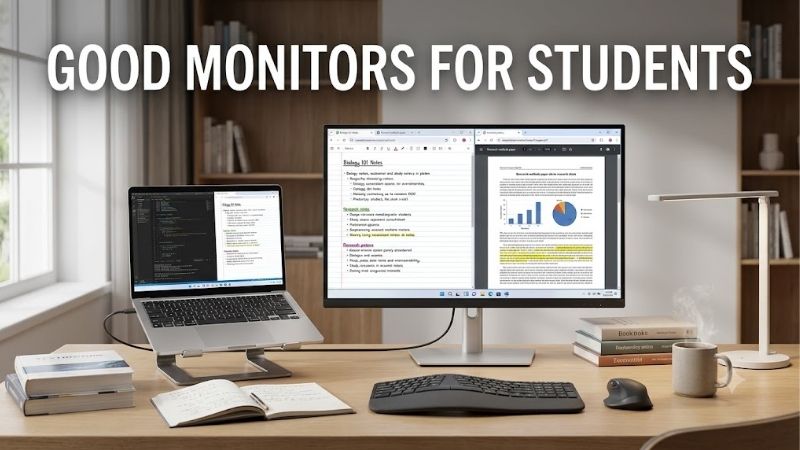
Quick answer: Our top pick in 2026 is the Monitor — our #1 rated choice. See the full ranked comparison, alternatives and buying advice below.
Quick verdict: good monitors for students by use case
The BenQ GW2490 is a sensible starting point for general coursework, browsing, and online classes. ASUS’s VA24EHF2 offers a straightforward alternative, while the BenQ GW2490TC is better suited to students who use a compatible USB-C laptop and want a more adjustable stand.
For computer science, data-heavy coursework, and multitasking, the ASUS ProArt PA278QGV provides a sharper 27-inch QHD workspace. The Acer Nitro KG271U N3 offers a gaming-oriented QHD alternative, while the LG UltraGear 24GS65F-B is a compact Full HD choice for students who play competitive games. Finally, the KYY K3 is designed for students who need a second display that travels with a laptop.
| Monitor | Best fit | Main specifications | Main drawback |
|---|---|---|---|
| BenQ GW2490 | Everyday coursework | 23.8-inch IPS, 1080p, 100Hz | Basic stand adjustment |
| ASUS VA24EHF2 | Budget-conscious studying | 23.8-inch IPS, 1080p, 120Hz | No DisplayPort input |
| BenQ GW2490TC | Laptop-based studying | 23.8-inch IPS, 1080p, 144Hz, USB-C | USB-C supplies only 20W |
| ASUS ProArt PA278QGV | Design and creative coursework | 27-inch IPS, 1440p, 120Hz | Costs more than basic monitors |
| Acer Nitro KG271U N3 | Gaming and larger workspace | 27-inch IPS, 1440p, up to 180Hz | Basic stand |
| LG UltraGear 24GS65F-B | Competitive gaming | 24-inch-class IPS, 1080p, 180Hz | Limited contrast and HDR |
| KYY K3 | Portable laptop use | 15.6-inch IPS, 1080p, 60Hz | Limited color accuracy |
These are recommendations for different student needs, not a universal ranking based on price. Current prices and availability can change, and comparable US retailer prices were not established for every model. Check the exact model and current offer before ordering.
How we selected these monitors
The selection prioritizes everyday usefulness over specifications that look impressive on a product box. For students, the most important considerations are text clarity, comfortable viewing angles, physical adjustability, available inputs, and the ability to accommodate several applications at once.
Manufacturer documentation provides the core specifications, including native resolution, refresh rate, panel type, and connection options. Independent reviews from RTINGS and TechRadar provide additional evidence for the gaming and portable recommendations. The ASUS ProArt model is included for its manufacturer-stated factory color calibration, rather than an unsupported claim that every unit will be perfectly color-accurate in every environment.
No new detailed research was conducted for this article. Recommendations are based on published specifications and available independent reviews, and the article does not invent benchmark results, review scores, or owner consensus. Exact Amazon US listings were not independently confirmed for every model, so no Amazon availability claim or static Amazon price is presented.
Best overall for coursework: BenQ GW2490
The BenQ GW2490 is a practical first monitor for students who primarily write papers, read research, attend online classes, and keep multiple browser windows open. Its 23.8-inch IPS panel has a native resolution of 1920 × 1080, a maximum refresh rate of 100Hz, and a stated brightness of 250 nits. BenQ also lists 99% sRGB color coverage and a matte screen surface.
The Full HD resolution is sufficient for the everyday tasks most students perform. A browser can occupy one side of the screen while a document or PDF sits beside it, reducing the need to switch repeatedly between applications. The IPS panel is particularly useful when the display sits at an angle or when a classmate looks at the screen from the side.
Its 100Hz refresh rate provides smoother scrolling than a conventional 60Hz display. That can be welcome when moving through long documents or websites, although it is not a feature most students need to prioritize over a comfortable stand or appropriate screen size.
BenQ lists two HDMI 1.4 inputs, built-in 2W speakers, and a headphone jack. Those speakers are convenient for notification sounds and basic media playback, but students attending frequent calls may still prefer a dedicated headset. The monitor supports VESA mounting, although the supplied stand provides only tilt adjustment.
The limitation is ergonomics. Without height adjustment, the screen may sit too low relative to your chair and desk. A compatible monitor arm can solve that problem, but it adds cost and requires suitable mounting space.
Buy this model for a straightforward home or dorm workstation. Skip it if you need USB-C laptop connectivity, a more adjustable stand, or high-refresh competitive gaming. Its main advantage is a balanced set of everyday features without unnecessary premium hardware.
Best simple option: ASUS VA24EHF2
The ASUS VA24EHF2 is another sensible choice for students who need an uncomplicated display for writing, browsing, and general computing. ASUS specifies a 23.8-inch Full HD IPS panel, a maximum refresh rate of 120Hz, a 178-degree horizontal and vertical viewing angle, and 99% sRGB coverage.
The compact format is well suited to smaller desks. It provides enough room for a lecture video, a document, or a research tab without occupying as much space as a 27-inch monitor. The IPS panel also helps maintain a consistent image when you view it from a slightly off-center position.
The 120Hz refresh rate is a useful extra for everyday interaction and casual gaming. However, students who mostly type essays or read PDFs should not pay substantially more just to move from 100Hz to 120Hz. The difference is less important than readable text, comfortable positioning, and reliable connectivity.
ASUS lists HDMI and VGA connectivity, along with Adaptive-Sync and eye-care features. HDMI is the sensible choice for a modern computer, while VGA is an older analog option. There is no DisplayPort input listed, so check your computer’s available outputs before buying. ASUS does not list built-in speakers for this monitor, meaning a headset or external speakers may be necessary for audio.
The basic stand and limited input selection keep the setup simple, but they are not ideal for every workstation. Students using a desktop with limited HDMI ports should confirm compatibility before ordering.
Buy it for basic studying and everyday computing when its current price is attractive. Skip it if you need DisplayPort, a USB-C connection for a laptop, or integrated speakers. Those requirements may make a different model more convenient even if its initial price is slightly higher.
Best for laptop users: BenQ GW2490TC
The BenQ GW2490TC is especially relevant for students who move between lectures and a permanent study desk. It combines a 23.8-inch Full HD IPS display with a 144Hz refresh rate, USB-C connectivity, and a stand that supports height adjustment, swivel, and pivot.
Its USB-C input supports DisplayPort Alt Mode, data, and up to 20W of Power Delivery. For a compatible laptop, this can simplify a desk arrangement by allowing video to travel through one USB-C cable rather than requiring a separate HDMI cable. The USB-C port can also provide modest power to supported devices, but 20W is not enough to charge many student laptops reliably while they are in use. Keep the laptop’s normal charger available.
The adjustable stand is a meaningful advantage for long study sessions. You can raise the display to a more suitable height, rotate it into portrait orientation for long documents, or turn it toward another person during group work. A VESA mounting option also gives you flexibility if the desk is small.
The screen has 1920 × 1080 resolution, 250-nit stated brightness, 99% sRGB coverage, two 2W speakers, and a headphone jack. Its 144Hz refresh rate is more than many office-focused students need, but it provides additional flexibility for casual gaming.
The trade-off is cost. USB-C connectivity and a more capable stand can make this a better long-term desk monitor, but they are not essential if your laptop already connects easily through HDMI and the screen will remain in one position.
Buy it if you use a compatible USB-C laptop and care about ergonomic adjustment. Skip it if your budget is tight and a basic HDMI monitor would do the same job.
Best for design students: ASUS ProArt PA278QGV
The ASUS ProArt PA278QGV is a more specialized option for students studying graphic design, photography, video production, illustration, or other subjects where color consistency matters. Its 27-inch IPS panel has a native resolution of 2560 × 1440, a maximum refresh rate of 120Hz, and manufacturer-rated coverage of 100% sRGB and 95% DCI-P3.
The higher resolution gives you more usable workspace than Full HD. That is helpful when an application contains a large canvas, a timeline, multiple tool panels, or several references. At 27 inches, QHD also provides greater pixel density than Full HD at the same screen size, which helps make text and fine details look sharper.
ASUS states that the PA278QGV is Calman Verified and factory calibrated to a Delta E below 2. That makes it a stronger candidate for color-conscious coursework than a typical inexpensive office monitor. The specification is a manufacturer claim about factory calibration, not a guarantee that every screen will stay perfectly accurate in every environment. Color-critical work may still require suitable settings, a controlled viewing environment, and periodic calibration.
The monitor also has DisplayPort 1.4, HDMI, four USB-A downstream ports, built-in speakers, and a stand with height, swivel, tilt, and pivot adjustment. Those features are useful for a desk that handles both coursework and external devices.
The obvious disadvantage is cost. ASUS’s US support page listed a store price of $279 when checked on October 14, 2026, before any applicable tax or shipping. That is substantially more than many basic student monitors, and it is difficult to justify for note-taking or essay writing alone.
Buy it if your coursework depends on color work and you can afford the extra expense. Skip it if your major is mostly text-based or if spending more would compromise your laptop budget. A standard IPS display is adequate for many students who do not need color-focused features.
Best QHD gaming and multitasking option: Acer Nitro KG271U N3
The Acer Nitro KG271U N3BMIIPX, part number UM.HX1AA.307, is a 27-inch QHD IPS monitor that offers a useful combination of screen space and gaming capability. Acer specifies a native resolution of 2560 × 1440, a maximum refresh rate of 180Hz over DisplayPort, and up to 144Hz over HDMI.
The larger panel is well suited to students who manage several applications simultaneously. Computer science students may keep an editor beside documentation, while engineering students may benefit from the additional space in complex software interfaces. A 27-inch screen is also more comfortable for many media-viewing tasks than a small laptop display.
The QHD resolution increases the GPU’s rendering workload compared with 1080p during gaming. Students using integrated graphics or a less powerful laptop should check whether their hardware can run their chosen games comfortably at native QHD. For coursework, this is much less of a concern because ordinary documents and browser windows require comparatively little graphics performance.
Acer lists AMD FreeSync support, 250-nit brightness, two HDMI inputs, DisplayPort 1.2, built-in speakers, and a 100 × 100 mm VESA mounting pattern. The standard stand offers tilt adjustment but lacks height adjustment. A compatible arm may therefore be useful if you want to align it with a laptop stand or another display.
The main drawback is its size and gaming-oriented design. It may be excessive for a cramped dorm desk or for someone who only needs a browser and a writing application open simultaneously.
Buy it if you want a versatile QHD display for demanding coursework and gaming. Skip it if your budget is limited or if a 24-inch Full HD display would provide enough workspace.
Best for competitive gaming: LG UltraGear 24GS65F-B
The LG UltraGear 24GS65F-B suits students who want one monitor for both studying and fast-paced gaming. LG specifies a 24-inch-class Full HD IPS panel, a 180Hz refresh rate, HDR10 support, and compatibility with NVIDIA G-SYNC and AMD FreeSync technologies under supported configurations.
A 180Hz maximum refresh rate can make motion look smoother when the computer supplies sufficiently high frame rates. That can matter in competitive games where responsiveness is important, but it should not be the main purchasing criterion for a student who rarely plays games.
The 1920 × 1080 resolution is straightforward to drive and adequate for writing, web browsing, and online classes. The monitor also has a matte surface and a stand with height, tilt, and pivot adjustment, which helps accommodate different desk layouts. LG lists DisplayPort 1.4 and HDMI 2.0 inputs.
RTINGS’ independent review identifies low input lag and responsive motion as strengths. It also highlights meaningful limitations: the panel’s low contrast makes dark scenes look gray, fast-moving objects can still exhibit blur, and the HDR10 label does not translate into a particularly impactful HDR image. These are important distinctions when comparing a budget gaming monitor with more expensive displays.
Its gaming features do add cost and may go unused during most study sessions. It also lacks USB ports, so it does not provide a built-in hub for keyboards or other peripherals.
Buy it if gaming is a regular part of your routine and you want a compact display that can handle both coursework and competitive play. Skip it if your primary need is text-heavy productivity. The simpler BenQ and ASUS office monitors may be a better use of your money.
Best portable monitor: KYY K3
The KYY K3 is for students who need an extra screen while moving between home, campus, and shared workspaces. It uses a 15.6-inch IPS panel with Full HD resolution and a 60Hz refresh rate. TechRadar’s independent review identifies USB-C and mini HDMI connectivity, dual USB-C ports, built-in speakers, and a protective cover that doubles as a stand.
The compact format makes it practical beside a laptop on a small desk or library table. It can extend the desktop so you can read course materials on one screen while taking notes on the other. It is also easier to pack than a conventional 24-inch monitor.
However, portability requires compromises. The screen is much smaller than desktop alternatives, and the protective cover offers only basic positioning flexibility. It does not replace a height-adjustable monitor stand for a permanent workstation.
Image quality is another limitation. TechRadar’s measurements found approximately 64% sRGB coverage, which makes the K3 a poor choice for color-sensitive design work. The 60Hz refresh rate is appropriate for basic productivity but not ideal for students who want smooth competitive gaming.
USB-C video support depends on the laptop. A compatible port must support video output, and the monitor may need separate power depending on the connection. HDMI use also requires an appropriate power connection, so do not assume it works as a completely wireless or battery-powered display.
Buy it if portability is essential and your workload is mainly documents, research, and communication. Skip it for a permanent study desk, accurate color editing, or a gaming-focused setup. A conventional IPS monitor offers more screen area and usually better ergonomic flexibility for everyday use.
How to choose the right monitor for student life
Choose the size and resolution that fit your coursework
A 24-inch Full HD monitor is a practical starting point for essays, browser tabs, research, online classes, and most general student tasks. It fits smaller desks and is usually less demanding on your budget than larger, higher-resolution models.
A 27-inch QHD monitor makes more sense if you work with several windows, spreadsheets, code, diagrams, or creative applications. The additional pixels provide more desktop space without making everything as small as it might appear on a much higher-resolution panel. However, you should account for the physical space the screen requires and the cost difference.
Students who mostly write documents do not need 4K by default. Higher resolution can be helpful for specialized tasks, but it is not a substitute for a comfortable viewing distance or proper text scaling.
Prioritize panel quality and ergonomics
IPS is a reliable general-purpose choice because it typically maintains color and contrast more consistently from different viewing angles. That helps if your monitor sits beside a laptop or if you work with classmates around the same desk.
Stand adjustment matters more than many first-time buyers expect. Height, tilt, and pivot controls make it easier to position the screen comfortably. A VESA-compatible mount can help if the supplied stand takes too much desk space, but remember to include the price of an arm and confirm that the desk can support it.
Check connectivity before ordering
Review the exact ports on your laptop or desktop. HDMI is common, while DisplayPort can be useful for higher-refresh and higher-resolution modes. USB-C is convenient only when the laptop port supports video output. The connector’s shape alone does not prove that capability.
USB-C power delivery is another separate feature. A monitor providing 20W cannot replace the power adapter for many laptops. Even higher-powered USB-C displays may not provide enough power for a gaming laptop under load.
Spend more only when the benefit is real
The right way to manage a student budget is to identify the main workload first. An inexpensive 1080p IPS model is usually enough for ordinary coursework. A QHD monitor can justify its higher cost for programming and multitasking, while a color-focused display is more appropriate for design students.
A gaming monitor is worthwhile if you regularly play games and can take advantage of the higher refresh rate. Otherwise, the money may be better spent on a laptop, storage, a keyboard, or a more comfortable desk setup.
Frequently asked questions
Is a 24-inch monitor big enough for college?
Yes. A 24-inch Full HD monitor is suitable for reading, writing, online classes, research, and ordinary multitasking. A 27-inch QHD display is more attractive if you regularly need multiple visible windows or work with detailed creative applications.
Should students buy a 144Hz monitor?
Not necessarily. Refresh rates above 60Hz can make scrolling and motion look smoother, but a 100Hz or 120Hz display is already a reasonable choice for everyday work. A 144Hz or faster monitor makes more sense when gaming is a regular part of your routine.
Is USB-C necessary for a student monitor?
No. HDMI is sufficient for many desktop computers and laptops. USB-C can simplify a laptop-based desk, but it is worth paying extra only when the laptop supports video through that port and the additional features are useful.
Do students need a color-accurate monitor?
Most students do not. Standard IPS monitors are adequate for papers, research, presentations, and general media. Students studying photography, graphic design, or video production may benefit from a factory-calibrated model with broader color coverage.
Can a portable monitor replace a regular monitor?
A portable monitor can work as a primary display in a cramped or temporary workspace, but its smaller panel and limited stand adjustment can become inconvenient during long sessions. For a permanent desk, a conventional monitor is generally the more comfortable choice.
Final verdict
For most students, the BenQ GW2490 is a practical starting point, while the ASUS VA24EHF2 is a straightforward alternative. Choose the BenQ GW2490TC for laptop-friendly connectivity, the ASUS ProArt PA278QGV for color-focused coursework, or the Acer Nitro KG271U N3 when you need QHD workspace and gaming capability. The LG UltraGear 24GS65F-B is suited to competitive gaming, and the KYY K3 is the portable option.
The most sensible purchase is the one that fits your major, desk, and computer without unnecessary extras. Check the exact model, connectivity, stand, and current US price before ordering.
Ready to decide? Our #1 pick for 2026 is the Monitor.
Live price & availability on Amazon.









