
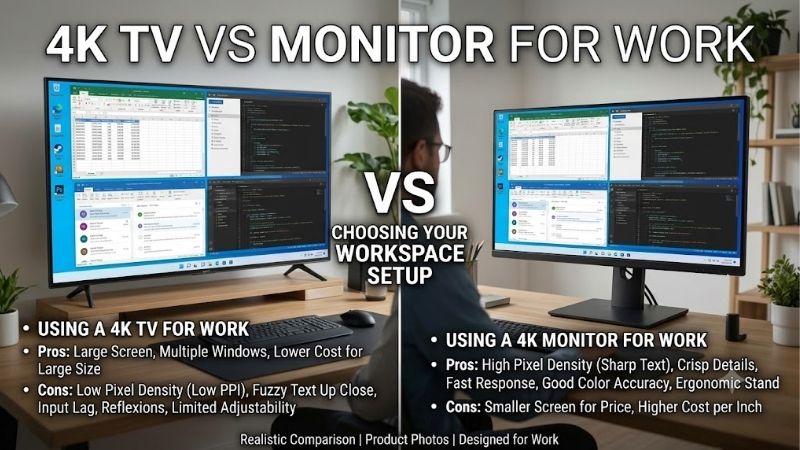
Choosing a 4k tv vs monitor for work comes down to how comfortably you can read, arrange windows, and connect your computer throughout the day. A dedicated 4K monitor is usually the better choice for writing, coding, spreadsheets, and regular laptop docking. A 4K TV can make sense when you already own one, have enough space to sit farther away, or need a large display for presentations and mixed entertainment use. Matching resolution does not guarantee matching desktop usability: screen size, signal settings, stand adjustment, and text rendering all affect the result.
- 4K TV vs monitor for work: The quick verdict
- Resolution, screen size, and usable workspace
- Text clarity and signal quality matter more than TV branding
- Desk fit and ergonomics can decide the comparison
- Connectivity and daily docking favor purpose-built office monitors
- Refresh rate, responsiveness, and multitasking
- Panel technology, glare, and sustained desktop use
- Cost and use-case winners
- 4K TV vs monitor for work: Questions before buying
- Final verdict
Quick answer: Our top pick in 2026 is the Typical desk fit — our #1 rated choice. See the full ranked comparison, alternatives and buying advice below.
4K TV vs monitor for work: The quick verdict
Choose a 4K monitor for a conventional desk where your main tasks involve small text, frequent mouse interaction, and several hours of focused work. Start by comparing 27-inch and 32-inch displays, then prioritize readable scaling, an adjustable stand, and the connections your computer actually supports.
Choose a 4K TV when a large image serves a specific purpose. Examples include showing plans to colleagues, displaying dashboards from across a room, or combining occasional computer use with movies. An existing television is also worth testing before buying another screen.
The important qualification is that the TV must display your desktop correctly. Native resolution, an appropriate refresh rate, uncropped edges, and preserved color detail matter more than its streaming features.
A television that passes those checks can be useful. One that requires uncomfortable seating or makes spreadsheet text difficult to read is a poor workstation purchase, even if its screen is impressively large.
Comparison at a glance
| Work consideration | Dedicated 4K monitor | 4K television |
|---|---|---|
| Typical desk fit | Smaller sizes suit close viewing | Large sizes need more planning |
| Resolution | Commonly 3840 × 2160 | Commonly 3840 × 2160 |
| Text usability | Check density and panel layout | Also check PC mode and color detail |
| Stand adjustment | Often available on office models | Frequently limited |
| Laptop docking | Some models offer USB-C charging and hubs | Usually requires separate accessories |
| Large shared view | Depends on screen size | Often useful for group viewing |
| Desktop setup | Usually straightforward | May require input and picture adjustments |
| Best reason to choose | Daily workstation convenience | Existing equipment or a specific large-screen need |
These are buying tendencies, not universal specifications. Compare the exact displays and connection modes you intend to use.
Resolution, screen size, and usable workspace
A larger television does not automatically provide more desktop information than a smaller monitor. If both receive a 3840 × 2160 signal, they contain the same number of pixels.
The television spreads those pixels across a larger surface. That increases the physical size of windows and text at identical scaling settings, but it does not create additional rows, columns, or application space.
This distinction matters when replacing multiple monitors. A large 4K TV can organize several windows on one continuous surface, but it cannot reproduce every combination of resolution and independent screen behavior.
Pixel density changes close-up sharpness
Pixel density describes how tightly pixels are packed, expressed in pixels per inch. For nominal 16:9 screens displaying 3840 × 2160, the approximate densities are:
| Screen diagonal | Approximate pixel density |
|---|---|
| 27 inches | 163 PPI |
| 32 inches | 138 PPI |
| 43 inches | 102 PPI |
| 55 inches | 80 PPI |
These figures are calculated from resolution and diagonal size, not measured product results. Actual viewable diagonals can differ slightly from advertised size classes.
At the same viewing distance, the smaller screens place pixels closer together. This can make fine lettering appear more precise, assuming the signal and text rendering are appropriate.
Moving farther from a larger screen changes how visible its pixels become. However, that also changes the apparent size of text. Your decision should therefore consider screen size, seating distance, and scaling together.
Scaling determines how much fits comfortably
Display scaling enlarges interface elements while retaining the native pixel resolution. This is different from sending a lower-resolution image to the screen.
For example, at 150% scaling, a 3840 × 2160 desktop has an approximate logical workspace of 2560 × 1440. At 200%, that becomes approximately 1920 × 1080. Applications can handle scaling differently, so these are planning figures rather than guarantees for every program.
A larger TV might let you use a lower scaling percentage comfortably. That can expose more information than a smaller monitor running higher scaling, despite identical physical pixel counts.
Microsoft recommends using the display’s recommended resolution and explains that lower-than-native resolutions can make text less sharp. Adjust scaling or application zoom before reducing resolution simply to enlarge text. Microsoft Support
Text clarity and signal quality matter more than TV branding
For office work, evaluate small lettering rather than a colorful demonstration video. Open your email, spreadsheet, browser, and code editor. Look at colored characters, thin lines, and gray text against white backgrounds.
A picture can look excellent in a movie while revealing desktop problems. Video processing, chroma subsampling, overscan, and panel subpixel arrangements can affect different aspects of the image.
These are separate issues. Fixing one does not necessarily fix the others.
Check full color detail for desktop text
Chroma subsampling reduces color information while preserving more brightness detail. It is useful in video delivery, but reduced color resolution can soften the boundaries of small colored lettering.
For a desktop connection, aim for RGB or a supported YCbCr 4:4:4 mode that preserves full chroma detail. Verify that the TV accepts it at your chosen resolution and refresh rate.
Some televisions need the input identified as a PC before enabling the intended desktop behavior. Samsung’s RU7100 support material, for example, describes PC mode as providing proper 4:4:4 support. That is a model-specific example, not proof that every Samsung TV behaves identically. Support
Do not assume that seeing “4K” in Windows confirms everything. Resolution, refresh rate, color format, and bit depth are different parts of the signal configuration.
Remove overscan and unnecessary processing
Overscan enlarges an image enough to hide its outer edges. On a desktop, that can crop the taskbar or prevent a clean match between source pixels and displayed pixels.
Look for the manufacturer’s setting for showing the complete image. Sony documentation uses settings such as Full Pixel or related display-area options, with terminology differing between models. Computer video signal specifications
Also inspect sharpening and motion-processing settings. Excessive sharpening can add outlines around lettering, while processing intended for television content may be unnecessary for a computer.
Use the documented PC configuration as your starting point. Then judge the result in the applications you actually use rather than copying settings from an unrelated television.
Keep color range separate from chroma
RGB dynamic range determines the numerical range used for brightness levels. It is not the same thing as preserving full chroma resolution.
The computer output and display input must agree. A mismatch can make blacks look gray or hide shadow detail.
NVIDIA documents selectable Full and Limited RGB output ranges and notes that support depends on the display. Follow the appropriate settings for both ends of the connection instead of forcing Full indiscriminately. nvidia.com
Panel subpixel layout adds another variable. RGB, BGR, and alternative arrangements can interact differently with text rendering. A correct HDMI signal cannot change the physical panel layout, so inspect lettering before committing to either category.
Desk fit and ergonomics can decide the comparison
Measure your workspace before comparing display specifications. Include the stand footprint, keyboard position, screen height, and the distance between your eyes and the panel.
For a nominal 16:9 image, a 43-inch diagonal is approximately 37.5 inches wide and 21.1 inches tall. A 55-inch image is approximately 47.9 inches wide and 27 inches tall.
Those calculated dimensions exclude bezels and stands. They show why a large TV can dominate a desk even when its diagonal sounds manageable.
Position the screen around your main task
Place your primary work window where you can view it comfortably while sitting normally. Reserve more distant corners for information you check occasionally.
A large display becomes less useful if every interaction requires substantial head movement or if you must lean forward to read small text.
There is no single desk depth that guarantees success. Screen mounting, eyesight, application layout, and personal preferences all affect comfortable placement.
Before buying, mark the proposed screen outline behind your desk. Sit down, place your keyboard normally, and consider where the top corners and main document would sit.
Evaluate stands and mounts separately
Office monitors may offer height, tilt, swivel, and portrait adjustment, but these features must be checked on the exact model.
TV stands often provide fewer positioning options. A wall mount or suitable desk mount can help, but mounting adds requirements beyond screen size.
Check the display’s mounting pattern, weight without its stand, mount capacity, and available adjustment. Also confirm that your desk or wall can support the intended installation.
A television’s broad feet may consume space needed for notebooks or peripherals. A monitor arm can free desktop space, but only when the display and supporting furniture are compatible.
Connectivity and daily docking favor purpose-built office monitors
An HDMI connection carries the picture to a television, but it does not automatically create a complete workstation.
A laptop may still need its charger, a USB hub, Ethernet, and connections for your keyboard and mouse. Include those devices when comparing the simplicity of each setup.
Certain office monitors combine those functions. Dell’s P2725QE, for example, lists USB-C DisplayPort Alternate Mode, up to 90W power delivery, USB ports, and Gigabit Ethernet. It illustrates a docking feature set rather than a universal monitor capability. Dell USA
Verify the entire connection path
Check the computer output, cable, adapter or dock, and display input. Every part must support your intended resolution and refresh rate.
A USB-C connector does not guarantee video output. Likewise, a dock advertised for 4K may support that resolution only at a lower refresh rate or under particular conditions.
Consult the computer and adapter documentation before buying accessories. For high-refresh operation, verify the supported signal mode rather than relying solely on an HDMI version label.
Samsung’s PC troubleshooting guidance shows why input settings matter: on the models covered, enabling Input Signal Plus expands supported HDMI operation. Samsung also explicitly warns that support varies by model. Samsung IE
Test sleep, wake, and input behavior
Daily reliability matters as much as initial setup. Put the computer to sleep, wake it, disconnect the laptop, and reconnect it.
Check whether the display returns to the correct input and whether your windows retain a useful arrangement. Test these actions repeatedly during the return period.
A setup that needs remote-control input selection every morning may be acceptable for occasional use. It becomes a more meaningful inconvenience when you dock and undock several times daily.
Also confirm that USB-C power delivery meets the laptop’s needs. Charging support alone does not establish sufficient power for every workload.
Refresh rate, responsiveness, and multitasking
A stable 60Hz connection is a sensible baseline for ordinary desktop use. Higher refresh rates can make scrolling and pointer movement look smoother, but they do not increase pixel workspace.
Check the selected mode after connection. Accidentally running a 4K display at 30Hz can produce an unnecessarily sluggish desktop experience.
Response time, input lag, and refresh rate describe different behavior. A fast panel does not prove low processing delay, and a high advertised refresh figure does not establish the supported PC input mode.
Without matched testing, there is no defensible category-wide claim that every monitor is more responsive than every TV.
Use one large screen intentionally
A large 4K display works best with a planned window arrangement. Try a central document with reference material beside it, or a main spreadsheet with smaller communication windows.
Microsoft’s PowerToys FancyZones supports custom regions for arranging application windows. It can help make a large desktop predictable instead of becoming a collection of overlapping windows. Microsoft Learn
However, window regions remain part of one display. They do not become separate monitors for every application or screen-sharing function.
If you regularly share your screen, test whether your meeting software can share an individual window conveniently. Sharing an entire 4K desktop may make content difficult for participants using smaller screens.
Compare against dual monitors
Two monitors can support independent positioning and orientation. You might keep a main display centered and use a portrait screen for documents.
They also require additional connections and occupy space differently. A single television removes the center bezel but places all content on one physical plane.
Neither arrangement guarantees higher productivity. Compare the tasks you perform: continuous editing, occasional references, meetings, and applications that insist on occupying a whole display.
Panel technology, glare, and sustained desktop use
TV versus monitor is only one part of the decision. LCD and OLED characteristics can matter more than the category printed on the box.
For a text-heavy workstation, inspect white documents, dark interfaces, reflections, and brightness behavior. A display optimized for impressive video may not match your preferences for an ordinary workday.
OLED requires attention to static content
OLED displays can experience image retention when content remains visible for prolonged periods or appears repeatedly. Sony’s guidance specifically advises avoiding persistent bright static elements. That matters for taskbars, application toolbars, and fixed dashboards. Sony USA
The issue applies to OLED technology, including OLED monitors; it is not exclusive to televisions.
If choosing OLED, review the exact manufacturer care instructions and applicable US warranty. Leave protective features enabled, use sensible brightness, and allow the recommended maintenance behavior.
For a workstation dominated by the same static interface, an LCD display may be the simpler choice. OLED can still suit mixed workloads, but entertainment picture quality alone should not determine an office purchase.
Evaluate reflections and color requirements
Screen finish is model-specific. Do not assume that every monitor is matte or every television is glossy.
Consider where windows and lamps appear in the screen from your normal seated position. A reflection across your main document can be more disruptive than a modest specification difference.
For color-critical work, compare calibration support, relevant color-space behavior, uniformity, and independent measurements. Vivid showroom color is not evidence of accuracy.
General office work has different needs. Consistent, readable documents and a comfortable brightness setting may be more useful than wide-gamut marketing claims or dramatic HDR highlights.
Cost and use-case winners
Compare complete setups rather than screen prices alone. Include mounts, adapters, docks, charging, cables, and any furniture changes needed to position the display properly.
No verified retail prices are used here, so the comparison does not assume that a television is cheaper. Promotions and existing equipment can change the calculation.
Writing, coding, and spreadsheets
A 27-inch or 32-inch 4K monitor is the starting recommendation for regular desk work. It provides a manageable physical format while allowing you to choose scaling for readable text.
For spreadsheets, compare visible rows and columns at comfortable settings. For coding, test editor text, terminal output, and reference windows together.
A large TV becomes attractive when you specifically want bigger physical text or several visible regions and have enough room. It should pass the same readability test rather than winning solely through size.
Laptop docking and shared presentations
For daily laptop docking, prioritize verified USB-C video, adequate charging, and useful hub functions. These can reduce repeated cable handling.
For presentations, a television’s large image can be valuable when several people view it from farther away. Check readability from every intended seat and keep presentation text suitably large.
A shared display and a personal workstation solve different problems. If both matter, consider whether one compromise screen is practical or whether an existing TV can remain the presentation display.
Occasional work and mixed entertainment
If you already own a 4K TV, test it before spending money. Occasional administrative work may not justify another display when the existing setup is comfortable.
For a work-and-entertainment purchase, weight the decision according to actual hours. Someone working daily should prioritize desktop usability; someone connecting a computer occasionally may reasonably prioritize television features.
4K TV vs monitor for work: Questions before buying
Can a 4K TV replace four monitors?
It can show four 1920 × 1080 pixel regions when a 3840 × 2160 desktop is divided evenly at 100% scaling. Those regions remain windows on one display, with shared positioning, scaling, and screen-sharing behavior. They are not four independently adjustable monitors.
Do you need a powerful graphics card for office work at 4K?
Not necessarily. The important check is whether your computer and connection path support the required output mode. Displaying documents is different from rendering demanding games at 4K. Separate the display-output requirement from the processing requirements of your actual applications.
Is a 43-inch television too large for a desk?
It depends on placement and viewing distance. Measure its actual dimensions and stand footprint, then test where your main window would sit. If you cannot comfortably read and reach the screen’s useful areas from your normal posture, choose a smaller display.
Should you replace a TV that already works well?
There is no automatic reason to do so. Keep it if text is clear, the connection is stable, and the arrangement suits your work. A monitor upgrade should solve an identifiable problem, such as poor adjustment, awkward docking, or insufficient close-up sharpness.
Final verdict
A dedicated 4K monitor is the stronger default for daily writing, coding, spreadsheets, and laptop use. Its advantage comes from a workable combination of size, positioning, and connectivity.
A 4K TV is a valid alternative when its large image serves your workflow or lets you reuse equipment successfully. Verify the desktop signal, inspect small text, measure the physical fit, and test daily sleep and wake behavior. Choose the display that makes your ordinary work comfortable, rather than the one that looks most impressive playing video.
Ready to decide? Our #1 pick for 2026 is the Typical desk fit.
Live price & availability on Amazon.









