
The best gaming monitors under $100 should offer useful refresh capability, a compatible connection, and a price you can actually verify. The MSI G242L E14 is the gaming-first starting point here at an observed $84.99, while the MSI PRO MP245PG E14 adds an adjustable stand at $99.99. These are new US listings checked October 14, 2026, with tax, shipping, and optional accessories excluded.
- Best gaming monitors under $100: the quick verdict
- Quick comparison table
- How these monitors qualified
- The five monitor picks explained
- How to choose the best gaming monitors under $100
- When waiting or keeping your screen is smarter
- Set up the monitor before evaluating it
- Frequently asked questions
- Final verdict
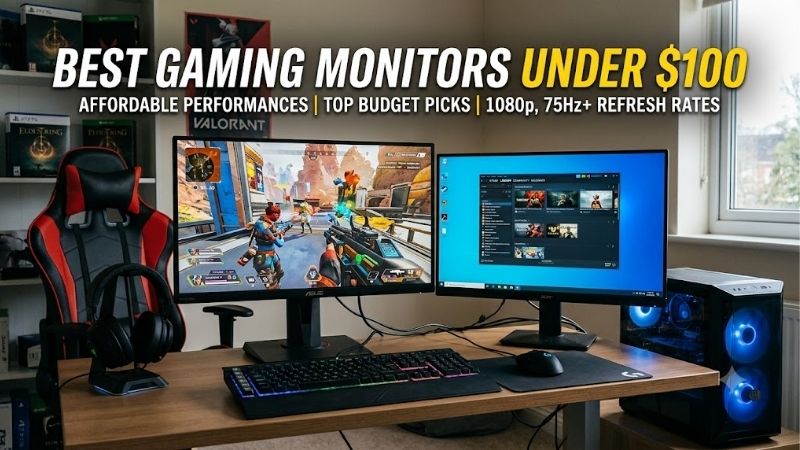
Quick answer: For most people in 2026, the best gaming monitors under $100 is the MSI G242L E14 — our #1 rated choice. See the full ranked comparison, alternatives and buying advice below.
Best gaming monitors under $100: the quick verdict
Start with the MSI G242L E14 if your main goal is a straightforward 1080p gaming screen. Its documented 144Hz capability through HDMI and DisplayPort, IPS panel, and FreeSync support make it a sensible candidate at the verified price.
Choose the MSI PRO MP245PG E14 when screen positioning matters. Its height, swivel, and pivot adjustments can be more useful than a slightly lower purchase price if a basic stand would require replacement.
The BenQ GW2490C is worth considering when USB-C video connectivity is useful alongside 144Hz operation. Its important limitation is that the USB-C connection does not provide laptop charging.
The Acer SB243Y G0BI offers a 120Hz IPS alternative from Acer’s US store. The Philips 271V8LBS provides a larger 27-inch VA screen at 100Hz for players who prioritize physical size over refresh headroom.
“Under $100” refers to the monitor’s advertised new-unit price before tax and shipping. A $99.99 listing does not establish a delivered total below $100. If the price changes, the product must be reassessed against the limit.
Quick comparison table
The prices below were observed on October 14, 2026. Four listings came from B&H; the Acer offer came from Acer’s official US store.
| Monitor | Observed price | Size and panel | Resolution | Refresh specification | Reason to consider it | Main trade-off |
|---|---|---|---|---|---|---|
| MSI G242L E14 | $84.99 | 23.8-inch IPS | 1920 × 1080 | 144Hz | Gaming-first starting point | Tilt-only stand |
| MSI PRO MP245PG E14 | $99.99 | 23.8-inch IPS | 1920 × 1080 | 144Hz | Adjustable desk positioning | Almost no pre-tax budget headroom |
| BenQ GW2490C | $94.99 | 23.8-inch IPS | 1920 × 1080 | 144Hz | USB-C video plus gaming | USB-C does not charge a laptop |
| Acer SB243Y G0BI | $89.99 | 23.8-inch IPS | 1920 × 1080 | 120Hz | Simpler HDMI setup | No DisplayPort listed |
| Philips 271V8LBS/27 | $99.99 | 27-inch VA | 1920 × 1080 | 100Hz | Larger casual-gaming screen | Lower pixel density and refresh ceiling |
A higher refresh specification does not establish superior measured motion handling. This comparison uses verified features rather than invented performance scores.
How these monitors qualified
Eligibility requires a matched exact model, genuine gaming-relevant display capability, and a verified new US listing below $100.
The shortlist contains five products because those offers could be paired with sufficient manufacturer documentation. Additional entries were not added simply to reach a fixed product count.
Some models are marketed for home or business use. They remain relevant when documented refresh rates, connectivity, and adaptive-sync features meet the buyer’s gaming requirements. A gaming label alone is not enough to qualify.
No direct testing or matched input-lag measurements were supplied. Recommendations are research-based judgments, and the article does not claim a laboratory winner.
Discounted prices are treated as observed offers, not guaranteed normal prices. Expired deal coverage, used products, and unverified marketplace price ranges are not the basis for the main recommendations.
The five monitor picks explained
MSI G242L E14: the gaming-first starting point
The G242L E14 combines a 23.8-inch 1080p IPS panel with 144Hz refresh and AMD FreeSync. MSI documents 1080p at up to 144Hz through both HDMI and DisplayPort.
B&H listed a new unit at $84.99. Among these offers, it gives you the lowest verified price for a 144Hz model without requiring an undocumented connection workaround.
Its stand provides tilt adjustment rather than the broader positioning range of the PRO model. Check that your desk can accommodate its fixed height comfortably.
MSI’s “1ms” figure is MPRT, not a measured average gray-to-gray response time. It should not be used to declare universal motion superiority.
Buy if: You want 1080p 144Hz gaming and the included stand fits your position.
Skip if: Height adjustment is essential or you need an unverified premium feature.
Alternative: The PRO MP245PG E14 adds stand flexibility; the BenQ adds USB-C video.
MSI PRO MP245PG E14: the adjustable-stand choice
The PRO MP245PG E14 offers a 23.8-inch 1080p IPS panel and 144Hz refresh. MSI documents adaptive sync, built-in stereo speakers, and height, swivel, tilt, and pivot adjustments.
The new B&H listing was $99.99. Its reason to appear beside the G242L is the stand, rather than a claim that the business branding hides a faster gaming panel.
An adjustable stand can avoid the separate purchase of a monitor arm when you simply need to change screen height or orientation. Verify the adjustment range against your desk before assuming it solves the problem.
Confirm the complete model name, including E14. Similar PRO variants can differ in connectivity and other features.
Buy if: You want gaming capability and adjustable positioning within the monitor-price limit.
Skip if: Your total delivered spending cap is exactly $100 or the basic MSI already fits well.
Alternative: The G242L lowers initial spending while retaining a 144Hz specification.
BenQ GW2490C: the USB-C video option
The GW2490C combines a 23.8-inch 1080p IPS panel, 144Hz refresh, and FreeSync support. B&H listed the black new-unit model at $94.99.
BenQ documents HDMI, DisplayPort, and USB-C DisplayPort Alt Mode. The USB-C port specifically does not support power delivery, so it is a video convenience rather than a replacement laptop charger.
That distinction gives this model a clear role on a desk shared between a desktop and a compatible laptop. The laptop still needs its own appropriate power source.
Do not substitute the GW2490 or GW2490TC without checking their specifications and prices. Similar naming does not establish identical eligibility.
Buy if: You can use USB-C video and want a 144Hz 1080p screen.
Skip if: One-cable laptop charging is a requirement or USB-C adds no practical value.
Alternative: The adjustable MSI favors positioning; the G242L favors lower verified spending.
Acer SB243Y G0BI: the 120Hz IPS alternative
Acer’s SB243Y G0BI uses a 23.8-inch IPS panel with 1920 × 1080 resolution and a listed 120Hz refresh rate. The exact US part number is UM.QS3AA.001.
Acer’s official store listed it new at $89.99 and in stock when checked. The documented inputs are HDMI and VGA, with no DisplayPort listed.
Consider it when a simple HDMI connection and 120Hz capability fit your computer. The exact suffix matters because the broader SB243Y family can contain different specifications.
Its listed price is higher than the observed G242L offer while its refresh ceiling is lower. Choose it for a specific supplier or setup preference rather than assuming it is the stronger gaming purchase.
Buy if: The exact Acer model fits your HDMI setup and current offer.
Skip if: DisplayPort is essential or maximum refresh per dollar is your priority.
Alternative: The G242L offers documented 144Hz HDMI and DisplayPort support.
Philips 271V8LBS: the larger casual-gaming option
The 271V8LBS/27 provides a 27-inch 1080p VA panel, a 100Hz refresh specification, and adaptive sync. B&H listed a new unit at $99.99.
Its distinct purpose is physical size. Choose it when a larger image is more useful than the additional refresh headroom of the smaller 144Hz models.
At the same resolution, spreading pixels across a larger screen lowers pixel density. Fine text can therefore look less sharp than on a smaller 1080p screen at a similar viewing distance.
Philips documents HDMI and VGA, with the 100Hz-class mode requiring the appropriate digital connection. Do not assume the VGA path provides the headline mode.
Buy if: You want a larger screen for casual gaming and accept 1080p at 27 inches.
Skip if: Competitive motion priorities or fine desktop text dominate the decision.
Alternative: Any 23.8-inch model here offers a more compact 1080p image.
How to choose the best gaming monitors under $100
Define whether the limit includes tax and shipping
A price filter usually applies to the advertised product amount. Your actual spending limit may apply to the final checkout total.
Those are different requirements. The two $99.99 models qualify under the first interpretation but can exceed the second once tax or other costs apply.
For a delivered $100 ceiling, check your location and seller’s checkout estimate before ordering. Do not assume a nearly exact sticker-price match leaves enough room.
Also account for any required cable, adapter, audio equipment, or mount. A monitor that needs another purchase can be less affordable than its listing suggests.
The correct choice is the complete setup that meets your needs within the limit, not the most impressive specification shown in a search result.
Prioritize a useful refresh upgrade
If you are replacing a 60Hz display, the refresh ceiling is a meaningful comparison point. It still needs to be combined with suitable frame delivery and acceptable pixel behavior.
A 100Hz screen has a refresh interval of 10 milliseconds. At 120Hz the interval is approximately 8.33 milliseconds, and at 144Hz it is approximately 6.94 milliseconds.
These values come from dividing 1,000 milliseconds by refresh rate. They are not measured total input latency.
Choose according to the frame rates your PC delivers in the games you play. A higher display ceiling cannot create additional rendered frames.
For this shortlist, the 144Hz models are the starting comparison for gaming-first buyers. Consider the lower-refresh choices when another documented characteristic solves a more important requirement.
Separate refresh rate from motion quality
Two 144Hz monitors can have different pixel-transition behavior, overdrive settings, and visible artifacts. Refresh rate alone does not establish equivalence.
Manufacturer response-time claims also use different definitions. MPRT and gray-to-gray numbers should not be compared as though they represent one standardized test.
The G242L’s advertised 1ms MPRT figure is therefore not proof that it has a 1ms average pixel response or beats every model with a larger advertised number.
During the return period, inspect moving objects and camera pans at your typical frame rates. Compare overdrive settings if available instead of automatically choosing the strongest option.
Look for trails and bright outlines. Appropriate independent testing is useful when motion behavior is the deciding factor between otherwise suitable offers.
Choose size around your desk and viewing distance
A 23.8-inch 1080p screen is a practical starting point for a compact gaming desk. A 27-inch 1080p model trades finer pixel density for a larger physical image.
Whether that trade-off helps depends on how far away you sit and what you do outside games.
Measure the space behind your keyboard and the footprint available for the stand. A monitor that fits across the desk can still force an awkward viewing distance.
If you spend considerable time reading documents or code, compare text from your normal position. Do not choose the largest diagonal solely because it appears to offer more for the money.
The Philips makes sense when physical size addresses a real requirement. Otherwise, the smaller models deserve priority.
Treat IPS and VA as starting information
Panel type helps describe the display, but it does not replace exact-model evidence.
This shortlist includes four IPS options and one VA option. That is a useful distinction when investigating viewing behavior or image contrast, but it is not a measured quality ranking.
Do not assume every IPS monitor has the same motion performance or every VA monitor behaves identically in dark transitions.
Likewise, manufacturer contrast and viewing-angle figures are not a substitute for seeing the actual image in your room.
Use panel type to decide what to examine during our research. Base the purchase on the complete model, its usable features, and the compromises you accept.
Verify the connection at the intended mode
Check your graphics card’s output and the monitor’s documented input capability. A port name alone does not establish every resolution and refresh combination.
The G242L is straightforward because MSI specifically documents 1080p at up to 144Hz through both HDMI and DisplayPort.
The Acer has HDMI and VGA, so a DisplayPort-only connection plan requires reconsideration. The Philips similarly needs its appropriate digital connection for the higher-refresh mode.
For a laptop, identify the actual display-output capabilities rather than judging connector shape. USB-C video requires suitable host support.
Avoid adding an adapter merely to rescue a purchase you have not yet made. Choose a monitor that connects directly when that simplifies the setup and preserves the budget.
Understand what adaptive sync can do
Adaptive sync allows a compatible monitor to vary refresh timing with the frames delivered by the GPU within its supported range.
It can help address tearing, but it cannot raise FPS or remove every source of stutter.
Check the exact GPU, connection, driver, and monitor requirements. A FreeSync label does not mean every feature is active automatically.
Acer adaptive-sync capability was not established for the exact shortlisted SKU, so it is not treated as a verified benefit here.
If tear-free variable-refresh operation is a firm requirement, choose among models with documented support and confirm it during setup.
Do not prioritize HDR labels without stronger evidence
At this price, an HDR-related label should not displace your basic requirements for resolution, refresh, connectivity, and positioning.
The MSI pages use “HDR Ready.” That wording does not independently establish strong HDR image quality or sophisticated backlight control.
This guide therefore does not rank those models as HDR recommendations. No measured HDR performance or local-dimming capability is claimed.
If HDR is central to the purchase, investigate a display with the relevant hardware and credible testing rather than relying on signal acceptance alone.
A satisfactory standard dynamic range image can be the more useful priority for a strict budget.
Count stand and audio costs
An inexpensive monitor can become a less economical choice if you immediately need an arm or separate audio equipment.
The PRO MP245PG E14’s adjustable stand and built-in speakers are relevant for that reason. They can address requirements that the lowest-priced option may leave unresolved.
Integrated speakers should not be assumed to replace a preferred headset or dedicated speaker system. Decide whether you need basic audio or something more capable.
Likewise, confirm mounting requirements before allocating money to an arm. The arm’s cost belongs in the total purchase comparison.
If an included stand already fits comfortably and you own suitable audio equipment, extra features may have little value.
When waiting or keeping your screen is smarter
A good current display does not need replacement simply because a cheap new model has a gaming-related title.
If you already have a satisfactory 1080p 144Hz monitor, these listings do not establish a meaningful upgrade. Spending less can mean keeping it.
If an offer rises above $100, remove it from the eligible shortlist rather than stretching the meaning of the title.
Expired deals can remain useful shopping leads, but they are not proof that the product is affordable today.
When the purchase is optional, waiting for a verified offer can be more reasonable than accepting a compromise that does not solve your actual problem.
Set up the monitor before evaluating it
Connect the display through an input that supports the intended mode. On a desktop with a dedicated graphics card, use the appropriate GPU output.
Select native 1920 × 1080 resolution and the intended refresh rate in the operating system. Verify the result rather than assuming the maximum was selected automatically.
Configure adaptive sync when supported, then test ordinary gameplay. Keep settings consistent while comparing behavior.
Evaluate screen placement, readable text, reflections, and motion during the return window. Check for pixel defects according to the seller’s applicable policy.
Keep packaging until the monitor meets the requirements that justified buying it.
Frequently asked questions
Are these prices under $100 after tax?
Not necessarily. Eligibility uses the advertised new-unit price before tax, shipping, and accessories. A delivered-total limit requires checking the actual checkout amount for your location.
Can I get 144Hz without spending $100?
Yes, the research found the G242L E14 listed new at $84.99 and the GW2490C at $94.99. Those are dated observations, not guaranteed future prices.
Is 27-inch 1080p better than 24-inch 1080p?
It provides a larger physical image but lower pixel density. Choose according to viewing distance and whether gaming size or sharper desktop text matters more.
Do I need a gaming-branded monitor?
No. Verify the specifications and behavior that matter. The business and home models here qualify through documented capabilities rather than their category names.
Final verdict
The MSI G242L E14 is the gaming-first starting point at the verified $84.99 offer. Choose the PRO MP245PG E14 when adjustable positioning matters or the BenQ GW2490C when USB-C video is useful. The Acer serves a simpler 120Hz HDMI setup, while the Philips prioritizes a larger 27-inch image. Recheck price, exact variant, and full checkout cost before purchasing.
Ready to decide? Our #1 pick for 2026 is the MSI G242L E14.
Live price & availability on Amazon.









