
A 4K display with a refresh rate of at least 120Hz used to require a much larger budget, but entry-level options and sale pricing have changed the calculation. The best 4k 120hz monitor under 300 depends on whether you prioritize reliable everyday performance, a higher gaming refresh rate, or the lowest upfront cost. After checking current US listings and manufacturer specifications, three candidates stand out: Dell’s S2725QS, MSI’s MAG 275UPD E14, and KTC’s H27P22. They do not offer equal motion handling, warranty transparency, or extra features, so the cheapest one is not automatically the best buy.
- Quick verdict: the best 4K 120Hz monitor under $300
- How we selected these 4K monitors
- Dell S2725QS: the most balanced everyday choice
- MSI MAG 275UPD E14: the stronger gaming feature set
- KTC H27P22: the lowest verified price, with more uncertainty
- How to choose a 4K 120Hz monitor under $300
- Will a 4K 120Hz display make games run at 120 FPS?
- FAQs
- Final verdict
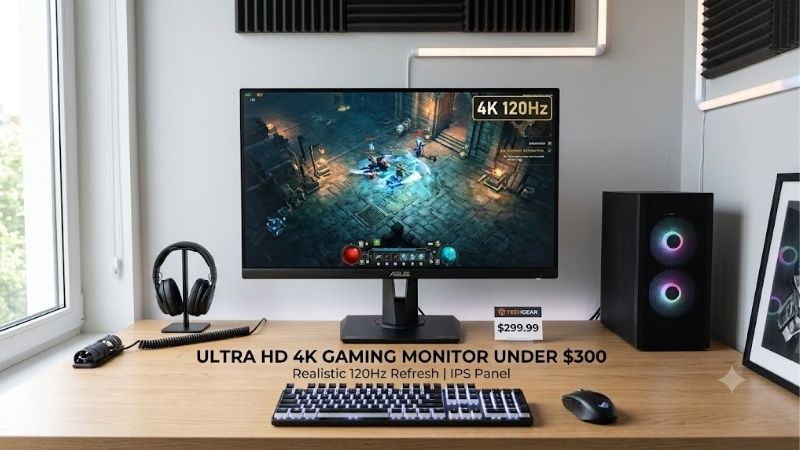
Quick answer: For most people in 2026, the best 4k 120hz monitor under 300 is the Monitor — our #1 rated choice. See the full ranked comparison, alternatives and buying advice below.
Quick verdict: the best 4K 120Hz monitor under $300
For a balanced work-and-console setup, start with the Dell S2725QS. It delivers native 4K at 120Hz, a highly adjustable stand, built-in speakers, and a current Dell-listed price below $300. For PC gaming, the MSI MAG 275UPD E14 is more interesting because it supports 4K at 144Hz and has a dual mode that switches to 1080p at up to 288Hz. The KTC H27P22 is the lowest-priced option in the checked shortlist, but its product page has no customer reviews and gives less clarity about warranty handling, so the saving comes with additional uncertainty.
| Monitor | Best fit | Native 4K refresh rate | Price observed | Main compromise |
|---|---|---|---|---|
| Dell S2725QS | Work, everyday use, console gaming | 120Hz | $229.99 at Dell | Slow motion response and weak HDR |
| MSI MAG 275UPD E14 | Mixed 4K gaming and esports | 144Hz | $249.99 at Newegg | Modest SDR brightness; no independent test results found for this exact model |
| KTC H27P22 | Lowest-cost high-refresh 4K | 144Hz | $219.99 at Newegg | No listing reviews and unclear warranty details |
Prices were checked on October 13, 2026, before tax. Retail pricing can change, and a deal can disappear without notice. The comparison prioritizes an actual stated 4K refresh rate of at least 120Hz, not a high refresh rate available only after dropping to 1440p or 1080p.
How we selected these 4K monitors
This is a specification-led guide, not a claim that the monitors were tested side by side. We checked official manufacturer specifications for Dell and MSI and cross-checked US retailer listings for exact models and prices. Dell’s S2725QS also has an independent RTINGS review documenting motion, contrast, and HDR limitations. For MSI and KTC, we did not find independent lab reviews with directly comparable response-time or image-quality measurements, so those assessments rely on published specifications and current pricing.
To qualify, a display needed to support 3840 × 2160 at 120Hz or higher and have a verifiable US listing below $300. The shortlist is small because many budget 4K monitors are limited to 60Hz, while some gaming displays reach 120Hz only at lower resolutions. We did not treat seller ratings or marketing claims such as “1ms” as substitutes for independent performance measurements.
Dell S2725QS: the most balanced everyday choice
The Dell S2725QS is the safest starting point for someone who wants one screen for office tasks, web browsing, media, and occasional gaming. Dell lists the 27-inch IPS display at 3840 × 2160 and 120Hz, with a price of $229.99 on its US store when checked. It supports height adjustment, swivel, tilt, and pivot, and includes two built-in 5W speakers. Those practical additions matter if the monitor will also serve as a work display or replace a basic television in a small room.
The 4K resolution makes text and interface elements crisp on a 27-inch panel, which helps with spreadsheets, code, photo sorting, and side-by-side windows. Windows may need display scaling for comfortable menu sizes, but properly rendered text remains sharp. The adjustable stand also reduces the need to budget for a monitor arm immediately.
The important caveat is motion performance. RTINGS’ independent testing describes the S2725QS as having low input lag but slow pixel response, which produces visible blur behind fast-moving objects. That distinction matters: low input lag helps the display react quickly to controller or mouse input, while pixel response determines how quickly each pixel changes color. A monitor can score well on one and disappoint on the other. The S2725QS is fine for slower-paced games, turn-based titles, adventures, strategy games, and general console use, but it is not an ideal choice for players who prioritize sharp motion in fast shooters.
HDR is another limitation. The display lacks effective local dimming and has modest contrast, so dark scenes can look gray and bright HDR highlights do not stand out the way they do on a strong Mini-LED or OLED screen. Treat HDR support as compatibility, not proof of cinematic HDR quality. RTINGS also notes that the monitor lacks a USB hub and a headphone jack, so check your audio and peripheral setup before buying.
Buy the Dell if you want an adjustable 4K work monitor that can also handle 120Hz console gaming without using your full budget. Skip it if fast-motion clarity or impactful HDR is a primary reason for upgrading. Its strength is balance, not enthusiast-grade gaming performance.
MSI MAG 275UPD E14: the stronger gaming feature set
The MSI MAG 275UPD E14 has a more gaming-oriented specification sheet. MSI lists a 27-inch IPS panel with a 3840 × 2160 mode reaching 144Hz. Its dual-mode option drops the resolution to 1920 × 1080 and raises the maximum refresh rate to 288Hz. This is a genuine resolution trade-off rather than a way to get 288Hz at 4K. Newegg listed the exact model at $249.99 when checked, making it a strong candidate for buyers who want more headroom above 120Hz while remaining below $300.
The 4K mode suits visually detailed single-player games, general desktop use, and supported console signals. The 1080p mode targets competitive play, where a PC capable of generating very high frame rates may benefit more from refresh rate than from fine detail. Switching modes can be useful for someone who plays both sprawling role-playing games and competitive shooters, though the lower-resolution image will naturally be less sharp on a 27-inch 4K panel than native 4K content.
MSI specifies two HDMI 2.1 inputs, one DisplayPort 1.4a connection, an adjustable stand with height, swivel, tilt, and pivot, two 2W speakers, and a 100 × 100mm VESA mount. Its 250-nit typical SDR brightness and 1500:1 contrast ratio point to regular indoor use rather than a bright HDR showcase. “HDR Ready” alone does not prove strong contrast or local dimming.
The key limitation in this roundup is the lack of a directly comparable independent lab test for this exact model. MSI’s stated refresh rate and ports can establish feature eligibility, but they cannot prove that its pixel transitions remain clean at the fastest overdrive setting. Do not assume the advertised 1ms MPRT is equivalent to a measured 1ms gray-to-gray response. Buyers should review the return policy and evaluate motion clarity in their own games during the return window.
Buy the MSI if its dual mode is genuinely useful to your gaming habits and you want more than 120Hz in 4K. Skip it if you will use only 4K at 60–120Hz and do not care about the high-refresh 1080p option; in that case, the cheaper Dell may offer a better-balanced work setup.
KTC H27P22: the lowest verified price, with more uncertainty
The KTC H27P22 is listed by KTC-Official on Newegg at $219.99, with a listed regular price of $299.99 at the time checked. The retailer listing identifies a 27-inch 3840 × 2160 IPS panel that supports 144Hz, as well as two HDMI 2.1 inputs, two DisplayPort 1.4 inputs, and one USB 2.0 port. It supports adaptive sync and includes a tilt-adjustable stand with VESA mounting. Those specifications make it eligible on paper and give it a useful collection of inputs for a budget display.
Its appeal is simple: it offers more than 120Hz at 4K for less than the Dell or MSI options. Multiple video inputs help if you switch between a desktop, console, and another device. However, the listing identifies USB 2.0 without enough detail to treat it as a complete keyboard, mouse, and webcam hub. Check the manual before relying on that port.
The evidence is thinner here than for Dell. At the time checked, the Newegg page had no customer reviews, and its warranty section instructs buyers to contact the seller directly for warranty information. We did not locate a credible independent lab review measuring its response time, contrast, brightness uniformity, or actual HDR performance. The listing’s 1ms MPRT claim is a manufacturer-style specification, not proof of real-world motion clarity. Likewise, “HDR support” does not establish meaningful HDR image quality.
Buy the KTC only if the listing remains below $300, you are comfortable confirming the warranty and return process before ordering, and the price difference matters more than independent test coverage. Skip it if you want a low-risk purchase with detailed third-party measurements or straightforward warranty documentation. Its lower price is real evidence of a cheaper offer; it is not, by itself, proof of better value.
How to choose a 4K 120Hz monitor under $300
Confirm that 120Hz works at native 4K
Check the specification table for “3840 × 2160 at 120Hz” or a higher refresh rate at that resolution. Some dual-mode monitors advertise their highest headline number in 1080p mode. That is not a defect, but it matters if you expect that maximum refresh rate to remain available at 4K. The MSI and KTC models in this guide reach 144Hz at 4K and offer or claim a separate gaming mode; the Dell tops out at 120Hz at 4K.
Refresh rate is only the number of times per second the screen can update. It does not guarantee that a game will render 120 frames per second, nor does it guarantee crisp motion. To take advantage of a 120Hz screen, your device must send a compatible high-refresh signal and your game must produce enough frames for the difference to be visible.
Check the graphics card and connection
Rendering 4K involves about 8.3 million pixels per frame, four times the pixel count of 1080p. Reaching 120 frames per second at that resolution can be demanding, especially in modern games with detailed effects or ray tracing. A monitor can still be worthwhile if your PC averages lower frame rates, because desktop navigation and supported games can feel smoother, but do not buy one expecting every demanding title to run at 4K/120 without reducing settings or using upscaling.
Check the exact ports on both the monitor and source device. The Dell supports 4K at 120Hz over its HDMI 2.1 connection, and MSI lists HDMI 2.1 inputs rated for 4K at up to 144Hz. The cable, graphics card, console, and display mode all need to support the target signal. DisplayPort 1.4 can also handle high-refresh 4K in supported configurations, sometimes relying on Display Stream Compression. Consult the monitor’s manual for refresh-rate tables, color-depth limitations, and which input supports each mode. A connector label alone does not guarantee every combination of resolution, refresh rate, HDR, and color depth.
For a PlayStation 5 or Xbox Series X, make sure the monitor supports the console’s desired 4K/120Hz signal over HDMI. For a PC, confirm both the GPU output and driver settings. After connecting the screen, open Windows’ advanced display settings or the operating system’s display panel and manually select 120Hz or higher; some computers default to 60Hz even when the screen can do more.
Understand response time, input lag, and adaptive sync
These terms solve different problems. Input lag is the delay between a device sending a frame and the monitor showing it. Pixel response measures how quickly pixels transition between colors. Adaptive sync matches the display’s refresh behavior to fluctuating frame rates to reduce tearing and stutter. A high refresh rate with slow pixel transitions can still look blurry, as RTINGS’ S2725QS measurements illustrate.
Treat response-time labels carefully. “1ms MPRT” is not a promise that every pixel transition completes in one millisecond; aggressive overdrive can also create inverse trails, called overshoot. A useful independent review measures multiple transitions at several refresh rates. Those exact-model measurements were not available for MSI or KTC in the sources checked, so their advertised figures are not tested performance.
Do not pay for an HDR badge alone
At this price, IPS is common because it offers good viewing angles and practical color performance, but many IPS panels have limited native contrast. Dark scenes may look gray in a dim room. HDR labels can mean only that the monitor accepts an HDR signal; a convincing HDR picture requires strong brightness, good contrast, useful local dimming or self-emissive pixels, and suitable tone mapping.
Dell’s independent review identifies HDR as a weakness. MSI’s 250-nit SDR rating also suggests modest expectations for bright highlights, while KTC’s listing does not establish measured HDR quality. If deep blacks matter more than 4K resolution, save for a proven Mini-LED or OLED display, or consider a 1440p monitor with better contrast.
Account for the stand, speakers, and extra connections
A cheaper monitor can become less convenient if it needs a separate arm, USB hub, speakers, or an adapter. Dell includes an ergonomic stand and 5W speakers, although it lacks a USB hub and headphone jack. MSI provides height, tilt, swivel, and pivot adjustments, plus smaller built-in speakers. KTC offers a basic tilt stand and VESA compatibility, but verify whether its USB port performs the task you need. Built-in monitor speakers are useful for system alerts and video calls, but they generally should not be treated as a substitute for a dedicated headset or speakers.
Also measure your desk. A 27-inch 16:9 panel is a practical size for many home setups, but its base depth, screen height, and viewing distance still matter. Check VESA dimensions if you plan to mount the screen. Keep all packaging until you have checked for dead pixels, uneven backlighting, flicker, and port compatibility, and confirm the return terms before opening the product.
Will a 4K 120Hz display make games run at 120 FPS?
No. The monitor can refresh 120 times each second, but the graphics card and game determine how many unique frames are delivered. If a game runs at 70 FPS, a 120Hz monitor does not turn that game into a 120 FPS experience. You may still benefit from responsive input, variable refresh rate, and smoother output compared with a 60Hz display, but the gains depend on the game and frame rate.
A high-end GPU is not mandatory for productivity, video, browsing, or less demanding games at 4K. In demanding titles, lowering ray tracing, using upscaling, or reducing a few settings can improve consistency. Frame generation can increase displayed output in supported games, but it does not make simulation and input latency identical to rendering the same number of native frames.
FAQs
Is 4K at 120Hz possible for less than $300?
Yes. The Dell S2725QS, MSI MAG 275UPD E14, and KTC H27P22 were each listed below $300 in US sources checked on October 13, 2026. Stock and prices can change; KTC deserves extra caution because its listing lacked customer reviews and clear warranty details.
Is 120Hz enough, or should I buy 144Hz?
For most everyday work and console gaming, 120Hz is already a meaningful step above 60Hz. Moving from 120Hz to 144Hz is a smaller numerical increase than moving from 60Hz to 120Hz. Choose 144Hz if your PC can produce the extra frames and the feature set is otherwise comparable; do not sacrifice motion clarity, warranty confidence, or ergonomics just to gain 24Hz on the spec sheet.
Can I use these monitors with a PS5 or Xbox Series X?
Dell is the clearest documented option here for 4K/120Hz console use because RTINGS tested its console signal support. MSI lists HDMI 2.1 and console support; KTC’s compatibility has less independent evidence. Use a suitable HDMI cable and check that the console’s settings show 4K at 120Hz in a supported game.
Does HDR support mean HDR will look good?
No. HDR support may only mean that the monitor accepts an HDR signal. Brightness, contrast, local dimming, color gamut, and tone mapping determine how impactful the result looks. All three options require modest expectations compared with more expensive Mini-LED and OLED displays.
Should I choose 4K 120Hz or 1440p 165Hz for gaming?
It depends on the GPU and the games you play. A 1440p high-refresh monitor is often easier to drive at high frame rates, leaving more GPU performance for detail and effects. A 4K 120Hz screen gives sharper text and finer image detail, and can be attractive for mixed productivity and visually rich games. If competitive play is the main use and the PC struggles at 4K, 1440p may be the more balanced purchase. If you value crisp desktop text and single-player detail as well as smooth gaming, the 4K option makes more sense.
Final verdict
The Dell S2725QS is the most balanced choice for work, entertainment, and console gaming because its price, adjustable stand, and independently documented behavior are clearer. MSI is the stronger feature pick if you will use 4K/144Hz and 1080p/288Hz dual mode. KTC costs the least in the checked listings, but the lack of customer reviews and transparent warranty detail makes it a cautious purchase, not an automatic value winner.
Before ordering, recheck the exact SKU, current price, return terms, and supported resolution-refresh combinations. At this budget, the right screen is not the one with the biggest number on the box; it is the one that connects cleanly to your system and matches the games and work you actually do.
These cover related monitor specifications, gaming-monitor budgets, or HDR choices. The present draft narrows its task to verified US listings below $300 that explicitly support at least 120Hz at native 4K. This check was a search for closely related indexed pages, not a complete sitewide duplication audit.
Ready to decide? Our #1 pick for 2026 is the Monitor.
Live price & availability on Amazon.









