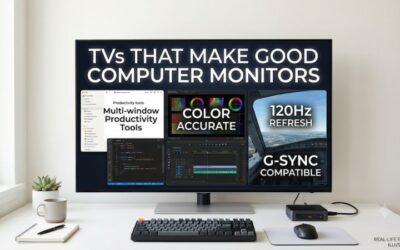
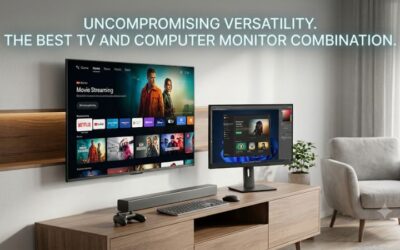
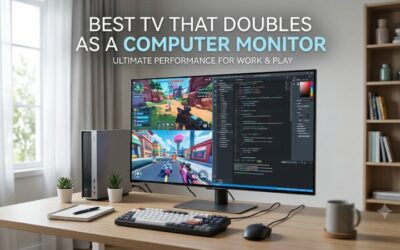
The best led tv for computer monitor use depends on how close you sit and what you do most. Samsung’s 43-inch QN90F is the strongest high-refresh option if you can find it. Sony’s BRAVIA 3 II makes more sense for 60 Hz work and streaming, while Vizio’s compact Mini LED is a practical pick for mixed use.
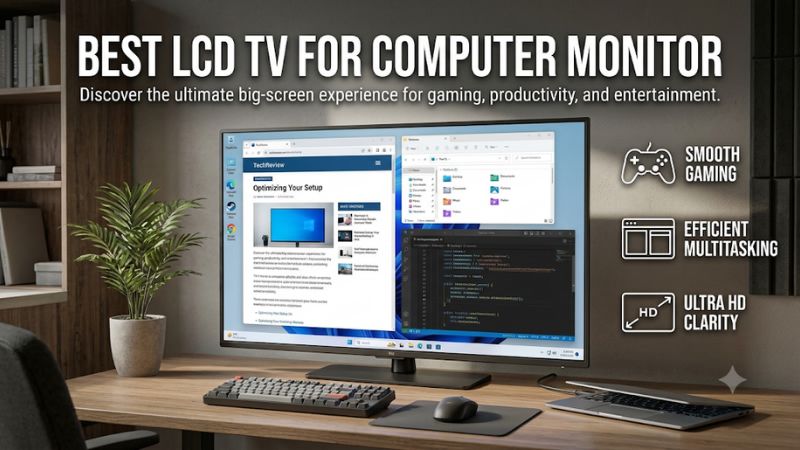
How to choose the best LED TV for computer monitor use
Start with your viewing distance and the refresh rate your computer can deliver over HDMI. All six picks here give you a 43-inch 4K workspace. The meaningful differences are how smoothly they handle motion, how much control they give you over the picture, and how easily they fit into a room where you also watch TV.
Samsung’s QN90F is the standout if you want a single screen for desktop work and high-refresh PC gaming. Its 43-inch model can accept up to 4K at 165 Hz with compatible hardware. It’s an older model that can be difficult to find, so verify the exact SKU, seller, and return terms before planning a setup around it.
If your PC or dock tops out at 4K 60 Hz, prioritize clear text and comfortable placement. Sony’s BRAVIA 3 II is the work-and-streaming pick, while Vizio’s 43-inch Mini LED adds a separate 1080p high-refresh option. The Hisense, TCL, and Samsung Q8F round out the list for buyers with specific preferences about smart TV software or room setup.
| 43-inch TV | Exact U.S. model | 4K refresh to plan around | Best fit |
|---|---|---|---|
| Samsung Neo QLED QN90F | QN43QN90FAFXZA | Up to 165 Hz | High-refresh PC gaming and bright rooms |
| Sony BRAVIA 3 II | K-43XR30M2 | 60 Hz | Desktop work and streaming on one screen |
| Vizio Mini LED Quantum 4K | VQM43C-1001 | 60 Hz | 4K desktop work with optional 1080p high-refresh gaming |
| Hisense QD6 Series | 43QD6QF | 60 Hz | A shared Windows PC and Fire TV setup |
| TCL S5 | 43S551G | 60 Hz | A straightforward HDMI workspace with Google TV |
| Samsung QLED Q8F | QN43Q8FAAFXZA | 60 Hz | A secondary workspace in a Samsung TV setup |
Six 43-inch LED TVs worth considering for a PC
These picks cover three common setups. One is a gaming desk where refresh rate matters. Another is a productivity station where sharp text and comfortable placement come first. The third is a shared room where one display switches between a computer and built-in streaming apps throughout the day.
Samsung QN90F — Best LED TV for computer monitor use at high refresh
The 43-inch QN90F is the model to look for if you want a large 4K desktop and regularly play games above 60 frames per second. Samsung advertises up to 165 Hz for this exact size, and its glare-reducing screen treatment is relevant when a window or lamp reflects across your work area during the day.
Check your GPU’s HDMI output before buying. A desktop graphics card connected directly to the TV is a simpler path to high refresh than a laptop routed through a dock, adapter, or receiver. Connect directly first, enable the TV’s enhanced HDMI input setting if needed, and confirm the actual refresh rate in your operating system. Then enable variable refresh rate and check that your games behave as expected.
Buy it if 4K high refresh is central to your setup and you can source the exact 43-inch model with reasonable return terms. Skip it if your computer stays at 60 Hz and your typical workload is documents and streaming. If most of your time goes to competitive shooters, weigh the value of the large screen against how far your eyes must travel to read the minimap and check the edges.
Sony BRAVIA 3 II — Best fit for desktop work and streaming
The 43-inch BRAVIA 3 II makes sense in a home office that doubles as a TV room. Its 4K 60 Hz format gives you space for a document, browser, and reference window during the day, and Google TV handles streaming after work. The exact model is K-43XR30M2, so check the suffix when comparing retailer listings.
Start with an SDR desktop at 60 Hz and open your usual documents before changing advanced picture controls. Check whether text at the sides remains comfortable when you sit in your normal position. A big spreadsheet can put navigation tabs, row labels, and toolbar buttons across a wide field of view. Keeping active windows near the middle helps if you find yourself turning your head throughout the day.
Buy it if you want a current Sony model for work and built-in streaming and can live with 60 Hz for games. Skip it if fast motion, high-refresh desktop scrolling, or 4K gaming above 60 Hz matters to you. The extra screen area is the reason to buy this TV for work, so compare it with a smaller monitor if you tend to use one centered window at a time.
Vizio Mini LED Quantum 4K — Best fit for two gaming resolutions
The Vizio VQM43C-1001 suits a PC that spends most of the day at 4K 60 Hz and occasionally switches to 1080p for faster games. Vizio advertises 120 fps gaming at 1080p for the 43-inch model. That distinction matters because the lower-resolution mode and your normal 4K desktop serve different purposes.
Use 4K for web pages, spreadsheets, and any game where fine details matter more than motion. Try 1080p at 120 Hz for a fast game if your computer exposes that mode. Full HD spreads fewer source pixels across the same 43-inch panel, so small HUD labels and distant details can look softer. Keep the operating system at 4K for work and change the resolution through the game when its display options allow.
Buy it if you want a compact Mini LED TV and are happy to trade resolution for refresh in selected games. Skip it if you want a single 4K high-refresh mode or are shopping based on the performance of a larger Vizio from the same family. Vizio distinguishes the smaller and larger sizes in its backlight marketing, so compare features using the exact 43-inch listing.
Hisense QD6 Series — Best fit for a PC and Fire TV setup
The Hisense 43QD6QF is a 4K 60 Hz QLED TV with Fire TV built in. It fits a bedroom or shared office where you use the PC for browsing, basic productivity, and occasional games, then switch to streaming with a remote. Its role is to give two devices or activities one display without adding another screen.
Set up the HDMI input for work and test the small colored text you actually use. Examples include comments in a code editor, red numbers in a budget sheet, and browser tabs against a gray background. If the text looks smeared or outlined, check output resolution, chroma format, and sharpness before deciding whether the panel works for your desk. Review the result from your chair and from any seat you use for TV viewing.
Buy it if Fire TV is already familiar to your household and 60 Hz is enough for your PC. Skip it if you expect the QLED label alone to deliver convincing HDR or if you need high-refresh gaming. Keep the exact 43QD6QF model number handy when comparing other Hisense QD6 listings, since similar names can refer to different configurations.
TCL S5 — Best fit for a simple Google TV workspace
The TCL 43S551G is a straightforward choice for a second workstation, a shared family computer, or a room where you want Google TV and a large 4K HDMI screen. Plan on a 60 Hz desktop for this size. The case for choosing it is having room for multiple windows and a familiar streaming interface on one panel.
A useful test is to open two windows side by side and put a reference app in a smaller window near the center. That arrangement makes better use of the panel than maximizing every document, which can leave lines of text too long to scan comfortably. Keep contrast and sharpness at reasonable levels, then adjust operating system scaling until you can read menus without leaning in.
Buy it if you mainly need room for everyday apps and your games are comfortable at 60 Hz. Skip it if you want high-refresh gaming or expect a TV to wake and sleep exactly like a conventional computer monitor. Check how many remote presses it takes to return to your PC after using the built-in apps. That small detail matters when you switch several times a day.
Samsung Q8F — Best fit for a secondary Samsung workspace
The 43-inch Samsung Q8F is a 4K QLED option for buyers who already like Samsung’s TV interface and want to add an occasional computer workspace. Samsung specifies a 60 Hz class for the exact QN43Q8FAAFXZA model. Its role differs from the QN90F, even though both TVs carry the Samsung QLED name.
For a part-time workstation, test how the TV behaves with both a cold boot and a sleeping laptop. Confirm that the image fits edge to edge and that your computer reconnects at 4K 60 Hz without repeated input changes. If you use the panel from a chair and a couch, save different picture presets where available. A setting that looks lively from across the room can be harsh on a white document at desk distance.
Buy it if you want the Samsung TV experience with occasional HDMI work and can get the exact model on favorable terms. Skip it if most of your time is spent editing fine text or playing high-refresh games and you have no use for its smart TV features. In that case, compare it against a dedicated monitor with the desktop features you’ll use daily.
What makes a 43-inch TV comfortable as a monitor
A 43-inch 4K panel gives you about 102 pixels per inch and an image roughly 37.5 inches wide. That gives you space for a timeline, source window, and preview at once. It also puts interface elements farther from the center, so placement and window layout can matter as much as resolution during a full workday.
Check full chroma with real desktop text
Full RGB or YCbCr 4:4:4 preserves the color detail that small lettering and fine interface edges rely on. A TV may look sharp in a 4K movie yet show fuzzy red or blue text when a PC sends a subsampled signal. Check the TV’s input mode and the computer’s output format together at the refresh rate you’ll use.
Start at 3840 × 2160 in SDR and select RGB or 4:4:4 if your graphics settings offer it. Enable the TV’s PC input mode or enhanced HDMI format where applicable. Open small colored text on light and dark backgrounds and inspect it at normal viewing distance. If colored edges blur while black text stays legible, try a direct HDMI connection before changing the TV’s sharpness control. If the problem persists at the maximum refresh rate, drop one refresh step and repeat the check.
Measure from your eyes to the screen
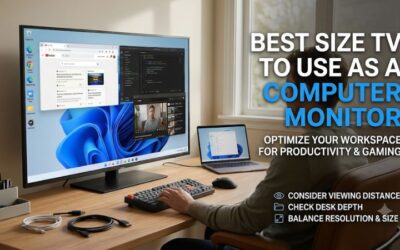
Start by trying about three feet between your eyes and the panel, then move the screen or chair until you can read comfortably and glance at the top corners without frequent head movement. Measure where the panel will actually sit. The desk depth on a product listing does little to tell you how far forward the stand places the screen.
Mark the screen width with tape and check whether the stand feet leave room for a keyboard or speakers. If you plan to use a mount, check the exact SKU’s VESA pattern and weight against the mount’s ratings. For daily work, place the apps you read most near the center. Use the outer edges for chat, reference material, or other windows you glance at periodically.
Verify the HDMI chain before paying for refresh
A TV’s maximum refresh rate is only one part of the setup. Your GPU, laptop port, dock or adapter, cable, TV input, and selected color format all affect the modes the computer can negotiate. Confirm 4K at the refresh rate you want using a direct connection before adding a receiver, switch, or docking station.
On Windows, check Advanced display after setting the resolution. On a Mac, check the options under Displays for your exact Mac and connection. If the desired mode is missing, start with 4K 60 Hz in SDR. Once that works, raise refresh, then try HDR or VRR separately. Changing one setting at a time makes it easier to trace black screens, missing refresh options, or text that suddenly looks softer.
Questions to ask before replacing your monitor
The decision often comes down to what happens between uses. If you work for several hours, start a game, and watch a show at night, a TV can cover all three. If you repeatedly dock a laptop, rely on automatic wake, or need one cable for video and charging, check those behaviors before rearranging your desk.
Is a 60 Hz TV enough for everyday PC use?
Yes. A 60 Hz TV can handle spreadsheets, writing, video calls, streaming, and games that run comfortably at or below 60 frames per second. You’re more likely to notice the limit during fast mouse movement, long scrolls, and camera pans, especially if you’re accustomed to a higher-refresh monitor.
Try setting your current display to 60 Hz for an afternoon. Spend time in the software you use every day and play a familiar game. If the change bothers you mainly in one game, decide whether a lower-resolution high-refresh mode solves that problem. If you notice it every time you scroll or drag a window, choose a display that can maintain your preferred refresh at desktop resolution.
Will a 43-inch TV show more than a 32-inch 4K monitor?
At the same 3840 × 2160 resolution and operating system scaling, both screens offer the same number of pixels for your apps. The 43-inch TV makes those pixels physically larger. That can help you read at a greater distance or use a lower scaling setting comfortably, but you still have to account for the extra screen width.
If you use 125% or 150% scaling on a smaller monitor, try different settings on the TV once it’s in position. Check whether the extra room actually lets you keep a third app visible at a comfortable size. If the distant corners end up unused, a smaller 4K monitor may give you a more comfortable work area even though it has the same pixel count.
Does Mini LED make a difference for office work?
Mini LED matters most when the TV uses its backlight control to improve contrast in movies and games. For documents and web pages, comfortable brightness, even-looking backgrounds, and sharp text are often more important. A bright highlight or an aggressive dimming setting can be distracting when you’re reading a menu or moving a cursor.
Check a mostly white spreadsheet, a dark editor window, and a white cursor over a black background. If you see brightness shifts or halos that bother you, try lowering local dimming where the picture mode allows it. Save a different preset for movies if you prefer stronger contrast there. Your preferred desktop settings can be quite different from what looks best during a show.
Conclusion
Choose the 43-inch Samsung QN90F if you can find the exact model and your computer can deliver 4K above 60 Hz over HDMI. Choose Sony’s BRAVIA 3 II for 60 Hz work and streaming, or Vizio’s VQM43C-1001 if you’ll use 1080p at 120 Hz for selected games. Whichever you pick, test small colored text, wake behavior, and corner visibility from your chair before committing to the setup.