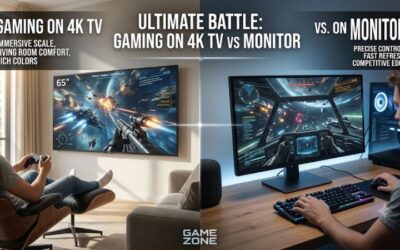
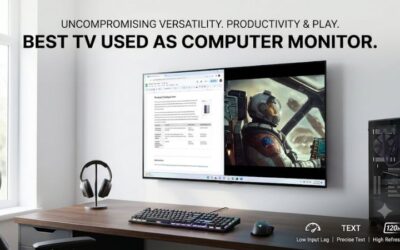
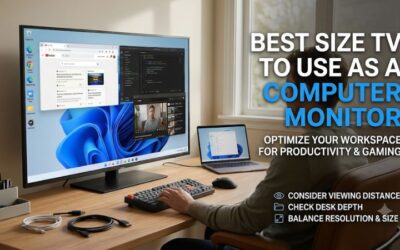
The best LCD TV for computer monitor use is the 43-inch Samsung QN90F if you split your time between desktop work and PC gaming. A 43-inch Sony BRAVIA 3 makes more sense for a 60Hz office setup, while the 55-inch TCL QM7K suits gaming from farther back. Start with desk depth, then check the HDMI modes your computer can actually drive.
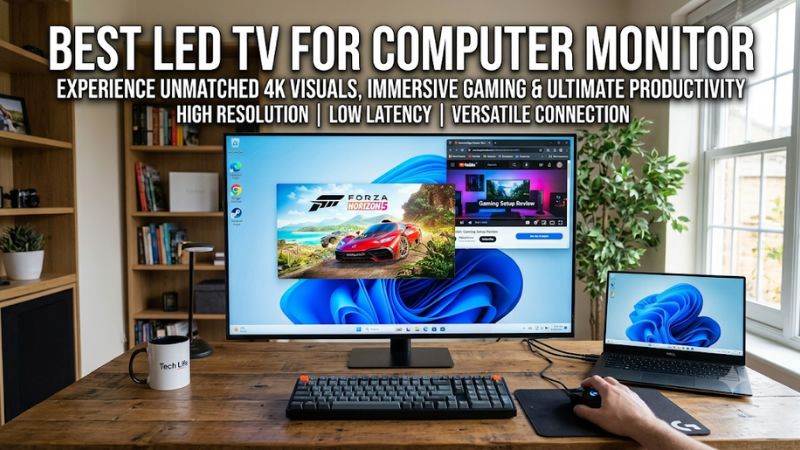
The best LCD TV for computer monitor use at a glance
The Samsung QN90F combines a 43-inch 4K screen, a glare-reducing finish, and support for high-refresh PC input. Those features make it the most versatile option here. For email, documents, and spreadsheets, the Sony BRAVIA 3 or Samsung Q60D provides the same 3840 × 2160 desktop resolution at 60Hz.
A 43-inch TV is the starting point for a desk that can put some distance between your eyes and the screen. The 55-inch TCL QM7K serves a different setup. Think of it as a wall-mounted display across a deep workstation, a racing rig, or a PC connected to the living room TV. It shows the same number of desktop pixels as the 43-inch models, with each pixel spread over a larger area.
| Exact US model | Best fit | 4K input target | Main trade-off |
|---|---|---|---|
| Samsung QN90F 43-inch, QN43QN90FAFXZA | Mixed work and gaming in a bright room | Up to 165Hz with a compatible PC | Matte finish changes the appearance of reflected light |
| Samsung QN90D 43-inch, QN43QN90DAFXZA | High-refresh work and gaming with controlled lighting | Up to 144Hz with a compatible PC | Glossy finish can show distinct reflections |
| Sony BRAVIA 3 43-inch, K-43S30 | Office work and streaming on one screen | 60Hz | Limited motion headroom for fast games |
| Samsung Q60D 43-inch, QN43Q60DAFXZA | A straightforward 4K productivity setup | 60Hz | No high-refresh or variable-refresh upgrade path |
| TCL S4 43-inch, 43S450G | A secondary workstation or occasional PC display | 60Hz | Narrow viewing angles matter up close |
| TCL QM7K 55-inch, 55QM7K | A wall-mounted PC display or gaming from farther back | Up to 144Hz on compatible inputs | Large footprint and lower pixel density |
How we selected the best LCD TV for computer monitor use
The shortlist starts with native 4K resolution, an identifiable US model, and a practical reason to use each TV with a computer. The comparison gives priority to readable desktop text, workable viewing distance, and HDMI input modes. High refresh rates carry more weight for gaming than for office work.
Every pick uses an LCD panel. QLED refers to the quantum-dot technology used in some models, while Mini LED describes the backlight used in others. Neither label tells you whether the TV preserves fine color detail from a PC, how it handles reflections, or how large it will feel at your desk. Those questions need separate answers.
This roundup draws on manufacturer specifications and independent testing. Where the independent review used another size in the same series, the results inform what to check during setup. Viewing angles, screen uniformity, local dimming behavior, and the appearance of small text can vary by size. Buy by exact model number and test your own desktop settings during the return window.
The best 43-inch LCD TVs for work and gaming
These two Samsung Mini LED TVs make sense when a single screen has to handle daytime work, mouse-driven games, and streaming after hours. Both fit the same broad desk setup. The decision comes down to room reflections, the price difference you find, and how much refresh headroom your PC can use.
Samsung QN90F 43-inch for mixed use in a bright room
The Samsung QN90F, model QN43QN90FAFXZA, is the strongest all-around choice for a bright room where a computer shares the screen with streaming apps or a console. Its matte finish helps soften direct reflections, and Samsung lists up to 4K at 165Hz for this size with compatible PC hardware.
A window behind your chair is a good reason to favor this model. A sharp reflection can obscure code or dark interface elements, especially when you sit close enough to see the reflection in a fixed spot. The matte finish spreads that reflection across a wider area. Depending on the angle and intensity of the light, you may still see a bright patch. Before mounting the TV, check the view from your normal seat with the room lights on and off.
For desktop work, set the GPU to 3840 × 2160 and verify RGB or full chroma at your preferred refresh rate. Start at 60Hz to establish a clean baseline. Move to 120Hz or higher once the input and cable are working. A smoother pointer and cleaner scrolling can benefit everyday use even when a demanding game runs well below the TV’s maximum refresh rate.
Buy if you want a 43-inch display with high-refresh PC support and a screen finish suited to a bright room. Skip if your work is almost entirely text and your laptop tops out at 4K 60Hz. The BRAVIA 3 offers the same desktop resolution, and an adjustable monitor may be easier to position on a shallow desk.
Samsung QN90D 43-inch for controlled lighting
The Samsung QN90D, model QN43QN90DAFXZA, is the alternative for a 43-inch high-refresh setup where you can control windows and lamps. It supports up to 4K at 144Hz with suitable hardware. Its glossy screen makes the placement of a desk lamp more consequential, especially with dark desktop themes.
At a desk, reflections often matter more than the difference between 144Hz and 165Hz. If you already use blinds and place lamps outside the reflection path, the QN90D is a sensible model to compare. If you move between daytime work and evening gaming in a bright multipurpose room, the QN90F’s matte screen is the more distinctive upgrade.
A PC with an HDMI connection limited to 4K 60Hz can still use the QN90D for work. Accessing the high-refresh modes depends on the GPU output, TV input configuration, and cable. If you use a docking station, check the dock’s output for the exact resolution and refresh combination. A dock that can run two office displays may still cap a single 4K TV at 60Hz.
Buy if you want 4K high-refresh gaming on a 43-inch screen and can manage reflections. Skip if a window or ceiling light will sit directly behind you throughout the workday. When comparing an older listing with a QN90F, check the condition and return terms along with the price, especially for open-box stock.
The best 60Hz LCD TVs for desktop productivity
A 60Hz 4K TV is enough for email, browsing, documents, video calls, and spreadsheets. The harder test is how the screen looks at your actual working distance. Check colored text, the corners of a white browser window, and whether the stand gives you enough room for a keyboard and mouse.
Sony BRAVIA 3 43-inch for work and streaming
The Sony BRAVIA 3, model K-43S30, fits a computer that spends most of its time on web apps and office work, with streaming handled by the TV itself. Sony lists a 3840 × 2160, 60Hz, 8-bit PC input mode. That gives you a documented starting point for a laptop or a desktop GPU connected over HDMI.
For a typical workday, picture a spreadsheet in the middle, a browser window to one side, and a messaging app on the other. That arrangement benefits from the 4K desktop area without requiring a high refresh rate. Use the computer’s display scaling to keep labels legible, and move the windows you spend the most time reading toward the center. Check the TV’s stand dimensions if the desk also holds a laptop or speakers.
Start in SDR with the HDMI input configured for a full-resolution signal. Compare regular black text with small colored text. If the black text looks fine and colored edges smear, investigate the output format before increasing the TV’s sharpness setting. Extra sharpening can add outlines around letters without restoring missing color detail.
Buy if your priority is a documented 4K 60Hz PC mode in a 43-inch TV for office work and streaming. Skip if you spend long sessions in fast games and already have hardware capable of driving 120Hz or higher. The QN90D is the more appropriate 43-inch pick for that workload.
Samsung Q60D 43-inch for a simple 4K workstation
The Samsung Q60D, model QN43Q60DAFXZA, is a 60Hz 4K QLED LCD for a fixed workstation. It suits users who want several windows on one screen and already know they can live with 60Hz. Its appeal is the desktop area and manageable 43-inch size, rather than a long list of gaming features.
Treat the TV as a dedicated computer input when setting it up. Configure the HDMI source for PC use, set 3840 × 2160 at 60Hz, and open the same spreadsheet or website you use on your current monitor. Small colored characters and thin gridlines help reveal whether the signal is being processed correctly. If you frequently switch between TV apps and the desktop, verify that returning to the HDMI input preserves your picture settings.
Because this model lacks variable refresh, a game that fluctuates below 60 frames per second can feel less consistent than it would on a compatible VRR display. For productivity, the larger issue is whether you are comfortable with 60Hz scrolling after using a faster monitor. Connect your PC and scroll through a long page before deciding.
Buy if you need a 43-inch 4K desktop and plan to run it at 60Hz. Skip if you expect to move to high-refresh PC gaming during the TV’s useful life. Compare it directly with the BRAVIA 3 on price, stand fit, and the way each set handles your computer’s signal.
TCL S4 43-inch for an occasional second workstation
The TCL S4, model 43S450G, gives a secondary computer a 43-inch 4K screen without requiring a high-refresh graphics connection. Its clearest role is a spare desk, a shared work area, or a TV that doubles as a PC display a few times a week. Plan around a centered seating position.
The viewing angle deserves particular attention. From close range, your eyes see the far corners at a more oblique angle than the center. A broad white window or full-screen spreadsheet can expose differences across the display even when your chair is centered. Move the screen farther away and repeat that test before committing to a permanent mount. An inexpensive display loses its appeal if your desk position makes half of it uncomfortable to read.
The S4 also makes sense for a computer that already drives an existing 4K 60Hz screen reliably. Set up the TV directly from the computer first and add any dock or switch afterward. If one accessory changes the available refresh rates or color modes, you can identify it without adjusting several settings at once.
Buy if you need an occasional 4K work surface and can sit squarely in front of it. Skip if two people regularly share the same view from different angles or if uniform-looking text across the entire display is essential. Try the BRAVIA 3 in your actual seating arrangement before choosing between them.
A larger LCD TV for gaming beyond the desk
A 55-inch 4K TV can be an excellent PC gaming screen when the chair sits well back or the display is mounted across a deep workstation. The added size helps make games and video feel larger at a distance. At ordinary desk depth, that size can put interface elements too far into your peripheral vision.
TCL QM7K 55-inch for a wall-mounted gaming PC
The TCL QM7K, model 55QM7K, is the pick for a PC gaming area with enough room to move back from the screen. TCL lists a 4K Mini LED LCD, and independent series testing identifies two HDMI inputs that accept 4K at up to 144Hz. Use one of those inputs for your gaming PC.
This size works well when most of your attention stays on a game, video, or simulation. It is harder to justify if you spend the day reading several windows at arm’s length. A 55-inch 4K screen has about 80 pixels per inch, compared with about 102 on a 43-inch 4K screen. The larger panel makes the same text bigger at identical scaling. It adds no desktop pixels, and from close up you may notice the coarser pixel structure.
For games, begin at 4K 120Hz with the TV’s gaming mode enabled. Check variable refresh with a game whose frame rate moves around, then try 144Hz if the connection stays stable. If you use the display for work too, check small text again after changing refresh rate or enabling HDR. Save a working SDR configuration you can return to after a gaming session.
Buy if the screen can sit across a deep workspace or beyond the front edge of a racing rig. Skip if the stand has to sit directly behind a keyboard on a typical desk. The 43-inch QN90F retains high-refresh support with a smaller image and denser pixels.
How to choose and set up an LCD TV for your PC
Before comparing picture features, measure from your eyes to the proposed screen position and identify the HDMI output on your computer. Those two checks can eliminate a model that is too large or a refresh rate your hardware cannot deliver. Then test the TV with the text and apps you actually use.
Measure the screen position before comparing specs
A 43-inch 16:9 image is about 37.5 inches wide. A 55-inch image is about 48 inches wide. Use painter’s tape to mark that width at the proposed screen position, then sit normally and look at the upper corners. If you have to keep turning your head, move the screen back or choose the smaller size.
Check the published chassis dimensions and stand footprint separately. Screen width alone leaves out the bezel, and a TV with widely spaced feet may require more usable surface than expected. If you plan to mount it, verify the TV’s VESA pattern and weight against the mount’s supported sizes and load. Leave space behind the input panel for the HDMI connector and a relaxed cable bend.
Check chroma, scaling, and overscan
Chroma 4:4:4 keeps color detail at every pixel, which matters for small colored fonts, code syntax, and thin interface lines. Start with RGB or YCbCr 4:4:4 from the GPU. Use the TV’s PC input setting where available, then inspect a chroma test pattern at the refresh rate you intend to use.
If the desktop is cropped, look for a screen-fit or original-size setting before resizing the GPU output. If the picture fits but text looks too small, keep the output at native 4K and increase the operating system’s scaling. Dropping the desktop to 1080p makes interface elements larger too, with fewer pixels available to draw their edges.
Match the HDMI path to the refresh rate
Read the GPU, adapter, and dock specifications for the exact mode you need. For example, a laptop can support 4K 120Hz on its built-in HDMI output while a dock connected to the same laptop limits a TV to 4K 60Hz. A cable replacement helps only when the rest of the signal path supports the target mode.
If the picture drops out when you enable HDR or increase refresh, return to a known working 4K 60Hz SDR setting. Connect the PC directly to the TV, confirm the correct HDMI input and enhanced signal mode, and increase one setting at a time. Use a certified Ultra High Speed HDMI cable for a compatible high-bandwidth connection.
Frequently asked questions
A TV can replace a monitor when the HDMI connection, text rendering, and viewing distance fit your work. The remaining questions usually involve whether to pay for more refresh rate and what to do if the TV feels slow even though Windows reports the expected resolution and refresh rate.
Is 60Hz enough for a TV used as a computer monitor?
Yes. A 60Hz 4K TV is suitable for spreadsheets, writing, email, browsing, and video. Use 120Hz or higher if you prioritize smoother scrolling or play fast games and have a PC that can take advantage of it. For text-heavy work, resolve fuzzy color edges and poor screen placement before spending more on refresh rate.
If the pointer feels delayed on a 60Hz TV, try its PC or Game mode and disable motion smoothing on the HDMI input. Picture processing can introduce delay even when the refresh rate itself is correct. If the pointer responds quickly but movement still looks less smooth than on your existing monitor, you are seeing a different issue. A higher refresh rate is the upgrade that addresses it.
Should you buy a 43-inch or 55-inch 4K TV for a PC?
Choose 43 inches for a desk setup where you read and move between windows all day. Choose 55 inches when you can sit farther back and spend more time on gaming or video. Both sizes display 3840 × 2160 pixels. The larger model spreads those pixels across a wider area, so it changes image size and viewing comfort.
If you are unsure, measure the room with the chair, keyboard, and TV in their intended positions. A wall mount may recover usable depth on the desk, but the resulting eye-to-screen distance depends on where the wall sits. Test the position before buying the mount or arranging cables.
Conclusion
Choose the 43-inch Samsung QN90F for mixed desktop use and high-refresh gaming in a bright room. Choose the Sony BRAVIA 3 for a 60Hz office and streaming setup, or the TCL QM7K for gaming from farther back. Before buying, confirm that your computer can send the 4K mode you want and that the screen fits your seated view.