Choosing the best resolution for using tv as monitor depends on your TV’s native pixel count, screen size, viewing distance, and the work or games you plan to run. For most modern setups, 4K UHD (3840 × 2160) is the strongest starting point because it provides more desktop space and sharper text than Full HD. However, resolution alone does not guarantee a good experience. Windows scaling, chroma 4:4:4, HDMI bandwidth, refresh rate, and TV picture processing all affect how clearly your computer appears on a television.
- What is the best resolution for using a TV as a monitor?
- Best resolution for using a TV as a monitor by screen size
- How to choose the right resolution for different PC activities
- Why native resolution matters when connecting a TV to a PC
- Windows scaling: Make text readable without lowering resolution
- Chroma 4:4:4: An important setting for TV monitor clarity
- HDMI requirements for 4K resolution and high refresh rates
- How to optimize TV picture settings for PC use
- Common problems when using a TV as a computer monitor
- Frequently asked questions
- Final verdict
What is the best resolution for using a TV as a monitor?
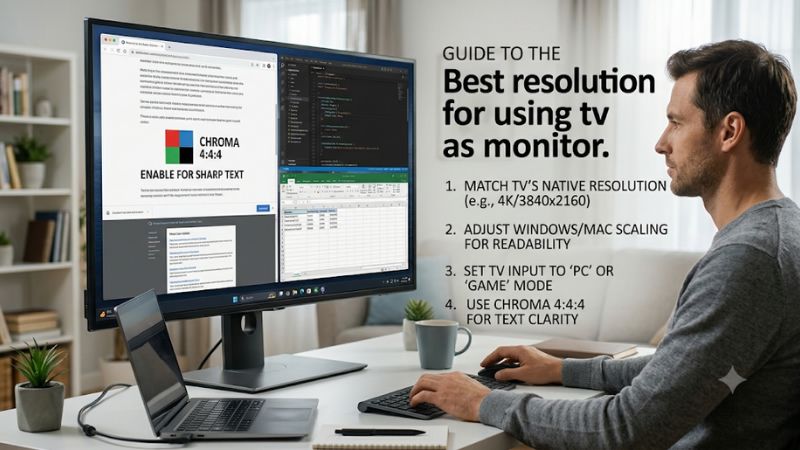
For most people connecting a modern television to a Windows PC, 3840 × 2160 at the TV’s native resolution is the best overall choice. This is the standard 4K UHD format found on most current 4K televisions. It gives you four times as many pixels as 1920 × 1080, allowing more content to fit on the screen while keeping fine details relatively sharp.
A 4K television is particularly useful when you want to use one large display for several desktop applications. You can keep a browser window beside a spreadsheet, view multiple documents, or work with a large editing timeline without constantly switching between windows. The additional pixels also help text and interface elements look more defined when the TV and computer are configured correctly.
However, 4K is not automatically the right choice for every television. A smaller or older Full HD TV cannot display a native 4K signal. Sending a 4K signal to a 1080p panel does not turn it into a 4K display. The television must physically contain enough pixels to reproduce that resolution.
| TV’s native resolution | Recommended PC output | Best use |
|---|---|---|
| 1920 × 1080 | 1920 × 1080 | Basic desktop use and casual gaming |
| 2560 × 1440 | 2560 × 1440 | Higher-detail desktop use, if supported |
| 3840 × 2160 | 3840 × 2160 | Productivity, entertainment, and gaming |
| 7680 × 4320 | 7680 × 4320 | Specialized high-resolution setups |
The important distinction is between the resolution a TV accepts and its native panel resolution. Some televisions accept lower-resolution signals and upscale them. Others may accept certain high-resolution input formats but process or downscale them internally. Always check the manufacturer’s specifications and independent input-format testing before assuming a particular combination works.
Why 4K is usually better than 1080p
The biggest advantage of 4K is pixel density. A 3840 × 2160 display contains approximately 8.3 million pixels, while a 1920 × 1080 display contains approximately 2.1 million. When both TVs have the same physical screen size, the 4K model has four times the total pixel count.
This difference matters when viewing small text, detailed graphics, and complex desktop interfaces. A 4K TV can display more information without relying as heavily on scaling or reducing the amount of content visible in each application.
For example, a 55-inch 4K television can provide a useful desktop workspace when positioned at an appropriate distance. A 55-inch 1080p television has fewer pixels spread across the same physical area, making individual pixels more noticeable when sitting close.
Nevertheless, 1080p remains practical for secondary displays, older computers, casual browsing, and setups where the television is positioned several feet away. It can also reduce GPU workload in games, although the actual performance improvement depends on the game, graphics card, and rendering settings.
When 1440p makes sense on a TV
A 2560 × 1440 resolution sits between Full HD and 4K. It provides approximately 3.7 million pixels, offering more desktop space than 1080p without requiring the same rendering workload as 4K.
However, 1440p support is less consistent across televisions than 1080p and 4K. Some models accept 1440p at 60Hz or 120Hz, while others do not expose that signal format through their HDMI inputs.
This is particularly important when connecting a gaming PC. A graphics card might offer 1440p output, but the TV’s supported input modes determine whether the signal can be displayed correctly. Do not assume that every 4K television supports every intermediate resolution.
For a 4K television, sending a 1440p signal also means the TV must scale that image to its native panel resolution. Depending on the television’s processing, this can look softer than sending a native 4K signal.
If your TV supports native 4K, keeping the desktop output at 3840 × 2160 is generally preferable. You can lower the resolution used for rendering individual games while maintaining a 4K desktop output when your graphics card and software support that configuration.
Best resolution for using a TV as a monitor by screen size
Screen size influences how noticeable individual pixels become. Two televisions with identical resolutions can deliver different viewing experiences because their pixels are distributed across different physical dimensions.
A 43-inch 4K television generally has higher pixel density than a 65-inch 4K television. However, the larger television may still look sufficiently sharp when viewed from farther away.
The following examples illustrate how resolution and size interact. Pixel-density figures are approximate and assume standard 16:9 displays.
| TV size | Resolution | Approximate pixel density |
|---|---|---|
| 32 inches | 1080p | 69 PPI |
| 43 inches | 1080p | 51 PPI |
| 43 inches | 4K | 102 PPI |
| 50 inches | 4K | 88 PPI |
| 55 inches | 4K | 80 PPI |
| 65 inches | 4K | 68 PPI |
| 75 inches | 4K | 59 PPI |
PPI means pixels per inch. Higher PPI generally means finer pixel detail at the same viewing distance, although perceived sharpness also depends on eyesight, panel characteristics, and display processing.
Best resolution for a 32-inch TV
A 32-inch television is relatively compact for a TV-based desktop setup. At this size, 1080p can work for basic browsing, streaming, and casual computing, particularly when the screen is positioned farther away.
However, 1920 × 1080 provides relatively limited pixel density compared with a 32-inch 4K display. Small fonts, detailed spreadsheets, and closely spaced interface elements may not look as refined as they would on a higher-resolution panel.
A 32-inch 4K television can provide considerably sharper detail, but buyers should check whether the model actually offers 4K resolution. Many inexpensive televisions in this size category are still Full HD.
If you primarily use the television for documents, web browsing, or photo editing, native 4K is preferable when available. For occasional streaming and simple desktop tasks, Full HD may be sufficient.
Best resolution for a 43-inch TV
A 43-inch 4K television is a practical option for people who want a large desktop without moving to an extremely wide display. Its pixel density is high enough to produce detailed images, while the screen provides substantial space for multitasking.
At 3840 × 2160, you can keep multiple applications visible without sacrificing as much detail as you would with a 1080p television of the same size.
This size can also work well for PC gaming. A compatible graphics card can output 4K for visually demanding games or use lower internal rendering resolutions when performance becomes a concern.
Windows scaling is important because displaying the entire desktop at 100% scaling may make text and interface elements uncomfortable to read from a typical desk position. Increasing scaling can improve usability without changing the TV’s native output resolution.
Best resolution for a 50-inch to 55-inch TV
For a 50-inch or 55-inch television, 4K is the recommended starting point for computer use. At these sizes, Full HD pixels become more noticeable when sitting relatively close to the screen.
A 4K panel provides more detailed text, sharper interface edges, and additional desktop workspace. This is especially useful when the TV doubles as a monitor for work, research, entertainment, and gaming.
The viewing distance matters, though. A 55-inch television placed several feet from your desk may feel comfortable, while the same screen positioned unusually close can require considerable eye and head movement.
For everyday productivity, consider whether the entire display fits within your natural field of view. A large screen is not automatically more comfortable than a conventional monitor.
Best resolution for a 65-inch or larger TV
A 65-inch or 75-inch television can function as a large desktop display, but the physical dimensions introduce additional considerations.
At these sizes, 4K remains the practical recommendation. It offers significantly more detail than 1080p and provides sufficient resolution for many desktop and entertainment applications.
However, using a large television as a primary monitor requires more viewing distance than using a typical 27-inch or 32-inch display. You may need to move your chair backward or mount the TV farther from your desk to avoid constantly turning your head.
An 8K television offers 7680 × 4320 resolution, but it is not necessary for most computer users. Native 8K content, compatible GPU output, appropriate connectivity, and the additional cost make it a specialized option rather than a sensible default.
How to choose the right resolution for different PC activities
The ideal resolution also depends on what you do with your computer. Productivity, competitive gaming, media consumption, and creative applications place different demands on a television.
Best resolution for office work and browsing
For office productivity, 4K at 60Hz is a strong combination for most compatible televisions. The additional pixels make it easier to display spreadsheets, documents, browser tabs, and multiple windows simultaneously.
A 4K television can also provide a larger workspace for people who regularly compare documents or monitor several applications. Instead of repeatedly minimizing windows, you can organize your desktop into separate working areas.
Text clarity is especially important here. A television that supports 4K resolution but uses chroma subsampling may display colored text edges less clearly than expected. Look for proper 4:4:4 chroma support at your intended resolution and refresh rate.
Windows scaling can then be adjusted to make the interface readable without sacrificing the sharpness associated with the native resolution.
Best resolution for PC gaming
For modern PC gaming, 4K provides detailed environments and sharper image presentation, particularly in visually demanding single-player games.
However, 4K rendering requires substantially more GPU resources than 1080p rendering. A graphics card that delivers smooth performance at 1080p may struggle to maintain the same frame rate at 3840 × 2160.
Your actual gaming resolution should therefore reflect your GPU capabilities, preferred graphics settings, and target frame rate.
A 4K television can still be useful when you cannot render every game at native 4K. You can use compatible upscaling technologies or lower the game’s internal rendering resolution while keeping the desktop output at 4K. The quality of the result depends on the game and selected upscaling method.
Competitive players may prioritize refresh rate and input lag over maximum resolution. A responsive 4K television with 120Hz support can provide a useful balance, provided the computer and connection can deliver the required signal.
Best resolution for watching movies and streaming
If your television is primarily used for Netflix, YouTube, streaming services, and movies, 4K is a useful choice when the content and subscription support it.
Many movies and streaming programs are distributed in 4K, although availability depends on the specific title, service, subscription, and device. A 4K TV can also upscale lower-resolution video.
Unlike desktop text, movie content does not require chroma 4:4:4 to look good. Video commonly uses chroma subsampling, including 4:2:0, because it reduces bandwidth while preserving visually acceptable color information for typical viewing.
This distinction means the ideal settings for watching movies may differ from those for using the same television as a computer display.
Best resolution for photo and video editing
Photo editing benefits from a high-resolution display because detailed images, fine edges, and editing interfaces are easier to inspect when sufficient pixels are available.
A 4K television can provide a useful working area for image editing, but resolution is only one part of the decision. Color accuracy, color gamut, uniformity, brightness consistency, and calibration are also important.
For professional color-critical work, a television should not automatically replace a dedicated reference monitor. Some TVs apply image processing that changes the appearance of the original signal. You should also verify whether the TV supports the required color settings and maintains consistent image quality across the screen.
Video editing has similar considerations. A 4K television provides room for preview windows and editing tools, but the refresh rate, input latency, and color handling should match your workflow.
Why native resolution matters when connecting a TV to a PC
Native resolution refers to the physical number of pixels built into the television’s panel. It is different from the resolution a TV can accept through HDMI.
For example, a 4K television contains 3840 horizontal pixels and 2160 vertical pixels. Sending a 1920 × 1080 signal to that television requires the TV to upscale the image to fill its panel.
Upscaling can make lower-resolution content appear more suitable for a large display, but it cannot recreate all the original detail that would have been present in a native 4K image.
The same principle applies in reverse. Sending a higher-resolution signal to a television that cannot display it natively does not create additional physical pixels.
For the cleanest desktop image, select the native resolution in your operating system and allow Windows to handle interface scaling separately.
Native resolution versus supported input resolution
These terms are frequently confused when shopping for televisions.
Native resolution describes the physical pixel structure of the panel. Supported input resolution describes the video formats the television can receive and process.
A television might support 1080p, 1440p, and 4K input signals while having only a 4K panel. It may also support different refresh rates depending on the selected resolution and HDMI port.
Independent testing from RTINGS evaluates these combinations separately, including 4K at 60Hz, 4K at 120Hz, and whether the TV displays chroma 4:4:4 correctly.
This matters because a TV’s advertised maximum resolution does not necessarily tell you which resolution and refresh-rate combinations work with full desktop clarity.
Why lower resolutions can make text look blurry
When you select a resolution below the panel’s native resolution, the television must scale the incoming image. Depending on the scaling method, text and fine lines can appear softer.
For example, a 4K television receiving a 1080p desktop signal must enlarge the image to cover its 3840 × 2160 panel. Each source pixel corresponds to multiple panel pixels, and the TV’s scaling process determines how the resulting edges look.
You might also encounter overscan, where the television enlarges the picture slightly and cuts off the edges. This can hide the Windows taskbar or make desktop elements appear improperly positioned.
For PC use, disable overscan when the TV provides that option. Look for settings such as Just Scan, Screen Fit, Full Pixel, or 1:1 mapping. The exact label depends on the manufacturer.
Windows scaling: Make text readable without lowering resolution
One of the most common mistakes when using a TV as a monitor is lowering the resolution because text looks too small.
This is usually unnecessary. Windows offers a scaling feature that enlarges text, icons, applications, and other interface elements while keeping the display output at its native resolution.
For example, a 55-inch 4K television can display Windows at 3840 × 2160 while using 125%, 150%, or another suitable scaling level.
This preserves the benefits of the higher-resolution signal while making the desktop easier to use.
| Windows scaling | General effect |
|---|---|
| 100% | Maximum desktop workspace; smaller interface |
| 125% | Moderately larger text and interface |
| 150% | Larger interface with less usable desktop space |
| 175% | Substantially larger interface |
| 200% | Large interface; useful in some distant-viewing setups |
These are illustrative settings rather than universal recommendations. The best choice depends on the TV size, viewing distance, eyesight, and applications.
How to change resolution and scaling in Windows 11
Follow these steps to configure a television connected to your PC:
-
Connect the television to your graphics card or computer using an appropriate HDMI cable.
-
Turn on the TV and select the HDMI input connected to your computer.
-
Open Windows Settings.
-
Select System, then Display.
-
Select the television if multiple displays are connected.
-
Find Display resolution and select the option marked Recommended.
-
Under Scale & layout, choose a scaling percentage that makes text and applications comfortable to read.
-
Open several applications and check whether the desktop fits properly.
Microsoft recommends using the resolution marked as Recommended because lower resolutions can make text less sharp or cause images to appear stretched, centered, or surrounded by black borders.
If the recommended resolution is missing, check the graphics driver, HDMI connection, TV input settings, and available signal modes.
How to fix text that looks too small
If the TV displays a sharp image but desktop text is uncomfortable to read, start by increasing Windows scaling.
You can also increase text size separately through Windows Accessibility settings. This is useful if you want to enlarge text without changing every interface element.
Browser zoom is another practical adjustment. Pressing Ctrl and the plus key enlarges webpage content in most desktop browsers.
Avoid changing the display resolution repeatedly to solve a font-size problem. Keeping the native output resolution generally produces a cleaner result.
Chroma 4:4:4: An important setting for TV monitor clarity
Chroma subsampling is a method of reducing color information in a video signal to save bandwidth. It is widely used in video distribution and usually does not create an obvious problem when watching movies.
However, it can affect the appearance of desktop text.
Computer interfaces frequently display small colored text against contrasting backgrounds. When chroma information is reduced, the edges of these elements can become less precise, creating colored fringing or blurry-looking letters.
Chroma 4:4:4 preserves full color information for every pixel and is generally preferred when using a television for productivity.
| Chroma format | Color information | Desktop suitability |
|---|---|---|
| 4:4:4 | Full chroma information | Best for text clarity |
| 4:2:2 | Reduced horizontal chroma detail | Less suitable for fine text |
| 4:2:0 | Reduced horizontal and vertical chroma detail | Not ideal for desktop text |
RTINGS identifies 4:4:4 support as an important consideration for PC use, particularly when displaying small text and detailed interface elements.
How to enable PC mode on a television
Many televisions need a dedicated PC input mode to display computer signals correctly.
Depending on the manufacturer, this may involve renaming the HDMI input to PC, selecting a PC picture mode, or enabling a specific HDMI input setting.
The process varies by model, but the general approach is:
-
Open the TV’s input or source menu.
-
Locate the HDMI input connected to your computer.
-
Change its device type or label to PC if supported.
-
Enable the full-bandwidth HDMI setting when required.
-
Check the picture settings for overscan and excessive image processing.
-
Display small colored text and inspect its edges.
Some TVs automatically recognize computers and switch to an appropriate mode. Others require manual configuration.
Do not assume that selecting PC mode guarantees 4:4:4 at every resolution and refresh rate. Verify the exact combination supported by your television.
HDMI requirements for 4K resolution and high refresh rates
The HDMI connection determines which resolution, refresh rate, and color formats your computer can send to the television.
A 4K TV may support 3840 × 2160 at 60Hz through an HDMI 2.0-class connection, while 4K at 120Hz generally requires HDMI 2.1-class bandwidth and compatible source hardware.
However, the HDMI version printed on a cable or device is not enough to establish that every advertised feature will work. The actual port capabilities, supported signal formats, graphics card, cable quality, and TV configuration all matter.
| Connection capability | Typical PC use |
|---|---|
| HDMI 1.4 | Older 1080p and limited 4K configurations |
| HDMI 2.0 | 4K at 60Hz with compatible settings |
| HDMI 2.1 | Higher-bandwidth formats, including 4K at 120Hz when supported |
These are general capability guidelines, not guarantees for every device.
Is HDMI 2.0 enough for using a 4K TV as a monitor?
Yes. HDMI 2.0 is generally sufficient for a 4K desktop running at 60Hz, provided the television, graphics card, and cable support the required format.
For office work, web browsing, spreadsheets, and many casual games, 4K at 60Hz is a perfectly reasonable target.
The limitation becomes more noticeable when you want higher refresh rates. A gaming PC connected to a 4K television may benefit from 120Hz or higher, but this requires compatible hardware and a suitable HDMI input.
Also check chroma support. A connection that delivers 4K at 60Hz does not automatically guarantee that the TV will display 4:4:4 at that setting.
Do you need HDMI 2.1 for 4K 120Hz?
For most modern TV and GPU combinations, HDMI 2.1 is the practical requirement for 4K at 120Hz with full-quality desktop signals.
This is especially relevant for gaming. A higher refresh rate allows the television to display more frames per second when the PC can generate them.
However, a 120Hz TV does not guarantee that every HDMI port supports 4K at 120Hz. Some models reserve their highest-bandwidth capabilities for specific inputs.
Check the manufacturer’s specifications for the exact port and supported resolution-refresh-rate combinations before purchasing a cable or changing your graphics settings.
How to optimize TV picture settings for PC use
Selecting the correct resolution is only part of creating a good TV-monitor setup. Television picture processing can introduce unnecessary changes to the image, making desktop text less accurate or increasing gaming latency.
A PC-oriented configuration should prioritize accurate pixel mapping, readable text, and responsive input.
Consider these settings:
| TV setting | Recommended approach for PC use |
|---|---|
| Picture mode | PC mode or an appropriate accurate picture preset |
| Overscan | Off |
| Sharpness | Neutral or manufacturer-recommended setting |
| Noise reduction | Off for desktop content |
| Motion interpolation | Off for responsive gaming |
| Game Mode | On when gaming |
| HDMI enhanced format | Enable when required for full bandwidth |
| Chroma format | 4:4:4 for desktop text |
The exact menu names vary by manufacturer and television generation. Some settings may also affect HDR, brightness, or other picture features, so check the model-specific manual.
When to enable Game Mode
Game Mode reduces processing that can delay the appearance of an image after the computer sends it to the television.
This matters most for competitive games, fast camera movement, and applications where responsive controls are important.
RTINGS measures input lag at different resolutions and refresh rates because the delay can vary between operating modes. Its testing also highlights the importance of Game Mode for reducing input latency.
For productivity, Game Mode is not always necessary. A standard PC mode may provide the appropriate combination of low processing, correct chroma handling, and desktop clarity.
If your TV supports Auto Low Latency Mode, it may switch to a lower-latency configuration automatically when compatible devices and content are detected.
Should you use HDR on a TV connected to a PC?
HDR can improve the presentation of compatible games, videos, and other content by providing a wider range of brightness and color information.
However, enabling HDR does not automatically improve every desktop application. Some televisions handle SDR-to-HDR conversion differently, and the Windows desktop may look less natural when HDR settings are poorly configured.
Check whether your television supports the HDR format you intend to use and whether your graphics card can output it at the selected resolution and refresh rate.
For everyday desktop work, SDR may be preferable if HDR causes inconsistent brightness or an uncomfortable interface appearance. You can enable HDR for compatible games and video when it provides a meaningful improvement.
Common problems when using a TV as a computer monitor
Even when a television supports the right resolution, configuration problems can prevent it from delivering a good desktop experience.
The following issues are worth checking before assuming that the TV or graphics card is defective.
The TV does not show its native 4K resolution
Start by checking whether the computer is connected to an HDMI port that supports the required signal format.
Some televisions have different capabilities across their HDMI inputs. An older or lower-bandwidth port may limit the available resolution or refresh rate.
Next, check the graphics driver and Windows display settings. Select the TV and inspect the available resolution options.
If 3840 × 2160 is missing, verify the cable, input configuration, GPU output specifications, and TV’s enhanced HDMI settings.
The image looks blurry despite using 4K
Check whether Windows is actually outputting 3840 × 2160 and whether the TV is displaying that signal without unnecessary scaling.
Then inspect PC mode, chroma 4:4:4 support, overscan, and picture processing.
A television may receive a 4K signal while still applying processing that affects desktop clarity. Disabling unnecessary noise reduction and selecting the appropriate input mode can help.
Also check Windows scaling. A larger scaling percentage makes text and icons bigger but does not reduce the underlying resolution.
The desktop extends beyond the edges of the TV
This problem is usually associated with overscan or incorrect aspect-ratio settings.
Open the TV’s picture-size menu and look for options that display the full image without cropping. Depending on the model, the feature may be called Screen Fit, Just Scan, or 1:1 Pixel Mapping.
Avoid using arbitrary zoom settings to make the desktop fit. Correct pixel mapping should display the entire computer output without cutting off the taskbar or application borders.
The TV only runs at 30Hz instead of 60Hz or 120Hz
Check the selected resolution and HDMI connection first. Some older HDMI configurations cannot provide the desired combination of resolution and refresh rate.
Make sure the computer is connected directly to a compatible TV port rather than through an unsuitable adapter, receiver, or dock.
In Windows 11:
-
Open Settings.
-
Select System and Display.
-
Choose Advanced display.
-
Select the connected television.
-
Find Choose a refresh rate.
-
Select a supported refresh rate.
If the desired option is missing, check the GPU driver, HDMI bandwidth settings, and the TV’s official supported-resolution documentation.
Frequently asked questions
Is 4K better than 1080p when using a TV as a monitor?
Yes, 4K is generally better for desktop use because it provides four times the pixels of 1080p. It delivers sharper text, more workspace, and greater detail on large screens. However, 1080p remains suitable for basic computing, older hardware, and televisions viewed from farther away.
Is 1440p good for a TV monitor?
Yes, provided the television accepts 2560 × 1440 at your preferred refresh rate. It offers more detail than 1080p while requiring less GPU rendering power than native 4K. However, 1440p support varies between television models, so check the manufacturer’s input specifications.
What resolution should I use on a 55-inch 4K TV?
Use 3840 × 2160 at the native resolution. Adjust Windows scaling to make text and applications comfortable to read. A scaling percentage around 125% or 150% can be a useful starting point, depending on viewing distance and personal preference.
Does a 4K TV look better than a 4K monitor?
Not necessarily. Both can display 3840 × 2160, but their panel characteristics, pixel density, image processing, color accuracy, input latency, and viewing distances can differ considerably. A dedicated monitor may be more practical for close-range productivity, while a television offers a larger viewing area for entertainment and gaming.
Can I use a 1080p TV as a second monitor?
Yes. A Full HD television can work as a secondary display for browsing, video playback, presentations, and basic desktop applications. Set the computer output to 1920 × 1080 and configure the display arrangement in Windows. Keep in mind that text may look less refined than on a 4K panel of similar physical size.
Why does my 4K TV look worse than my computer monitor?
Possible reasons include chroma subsampling, overscan, excessive image processing, incorrect scaling, and unsuitable viewing distance. Check whether the TV supports 4:4:4 chroma in PC mode, disable overscan, and select its native resolution. Also verify that sharpness and noise-reduction settings are not unnecessarily altering the desktop image.
Can I use 4K resolution at 120Hz on any 4K TV?
No. The television must support 4K at 120Hz through its HDMI input, and the computer must have a compatible graphics output. You also need an appropriate cable and correctly configured input settings. Some 4K TVs are limited to 60Hz, even though their panels display 4K resolution.
Should I lower my resolution to improve gaming performance?
You can lower a game’s internal rendering resolution to improve performance when your GPU struggles with native 4K. However, you do not necessarily need to lower the Windows desktop resolution. Keeping the output at 3840 × 2160 while using an appropriate in-game upscaling option can preserve desktop clarity.
Final verdict
For most people using a modern television as a computer monitor, 3840 × 2160 is the best overall resolution. It offers more workspace and sharper details than 1080p, especially on televisions measuring 43 inches or larger.
A Full HD television should use its native 1920 × 1080 resolution, while 1440p is worth considering only when the TV explicitly supports the required input format.
More importantly, do not judge a TV-monitor setup by resolution alone. Enable PC mode when necessary, use chroma 4:4:4 for clear desktop text, disable overscan, and configure Windows scaling to suit your viewing distance.
For productivity, prioritize text clarity and comfortable viewing. For gaming, consider 4K at 120Hz if your television, graphics card, and HDMI connection support it. The best setup is the one that combines native resolution, readable desktop elements, and performance your hardware can consistently deliver.