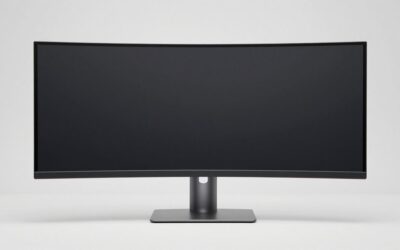
The best curved monitor for editing should give you enough room for your timeline and tool panels without making color decisions harder. For most creators, a high-resolution IPS display is the sensible starting point because it pairs a wide workspace with practical behavior around static interfaces. OLED options can deliver deeper blacks and more compelling HDR previews, but require more care when editing software stays open for hours. The six picks below cover color-conscious SDR work, high-resolution creative workflows, large timelines, and mixed editing-and-gaming setups, with their limitations made clear.
- Best curved monitor for editing: quick verdict
- How we selected the best curved monitor for editing
- Dell UltraSharp U4025QW: Best overall for editing
- ASUS ProArt PA34VCNV: Best for Rec.709 and SDR editing
- ViewSonic ColorPro VP3481a: Best for calibrated everyday editing
- Dell Alienware AW3926QW: Best high-resolution OLED hybrid
- MSI MPG 341CQR QD-OLED X36: Best for editing and gaming
- Samsung ViewFinity S95UC: Best for maximum horizontal workspace
- Buying guide: choose the best curved monitor for editing
- Frequently asked questions
- Final verdict
Quick answer: For most people in 2026, the best curved monitor for editing is the Monitor — our #1 rated choice. See the full ranked comparison, alternatives and buying advice below.
Best curved monitor for editing: quick verdict
The Dell UltraSharp U4025QW is the strongest all-around choice for editors who want high pixel density, a spacious 5K2K workspace, a well-equipped USB-C/Thunderbolt hub, and a color specification that suits varied creative work. Its 39.7-inch IPS Black panel provides 5120 × 2160 pixels at 120Hz, leaving enough vertical space for detailed timelines and stacked panels.
For SDR work that prioritizes Rec.709 and sRGB, the ASUS ProArt PA34VCNV is a more targeted professional option, while the ViewSonic ColorPro VP3481a offers factory calibration and hardware calibration support in a 34-inch format. For editors who want OLED contrast alongside gaming capability, the Dell Alienware AW3926QW and MSI MPG 341CQR QD-OLED X36 are compelling, but static-interface burn-in remains a consideration. Samsung’s ViewFinity S95UC is the workspace specialist: exceptionally wide, but shorter vertically and less compelling for critical color work than the creator-oriented choices.
| Monitor | Best fit | Native resolution | Main strength | Main limitation |
|---|---|---|---|---|
| Dell UltraSharp U4025QW | Best overall | 5120 × 2160 | Sharp 5K2K IPS Black image and workstation connectivity | HDR local dimming is weak |
| ASUS ProArt PA34VCNV | Rec.709 and SDR editing | 3440 × 1440 | Factory calibration and editing color modes | 60Hz and 1440-pixel vertical resolution |
| ViewSonic ColorPro VP3481a | Calibrated everyday workflow | 3440 × 1440 | Hardware calibration and a supplied calibration report | VA contrast can change with viewing angle; limited wide-gamut coverage |
| Dell Alienware AW3926QW | High-resolution OLED hybrid | 5120 × 2160 | OLED contrast, high resolution, and wide color | Reflective surface and burn-in risk |
| MSI MPG 341CQR QD-OLED X36 | Editing plus competitive gaming | 3440 × 1440 | Accurate sRGB mode, high contrast, 360Hz | Static elements and long editing sessions need OLED care |
| Samsung ViewFinity S95UC | Maximum horizontal workspace | 5120 × 1440 | 49-inch, 32:9 layout and multi-device features | Less vertical space and only 92% DCI-P3 coverage specified |
These are use-case recommendations based on specifications and published reviews, not results from a shared lab test. No exact street-price or value winner is assigned because comparable, current prices for every model were not verified.
How we selected the best curved monitor for editing
Editing has different display needs from gaming or general office work. Photo editors need dependable color reproduction across their chosen output space, enough pixel density to inspect fine detail, and reasonably consistent brightness across the panel. Video editors also need room for the timeline, preview, scopes, bins, and effects controls. Both benefit from adjustable stands, appropriate connectivity, and a screen coating that works with the room’s lighting.
We prioritized models with verifiable manufacturer specifications and credible independent reviews that address editing, color accuracy, or image quality. That is why this list includes both professional-minded IPS monitors and OLED displays that independent reviewers have evaluated for content creation. OLED monitors are not included just because their contrast looks impressive: burn-in risk and the usability of their color modes also affect whether they suit long work sessions.
Color-gamut percentages, factory Delta E claims, and HDR badges are not interchangeable. Gamut coverage describes which colors a monitor can reproduce; Delta E is a measure of color difference under a defined test or calibration process. HDR labels alone do not demonstrate reference-level tone mapping or uniformity. Where independent test data was not found for a model, the recommendation is deliberately limited to its verified specifications rather than a claim of measured performance.
Dell UltraSharp U4025QW: Best overall for editing
The Dell UltraSharp U4025QW is the best fit for creators who want a single display that handles video timelines, photo libraries, spreadsheets, and general production work without feeling cramped. Its 39.7-inch curved IPS Black panel runs at 5120 × 2160, a 21:9 format often described as 5K2K. With 140 pixels per inch, it provides noticeably more desktop detail than a 34-inch 3440 × 1440 display, as long as your operating system and applications are scaled to a comfortable size.
Dell lists 99% DCI-P3 and Display P3 coverage, 100% sRGB and BT.709 coverage, and average Delta E below 2 for the named modes. Those figures make it a strong candidate for photo and SDR video workflows, but they are not a substitute for checking calibration in your own working environment. Independent RTINGS testing also describes excellent out-of-box color accuracy and strong performance for editing. The review flags weak local dimming and difficulty overcoming reflections in very bright rooms, so it is not a professional HDR mastering monitor.
Connectivity is a practical differentiator. Thunderbolt 4 supports display, data, and up to 140W EPR power delivery, and the monitor includes DisplayPort, HDMI, USB ports, and 2.5Gb Ethernet. Compatible laptops can use it as a dock, although power delivery and refresh behavior still depend on the host system and cable. Buy if you want a high-resolution editing screen with strong docking features. Skip if you require reference-grade HDR or cannot control glare.
ASUS ProArt PA34VCNV: Best for Rec.709 and SDR editing
The ASUS ProArt PA34VCNV is a more purpose-built choice for editors who want practical color controls rather than extreme gaming specifications. It has a 34.1-inch IPS panel, 3440 × 1440 resolution, and a gentle 3800R curve. Its smaller footprint is easier to accommodate than a 40-inch 5K2K display, and IPS supports broad viewing angles.
ASUS specifies 100% sRGB and 100% Rec.709 coverage, Calman verification, and factory calibration to Delta E below 2. It includes selectable sRGB, Rec.709, DCI-P3, and other ProArt modes, along with RGB and gamma adjustments through ProArt Palette. This package suits SDR video intended for web or conventional broadcast delivery, although high-stakes work still benefits from periodic calibration.
The built-in workstation connectivity includes USB-C with up to 96W power delivery, DisplayPort, HDMI, a USB hub, and RJ45 Ethernet. A compatible laptop can send video, data, and power over one cable. The 60Hz refresh rate and 1440-pixel height are adequate for many jobs but provide less workspace than the Dell U4025QW. Its 300-nit typical brightness also limits HDR usefulness.
Buy if your priority is Rec.709 or sRGB editing with a color-focused interface and laptop docking. Skip if you need 5K2K detail, high-refresh gaming, or advanced HDR monitoring.
ViewSonic ColorPro VP3481a: Best for calibrated everyday editing
The ViewSonic ColorPro VP3481a is worth considering when you want a creator-oriented curved monitor but do not need the pixel density or connectivity budget of a premium 40-inch model. It uses a 34-inch VA panel with a 3440 × 1440 resolution, a 1800R curve, and a 100Hz refresh rate. Its horizontal space is useful for timelines, layer stacks, photo tools, and side-by-side reference windows.
ViewSonic lists 100% sRGB and Rec.709 coverage, Delta E below 2, factory calibration, and hardware calibration support through its Colorbration+ workflow. It also says the display ships with a calibration report. That suits SDR work, but the listed 88% DCI-P3 and 89% Adobe RGB coverage are limits for wide-gamut cinema or print images. Its VA panel has high native contrast, though color and gamma can shift more off-axis than on a good IPS panel.
The USB-C connection supplies up to 90W of power delivery and is joined by HDMI, DisplayPort, USB ports, and RJ45 Ethernet. The 100Hz refresh rate smooths desktop interaction, but HDR10 support does not make it a reference HDR display.
Buy if you want a calibrated 34-inch work surface for sRGB and Rec.709 projects. Skip if you need broad Adobe RGB or DCI-P3 coverage, a higher-resolution preview, or verified HDR mastering performance.
Dell Alienware AW3926QW: Best high-resolution OLED hybrid
The Dell Alienware AW3926QW makes sense for editors who want OLED contrast and a high-resolution ultrawide, and who also expect to game or watch HDR media on the same screen. Dell lists a 39-inch curved OLED panel with 5120 × 2160 resolution at up to 165Hz in its high-resolution mode, plus a dual mode that can run at 2560 × 1080 at up to 330Hz. For editing, 5K2K is more useful because it supplies 2160 vertical pixels.
Dell specifies 99% DCI-P3 coverage, 10-bit color, average Delta E below 2, and up to 90W USB-C power delivery. RTINGS’ review reports very accurate out-of-box color, deep blacks, and sharp text, making it strong for content creation. It also notes that the glossy coating creates mirror-like reflections, so placement matters, and that static interface elements present an OLED burn-in risk. If your editor, scopes, toolbars, and timeline remain in the same positions for a full workday, you should not treat OLED care features as a guarantee against burn-in.
The display’s dual mode is flexible but comes with a trade-off: switching to 1080p-class output prioritizes high refresh over detail and is not the mode to use when judging image sharpness. Its HDR label does not qualify it as a reference monitor; confirm calibration and viewing conditions before approving a master.
Buy if you want a large, sharp OLED for content creation and entertainment. Skip if you need a matte screen in a bright room or want to avoid static-content maintenance altogether.
MSI MPG 341CQR QD-OLED X36: Best for editing and gaming
The MSI MPG 341CQR QD-OLED X36 is a current-generation 34-inch curved QD-OLED monitor designed primarily for gaming, but independent testing also finds it strong for content creation. It delivers 3440 × 1440 resolution, a 1800R curve, a 360Hz maximum refresh rate, and a fifth-generation Tandem QD-OLED panel. For editing, high contrast, wide gamut, and an RGB stripe subpixel layout matter more than its 360Hz refresh rate.
MSI lists 99.3% DCI-P3 coverage, DisplayHDR True Black 500, and 10-bit color. RTINGS found its sRGB mode remarkably accurate before calibration and its OLED panel effective for dark-scene detail and HDR content. Its review also warns that black levels can rise in bright ambient light and that burn-in is a risk when the same static elements remain onscreen. Some settings are locked in the sRGB mode, so users who want that preset’s accuracy may need to choose between accurate color and access to certain adjustments.
The connection options include HDMI 2.1, DisplayPort 2.1, USB-C with power delivery, a USB hub, and KVM functionality. These features can support a single desk for a work PC and gaming setup, but check the exact US variant and your computer’s ports. The full refresh rate depends on the graphics output and cable path. Its 3440 × 1440 resolution is less spacious vertically than a 40-inch 5K2K screen, and its glossy surface may not suit every room.
Buy if you need one premium display for editing, HDR viewing, and high-refresh gaming. Skip if the monitor will show a static timeline for long daily stretches or your work requires certified reference monitoring.
Samsung ViewFinity S95UC: Best for maximum horizontal workspace
The Samsung ViewFinity S95UC is aimed at people who want one very wide display instead of two separate monitors. Its 49-inch VA panel provides 5120 × 1440 resolution, a 32:9 aspect ratio, and a tight 1000R curve. It can fit a timeline, scopes, and reference windows side by side; picture-by-picture and KVM help when switching computers.
Samsung specifies 92% DCI-P3 coverage, 350-nit typical brightness, a 3000:1 static contrast ratio, and a 120Hz refresh rate. USB-C supports up to 90W charging, and the monitor includes HDMI, DisplayPort, USB, and Ethernet connectivity. These features suit multitasking and general SDR work, but the vertical resolution is only 1440 pixels. In comparison, the 5K2K Dell and Alienware displays provide 2160 vertical pixels, which gives more room for tall timelines and larger preview windows.
Color gamut is another reason to be selective. The stated DCI-P3 coverage is more limited than on several creator-oriented alternatives, and Samsung does not position this model as a hardware-calibrated reference display. DisplayHDR 400 support is not enough to guarantee accurate HDR tone mapping or consistent highlight reproduction. For color-critical work, use a calibrated reference display or external monitoring path when delivery requirements demand stricter accuracy.
Buy if your main challenge is horizontal space, multi-app organization, or controlling two sources with one keyboard and mouse. Skip if you prioritize vertical resolution, wide-gamut color grading, or professional HDR mastering.
Buying guide: choose the best curved monitor for editing
Match resolution to your workflow
A 34-inch 3440 × 1440 display is a reasonable starting point for general editing and a clear step up in horizontal workspace from 16:9 screens. Its 1440-pixel height, however, does not show a UHD 4K frame pixel for pixel. If you often edit 4K video, compare the usable preview size you can maintain with toolbars and scopes open. A 39- or 40-inch 5120 × 2160 panel provides much more room and a sharper desktop, but also takes more desk space and costs more to drive at high refresh rates in graphics-heavy games.
A 49-inch 5120 × 1440 display buys width rather than height. It is especially useful when multiple panels need to stay open at once, but it will not give more vertical timeline space than a typical 1440p monitor. More diagonal inches do not automatically mean more detail; check resolution and pixel density together.
Prioritize color accuracy over color saturation
A display’s gamut tells you the range of colors it can reproduce. Accuracy tells you whether the colors it displays correspond to the target values. For most SDR online video, a dependable Rec.709 mode and sensible viewing conditions are more important than a monitor that makes every image look saturated. Photo editors may need strong Adobe RGB or DCI-P3 coverage depending on the destination, while video editors should match their modes to the delivery standard and software color management.
Treat factory calibration as a useful starting point, not a lifetime guarantee. Panel behavior can vary between units and drift over time. For client-critical work, use a supported calibrator or color-managed workflow. Wide-gamut modes can make standard-gamut content look oversaturated when applications do not manage color correctly.
Understand IPS, VA, and OLED trade-offs
IPS displays generally provide consistent viewing angles and make good work monitors for interfaces that remain static throughout the day. IPS Black improves contrast relative to many conventional IPS panels but still cannot produce OLED’s per-pixel black levels. VA panels can deliver higher native contrast at the cost of more off-axis color or gamma shifts, which is why seating position matters when judging subtle image differences.
OLED offers exceptional contrast but carries a risk of permanent burn-in from repeated static UI exposure. Pixel shifting, screen savers, dimming, and panel-refresh routines reduce but do not eliminate that risk. Consider maintenance and the exact model’s written warranty if your editor stays open all day.
Check your desk, ports, and color pipeline
Measure the desk before choosing a 39-, 40-, or 49-inch monitor. Check the stand’s footprint and allow enough distance to see the edges without turning your head constantly. An arm must support the monitor’s weight and VESA pattern. Curvature does not improve color accuracy or resolution by itself.
For laptops, verify video support over USB-C/Thunderbolt and whether 90W or 140W is enough for the workload. For desktops, confirm GPU output supports the native resolution and refresh rate. Check software compatibility with the color profile and HDR format you use.
Separate editing from final review. For broadcast-safe levels, HDR mastering, or strict client approval, use scopes and a calibrated display chain instead of relying on an attractive demo image.
Frequently asked questions
Is a curved monitor good for photo editing?
Yes, if its color accuracy, uniformity, resolution, and calibration suit your output. Curvature can make the edges easier to see, but it does not improve color accuracy. For print, check Adobe RGB coverage; for web, a reliable sRGB workflow may matter more.
Is 3440 × 1440 enough for video editing?
Yes, for many workflows. It gives a 34-inch display useful timeline width, but its 1440-pixel height provides less room than 5120 × 2160 and cannot show 4K footage pixel for pixel. Choose 5K2K when the extra preview detail and vertical space justify its cost.
Should editors buy an OLED or IPS monitor?
Choose OLED when deep blacks and HDR presentation are important and you can manage burn-in risk. Choose IPS when static application interfaces remain onscreen for long workdays or you prefer a simpler maintenance profile. Neither panel type guarantees accuracy, so check measurements, calibration options, and the intended delivery standard before deciding.
Does a higher refresh rate improve editing quality?
No. High refresh rates smooth scrolling and cursor movement but do not improve color accuracy or export speed. Prioritize resolution, gamut, accuracy, uniformity, and connectivity; treat refresh rate as a convenience unless you also game.
Final verdict
The Dell UltraSharp U4025QW is the most balanced choice for creators who want a detailed, expansive workspace and a useful workstation hub. The ASUS ProArt PA34VCNV and ViewSonic ColorPro VP3481a make more targeted sense for SDR workflows that value calibration. The Alienware AW3926QW and MSI MPG 341CQR QD-OLED X36 deliver stronger OLED contrast for a mixed creative and entertainment setup, but require careful consideration of reflections and static-image wear. Choose the Samsung ViewFinity S95UC only when maximum horizontal room matters more than vertical resolution or broad color coverage. Above all, match the panel to your delivery standards rather than buying on size, curvature, or refresh rate alone.
Ready to decide? Our #1 pick for 2026 is the Monitor.
Live price & availability on Amazon.