
The right best student monitors choice depends on what you study, how much desk space you have, and whether the screen will also be used for gaming or creative work. Most students can get by with a 24-inch 1080p monitor, but a 27-inch 1440p display offers more room for research and split-screen assignments. Laptop users may prefer USB-C connectivity, while commuters can benefit from a portable screen. These six recommendations cover different student budgets and routines without assuming that everyone needs an expensive 4K monitor or a high-refresh gaming display.
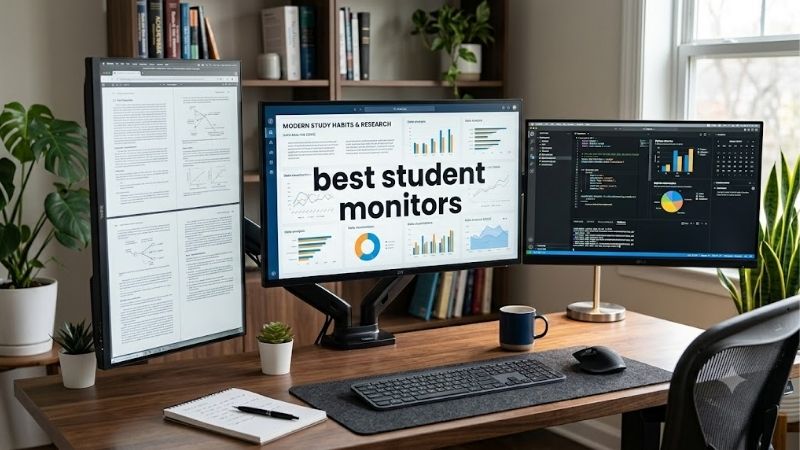
Quick answer: For most people in 2026, the best student monitors is the Monitor — our #1 rated choice. See the full ranked comparison, alternatives and buying advice below.
Best student monitors at a glance
For general schoolwork, the ASUS VA24EHF is a straightforward starting point. Its 23.8-inch IPS panel and 100Hz refresh rate are sufficient for reading, browsing, writing papers, and managing multiple applications. The BenQ GW2490 adds features aimed at comfortable everyday viewing, including automatic brightness adjustment and dedicated display modes.
Students who play games have two more specialized options. The LG 24GS65F-B keeps the resolution at 1080p while increasing the refresh rate to 180Hz. The Acer Nitro XV272U V3 moves up to 1440p at 180Hz, which provides a sharper image and more workspace for a stronger gaming PC.
The Dell S2725QC is the most convenient option here for compatible USB-C laptops because it combines a 4K panel, a USB hub, and up to 65W of laptop charging. For travel, the KYY K3 is a compact alternative that fits in a backpack.
| Monitor | Best fit | Resolution and refresh rate | Main drawback |
|---|---|---|---|
| ASUS VA24EHF | Basic schoolwork | 1920 × 1080, 100Hz | Tilt-only stand |
| BenQ GW2490 | Reading and everyday productivity | 1920 × 1080, 100Hz | Limited ergonomic adjustment |
| LG 24GS65F-B | Budget gaming | 1920 × 1080, 180Hz | Limited HDR performance |
| Acer Nitro XV272U V3 | Gaming and sharper multitasking | 2560 × 1440, 180Hz | Requires more graphics performance than 1080p |
| Dell S2725QC | Laptop-based study and research | 3840 × 2160, 120Hz | More expensive than basic student displays |
| KYY K3 | Portable study setup | 1920 × 1080, 60Hz | Less suitable for color-critical work |
These recommendations prioritize practical differences, rather than ranking products by temporary discounts. Current prices and retailer availability can change, so compare the exact model and final checkout price before purchasing.
How we selected these monitors
The shortlist considers text clarity, usable screen area, connectivity, stand adjustment, and the features students are likely to use throughout a semester. A suitable monitor should make research, writing, online classes, and everyday computing easier without unnecessarily consuming a limited dorm-room budget.
Manufacturer specifications establish each model’s resolution, refresh rate, ports, and physical features. Independent testing from RTINGS and TechRadar provides additional evidence for selected models, including motion handling, color performance, and portability. The LG 24GS65F-B, Dell S2725QC, and KYY K3 have independent review evidence in the sources consulted. The ASUS VA24EHF, BenQ GW2490, and Acer Nitro XV272U V3 are recommended primarily from their published specifications, without invented hands-on results.
This is not a list of the most expensive displays students could buy. A higher-resolution monitor makes sense when you regularly work with several documents, diagrams, or creative applications, but it may be unnecessary for a student who mainly writes papers and watches lectures. Gaming specifications also matter only when the computer can take advantage of them.
The best student monitors for different needs
ASUS VA24EHF — best for basic schoolwork
The ASUS VA24EHF is a sensible choice for students who need a dedicated screen for assignments, online classes, research, and general browsing. Its 23.8-inch IPS panel has a native resolution of 1920 × 1080 and a maximum refresh rate of 100Hz. ASUS lists typical brightness at 250 nits, an anti-glare surface, and Adaptive-Sync support.
For writing papers or comparing sources, Full HD resolution is generally adequate at this size. The IPS panel also offers wide viewing angles, which helps when you occasionally view the screen from the side. A 100Hz refresh rate can make scrolling and moving windows feel smoother than on a conventional 60Hz display, although it does not make text itself sharper.
The compromises are straightforward. The monitor has one HDMI 1.4 input, no built-in speakers, and a stand that tilts but does not adjust in height. It supports a 100 × 100mm VESA mount, so a compatible monitor arm is an option if the included stand does not put the screen at a comfortable height.
ASUS advertises a 1ms MPRT response figure, but that measurement should not be confused with a measured gray-to-gray response time. This monitor is a general-purpose display rather than a specialist gaming recommendation.
Buy if: You need an uncomplicated screen for papers, browser tabs, lecture videos, and everyday computing.
Skip if: You want a height-adjustable stand, USB-C laptop connectivity, or strong gaming performance.
BenQ GW2490 — best for everyday reading and productivity
The BenQ GW2490 is designed around ordinary work and comfortable everyday viewing. It has a 23.8-inch IPS panel, a 1920 × 1080 resolution, a 100Hz refresh rate, and a stated 99% sRGB color gamut. BenQ also includes Brightness Intelligence technology, low-blue-light modes, flicker-free operation, and an ePaper mode intended to make text-heavy content look more paper-like.
These features make the monitor particularly relevant for students who spend long sessions reading online course materials, writing reports, or switching between lecture notes and reference pages. Automatic brightness adjustment can help the screen respond to changes in room lighting, while the different display modes provide alternatives to a single default picture setting. These features do not guarantee freedom from eye strain; appropriate brightness, breaks, and a comfortable viewing position still matter.
The GW2490 includes two HDMI 1.4 inputs, making it useful if you alternate between a laptop and another device. However, it is not a USB-C docking monitor, so you should not expect one USB-C cable to carry video and charge a laptop.
Its 1080p resolution is best suited to ordinary study tasks. Students who routinely work with detailed spreadsheets, complex diagrams, or large creative timelines may prefer a 27-inch 1440p or 4K display instead.
Buy if: You prioritize reading, writing, multiple HDMI devices, and everyday productivity.
Skip if: You need USB-C charging, a high-refresh gaming panel, or extensive stand adjustment.
LG 24GS65F-B — best for gaming on a student budget
The LG 24GS65F-B offers a faster experience for students who split their time between coursework and competitive games. Its 24-inch IPS panel runs at 1920 × 1080 with a maximum 180Hz refresh rate. LG specifies a 1ms gray-to-gray response time, HDR10 support, and compatibility with NVIDIA G-SYNC and AMD FreeSync under supported configurations.
RTINGS independently evaluated the exact model and reports low input lag and responsive motion. The monitor’s fast refresh rate can be useful in competitive titles where clear motion and quick visual feedback matter. It can also serve as a regular study display during the day.
The limitation is image quality outside gaming. RTINGS identifies limited contrast and weak HDR performance, so this is not the best screen for students who prioritize deep blacks or impactful HDR in films. The native 1080p resolution is also less suitable for dense creative work than a 1440p display of similar physical size.
LG includes a stand with height, tilt, and pivot adjustment. That is a practical advantage in a dorm room because the monitor can be raised or rotated to fit the desk. Still, the 180Hz refresh rate is a ceiling, not a guarantee of 180 frames per second. The computer’s graphics performance and the game’s settings determine the actual frame rate.
Buy if: You play competitive games and want one monitor that also handles everyday coursework.
Skip if: Gaming is rare, sharp text at higher resolutions matters more, or HDR image quality is a priority.
Acer Nitro XV272U V3 — best for gaming and sharper multitasking
The Acer Nitro XV272U V3 offers a useful step up for students who own a stronger gaming PC or want extra desktop space. The exact model identified by Acer’s US part number UM.HX2AA.301 has a 27-inch IPS panel with a native resolution of 2560 × 1440 and a maximum refresh rate of 180Hz. Acer lists 350 nits of brightness, 95% DCI-P3 color coverage, and AMD FreeSync Premium support.
Compared with a 24-inch Full HD monitor, 1440p provides more detail and room for content. That can help when working with several documents, viewing detailed diagrams, editing media, or keeping a reference window open beside a main assignment. It also creates a sharper gaming image without requiring the full pixel load of 4K.
The stand is more adjustable than the basic stands found on many entry-level monitors. Acer specifies height adjustment, swivel, tilt, and portrait pivot, plus a 100 × 100mm VESA mounting pattern. Those features matter in a shared or cramped room where desk layout may change.
The main trade-off is graphics demand. Rendering a game at 2560 × 1440 generally takes more GPU resources than rendering at 1920 × 1080. A laptop or older gaming PC may need reduced graphics settings to maintain high frame rates. Acer also specifies a 1,000:1 native contrast ratio, typical of IPS panels, so buyers should not expect OLED-like black levels.
Buy if: You want a more spacious desktop, a sharper gaming image, and a fully adjustable stand.
Skip if: Your budget is tight, your PC struggles with 1440p gaming, or you mainly need a screen for documents and messaging.
The recommendation is based on Acer’s specifications; no independent test result for this exact V3 variant is claimed.
Dell S2725QC — best for studying from a laptop
The Dell S2725QC is particularly useful for students whose main computer is a USB-C laptop. It pairs a 27-inch IPS panel with 3840 × 2160 resolution and a 120Hz refresh rate. Dell includes a USB-C upstream connection with DisplayPort Alternate Mode and up to 65W power delivery, alongside a USB hub, HDMI 2.1 inputs, and an adjustable stand.
The 4K resolution gives fine text and detailed content more space on screen, which helps students working with spreadsheets, code, research papers, and creative projects. The built-in USB hub makes it easier to attach peripherals to the monitor, while compatible laptops can send video and receive power through one USB-C cable. It also includes speakers for lectures and video calls.
RTINGS describes the monitor as strong for office work and text clarity, while noting that its motion handling is not a major strength for fast gaming. The IPS panel’s contrast is limited, and HDR performance is not comparable to a Mini LED or OLED display. This is a productivity-first screen with some gaming convenience, not a high-performance gaming specialist.
The 65W charging limit also needs attention. It may be adequate for many student laptops, but some higher-powered systems require more power, especially during demanding work. Confirm your laptop’s USB-C video support and charging requirements before relying on a single cable.
Buy if: You want a sharp 4K workspace and convenient USB-C connectivity for a compatible laptop.
Skip if: You need the cheapest possible display, mostly play fast-paced games, or require more than 65W of charging power.
KYY K3 — best portable monitor for students on the move
The KYY K3 is a practical choice for students who work in libraries, shared study spaces, or temporary setups rather than at one permanent desk. TechRadar reviewed this 15.6-inch portable IPS monitor with a native resolution of 1920 × 1080 and a 60Hz refresh rate. It offers USB-C and mini HDMI connectivity, dual USB-C ports, and a folding cover that doubles as a stand.
Its greatest advantage is portability. The screen and cover weigh about 770 grams in TechRadar’s review, making it relatively easy to carry with a laptop. An extended desktop can help you keep lecture notes visible while taking notes, compare documents, or keep course materials open beside an online meeting.
There are limitations to the display itself. TechRadar measured roughly 262 nits of maximum brightness and 64% sRGB coverage on its sample, which makes it unsuitable for demanding color-critical work. The stand is basic, and a portable display should not be assumed to offer the same ergonomic adjustment as a full-size desktop monitor.
Connection requirements vary. A compatible USB-C port may handle video and power, but some setups require an additional power connection. Mini HDMI provides an alternative for devices without USB-C video output. The monitor has no built-in battery, so you should plan how it will be powered during travel.
Buy if: You move between study spaces frequently and need a compact way to extend a laptop display.
Skip if: You want a permanent large screen, high-refresh gaming, or color accuracy for professional design work.
How to choose among the best student monitors
Match screen size and resolution to your coursework
A 24-inch 1080p display is sufficient for essays, web research, email, and most online coursework. It is also a practical fit for a small desk. If you routinely compare several documents or want more room for coding and detailed diagrams, a 27-inch 1440p monitor offers a useful balance of workspace and sharpness.
A 27-inch 4K screen can make fine text and detailed content sharper still, but it costs more and can require scaling adjustments for comfortable reading. Do not assume a higher resolution automatically improves every task. A simple 1080p screen may be the better purchase when your applications mainly display text and you need to preserve money for other school expenses.
Check the laptop’s ports and charging requirements
USB-C is especially useful for dorm rooms, but the connector alone does not guarantee video output. Check the laptop specification for DisplayPort Alternate Mode, Thunderbolt, or supported USB4 display capability. If the monitor also provides laptop charging, confirm that the wattage is enough for your machine.
HDMI is usually straightforward, but the laptop and monitor must both support the intended resolution and refresh rate. Docks and adapters can introduce limits, so direct connections are often easier to troubleshoot. If you need several peripherals, an integrated USB hub can reduce desk clutter.
Prioritize comfort and desk arrangement
A stand that adjusts in height, tilt, and pivot is useful when you spend hours studying. The top of the screen should be positioned so you can view it comfortably without constantly tilting your head. On a very small desk, a VESA-compatible arm or simple riser can free space, but remember that those accessories add to the cost.
Also consider lighting. An anti-glare screen is useful near windows, but strong reflections can still be distracting. Position the monitor so that windows and lamps are not reflected directly in the display, and adjust brightness to suit the room rather than running it at maximum all day.
Avoid paying for features you will rarely use
Refresh rates above 100Hz are primarily worthwhile if you play games or strongly prefer smoother motion. A high-refresh monitor will not make a laptop produce more frames than its graphics hardware can render. HDR labels also do not guarantee excellent contrast or convincing highlights.
Students taking design or photography classes should pay closer attention to color gamut, color accuracy, and calibration support. For normal writing and research, those features may matter less than readable text and a comfortable stand. A cheaper display that fits your actual workload is often the better long-term decision.
Frequently asked questions
Is a 24-inch monitor large enough for college work?
Yes. A 24-inch 1080p monitor is a good fit for writing, browsing, video calls, and viewing reference material beside a document. If you frequently manage several large windows at once, a 27-inch 1440p or 4K display provides more workspace.
Is 4K worth it for students?
It can be useful for students who read dense documents, use spreadsheets, code, or edit images and video. However, a 4K monitor is not necessary for ordinary homework, and it costs more than a basic 1080p model. Choose it for a specific productivity benefit rather than simply because it has a higher resolution.
Can a monitor charge a laptop while displaying the screen?
Some USB-C monitors can do both, provided the laptop supports video over USB-C and accepts charging through that port. The Dell S2725QC supplies up to 65W, which is sufficient for many laptops but not all. Check the laptop’s required power and keep its original charger if necessary.
Should students buy a gaming monitor for school?
Only if gaming performance is important enough to justify the cost. A fast gaming display can still handle assignments, but high refresh rates and gaming features are not necessary for most study tasks. A conventional productivity monitor with a better stand or higher resolution may be more useful if gaming is occasional.
Final verdict
For most students, a 24-inch 1080p IPS monitor is the most practical starting point. The ASUS VA24EHF covers everyday work, while the BenQ GW2490 offers useful viewing features for long study sessions. Choose the LG 24GS65F-B for budget gaming or the Acer Nitro XV272U V3 for sharper 1440p gaming and multitasking. The Dell S2725QC is a stronger laptop-centered investment thanks to its 4K panel and USB-C charging, while the KYY K3 makes sense for students who need a portable second screen. Before buying, verify your computer’s ports, the stand’s adjustment range, and the current price of the exact model.
Ready to decide? Our #1 pick for 2026 is the Monitor.
Live price & availability on Amazon.









