
The best gaming monitor for fighting games should match your platform, deliver a clear picture, and avoid unnecessary display delay. A higher refresh rate can help in the right configuration, but it does not turn a 60 fps fighting game into a 240 fps game. Start with the BenQ MOBIUZ EX240 for a straightforward compact setup, consider the ASUS ROG Strix OLED XG27AQDMG for a PC-focused OLED upgrade, or choose the Alienware AW2725QF when 4K detail and broader gaming versatility matter.
- Quick verdict: The best gaming monitor for fighting games depends on your platform
- Quick comparison
- How we selected these monitors
- BenQ MOBIUZ EX240: A compact setup with built-in audio
- ASUS TUF Gaming VG259QM: Compact IPS for a mixed PC library
- BenQ ZOWIE XL2540K: An adjustable dedicated station
- ASUS ROG Strix OLED XG27AQDMG: Glossy OLED for a PC connection
- MSI MPG 271QRX QD-OLED: Flexible connections for a shared desk
- Alienware AW2725QF: 4K detail with a second gaming mode
- How to choose the best gaming monitor for fighting games
- Configure the screen before judging it
- FAQs
- Final verdict
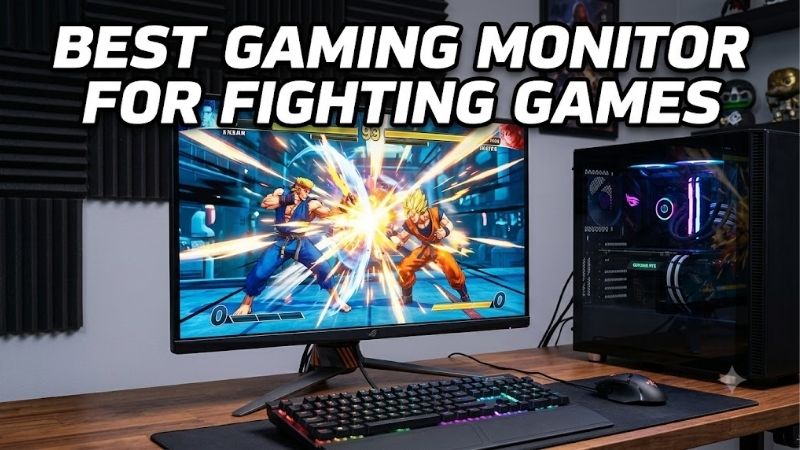
Quick answer: For most people in 2026, the best gaming monitor for fighting games is the BenQ MOBIUZ EX240 — our #1 rated choice. See the full ranked comparison, alternatives and buying advice below.
Quick verdict: The best gaming monitor for fighting games depends on your platform
For a dedicated fighting-game station, prioritize reliable operation at the signal your game actually sends. A monitor’s maximum refresh rate tells you little about its processing delay at 60Hz. Likewise, a manufacturer’s advertised pixel response time does not measure the complete delay between pressing a button and seeing an action.
These six monitors cover different needs rather than form a universal fastest-to-slowest ranking:
- BenQ MOBIUZ EX240: A compact IPS option with built-in audio.
- ASUS TUF Gaming VG259QM: A compact IPS display for fighting games and high-frame-rate PC games.
- BenQ ZOWIE XL2540K: An adjustable TN option for a dedicated competitive desk.
- ASUS ROG Strix OLED XG27AQDMG: A glossy OLED choice for a DisplayPort-connected PC.
- MSI MPG 271QRX QD-OLED: An OLED option with versatile connections.
- Alienware AW2725QF: A 4K IPS option with a separate high-refresh 1080p mode.
There is no verified cross-platform latency winner here. Choose by connection, viewing conditions, screen size, and other games you play before paying for the largest refresh-rate number.
Quick comparison
Maximum refresh rates below describe supported monitor modes, not the frame rate every game or console can deliver.
| Monitor | Who it suits | Panel and resolution | Maximum refresh | Meaningful drawback |
|---|---|---|---|---|
| BenQ MOBIUZ EX240 | Compact setups needing integrated audio | 23.8-inch IPS, 1920 × 1080 | 165Hz | Limited resolution and conventional LCD contrast |
| ASUS TUF Gaming VG259QM | PC players mixing fighters and shooters | 24.5-inch Fast IPS, 1920 × 1080 | 280Hz overclocked through DisplayPort | HDMI tops out below its DisplayPort maximum |
| BenQ ZOWIE XL2540K | Dedicated desks prioritizing adjustment and multiple HDMI sources | 24.5-inch TN, 1920 × 1080 | 240Hz | Narrower viewing-angle tolerance than IPS |
| ASUS ROG Strix OLED XG27AQDMG | PC players wanting glossy OLED contrast | 26.5-inch viewable WOLED, 2560 × 1440 | 240Hz through DisplayPort | HDMI refresh ceiling is 144Hz |
| MSI MPG 271QRX QD-OLED | Mixed-device setups wanting OLED and USB-C | 26.5-inch QD-OLED, 2560 × 1440 | 360Hz | OLED care requirements |
| Alienware AW2725QF | Players sharing one screen between fighting games, work, and other genres | 27-inch IPS | 4K at 180Hz or 1080p at 360Hz | Reduced detail in its 1080p mode |
How we selected these monitors
This shortlist uses manufacturer specifications and documented connection limits. It is a research-based buying guide, without original detailed research or a matched latency comparison.
Selection focused on flat 16:9 screens, practical desktop sizes, HDMI connectivity, and distinct reasons to choose each model. OLED, IPS, and TN options remain separate because their trade-offs affect different buyers.
No “best budget” or “best value” award is assigned. Those labels require comparable current US offers for the exact products, which were not established across the shortlist.
Older models can still make sense, but a live manufacturer page does not guarantee current retail stock. Before ordering, confirm the exact suffix, seller, condition, return policy, and supported input modes. A similarly named replacement may use a different panel or connection configuration.
BenQ MOBIUZ EX240: A compact setup with built-in audio
The EX240 combines a 23.8-inch 1080p IPS panel, a 165Hz maximum refresh rate, and integrated speakers. BenQ documents 1080p/120Hz compatibility for PS5 and Xbox Series consoles, alongside 1080p/165Hz PC operation.
Its appeal is straightforward: a modest screen size, adjustable stand, and usable audio without adding another device. The 100mm height adjustment helps position the picture above a controller or fight stick.
Check the model carefully. The EX240 and EX240N are different products; this recommendation applies to the IPS EX240.
Its limitations are resolution and contrast. The 1080p panel offers less workspace than a 1440p display, while HDR signal support should not be confused with OLED-style blacks. BenQ also separates its 2ms gray-to-gray specification from its 1ms motion-picture response claim; neither is a complete input-lag measurement.
Buy if: You want a compact fighting-game screen with integrated sound.
Skip if: You need sharper desktop text, more workspace, or premium dark-scene presentation.
Alternative: Choose the VG259QM when high-refresh PC gaming outside fighting games matters more than this model’s simple feature balance.
ASUS TUF Gaming VG259QM: Compact IPS for a mixed PC library
The VG259QM is a 24.5-inch 1080p Fast IPS monitor with an overclocked maximum of 280Hz. Its DisplayPort connection supports that ceiling; ASUS lists HDMI operation up to 240Hz.
That distinction matters when choosing cables and source devices. Connecting through HDMI does not provide the same maximum mode as DisplayPort.
Its strongest justification is a mixed PC library. You can use a compact screen for fighting games, then benefit from higher refresh rates in games that actually render additional frames. Its stand offers height, swivel, tilt, and pivot adjustment.
The 280Hz headline does not establish superior fighting-game latency at 60Hz. Nor does its advertised 1ms response establish total display delay.
Buy if: You want compact IPS viewing characteristics and high-refresh capability for other PC games.
Skip if: Your priority is 1440p detail, 4K desktop space, or OLED contrast.
Alternative: The EX240 provides a smaller-screen option, while the XG27AQDMG changes the experience more substantially through resolution and panel technology.
BenQ ZOWIE XL2540K: An adjustable dedicated station
The XL2540K offers a 24.5-inch 1080p TN panel running up to 240Hz. BenQ documents three HDMI 2.0 inputs, DisplayPort 1.2, and 1080p/120Hz support for PS5 and Xbox Series X.
Its practical distinction is the physical setup. A 155mm height-adjustment range and compact base help accommodate different seating positions and controller arrangements. Multiple HDMI inputs also simplify switching sources.
Choose it for those concrete features rather than assuming an esports label guarantees better fighting-game performance.
TN is the central compromise. Picture appearance is more sensitive to viewing position than on typical IPS alternatives, which matters when another player sits off-center. Also, this exact XL2540K does not include DyAc; features from other ZOWIE models should not be transferred to it.
Buy if: Stand adjustment and multiple HDMI connections suit your dedicated desk.
Skip if: You regularly share the screen from different viewing angles or prioritize image presentation.
Alternative: The VG259QM offers a similarly compact IPS approach; the AW2725QF adds substantially higher native resolution.
ASUS ROG Strix OLED XG27AQDMG: Glossy OLED for a PC connection
The original XG27AQDMG uses a glossy WOLED panel with a 26.5-inch viewable area, 2560 × 1440 resolution, and a 240Hz maximum refresh rate through DisplayPort.
Its main attraction is OLED presentation: individually controlled pixels provide deep blacks and avoid the conventional LCD backlight glow around dark imagery. That can make stage artwork and high-contrast effects more striking.
Connection limits are important. ASUS lists HDMI 2.0 inputs with a 144Hz ceiling, so this is primarily a DisplayPort-focused recommendation for its full refresh capability.
Glossy reflections and cumulative wear from static content deserve consideration. Keep the panel’s maintenance functions enabled and avoid unnecessary hours displaying unchanged training screens.
This recommendation applies to XG27AQDMG, not the separately named Gen2 XG27AQDMGR.
Buy if: You want glossy OLED presentation on a compatible PC.
Skip if: Strong reflections dominate your room or you want minimal concern about static-content exposure.
Alternative: The MSI 271QRX provides a different OLED connection package; the AW2725QF offers an IPS route.
MSI MPG 271QRX QD-OLED: Flexible connections for a shared desk
The MPG 271QRX combines a 26.5-inch 1440p QD-OLED panel with a 360Hz maximum refresh rate. Its connections include HDMI 2.1, DisplayPort 1.4a, and USB-C with DisplayPort Alt Mode and up to 90W power delivery.
Those connections distinguish it from the original XG27AQDMG. It is worth considering when a desktop, console, and compatible laptop share the same display.
USB-C video still requires a source device and cable that support the necessary functions. A USB-C connector alone does not guarantee video output.
Its 360Hz capability is mainly additional flexibility for high-frame-rate PC games. It does not add unique animation frames to a 60 fps fighter. OLED maintenance and static-content exposure remain relevant.
Buy if: You want OLED contrast and a versatile connection package.
Skip if: You mainly need an uncomplicated screen for fixed-interface work or dedicated training sessions.
Alternative: Choose the XG27AQDMG for its glossy WOLED approach, or the AW2725QF for higher native resolution without OLED maintenance routines.
Alienware AW2725QF: 4K detail with a second gaming mode
The AW2725QF is a 27-inch IPS monitor supporting 3840 × 2160 at up to 180Hz, plus a separate 1920 × 1080 mode at up to 360Hz.
Its distinctive benefit is versatility. Use 4K for detailed desktop work and games, then select the lower-resolution mode for suitable high-frame-rate PC titles. The monitor also includes HDMI 2.1 connectivity.
For fighting games, the 4K picture may be more useful than its 360Hz mode. Switching to 1080p sacrifices detail without changing a game’s underlying animation rate.
IPS contrast remains a limitation for dark-room viewing. Do not interpret HDR certification as evidence that it reproduces OLED black levels. Dell also lists no integrated speakers, so plan your audio connection.
Buy if: One screen must serve fighting games, detailed work, and other gaming genres.
Skip if: You want a smaller dedicated station or OLED dark-scene presentation.
Alternative: The EX240 keeps the setup compact; either OLED model emphasizes contrast over 4K workspace.
How to choose the best gaming monitor for fighting games
Separate game speed from display refresh
Many traditional competitive fighting games use 60 fps gameplay. That gives each unique game frame approximately 16.67 milliseconds. A monitor refreshing at 240Hz cannot manufacture additional game-state information between those frames.
Higher-refresh output can still affect presentation timing, depending on the game, platform, synchronization method, and monitor. However, “four times the refresh rate” does not mean one-quarter of the complete input delay.
Treat high refresh as one component of the display pipeline. Stable game performance, appropriate settings, and the monitor’s behavior at your actual input signal deserve equal attention.
Compare input lag and pixel response separately
Input lag concerns when an incoming image becomes visible. Pixel response concerns how quickly a pixel changes between shades. Both influence the experience, but they describe different processes.
A fast transition can reduce trailing without eliminating processing delay. Conversely, a low-processing-delay display can still show distracting overshoot when aggressive overdrive pushes pixels beyond their intended color.
Look for independent measurements at 60Hz when your console outputs 60Hz. Maximum-refresh measurements alone do not answer that question. Check the tested picture mode and firmware as well, because results can depend on configuration.
Choose screen size around seating distance
A 24- or 24.5-inch screen is practical at a shallow desk. A 27-inch display can suit a deeper setup or a monitor shared with everyday work.
Place the screen so you can follow both characters, spacing, and meters comfortably. Avoid choosing a larger panel simply because it appears more immersive in a showroom.
For local two-player sessions, test off-center viewing. Both players should see a consistent picture without crowding directly in front of the panel. This is especially relevant when considering the TN ZOWIE model.
Match resolution to more than fighting games
1080p remains a sensible choice for a compact dedicated setup. It also places less rendering demand on the GPU than higher resolutions, helping a modest PC maintain its intended performance.
1440p provides more desktop space and detail, especially around 27 inches. A 4K screen is easier to justify when work, media, and other games share the same desk.
Do not assume a 4K monitor requires every game to run at 4K. Lower-resolution rendering is possible, although scaling quality and sharpness vary. Prioritize consistent gameplay before increasing visual settings.
Verify the complete connection path
Check the source, cable, adapter, and monitor together. The weakest link can restrict resolution, refresh rate, HDR, or variable refresh operation.
This is particularly important with laptops. A dock may expose fewer display modes than a direct connection, and two USB-C ports on the same computer may have different capabilities.
On consoles, consult the system’s video-output information after connecting. A monitor advertised at 240Hz or 360Hz does not mean the console uses that refresh rate. Confirm the active signal rather than relying on the product box.
Choose OLED for its picture, with realistic ownership expectations
OLED offers excellent black levels and fast pixel transitions. It can be an appealing upgrade for players who care about stage presentation as much as competitive play.
Static HUDs, training overlays, and desktop elements create a different usage pattern from varied full-screen content. Maintenance features help manage cumulative wear but do not make usage irrelevant.
LCD remains a practical choice for long sessions with unchanged interfaces. If OLED appeals to you, review the exact US warranty terms and follow the manufacturer’s care instructions before buying.
Configure the screen before judging it
Start by confirming the active resolution and refresh rate in the operating system or console menu. Then check the monitor’s information screen where available.
Use the intended gaming mode and begin with moderate overdrive. The most aggressive setting can create bright or dark outlines around moving objects, especially when refresh rates change.
Test synchronization settings one at a time. Variable refresh, V-Sync, and game-specific latency options interact differently across platforms. A setting that works well in one title may not be the best choice in another.
Keep picture settings stable while comparing. Changing brightness, overdrive, synchronization, and game graphics simultaneously makes it difficult to identify what improved the result.
Finally, separate local display behavior from online conditions. Compare offline training and local matches before blaming the monitor for an inconsistent online experience.
FAQs
Is 144Hz enough for fighting games?
It can be. A well-configured 144Hz monitor may meet your needs when the game itself produces 60 unique gameplay frames per second. Higher refresh rates are easier to justify when you also play games that render substantially more frames. Check input lag at the signal you actually use.
Should I buy a 360Hz screen exclusively for a 60 fps fighter?
Usually, that specification alone is insufficient justification. Consider its connections, panel characteristics, and independently measured behavior first. A 360Hz monitor may suit your broader PC library, but the refresh-rate label does not prove a meaningful advantage in every fighting game.
Does OLED remove motion blur completely?
No. Fast pixel transitions reduce transition-related trailing, but perceived motion clarity also depends on how long each image remains visible and how your eyes track movement. A 60 fps animation still contains only 60 unique frames per second, regardless of panel technology.
Do I need HDMI 2.1?
Only when your desired signal or feature set requires it. HDMI 2.0 can handle useful fighting-game configurations, including documented 1080p high-refresh modes on several models here. Check the exact supported resolution, refresh rate, and console features rather than treating the version number as a universal quality ranking.
Will a monitor fix missed inputs online?
It can improve the display portion of your setup, but it cannot correct every source of delay. Controller behavior, game settings, network conditions, and the game’s own processing also matter. Establish consistent offline performance first, then investigate online problems separately.
Final verdict
Choose the EX240 for a compact setup with audio, the VG259QM for mixed high-refresh PC gaming, or the XL2540K when its stand and HDMI arrangement fit your station. The XG27AQDMG and MPG 271QRX offer different OLED approaches, while the AW2725QF suits a desk that benefits from 4K.
Ready to decide? Our #1 pick for 2026 is the BenQ MOBIUZ EX240.
Live price & availability on Amazon.









