
The right minecraft gaming monitor depends less on Minecraft itself than on how you play it. Competitive Java Edition players may benefit from very high refresh rates, builders often appreciate the clarity of a 1440p or 4K display, and shader users should pay attention to contrast and HDR rather than chasing the biggest refresh-rate number. For most PC players, a 27-inch 1440p monitor with a refresh rate of 165Hz to 200Hz is the most balanced starting point. A 24- or 24.5-inch 1080p display makes sense for a smaller desk or a lower-cost PC, while 4K is best reserved for systems that can handle the extra pixels comfortably.
- Quick verdict: best Minecraft gaming monitor for most players
- Quick comparison table
- How we selected these monitors
- ASUS TUF Gaming VG27AQ3A: best overall for most players
- MSI G255F: a compact 1080p choice
- LG UltraGear 27GS75Q-B: a flexible 1440p everyday screen
- AOC Q27G3XMN: better contrast for caves and shaders
- MSI MAG 274QRF QD E2: vivid colors and USB-C flexibility
- Gigabyte M27U: choose 4K for finer detail
- Gigabyte M27Q X (Rev. 2.0): for serious high-refresh PvP
- How to choose the right Minecraft gaming monitor
- Common buying mistakes to avoid
- Frequently asked questions
- Final verdict
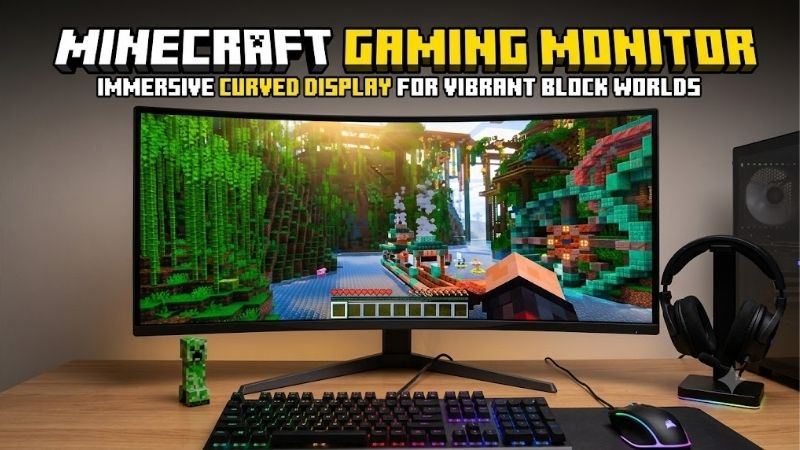
Quick answer: Our top pick in 2026 is the Monitor — our #1 rated choice. See the full ranked comparison, alternatives and buying advice below.
Quick verdict: best Minecraft gaming monitor for most players
For a mix of survival, creative building, exploration, and occasional PvP, start with the ASUS TUF Gaming VG27AQ3A. Its 27-inch 1440p Fast IPS panel and 180Hz refresh rate balance sharpness and motion clarity. The AOC Q27G3XMN suits shader fans who value contrast, the MSI G255F fits a compact 1080p setup, and the Gigabyte M27U offers 4K detail if your PC can handle it. A monitor does not increase rendered FPS; it displays frames your system produces and changes how sharp or contrast-rich the image looks.
Quick comparison table
| Monitor | Best fit | Key specifications | Main trade-off |
|---|---|---|---|
| ASUS TUF Gaming VG27AQ3A | Best overall balance | 27-inch, 2560 × 1440, Fast IPS, 180Hz | Basic stand adjustment; HDR is not its main strength |
| MSI G255F | Compact 1080p setup | 24.5-inch, 1920 × 1080, Rapid IPS, 180Hz | Less workspace and lower pixel density than QHD at 27 inches |
| LG UltraGear 27GS75Q-B | Flexible everyday gaming | 27-inch, 2560 × 1440, IPS, 180Hz native / 200Hz overclock | The 200Hz mode is an overclock, not the default native refresh rate |
| AOC Q27G3XMN | Dark scenes and shader visuals | 27-inch, 2560 × 1440, VA Mini LED, 180Hz, 336 dimming zones | Some black smearing and VRR flicker can appear |
| MSI MAG 274QRF QD E2 | Color-rich gaming and laptop use | 27-inch, 2560 × 1440, Rapid IPS, 180Hz, USB-C with up to 65W power delivery | Wide gamut can make colors look oversaturated without adjustment |
| Gigabyte M27U | Maximum desktop detail | 27-inch, 3840 × 2160, IPS, up to 160Hz | More demanding resolution; weak native contrast limits dark-room HDR |
| Gigabyte M27Q X (Rev. 2.0) | Competitive PvP | 27-inch, 2560 × 1440, SS IPS, 240Hz | Costs and system requirements may be hard to justify for casual play |
Refresh rates, panel types, and connectivity above are based on manufacturer documentation. Independent test notes and important limitations are explained in the product sections below. Prices change frequently, so this roundup avoids presenting unverified street prices as fixed buying criteria.
How we selected these monitors
Minecraft players have different needs: PvP rewards smooth motion, builders often want sharper details and room for tools, and shader users may value contrast and HDR. View distance, entities, mods, and shader packs also affect performance. We confirmed core specifications against manufacturer documentation and used independent reviews where available to identify real-world limitations. No detailed research or Minecraft-specific FPS measurements were performed. Recommendations are based on use case, not an assumption that a monitor improves game performance. Model suffixes and current retailer listings should be checked before ordering, as similarly named revisions can differ.
ASUS TUF Gaming VG27AQ3A: best overall for most players
The ASUS TUF Gaming VG27AQ3A is the most straightforward all-rounder here. Its 27-inch QHD Fast IPS panel combines 2560 × 1440 resolution with 180Hz, and ASUS lists Adaptive-Sync, FreeSync Premium, and G-SYNC compatibility. That works well for survival, creative builds, exploration, and occasional PvP. QHD looks sharper than 1080p at this size without imposing the pixel load of 4K.
Its strength is balance rather than premium HDR. HDR support does not deliver the deep blacks and bright highlights of a capable Mini LED or OLED display, and the included stand offers less ergonomic movement than some rivals. Check desk height or VESA mounting needs before buying.
Buy it for a balanced 1440p screen for Minecraft and other games. Skip it if 1080p would better fit your PC or if HDR contrast is your main priority. If stand ergonomics matter most, compare it with the LG UltraGear 27GS75Q-B; if dark-scene contrast matters more, the AOC is the stronger alternative.
MSI G255F: a compact 1080p choice
The MSI G255F pairs a 24.5-inch Rapid IPS panel with 1920 × 1080 resolution and 180Hz. This compact format suits a smaller desk, a Full HD PC, or a player who prioritizes PvP motion. DisplayPort, two HDMI inputs, and a headphone output cover the essentials.
Its smaller screen keeps the view easy to scan, but the trade-off is less workspace and detail than 27-inch QHD. The refresh rate is a ceiling, not a promise that every world will run at 180 FPS; shaders, high render distance, mods, and CPU limits can all reduce frames.
Buy it for a compact Full HD setup and smooth gameplay. Skip it if building, high-resolution resource packs, or desktop multitasking make sharper pixels more important. If you want a larger, sharper screen and have the GPU headroom, move up to a 27-inch 1440p model rather than buying a larger 1080p panel.
LG UltraGear 27GS75Q-B: a flexible 1440p everyday screen
The LG UltraGear 27GS75Q-B combines a 27-inch 2560 × 1440 IPS panel with 180Hz native refresh and an optional overclock to 200Hz. LG lists G-SYNC compatibility, AMD FreeSync, HDR10, and 99% sRGB coverage. Its tilt, height, and pivot adjustments are useful if you switch between Minecraft, browser guides, server tools, and other desktop tasks.
QHD keeps block edges and interface text clear at 27 inches, while the adjustable stand adds day-to-day convenience. The optional 200Hz mode is extra headroom, not the default native rate. Like many IPS displays, it is better viewed as an all-round SDR monitor than a top-tier HDR screen.
Buy it for 1440p clarity and ergonomic flexibility. Skip it if the main reason to spend more is HDR impact or a small jump from 180Hz to 200Hz. The ASUS is a similar all-round choice; the LG stands out most when its adjustable stand benefits your desk.
AOC Q27G3XMN: better contrast for caves and shaders
The AOC Q27G3XMN combines a 27-inch QHD VA panel, 180Hz refresh, and Mini LED backlighting with 336 local-dimming zones. It is DisplayHDR 1000 certified. RTINGS found effective local dimming and bright HDR highlights, making this a strong fit for shader scenes with dark caves, torchlight, lava, and bright skies. HDR results still depend on the shader pack, game settings, and tone mapping.
The drawback is motion behavior: RTINGS reports some black smearing and distracting VRR flicker when frame rates change. VA viewing angles are also narrower than IPS in many cases, so this is less compelling for players focused mainly on fast PvP.
Buy it for contrast and shader visuals. Skip it if dark trails bother you, your FPS varies sharply, or you mostly play competitive modes. The ASUS or LG are safer general-purpose IPS alternatives if you would rather trade some black depth for a more conventional gaming experience.
MSI MAG 274QRF QD E2: vivid colors and USB-C flexibility
The MSI MAG 274QRF QD E2 is a 27-inch 1440p Rapid IPS monitor with 180Hz, DisplayHDR 400, and a wide color gamut. It adds USB-C DisplayPort Alt Mode with up to 65W power delivery, plus a USB hub—useful for a mixed desktop-and-laptop desk. Check your laptop’s charging needs before relying on the USB-C port as its power source.
The wide gamut can make foliage, oceans, sunsets, and vivid resource packs look lively, but color range is not the same as accuracy. Some applications may look oversaturated without suitable settings. Its HDR support also does not match the contrast potential of the AOC Mini LED model. Verify that the exact QD E2 variant is listed, as similarly named MSI models can differ.
Buy it for vivid color and flexible USB-C connectivity. Skip it if you connect only a desktop and do not need its extra ports, or prefer a more restrained image without tuning. For stronger HDR contrast, consider the AOC; for a simpler all-round IPS screen, compare the ASUS or LG.
Gigabyte M27U: choose 4K for finer detail
The Gigabyte M27U has a 27-inch 3840 × 2160 IPS panel with up to 160Hz, HDMI 2.1, KVM, USB hub, and USB-C power delivery up to 18W. Four times the pixel count of 1080p makes text, block edges, and high-resolution textures especially crisp. It suits elaborate builds, screenshots, resource packs, and mixed gaming/productivity use.
Native 4K demands more graphics performance than 1440p, particularly with shaders. Reducing render distance or effects can help, but changes the balance between speed and detail. RTINGS found fast response at most refresh rates and low input lag, but also low native contrast and ineffective local dimming. Treat it as a sharp 4K monitor, not a top HDR pick. USB-C charging is too limited for many performance laptops.
Buy it for 4K detail if your GPU has the headroom. Skip it if your PC already struggles at 1440p or if dark-room HDR is the goal. A 1440p screen such as the ASUS or LG is the sensible fallback if you would rather preserve frame rate than maximize pixel density.
Gigabyte M27Q X (Rev. 2.0): for serious high-refresh PvP
The Gigabyte M27Q X Rev. 2.0 is a 27-inch 1440p SS IPS monitor with a 240Hz maximum refresh rate, Adaptive-Sync, a KVM, and USB-C connectivity. That makes it the highest-refresh pick here while keeping QHD resolution.
It is most useful for dedicated PvP players whose PC can sustain high frame rates. Frequent updates can make motion easier to follow, but they cannot substitute for stable frame pacing or skill, and the benefit shrinks when the system produces far fewer frames than the monitor can show. HDR 400 does not guarantee premium contrast. Confirm the exact M27Q X Rev. 2.0; it is not the same model as the lower-refresh-rate M27Q.
Buy it for serious high-refresh PvP and a capable PC. Skip it for casual survival or creative play, where a 180Hz screen may leave more budget for other components. The ASUS or LG gives up some refresh-rate headroom while retaining QHD resolution for a more balanced mixed-use setup.
How to choose the right Minecraft gaming monitor
Pick the resolution to match your PC
A 24- to 24.5-inch 1080p screen is sensible for smaller desks and less powerful PCs. At 27 inches, 1440p is a strong middle ground between clarity and graphics load. Choose 4K for fine detail only if your GPU has headroom for the game, resource pack, and shaders you use. Minecraft performance varies by edition, CPU, GPU, render distance, mods, and shader pack, so judge your own workload rather than relying on generic FPS claims. Java Edition with performance mods, Bedrock with different graphical features, and a heavily shader-modded Java world can stress different parts of a PC; a result from one setup is not a reliable prediction for another. If you use shaders, test the specific pack and render distance you expect to keep enabled. If you mainly play vanilla Minecraft, buying a monitor that fits your other games and everyday desktop use may be more sensible than optimizing around a demanding shader preset.
Treat refresh rate as headroom, not a performance upgrade
A 144Hz, 180Hz, or 240Hz panel can show more updates than 60Hz, but the PC must render enough frames and the screen must be configured correctly. For mixed gaming, 1440p around 165Hz–200Hz is a strong target; choose 240Hz when PvP is central and the PC can use it. FreeSync and other Adaptive-Sync technologies can reduce tearing within their supported range. Confirm the compatible input and refresh setting in Windows and the monitor manual.
Understand IPS, VA, and Mini LED
IPS usually offers broad viewing angles and consistent color; VA often has stronger native contrast but can show dark smearing. Mini LED uses many backlight zones to improve local contrast, though halos and tone mapping can remain. For shaders, contrast may matter most; for PvP, motion handling is more important. Do not buy on an HDR label alone: brightness, contrast, local dimming, and independent tests together determine how convincing HDR looks.
Check ports, stand, and desk fit
Check the resolution and refresh limits of each input before connecting a PC or console. USB-C video does not guarantee enough power to charge a laptop. Stand height, swivel, and tilt matter during long sessions; if adjustment is limited, confirm VESA support and measure desk depth before choosing an arm. Also consider how far you sit from the panel: a 32-inch monitor may be immersive, but it takes up more desk space and makes head movement more noticeable than a 24.5-inch screen. At 27 inches, QHD is a widely useful compromise for games and productivity.
Read response-time and input-lag claims carefully
Manufacturers may advertise a 1ms response time, but the measurement can refer to different methods, such as gray-to-gray or moving-picture response time. These figures are not directly interchangeable, and the fastest overdrive setting can sometimes create bright inverse trails. Independent motion tests are more useful than treating the printed number as a guarantee. Input lag is a separate measure: it concerns the delay between a signal reaching the display and the image appearing. For Minecraft, a responsive panel is welcome, but there is little benefit in obsessing over a spec-sheet millisecond if the rest of the system has inconsistent frame pacing. Choose a monitor with good real-world motion behavior, and adjust overdrive only after testing for visible artifacts.
Common buying mistakes to avoid
Do not spend everything on refresh rate while ignoring resolution, contrast, and stand quality. A good 1440p panel may be a more noticeable upgrade than moving from 180Hz to 240Hz, and 4K can reduce frame rates with demanding shaders. HDR 400, HDR10, and DisplayHDR 1000 are not interchangeable. After setup, check Windows display settings, the game, cable, and input if the monitor remains at 60Hz.
Frequently asked questions
Is 144Hz enough for Minecraft?
Yes. It is a large step up from 60Hz and is sufficient for relaxed play and many competitive situations. Higher refresh rates can help dedicated PvP players with fast PCs, but are not mandatory.
Is 1440p better than 1080p for Minecraft?
At 27 inches, 1440p generally looks sharper and offers more workspace. A 24- or 24.5-inch 1080p screen suits smaller desks and less powerful PCs.
Should I buy a 240Hz monitor just for Minecraft PvP?
Only if PvP is central and the PC regularly delivers high frame rates. Otherwise, a 1440p 180Hz display is a better-balanced choice.
Do shaders require an HDR monitor?
No. Shaders work on SDR displays too. HDR can add impact with a compatible setup, but good native contrast or effective Mini LED dimming may matter more than the badge.
Can a new monitor increase Minecraft FPS?
No. A monitor displays frames the PC renders; higher refresh can show more of them, while higher resolution may increase GPU load and lower FPS.
Final verdict
For most players, choose the ASUS TUF Gaming VG27AQ3A as the balanced 1440p starting point. The MSI G255F is the compact Full HD alternative, while the LG UltraGear 27GS75Q-B adds a more adjustable stand for a mixed work-and-game desk. Choose the AOC Q27G3XMN when deeper contrast and shader visuals matter most, the MSI MAG 274QRF QD E2 for wide-gamut color and USB-C flexibility, the Gigabyte M27U for high-detail 4K, or the Gigabyte M27Q X Rev. 2.0 for dedicated high-refresh PvP.
The best screen is the one that matches your game style and your system. For a typical Minecraft player, 27-inch 1440p at 180Hz is an excellent balance; spend more on 4K, Mini LED, or 240Hz only when you can explain what benefit you want from it.
Ready to decide? Our #1 pick for 2026 is the Monitor.
Live price & availability on Amazon.









