
The right budget touchscreen monitor depends on whether you need a small control screen, a comfortable desktop display, or a portable second screen. The ASUS VT229H is the starting point for a stationary Windows desk, while the smaller ASUS VT169HE costs less and the ViewSonic TD1655 suits travel. All three had verified new US listings below $300 before tax and shipping when researched.
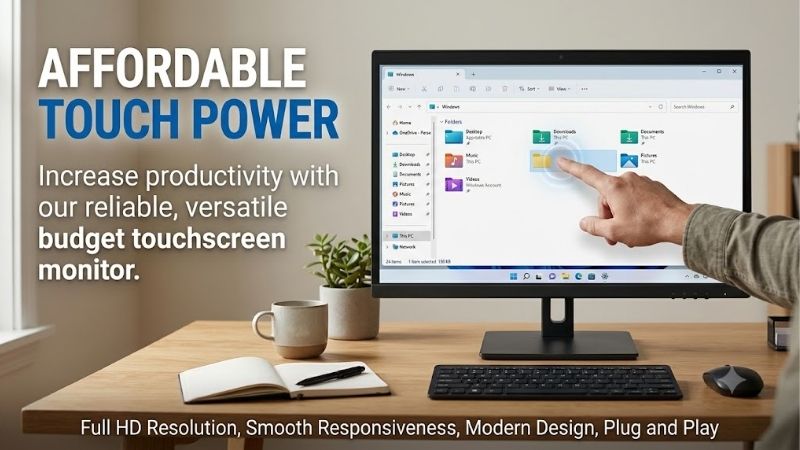
Quick answer: For most people in 2026, the best budget touchscreen monitor is the ASUS VT169HE — our #1 rated choice. See the full ranked comparison, alternatives and buying advice below.
Budget touchscreen monitor: the quick verdict
Choose the ASUS VT229H for a general desktop touchscreen. Its 21.5-inch 1080p IPS panel gives you more physical room for buttons, documents, and touch interaction than the smaller alternatives.
Choose the ASUS VT169HE when reducing purchase cost and screen footprint matters most. Its 15.6-inch 1080p IPS panel suits a compact control station or secondary display, provided you are comfortable with the smaller interface.
Choose the ViewSonic TD1655 when you need a portable 15.6-inch touchscreen with USB-C video connectivity. Its higher verified price buys a different connection and travel format, rather than a larger screen.
For this guide, “budget” means a new monitor listed below $300 in the US, excluding tax, shipping, and optional accessories. That is an editorial comparison boundary, not a user-supplied spending limit.
The shortlist contains three products because these are the models for which the research established both meaningful touchscreen specifications and clearly matched new US prices within that boundary. No used unit is counted as a separate product.
Quick comparison table
Prices are observed B&H listings checked October 14, 2026. They are snapshots rather than guaranteed checkout totals.
| Monitor | New listed price | Screen and resolution | Touch capability | Best suited to | Main limitation |
|---|---|---|---|---|---|
| ASUS VT169HE | $159.00 | 15.6-inch IPS, 1920 × 1080 | 10-point capacitive | Compact fixed workstation | Small physical interface; no speakers |
| ASUS VT229H | $229.00 | 21.5-inch IPS, 1920 × 1080 | 10-point capacitive | General Windows desktop use | Video and touch use separate connections |
| ViewSonic TD1655 | $299.84 | 15.6-inch IPS, 1920 × 1080 | 10-point capacitive | Portable second-screen use | Near the budget ceiling before tax |
The ASUS models specify a maximum 60Hz refresh rate. This is a productivity-focused shortlist, not a high-refresh gaming roundup.
How these recommendations were selected
Selection starts with genuine touch capability, exact model identification, useful manufacturer specifications, and a matched price for a new unit from a US seller.
A listing that says “portable monitor” does not automatically establish touchscreen support. Likewise, the ability to show an image from a Mac, phone, or console does not establish that touch input works on that device.
The research separates video connectivity, touch data, and power requirements because each can determine whether a purchase is usable.
This guide uses documentation rather than detailed research. It does not assign touch-latency scores, promise flawless gesture recognition, or claim verified compatibility with every operating-system release.
The recommendations also avoid treating a passive stylus as proof of active pen support. Drawing requirements deserve their own compatibility check.
The three touchscreen picks explained
ASUS VT169HE: the lowest-priced compact option here
The VT169HE combines a 15.6-inch 1920 × 1080 IPS panel with 10-point projected capacitive touch. ASUS specifies a maximum 60Hz refresh rate, an anti-glare surface, and no integrated speakers.
Its verified new B&H listing was $159.00. That makes it the lowest-priced new model in this shortlist, rather than a claim that it is the cheapest touchscreen available anywhere.
ASUS documents Windows 10/11 compatibility and a 75 × 75mm VESA mounting pattern. Check that pattern against any planned arm or mounting bracket.
The main trade-off is physical size. Full HD resolution provides useful detail, but small desktop controls may need scaling before they are comfortable to tap.
Buy if: You want a compact fixed touchscreen and lower purchase cost matters more than screen size.
Skip if: You need a larger main display, integrated audio, or a USB-C travel format.
Alternative: The VT229H offers a larger touch surface; the TD1655 addresses portability.
ASUS VT229H: the larger Windows desktop choice
The VT229H provides a 21.5-inch 1080p IPS panel, 10-point projected capacitive touch, and a maximum 60Hz refresh rate. ASUS documents Windows 10/11 compliance.
Its new B&H listing was $229.00 for one monitor. Compared with the smaller ASUS, the additional spending buys a larger physical screen rather than a higher resolution.
ASUS lists HDMI and VGA for video and specifically identifies USB for the touch signal. Seeing an image through HDMI does not prove that the touch connection is complete.
The manufacturer specifies a glare surface and integrated stereo speakers. Consider the room’s reflections before selecting it for a bright counter or desk.
Buy if: You want a larger stationary touch surface for compatible Windows applications.
Skip if: You need USB-C video and charging convenience or a lightweight travel screen.
Alternative: The VT169HE reduces size and initial cost; the TD1655 suits mobile use.
ViewSonic TD1655: the portable USB-C option
The TD1655 combines a 15.6-inch 1080p IPS panel with 10-point capacitive touch. Its portable format includes a built-in stand, USB-C connectivity, and mini-HDMI.
B&H listed a new unit at $299.84. That places it just inside the guide’s pre-tax monitor-price boundary, leaving little room for additional purchases.
ViewSonic’s manual distinguishes the connections clearly. With mini-HDMI video, a separate USB connection enables touch. A compatible USB-C setup can carry the required signals, but the host’s capabilities still matter.
The manual also describes charging a connected notebook when the monitor receives suitable external power. Do not interpret that as a guarantee that every laptop’s original charger can be replaced.
Buy if: You need a portable second screen and have confirmed compatible video, touch, and power connections.
Skip if: Your total spending limit is $300 including tax or you primarily want a larger stationary display.
Alternative: The VT229H prioritizes desktop size at a lower listed price.
How to choose a budget touchscreen monitor
Define the task before deciding screen size
A touchscreen for occasional tapping is a different purchase from a display used for entering orders throughout the day.
Write down the application you will use and the controls you expect to touch. Check whether it provides comfortably sized buttons and supports the gestures that matter.
A small screen can work well for a dedicated control panel. It may be less suitable when you need several application windows or long documents visible at once.
For a main desktop screen, decide how much work will remain keyboard-and-mouse based. Touch can supplement those tools without replacing them.
If the application requires precise selection of tiny elements, changing its interface or scaling may matter more than the monitor’s advertised touch-point count.
Understand video, touch data, and power
A touchscreen monitor has to receive an image, communicate touch input, and obtain power. Those functions may travel through different cables.
For the ASUS VT229H, HDMI or VGA provides video and USB carries touch data. Connecting only the video cable can produce a normal-looking display that does not respond to your finger.
The TD1655 manual similarly requires USB for touch when using mini-HDMI. Its USB-C arrangement offers a different route when the host supports the required capabilities.
Power is another requirement. A cable that communicates touch should not automatically be assumed capable of supplying adequate power to a portable screen.
Before ordering, sketch the actual connection path in a short list: computer video output, touch-data port, monitor power source, and any adapter. That exposes missing pieces before they become unexpected expenses.
Check USB-C capabilities rather than connector shape
USB-C describes a connector, not a complete promise of display output, touch support, or charging.
Your computer must provide the video capability the monitor requires. A USB-C port intended only for data or charging may not deliver an image through the intended connection.
The cable matters too. A charging-only cable should not be assumed suitable for transporting every signal in a touchscreen setup.
For laptop charging through a monitor, compare the supported power arrangement with the laptop’s needs. A gaming laptop can require a different supply than a small productivity notebook.
If a single-cable setup is essential, verify it for the exact computer and monitor combination. Do not buy based on a photograph that shows only one cable.
Confirm operating-system support separately from display support
A monitor can display a computer’s image without providing the touch behavior you want. Video compatibility and touch compatibility are separate checks.
ASUS explicitly documents Windows 10/11 compliance for the featured desktop models. That is more useful than a generic listing that says “works with PC.”
For the ViewSonic TD1655, the manufacturer’s vTouch documentation lists support for touch feedback on connected Macs. Verify the current software package against your exact macOS release and hardware before purchasing.
Do not assume Mac support is automatically identical to Windows support. Driver installation, permitted software, and gesture behavior may affect the result.
For Linux, ChromeOS, or a managed business computer, confirm the model and intended application with the supplier. Broad operating-system labels do not prove every deployment works without configuration.
Check smartphone, tablet, and console use carefully
A portable touchscreen showing a phone’s video output does not necessarily let you control that phone by touching the external screen.
The same distinction applies to consoles. A touchscreen panel does not independently add touch controls to a console game.
Verify the host device’s display-output capability and its ability to accept external touch input. An HDMI adapter can solve the image path while leaving the touch requirement unresolved.
Some setups also require separate external power. Include that requirement when deciding whether a portable display will be convenient away from a desk.
If the seller cannot document the interaction you need, treat touch support as unconfirmed rather than assuming it follows from video support.
Choose a stand that works when you touch the screen
Touch interaction applies pressure to the display. A position that looks comfortable for viewing may be awkward when repeatedly tapping or dragging.
Evaluate the angle and distance from your normal working position. Keep essential controls reachable without routinely stretching across the desk.
For a fixed installation, check whether the stand or mount supports the orientation you need. Do not assume a standard tilting base can provide a near-flat working surface.
A monitor arm adds flexibility only if its mounting pattern, weight capacity, and adjustment behavior fit the display.
Test the arrangement with the intended application during the return period. Stability and convenient reach can matter more than another advertised feature.
Balance resolution, scaling, and touch targets
All three featured models use 1920 × 1080 resolution, but they have different physical sizes. The same interface can therefore occupy different amounts of space.
Scaling can make text and controls larger, but it also reduces the amount of content visible at once. Evaluate that trade-off with your normal software.
Do not assume an application scales every button, menu, or dialog consistently. Test important interactions rather than judging only the operating-system desktop.
A larger screen can make full-size controls easier to reach and see, while a smaller one can fit a dedicated secondary task.
Choose according to the interface you will use. Resolution alone does not establish whether a touchscreen is comfortable.
Separate finger touch from active pen input
Ten-point touch means the sensor can recognize multiple simultaneous contacts. It does not establish pressure sensitivity, tilt detection, or reliable palm rejection for drawing.
A passive capacitive stylus generally serves as another way to make contact with the touch surface. It should not be treated as equivalent to an active pen system.
If drawing is the main purpose, identify the required pen technology and confirm the exact pen-display compatibility. Check pressure support and the behavior of the drawing application.
A touchscreen can still be useful for tapping, navigation, or simple annotation. The mistake is buying it with undocumented expectations of a specialized drawing tablet.
None of the recommendations here is presented as a verified pressure-sensitive pen display.
Calculate the complete purchase cost
The listed monitor price is only part of the expense. Tax, shipping, adapters, mounting hardware, and any required software can change the total.
The TD1655’s $299.84 new listing illustrates the distinction: it qualifies under a $300 monitor-price boundary but does not establish an under-$300 delivered purchase.
Check included accessories for the exact seller’s package. Regional bundles and used offers can differ, so a general product photograph is insufficient.
If a computer lacks the needed ports, include the cost of a compatible adapter rather than quietly assuming the connection will work.
Compare the completed setup against a simpler alternative. If occasional tapping is your only requirement, a smaller screen or an existing suitable device may serve the task.
Consider used units without mixing conditions
A used touchscreen can lower purchase cost, but compare it as a separate offer with its own condition, accessories, and warranty.
Research found a B&H used TD1655 offer at $229.95, described as condition 10, with a 90-day seller warranty. That is not the same offer as the $299.84 new unit.
For any used purchase, inspect touch response across the full surface, visible scratches, video inputs, USB data, and stand stability.
Check whether all required cables and the power supply are included. A missing accessory can reduce or erase the saving.
Do not assume the new-product warranty applies to a used unit. Read the seller’s stated terms before deciding whether the lower price is worthwhile.
Set up and test your touchscreen
Begin with a direct connection
Connect the screen directly to the computer where practical, using the documented video path, touch-data connection, and power source.
Avoid introducing a dock or several adapters during the first test. A simple connection makes it easier to isolate a missing signal.
Confirm that the image appears at native resolution. Then test tapping and dragging before changing unrelated settings.
Once the direct setup works, add any planned adapter or dock and repeat the check.
Verify the correct screen receives touch
In a multi-monitor setup, confirm that touching the external display affects that display rather than another screen.
The TD1655 manual directs users to Windows Tablet PC Settings for calibration when the cursor does not accurately follow the finger.
Follow the current operating-system interface and manufacturer guidance. Do not use calibration to compensate for a disconnected USB cable or missing device recognition.
Test the center and corners with the intended application, then check the gestures you expect to use.
Test normal working conditions
Use the display for a representative session. Check reflections, readable text, reach, and whether the stand stays positioned while you interact.
For a portable screen, test the actual laptop connection and power source you plan to carry. A desk test with a different adapter does not establish the travel setup.
Also check behavior after sleep and reconnection. The ViewSonic manual notes that touch can take several seconds to resume in those situations.
Keep packaging until the setup meets your requirements and review the seller’s return deadline.
Frequently asked questions
Can HDMI carry the touch signal?
For the featured setups that use HDMI video, touch requires a separate USB data path. An image alone does not confirm the touchscreen is connected correctly.
Does a touchscreen monitor contain a computer?
These products are external displays. They still require a compatible host device to run applications; the touchscreen does not turn them into standalone tablets or all-in-one computers.
Is the smallest screen automatically the best budget choice?
No. It can reduce cost and footprint, but controls may require scaling and the task may need more screen space. Choose the least expensive model that actually meets the requirement.
Can I use these for competitive gaming?
They are selected for affordable touch interaction and productivity. A touchscreen feature does not establish low measured latency or high-refresh gaming performance. Keep those requirements separate.
Final verdict
The ASUS VT229H is the practical starting point for a larger stationary Windows touchscreen. Choose the VT169HE when a compact display and lower initial price fit the task, or the ViewSonic TD1655 when portability and compatible USB-C connectivity matter.
Confirm the application, operating system, touch-data path, and full purchase cost before ordering. Those checks determine whether an inexpensive touchscreen becomes a useful part of your setup.
Ready to decide? Our #1 pick for 2026 is the ASUS VT169HE.
Live price & availability on Amazon.









