
Choosing between ASUS vs ViewSonic monitors starts with the job you need the display to do. For competitive gaming, compare refresh behavior, motion settings, and screen size. For creative work, compare color modes, calibration support, resolution, and laptop connectivity. ASUS and ViewSonic both offer relevant options, so neither brand wins automatically. This guide compares two gaming examples and two creative-work examples to show where the differences become useful and where specifications alone cannot establish a winner.
- ASUS vs ViewSonic monitors: Quick verdict
- The models that make a useful comparison
- ASUS vs ViewSonic monitors for competitive gaming
- Refresh rate, response time, and latency
- Blur reduction and adaptive sync
- ASUS vs ViewSonic monitors for creative work
- Color accuracy is not the same as vivid color
- 4K detail, scaling, and everyday productivity
- USB-C power delivery and laptop compatibility
- Ports, graphics cards, and connection limits
- HDR and image quality in dark scenes
- Ergonomics, audio, and total ownership cost
- Which setup should you choose?
- Frequently asked questions
- Final verdict
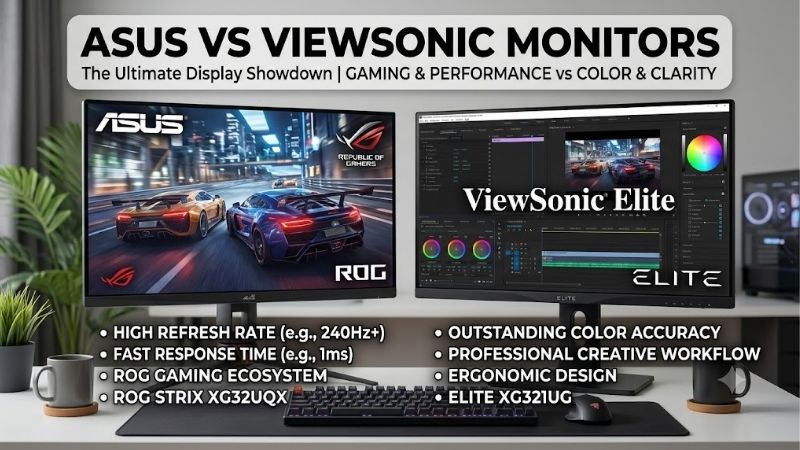
Quick answer: Our top pick in 2026 is the ASUS TUF Gaming VG259QM — our #1 rated choice. See the full ranked comparison, alternatives and buying advice below.
ASUS vs ViewSonic monitors: Quick verdict
Choose ASUS when the particular model gives you a feature your setup needs, such as the VG259QM’s higher overclocked refresh ceiling or the PA279CRV’s higher USB-C charging capacity.
Choose ViewSonic when its specific feature package better fits your routine. The XG2431 is worth investigating for its PureXP blur-reduction controls, while the VP2756-4K offers a work-oriented 4K option with documented sRGB coverage and factory calibration.
These are conditional recommendations based on exact models. They do not establish that ASUS is always faster, that ViewSonic is always more accurate, or that either company is consistently cheaper.
For an ordinary office desk, start with resolution, readable text, suitable inputs, and comfortable placement. For a gaming station, start with your actual game performance and preferred motion presentation.
This comparison uses manufacturer product pages and documentation. It does not claim direct testing or a measured head-to-head performance result. Current comparable US prices were not established, so price-based winners would be premature.
The models that make a useful comparison
The gaming pair shares 1080p resolution and uses compact IPS screens. The creative pair shares a 27-inch 4K IPS format and a 60Hz refresh ceiling.
| Model | Intended comparison | Panel and screen | Resolution | Refresh rate | Deciding feature |
|---|---|---|---|---|---|
| ASUS TUF Gaming VG259QM | Competitive gaming | 24.5-inch Fast IPS | 1920 × 1080 | Up to 280Hz overclocked | ELMB Sync and higher refresh ceiling |
| ViewSonic XG2431 | Competitive gaming | 24-inch class IPS | 1920 × 1080 | 240Hz | PureXP and optional strobe tuning |
| ASUS ProArt PA279CRV | Creative work | 27-inch IPS | 3840 × 2160 | 60Hz | Wide-gamut presets and USB-C power up to 96W |
| ViewSonic ColorPro VP2756-4K | Creative work | 27-inch IPS | 3840 × 2160 | 60Hz | Pantone validation and USB-C power up to 60W |
These model-specific specifications are documented by ASUS and ViewSonic. Tech Specs|Monitors|ASUS USA
The pairs answer different questions. Do not rank a 4K creative monitor below a 1080p gaming display simply because it refreshes more slowly.
Likewise, a high-refresh gaming screen is not automatically the better purchase for someone working with detailed documents all day.
These models illustrate verified differences rather than represent every product in either manufacturer’s catalog. Their inclusion does not imply confirmed retailer inventory or that they are the newest releases.
Check complete model names when shopping. VP2756-4K, VP2756-2K, and VG2756-4K are different products, despite their similar names.
ASUS vs ViewSonic monitors for competitive gaming
The VG259QM and XG2431 are relevant to players who deliberately prefer a compact 1080p display.
That arrangement can suit a dedicated shooter setup, but it involves a trade-off: less desktop detail and workspace than a higher-resolution monitor.
Choose the ASUS approach for refresh headroom
ASUS describes the VG259QM’s 280Hz maximum as an overclocked mode. Its appeal is the opportunity to use a higher refresh ceiling alongside its gaming controls. asus.com
That additional headroom matters most when your computer delivers sufficiently high and consistent frame rates in the games you play.
It does not guarantee a noticeable improvement for every player. Someone who prefers high visual settings and runs well below the display ceiling should assess whether another characteristic matters more.
Choose the ViewSonic approach for blur-reduction tuning
The XG2431 includes PureXP, Blur Busters Approved 2.0 certification, and optional tuning through the ViewSonic Strobe Utility. viewsonic.com
Those features make it worth considering if you want to explore how blur reduction changes target visibility during movement.
However, a certification and adjustment utility do not establish superiority in every game or operating mode. Your tolerance for the presentation and willingness to configure it are part of the decision.
Neither display should be chosen solely because a specification sheet advertises a very short response time. The operating settings and frame delivery determine how useful those capabilities become.
Refresh rate, response time, and latency
Refresh rate describes how frequently the screen can update. Pixel response describes transitions between pixel states. Input lag concerns delay in presenting a signal or action.
A faster refresh ceiling is useful information, but it does not replace comparable measurements of the other characteristics.
At 240Hz, one refresh interval is approximately 4.17 milliseconds. At 280Hz, it is approximately 3.57 milliseconds. The calculated difference is about 0.60 milliseconds.
That is an update-interval comparison, not a measured total latency advantage for the ASUS monitor.
Similarly, gray-to-gray response time and moving picture response time describe different aspects of display behavior. Comparing one manufacturer’s GtG figure with another’s MPRT claim does not produce a valid speed ranking.
LCD overdrive can also change the result. Aggressive settings may produce inverse ghosting, which appears as unwanted bright or dark trails.
Assess the monitor at your usual frame rates instead of assuming its most aggressive setting is ideal. If performance varies widely, one setting may not behave equally well throughout the range.
Blur reduction and adaptive sync
Motion blur reduction and variable refresh rate address different issues.
Blur reduction changes how movement is presented, often through backlight strobing. Adaptive sync adjusts refresh timing to follow frame delivery within a supported range.
Treat ELMB Sync as a mode-specific feature
ASUS lists ELMB Sync on the VG259QM. It is relevant when you want to investigate blur reduction operating alongside adaptive sync. asus.com
The feature name does not establish that every frame rate, brightness setting, or game will look equally good. Consult the supported modes and compare the result in your own workload.
Do not extend that capability to all ASUS monitors. Similar branding can appear on products with different restrictions.
Treat PureXP as a configuration choice
ViewSonic’s PureXP controls provide another route to evaluating motion presentation.
Before using them, check which settings can operate together. Do not assume that all advertised features remain available simultaneously.
Use a repeatable scene to compare settings. Look for trailing edges, doubled outlines, brightness changes, tearing, and personal discomfort.
A clear-looking test pattern is useful, but your actual game remains the practical test. Stable frame delivery, suitable brightness, and a comfortable presentation should guide the configuration.
ASUS vs ViewSonic monitors for creative work
The PA279CRV and VP2756-4K are better starting points for a creative desk than the compact gaming pair.
Both offer a detailed 4K workspace and documented color-oriented features. Their differences become relevant when you identify your output requirements.
ASUS ProArt for a broader color workflow
ASUS lists 99% Adobe RGB and 99% DCI-P3 coverage for the PA279CRV, along with selectable presets and Calman Verified certification. Tech Specs|Monitors|ASUS USA
Those capabilities are worth investigating when your work requires color spaces beyond ordinary web delivery.
However, wide-gamut support is useful only when the rest of the process handles it correctly. Applications, document profiles, export settings, and viewing conditions still matter.
Do not choose this model merely because the larger gamut sounds more professional. Identify a practical use for it first.
ViewSonic ColorPro for an sRGB-oriented workflow
ViewSonic documents 100% sRGB coverage, Pantone validation, and factory calibration with a Delta E below 2 for the VP2756-4K. viewsonic.com
It is a relevant candidate for web graphics, business visuals, and other tasks where that documented feature set matches the output.
The absence of a matching wide-gamut claim in this comparison does not mean the display is unsuitable for creative work. It means you should match the required color space rather than assume the ColorPro name guarantees every capability.
Neither model eliminates the need to verify results when color accuracy is central to paid work.
Color accuracy is not the same as vivid color
A monitor can look colorful without reproducing the intended colors accurately.
Gamut describes the range of reproducible colors. Accuracy concerns how closely the display matches a target under defined conditions. Uniformity concerns consistency across the screen.
Keep these properties separate when comparing ASUS and ViewSonic.
A wide-gamut display may need an appropriate mode for standard content. Otherwise, ordinary web images can appear more saturated than intended.
Factory calibration claims also have limits. Changing picture modes, brightness, or color controls can alter the result. Calibration is not a promise that every setting is equally accurate.
Certification labels should be read according to their scope. Pantone validation and Calman verification are different programs, so their names alone cannot determine which screen is more accurate in your workflow.
For demanding work, seek measurements for the exact model and mode. If you compare results from separate reviews, inspect their methods before treating the numbers as directly interchangeable.
A color-managed application and appropriate document profile can matter as much as choosing the display.
4K detail, scaling, and everyday productivity
A 27-inch 4K screen can make text and fine interface elements more detailed, but comfortable use often requires scaling.
Scaling enlarges interface elements while retaining the benefit of a dense pixel grid. It also changes how much usable workspace appears on the screen.
Check the applications you rely on. Older software, remote desktop sessions, and mixed-resolution multi-monitor setups may need adjustment.
For a creator, examine the timeline, canvas, toolbars, and reference windows together. For office work, examine a normal spreadsheet and document rather than evaluating only a wallpaper.
The gaming pair makes a different compromise. Its lower resolution can fit an intentional competitive setup, but it offers less space for detailed desktop tasks.
You do not need to solve every requirement with one monitor. If your existing work screen remains useful, adding a dedicated gaming display may be more sensible than replacing it.
Alternatively, if gaming is occasional, a work-oriented display may be sufficient without paying for a specialized high-refresh feature set.
USB-C power delivery and laptop compatibility
The creative-work pair provides a clear connectivity distinction: ASUS documents up to 96W of USB-C power delivery, while ViewSonic documents up to 60W. Tech Specs|Monitors|ASUS USA
That difference should be evaluated against your laptop’s requirements, rather than interpreted as an automatic ASUS win.
When additional charging capacity matters
A laptop with a higher power requirement may benefit from the ASUS model’s larger documented charging allowance.
However, charging behavior depends on the laptop, workload, cable, and negotiated power mode. A demanding machine may still need its original adapter.
Check the manufacturer’s recommended charging arrangement before expecting the monitor to replace it.
When 60W can be sufficient
If your laptop’s normal requirements fit within 60W, the ViewSonic model’s charging capability may already meet your needs.
In that situation, paying extra solely for unused charging capacity may provide little benefit.
For both monitors, verify that the laptop’s selected USB-C port supports video output. A USB-C connector alone does not guarantee display connectivity.
Use a cable that supports the required video, data, and power functions. A charging-only cable cannot substitute for the appropriate display connection.
Ports, graphics cards, and connection limits
Check the entire signal path: computer output, cable, adapter or dock, and monitor input.
For the VG259QM, ASUS lists DisplayPort operation up to 280Hz and HDMI operation up to 240Hz. Reaching the higher ceiling requires the appropriate connection and configuration. Tech Specs|Monitors|ASUS USA
Do not assume that a dock supports the monitor’s highest mode. Verify its resolution and refresh limits explicitly.
The same principle applies to work displays. A computer that can connect to one 4K monitor does not automatically support every two-monitor arrangement through one cable.
A USB hub and a KVM also perform different jobs. A hub connects peripherals; a KVM switches supported peripheral connections between computers. Do not infer switching capability merely from the presence of USB ports.
After connecting the display, select the intended refresh rate in the operating system and check the graphics driver settings.
For consoles, verify the supported timing and VRR combination separately. A monitor’s maximum PC refresh rate is not a console performance promise.
HDR and image quality in dark scenes
HDR acceptance does not establish a complete HDR viewing experience.
The ASUS gaming example, ViewSonic gaming example, and ASUS creative example list DisplayHDR 400 certification. That label does not justify treating them as equivalent to every premium HDR display. Tech Specs|Monitors|ASUS USA
Panel contrast, brightness behavior, dimming capability, and operating modes still matter.
Do not compare an enormous dynamic contrast claim with native or static panel contrast. They describe different behavior and cannot establish a fair ranking.
For competitive play, decide whether HDR helps you see the game clearly. A predictable SDR setup may better match your preferences.
For editing, identify whether your work actually requires HDR monitoring. Neither a broad gamut nor a basic HDR badge automatically qualifies a screen for demanding HDR evaluation.
Room lighting influences perceived contrast too. A display can appear quite different in a bright office and a dark bedroom.
Assess familiar dark scenes and large bright areas alongside dramatic highlights before deciding that one brand offers better image quality.
Ergonomics, audio, and total ownership cost
All four examples provide adjustable stands, but the actual ranges and desk footprints differ. Tech Specs|Monitors|ASUS USA
Measure the usable desk depth and leave enough space for your keyboard and mouse. A monitor that forces awkward placement can be a poor purchase despite impressive specifications.
If you prefer an arm, verify the mounting pattern, supported weight, and desk-clamp requirements before ordering it.
Built-in speakers can simplify casual listening, but wattage does not establish sound quality. Check the exact model and consider whether headphones or existing speakers already meet your needs.
Compare complete costs in USD on the same day. Include tax, shipping, required cables, mounting hardware, and any additional charger or docking equipment.
Do not assume that ViewSonic is always cheaper or that ASUS branding justifies a premium. The extra cost should buy a feature you will use.
Check seller return conditions and model-specific warranty terms. Scattered owner complaints cannot establish comparative brand reliability, and a warranty duration alone does not explain every coverage condition.
Which setup should you choose?
A dedicated FPS player should compare the two gaming models according to motion settings, supported connections, and system performance. The ASUS offers higher refresh headroom; the ViewSonic offers a documented PureXP tuning route.
A web designer or office user should begin with the creative pair’s workspace and connectivity. Match color requirements and laptop charging needs before paying for additional capabilities.
Someone doing color-critical work should assess the required color spaces and verification process. The relevant winner is the monitor that supports that process, not the brand with the more impressive marketing description.
A mixed-use buyer should identify the hardest requirement to compromise. If competitive motion matters most, accept the gaming pair’s workspace limitations. If detailed work dominates, consider whether 60Hz is adequate for occasional gaming.
Keep your current monitor if a replacement cannot deliver a clearly useful improvement.
Frequently asked questions
Are ASUS monitors better than ViewSonic for gaming?
Not universally. These gaming examples offer different refresh ceilings and blur-reduction approaches. Without matched measurements, a general performance winner would be unsupported.
Are ViewSonic monitors better for color accuracy?
Accuracy depends on the exact model, mode, and verification method. ColorPro and ProArt both include relevant options. Match the display to your required color space.
Should I choose 1080p gaming or 4K productivity?
Choose according to your dominant task. A dedicated competitive setup and a detailed creative workspace place different demands on a monitor.
Does buying an ASUS graphics card favor an ASUS monitor?
Brand matching alone is not a technical requirement. Supported outputs, resolution, refresh modes, and adaptive-sync compatibility should determine the connection.
Final verdict
Choose the VG259QM if its overclocked refresh ceiling and ELMB Sync fit your gaming setup. Investigate the XG2431 if PureXP tuning is a priority.
Choose the PA279CRV when its documented gamut options and charging capacity serve your workflow. Consider the VP2756-4K when its sRGB-oriented features and 60W connectivity meet your requirements.
The stronger purchase is the exact monitor that fits your computer, tasks, desk, and final cost.
Ready to decide? Our #1 pick for 2026 is the ASUS TUF Gaming VG259QM.
Live price & availability on Amazon.









