⚡ Key Takeaways
- Average FPS vs. Frame Pacing: Why Stutter Happens
- Cause 1: Running Out of VRAM
- Cause 2: Insufficient or Slow System RAM
- Cause 3: Background Processes and Overlays
- Cause 4: Outdated or Buggy GPU Drivers
- Cause 5: Shader Compilation Stutter
- Cause 6: Storage Bottleneck
- Cause 7: Thermal Throttling
- Cause 8: A CPU or GPU Bottleneck
- Cause 9: Wrong In-Game and Sync Settings
- How to Measure Stutter Properly
- The Order to Troubleshoot In
- A Quick Diagnostic Checklist
- Preventing Stutter Before It Starts
- Frequently Asked Questions
- Final Thoughts
- Related Articles
As an Amazon Associate we earn from qualifying purchases at no extra cost to you.


![arVin Mobile Gaming Controller for Tablet/iPad[Within 5-10"] Wireless Gamepad for iPhone/Android/PC/Switch/PS4, with RGB Hall Effect Joystick/Turbo/6-Axis Gyro/Vibration/Support Streaming/Cloud Gaming](https://m.media-amazon.com/images/I/51oN2KofosL._SL160_.jpg)

![arVin Mobile Gaming Controller for iPad/Tablet[Within 5-10"] Wireless Gamepad for iPhone/Android/PC/Switch/PS4, with RGB Hall Effect Joystick/Turbo/6-Axis Gyro/Vibration/Support Streaming/Cloud Gaming](https://m.media-amazon.com/images/I/41Ix86P3HDL._SL160_.jpg)
- A high average frame rate can hide a stuttering experience.
- When a game exceeds your card's video memory, the engine swaps textures over the PCIe bus, producing hard stutters when you enter new areas.
- Modern games want 16GB minimum and prefer 32GB.
- Browsers with dozens of tabs, Discord, antivirus scans, and multiple game-launcher overlays all steal CPU cycles and inject stutter.
Few things are more frustrating than a powerful rig that runs at high average FPS but feels choppy. If your PC is stuttering in games—those micro-hitches, sudden freezes, and uneven frame pacing—the problem usually isn’t raw horsepower. It’s almost always a specific bottleneck or misconfiguration you can track down and fix. This guide walks through the nine most common causes of stutter and exactly how to resolve each one.
Related: best PC building tool kits.
🛒 Best Price Today on Amazon
Prime members get fast, free shipping on everything above, plus member-only deals. New members get a 30-day free trial — cancel anytime.
Quick answer: Our top pick in 2026 is the Stutter entering new areas — our #1 rated choice. See the full ranked comparison, alternatives and buying advice below.
Average FPS vs. Frame Pacing: Why Stutter Happens
A high average frame rate can hide a stuttering experience. What you actually feel is frame-time consistency—how evenly each frame is delivered. If most frames take 8ms but every few seconds one takes 50ms, you’ll perceive a hitch even though your average FPS looks great. The metric that matters is your 1% low frame rate. Fixing stutter means smoothing out those worst-case frames, not just raising the average.
Cause 1: Running Out of VRAM
The most common modern cause. When a game exceeds your card’s video memory, the engine swaps textures over the PCIe bus, producing hard stutters when you enter new areas. Fix: Lower texture quality one notch, disable or reduce ray tracing, or enable upscaling (DLSS/FSR) to shrink the frame buffer. Monitor VRAM usage with an overlay to confirm this is the culprit.
Cause 2: Insufficient or Slow System RAM
Modern games want 16GB minimum and prefer 32GB. If you’re short on RAM, the OS pages data to disk, causing freezes. Equally important: running RAM at JEDEC default speeds instead of its rated speed. Fix: Enable EXPO (AMD) or XMP (Intel) in BIOS to run your DDR5 at full speed, and upgrade to 32GB if you’re on 16GB. A matched 32GB DDR5 kit eliminates capacity-related hitching.
Cause 3: Background Processes and Overlays
Browsers with dozens of tabs, Discord, antivirus scans, and multiple game-launcher overlays all steal CPU cycles and inject stutter. Fix: Close unnecessary apps before gaming, disable overlapping overlays (keep one if you need it), and check Task Manager for any process pinning a core. Schedule antivirus scans for off-hours.
Cause 4: Outdated or Buggy GPU Drivers
A bad driver release can introduce stutter overnight, and old drivers lack optimizations for new games. Fix: Update to the latest stable driver. If a recent update caused the problem, do a clean install using DDU (Display Driver Uninstaller) and roll back to a known-good version. Always do a clean install when switching GPU brands.
Cause 5: Shader Compilation Stutter
Many modern engines compile shaders on the fly the first time you encounter an effect, causing brief hitches that fade as you play. Fix: Let the game pre-compile shaders if it offers that option at startup, keep drivers current (they cache compiled shaders), and play through an area once to “warm up” the cache. An NVMe SSD speeds this process considerably.
Cause 6: Storage Bottleneck
Games installed on a slow or nearly-full hard drive stutter as assets stream in too slowly. Fix: Install games on an NVMe SSD, and keep at least 10–15% of the drive free so it can manage data efficiently. Modern engines increasingly assume fast storage for seamless streaming.
Cause 7: Thermal Throttling
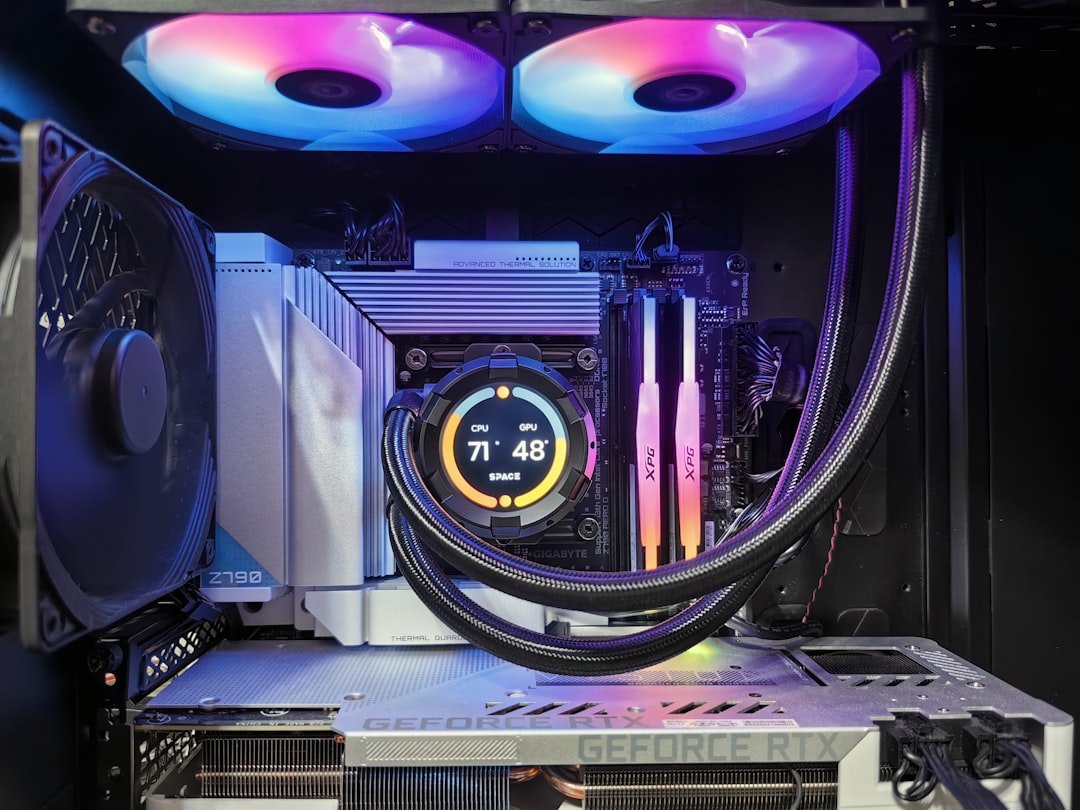
When your CPU or GPU overheats, it reduces clock speeds to protect itself, causing sudden performance dips that feel like stutter. Fix: Check temperatures with monitoring software during gameplay. If your CPU hits 90°C+ or your GPU exceeds 83°C, improve cooling, clean dust filters, and verify case airflow. A better CPU cooler resolves CPU thermal throttling for good.
Cause 8: A CPU or GPU Bottleneck
If your CPU can’t keep up with your GPU (or vice versa), frame delivery becomes uneven. CPU bottlenecks are common in simulation-heavy and open-world games. Fix: Check per-component utilization. If your CPU sits at 100% while the GPU lounges at 60%, you’re CPU-limited—lowering CPU-bound settings (draw distance, crowd density, shadows) helps. A modern gaming CPU eliminates most of these limits.
Cause 9: Wrong In-Game and Sync Settings
Mismatched frame rates and refresh rates cause judder. Fix: Enable G-Sync or FreeSync to match your monitor’s refresh to your frame rate. Cap your FPS a few frames below your monitor’s max for the smoothest experience, and avoid traditional V-Sync (it adds latency). Set the game to your monitor’s native resolution and refresh rate.
How to Measure Stutter Properly
Before you start fixing, set up proper measurement so you know whether your changes actually help. Average FPS counters are nearly useless for diagnosing stutter—you need frame-time data. Tools like the built-in overlays in MSI Afterburner and RivaTuner, or CapFrameX for deeper analysis, plot the time each frame takes to render. A smooth game shows a flat frame-time line; stutter shows as sharp spikes. Watching this graph while you play tells you exactly when hitches occur and, combined with utilization data, points you toward the cause.
Pay special attention to your 1% and 0.1% low frame rates rather than the average. These percentile numbers represent your worst frames and correlate directly with how smooth the game feels. A change that raises your 1% lows is a real improvement, even if your average barely moves. This data-driven approach prevents you from chasing placebo fixes and confirms when a tweak genuinely worked.
The Order to Troubleshoot In
Don’t change everything at once or you won’t know what worked. Follow a logical sequence: start by confirming your RAM is running at its rated EXPO/XMP speed and that you have enough capacity, since this is a common and easy fix. Next, check temperatures to rule out thermal throttling. Then update GPU drivers with a clean install. After that, monitor VRAM and CPU/GPU utilization during a problem area to identify whether you’re memory-limited or bottlenecked. Finally, address sync settings and background processes. Changing one variable at a time, then re-measuring, is the fastest path to a smooth result.
A Quick Diagnostic Checklist
| Symptom | Likely Cause | First Fix |
|---|---|---|
| Stutter entering new areas | VRAM or storage | Lower textures / use SSD |
| Hitches on first encounter with effects | Shader compilation | Pre-compile / update drivers |
| Periodic freezes | Background process / RAM | Close apps / add RAM |
| Drops after minutes of play | Thermal throttling | Improve cooling |
| Constant micro-stutter | Sync mismatch | Enable G-Sync/FreeSync |
Preventing Stutter Before It Starts
Once you’ve fixed stutter, a few habits keep it from creeping back. Keep your GPU drivers current but not bleeding-edge—wait a day or two after a major release to confirm it’s stable before updating, since occasional driver versions introduce regressions. Maintain free space on your game SSD so the engine can stream assets smoothly, and avoid filling the drive past roughly 85% capacity. Periodically review startup programs and overlays, as software you install over time accumulates and quietly steals CPU cycles.
It also pays to revisit your in-game settings after each major game update, since patches sometimes change memory usage or add new effects that push you over your VRAM budget. Keeping a monitoring overlay enabled for a few sessions after any change lets you catch a new bottleneck early. With these maintenance habits, a system that’s been tuned for smooth frame pacing tends to stay smooth, and you’ll quickly notice if something new disrupts it.
Frequently Asked Questions
Why does my PC stutter even with high FPS?
High average FPS can mask poor frame-time consistency. Inconsistent 1% lows from VRAM limits, background processes, or sync issues cause stutter despite a good average number.
Can RAM cause stuttering in games?
Yes. Too little capacity forces disk paging, and RAM running at default speeds instead of its rated EXPO/XMP profile hurts frame pacing. Both produce noticeable hitches.
Does an SSD reduce game stutter?
Significantly. NVMe SSDs stream assets fast enough for modern engines and speed up shader caching, eliminating the texture-streaming stutter common on hard drives.
How do I know if it’s a CPU bottleneck?
Use an overlay to watch utilization. If the CPU is pegged near 100% while the GPU sits well below, you’re CPU-limited—reduce CPU-heavy settings or upgrade the processor.
Is shader stutter permanent?
No. It typically appears only the first time you encounter an effect, then disappears once the shader is cached. Pre-compilation and current drivers minimize it.
Final Thoughts
Stutter is almost always solvable. Work through these causes methodically—start with VRAM, RAM speed, and thermals, since they account for most cases—and use an overlay to confirm each fix. With consistent frame pacing dialed in, your games will finally feel as smooth as that average FPS number suggests.
Ready to decide? Our #1 pick for 2026 is the Stutter entering new areas.
Live price & availability on Amazon.