⚡ Key Takeaways
- How Upscaling Works in Plain English
- DLSS: NVIDIA’s AI Upscaler
- FSR: AMD’s Open Alternative
- XeSS: Intel’s Hardware-Aware Upscaler
- Side-by-Side Comparison
- Quality Presets Explained
- Frame Generation: A Closer Look
- Image Quality Trade-Offs to Watch For
- Which Should You Use?
- When to Turn Upscaling On or Off
- Top-Rated Picks
- Frequently Asked Questions
- Final Thoughts
- Related Articles
- Traditionally, your GPU renders every single pixel at your monitor's native resolution—a demanding task at 4K.
- DLSS (Deep Learning Super Sampling) is NVIDIA's technology, available only on GeForce RTX cards.
- Earlier FSR versions relied on a spatial/temporal algorithm rather than dedicated AI hardware, which made them slightly behind DLSS in image quality.
- XeSS (Xe Super Sampling) is Intel's contribution.
If you’ve turned on a graphics setting and wondered “what is DLSS?”—or seen FSR and XeSS in the menu and weren’t sure which to pick—you’re looking at the most important performance technology of the modern GPU era. Upscaling lets your card render fewer pixels and intelligently reconstruct a sharp, full-resolution image, often delivering huge frame rate gains. This guide explains how each of the three major upscalers works, how they differ, and how to choose the right one for your hardware.
🛒 Best Price Today on Amazon
Prime members get fast, free shipping on everything above, plus member-only deals. New members get a 30-day free trial — cancel anytime.
Quick answer: Our top pick in 2026 is the Vendor — our #1 rated choice. See the full ranked comparison, alternatives and buying advice below.
How Upscaling Works in Plain English
Traditionally, your GPU renders every single pixel at your monitor’s native resolution—a demanding task at 4K. Upscaling flips this: the GPU renders the frame at a lower internal resolution (say 1440p) and then uses an algorithm to reconstruct it up to your display’s resolution (4K). Because rendering fewer pixels is far less work, you gain frames. The magic is in the reconstruction quality—modern upscalers use motion vectors, prior frames, and AI to produce an image that often rivals native rendering.
A related technology, frame generation, goes further by creating entirely new interpolated frames between rendered ones, multiplying frame rates even more. Upscaling and frame generation are often bundled together but are distinct features.
DLSS: NVIDIA’s AI Upscaler
DLSS (Deep Learning Super Sampling) is NVIDIA’s technology, available only on GeForce RTX cards. It uses dedicated AI hardware (Tensor Cores) and a neural network trained to reconstruct high-quality images. Because it leverages purpose-built hardware and machine learning, DLSS generally produces the cleanest results, with excellent detail retention and minimal artifacts. The latest versions use a transformer-based model that further improves stability and fine-detail handling. DLSS Frame Generation, available on RTX 40 and 50-series cards, can dramatically boost frame rates in supported games.
FSR: AMD’s Open Alternative
FSR (FidelityFX Super Resolution) is AMD’s answer, and its biggest advantage is openness: it works across virtually any modern GPU, including NVIDIA, AMD, and Intel cards, as well as consoles and handhelds. Earlier FSR versions relied on a spatial/temporal algorithm rather than dedicated AI hardware, which made them slightly behind DLSS in image quality. Recent FSR releases have adopted machine-learning techniques that narrow the gap considerably, especially on AMD’s newer cards. If you don’t own an RTX GPU, FSR is your most broadly compatible high-quality option.
XeSS: Intel’s Hardware-Aware Upscaler
XeSS (Xe Super Sampling) is Intel’s contribution. It’s clever in that it runs in two modes: an optimized AI path using dedicated hardware on Intel Arc GPUs, and a more universal path that works on other vendors’ cards. On Arc hardware, XeSS quality is excellent and competitive with DLSS. On non-Intel cards it still works well, often landing between the older FSR and DLSS in quality. It’s a strong choice for Arc owners and a solid fallback elsewhere.
Side-by-Side Comparison
| Feature | DLSS | FSR | XeSS |
|---|---|---|---|
| Vendor | NVIDIA | AMD | Intel |
| Hardware support | RTX cards only | Nearly all GPUs | Best on Arc; runs on most |
| Approach | AI (Tensor Cores) | Temporal + ML (recent) | AI, hardware-aware |
| Image quality | Generally best | Very good, improving | Excellent on Arc |
| Frame generation | Yes (RTX 40/50) | Yes (recent versions) | Yes (recent versions) |
| Openness | Proprietary | Open / cross-vendor | Open, dual-path |
Quality Presets Explained
All three upscalers offer presets that trade image quality for performance by changing the internal render resolution:
- Quality: Highest internal resolution, best image, modest FPS gain. The recommended default.
- Balanced: A middle ground between sharpness and frame rate.
- Performance: Lower internal resolution, bigger FPS boost, slightly softer image.
- Ultra Performance: Aggressive upscaling for 4K on weaker cards; visible quality drop.
At higher output resolutions like 4K, even aggressive presets look great because there are more pixels for the algorithm to work with. At 1080p, stick to Quality mode to avoid softness.
Frame Generation: A Closer Look
While upscaling reconstructs a higher-resolution image from fewer rendered pixels, frame generation tackles a different problem—it inserts brand-new frames between the ones your GPU actually renders. By analyzing motion between two real frames, the technology synthesizes an intermediate frame, effectively multiplying your displayed frame rate. NVIDIA, AMD, and Intel all offer their own implementations in recent versions.
Frame generation works best when your base frame rate is already reasonable—ideally 60 FPS or higher before generation kicks in. At very low base frame rates, the interpolated frames can introduce input latency and visual artifacts that feel worse than the smoothness gains are worth. Used appropriately on a card already hitting a solid frame rate, it transforms a high-refresh experience, pushing well past 100 FPS in demanding titles. Pair it with upscaling and the combined effect is dramatic.
Image Quality Trade-Offs to Watch For
Upscaling is excellent, but it isn’t flawless. In fast motion you may occasionally notice slight ghosting, shimmering on fine details like fences and foliage, or softening of small text. These artifacts are most visible at aggressive presets and lower output resolutions, and least visible at Quality mode and 4K. The newer transformer-based and machine-learning models have substantially reduced these issues compared to early implementations. If you spot distracting artifacts, bumping the preset up toward Quality usually cleans them up at a small frame-rate cost. For most players in normal gameplay, the trade is overwhelmingly worth it.
Which Should You Use?
The answer is simple: use the best one your GPU supports. If you own an RTX card, DLSS is almost always the top choice. Intel Arc owners should prefer XeSS. Everyone else—and anyone whose game lacks DLSS—should reach for FSR. Many games include all three, so you can test and pick your favorite. These technologies are a key reason a mid-range card from our graphics card guide can punch well above its weight, and they pair perfectly with a strong gaming CPU to hit high frame rates. Because upscaling renders at a lower internal resolution, it also reduces VRAM pressure—handy on memory-constrained cards.
When to Turn Upscaling On or Off
Upscaling is genuinely useful, but it isn’t mandatory for every scenario. If your GPU already runs a game comfortably above your monitor’s refresh rate at native resolution, you may prefer native rendering for the sharpest possible image. The technology shines when you’re chasing higher resolutions, enabling demanding ray tracing, or trying to push frame rates on a card that’s working hard at native settings. In those cases, the frame-rate gain dramatically outweighs the minor quality trade-off.
A good rule of thumb: at 4K, almost always enable upscaling in Quality mode, since the high pixel count hides any artifacts and the performance gain is substantial. At 1440p, it’s a great option for demanding titles. At 1080p, be more selective—the lower output resolution gives the algorithm less to work with, so stick to Quality mode and consider native rendering when your card can sustain a good frame rate without help. Experiment in each game and trust your own eyes; the right choice varies by title and your hardware.
Top-Rated Picks
| Product | Brand | Rating | Reviews | Price |
|---|---|---|---|---|
| Amazon Smart Plug, Works with Alexa, Simple Setup, En… | Amazon | ★ 4.7 | 570.4k | $24.99 |
| Seagate Portable 5TB External Hard Drive HDD – USB 3.… | — | ★ 4.6 | 271.1k | $207.31 |
| Amazon Echo Dot (newest model) – Vibrant sounding spe… | Amazon | ★ 4.7 | 192.8k | $49.99 |
| SANDISK 256GB Extreme microSDXC UHS-I Memory Card wit… | — | ★ 4.8 | 145.2k | $59.50 |
| Kasa Smart Plug HS103P2, Smart Home Wi-Fi Outlet Work… | — | ★ 4.6 | 150k | $14.99 |
Frequently Asked Questions
What is DLSS and is it worth using?
DLSS is NVIDIA’s AI upscaling technology for RTX cards. It’s absolutely worth using—Quality mode delivers near-native image quality with a significant frame rate boost in supported games.
Is DLSS better than FSR?
Generally DLSS produces slightly cleaner images thanks to dedicated AI hardware. However, recent FSR versions have closed much of the gap, and FSR works on far more GPUs.
Does upscaling reduce image quality?
At Quality presets and higher output resolutions, the difference from native is often imperceptible. Aggressive presets at low resolutions can soften the image noticeably.
Can I use FSR on an NVIDIA card?
Yes. FSR is open and cross-vendor, so it runs on NVIDIA, AMD, and Intel GPUs. If a game lacks DLSS, FSR is a great fallback on RTX cards.
What’s the difference between upscaling and frame generation?
Upscaling reconstructs a higher-resolution image from a lower internal render. Frame generation creates entirely new interpolated frames between rendered ones to further boost frame rate.
Final Thoughts
DLSS, FSR, and XeSS have transformed PC gaming, letting modern cards deliver high resolutions and frame rates that brute-force rendering never could. Match the technology to your GPU, default to the Quality preset, and enjoy free performance with image quality that’s often indistinguishable from native. It’s one of the easiest wins in all of PC gaming.
Ready to decide? Our #1 pick for 2026 is the Vendor.
Live price & availability on Amazon.
Top picks from this guide
 AmazonAmazon Echo Dot (newest model) - Vibrant sounding speaker, Designed…$50 \xc2\xb7 98/100
 Kasa SmartKasa Smart Plug HS103P2, Wi-Fi Outlet Works with Alexa, 2-Pack$18 \xc2\xb7 98/100
 SeagateSeagate Portable 5TB External Hard Drive HDD – USB 3.0…$220 \xc2\xb7 96/100
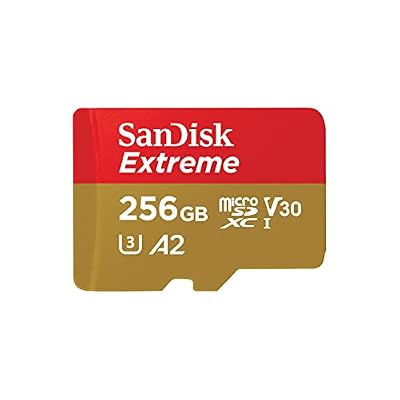 SandiskSANDISK 256GB Extreme microSDXC UHS-I Memory Card with Adapter -…$72 \xc2\xb7 95/100