⚡ Key Takeaways
- What Temperatures Are Actually Safe?
- Start With Airflow: The Free Fixes
- Tune Your Fan Curves
- Undervolting: Lower Temps Without Losing Performance
- Repaste and Upgrade the Cooler
- Optimize Your Case for Cooling
- How to Monitor Your Temperatures
- Air Cooling vs. Liquid Cooling
- Lower the Heat at the Source
- A Practical Step-by-Step Cooling Plan
- Top-Rated Picks
- Frequently Asked Questions
- Final Thoughts
- Related Articles
- Related Guides
- Before chasing lower numbers, know what's normal.
- Most temperature problems are airflow problems.
- Many PCs ship with conservative fan profiles that prioritize quiet over cooling.
- Undervolting is the enthusiast's secret weapon.
High temperatures are the silent enemy of performance and longevity, so learning how to lower GPU temperature—and CPU temperature alongside it—is one of the most valuable skills a PC owner can have. Cooler components run faster, last longer, and stay quieter. The best part is that most cooling improvements cost little or nothing. This guide covers everything from free airflow tweaks to hardware upgrades, in roughly the order you should try them.
Related: best PC building tool kits.
🛒 Best Price Today on Amazon
Prime members get fast, free shipping on everything above, plus member-only deals. New members get a 30-day free trial — cancel anytime.
Quick answer: Our top pick in 2026 is the CPU (Ryzen 9000 / Core Ultra) — our #1 rated choice. See the full ranked comparison, alternatives and buying advice below.
What Temperatures Are Actually Safe?
Before chasing lower numbers, know what’s normal. Modern silicon is designed to run warm, and high-but-safe temperatures aren’t a problem. Here’s a realistic reference for gaming loads in 2026:
| Component | Idle | Gaming Load | Throttle / Concern |
|---|---|---|---|
| CPU (Ryzen 9000 / Core Ultra) | 35–45°C | 60–80°C | 90°C+ |
| GPU (RTX 50-series / AMD) | 35–50°C | 60–80°C | 83°C+ core / 90°C+ hotspot |
If you’re under these load figures, you’re fine—don’t obsess. The advice below matters most when you’re consistently brushing the throttle thresholds or hearing fans scream.
Start With Airflow: The Free Fixes
Most temperature problems are airflow problems. Tackle these first because they cost nothing:
- Clean the dust. Use compressed air on fans, heatsinks, and dust filters. A clogged filter chokes airflow and is the single most common cause of rising temps over time.
- Fix your fan layout. Aim for slight positive pressure: more intake than exhaust. A common effective setup is two or three front intakes and one rear exhaust.
- Improve case placement. Pull the PC away from walls and out of enclosed desk cubbies so it can breathe. Give intakes a few inches of clearance.
- Tidy your cables. Route cables behind the motherboard tray so they don’t block airflow across components.
Tune Your Fan Curves
Many PCs ship with conservative fan profiles that prioritize quiet over cooling. Open your motherboard’s BIOS or a utility like Fan Control and set a more aggressive curve so fans ramp up sooner under load. A slightly louder system that stays 10°C cooler is usually a worthwhile trade. For GPUs, tools from the manufacturer let you raise the fan curve to keep the core well below throttle.
Undervolting: Lower Temps Without Losing Performance
Undervolting is the enthusiast’s secret weapon. By reducing the voltage your CPU or GPU draws while keeping clocks the same, you cut heat output and power draw with little to no performance loss—sometimes you even gain performance by avoiding throttling.
- GPU: Use the manufacturer’s tuning tool to lower the voltage-frequency curve. A modest undervolt can drop GPU temps by 5–10°C while maintaining clocks.
- CPU: AMD’s Curve Optimizer (PBO) and Intel’s voltage offsets reduce package temps significantly. Test stability after any change.
Undervolting is reversible and safe—worst case, an unstable setting causes a crash and you dial it back. It’s the highest-impact free improvement after airflow.
Repaste and Upgrade the Cooler
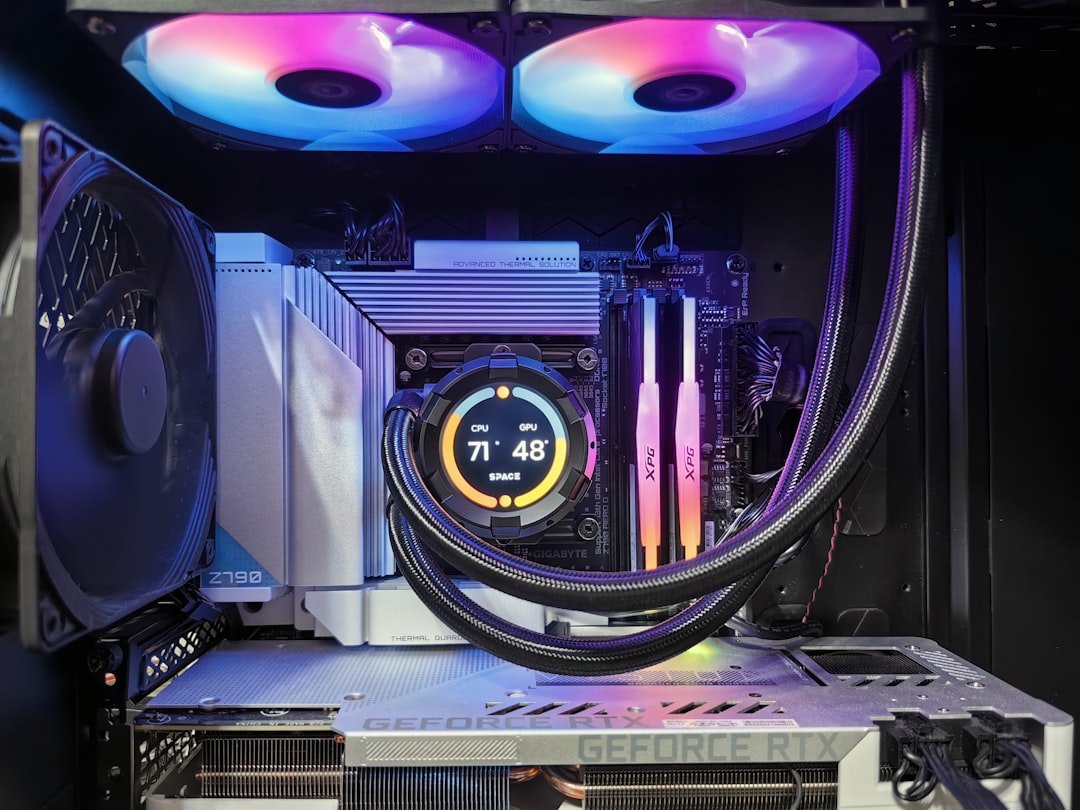
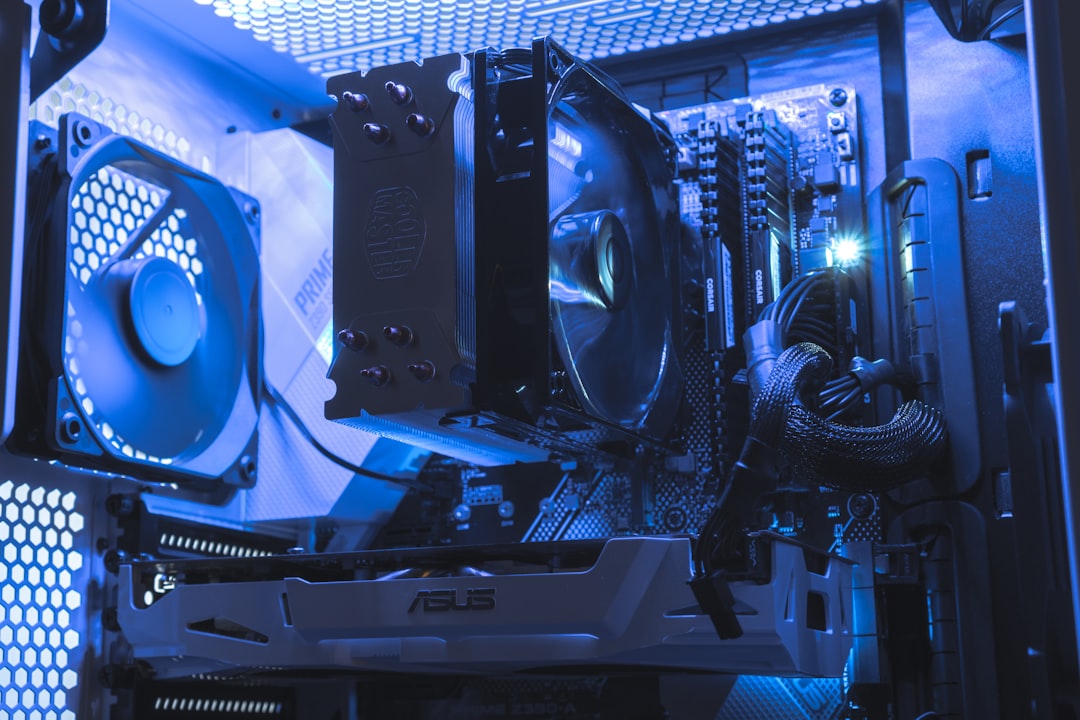
If your CPU runs hot despite good airflow, the thermal paste may have dried out (common after a few years) or the cooler may simply be undersized. Reapplying quality thermal paste can drop temps several degrees. For a more permanent fix, upgrade the cooler itself. A large dual-tower air cooler or a 240–360mm AIO transforms thermals on a hot-running chip. A quality liquid CPU cooler is the go-to for high-core-count processors that dump a lot of heat.
Optimize Your Case for Cooling
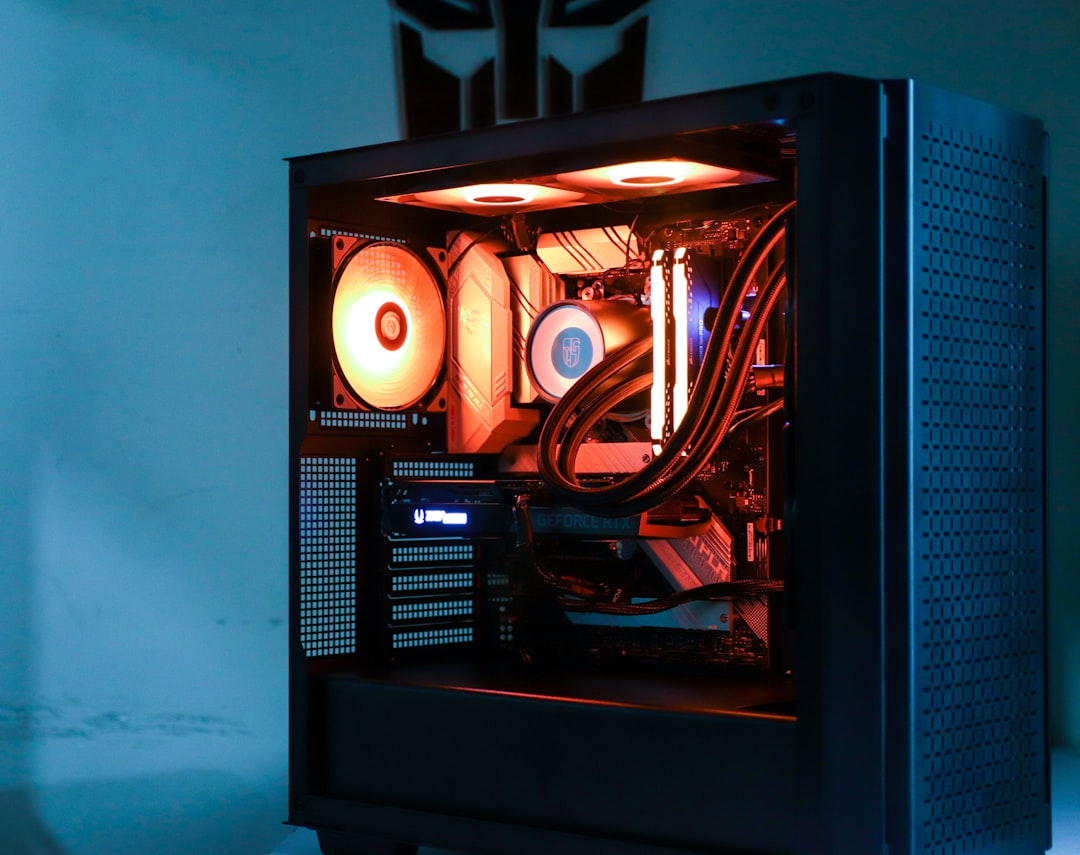
A cramped, poorly ventilated case undermines even the best components. Mesh front panels dramatically outperform solid glass fronts for intake. If your current case restricts airflow, moving to a well-ventilated ATX mid-tower with mesh and ample fan mounts can lower both CPU and GPU temperatures by several degrees with no other changes.
How to Monitor Your Temperatures
You can’t manage what you don’t measure, so set up proper monitoring before tweaking anything. HWiNFO is the gold standard for detailed sensor data, showing CPU package temperature, per-core readings, GPU core and hotspot temperatures, and fan speeds. For a quick in-game overlay, MSI Afterburner with RivaTuner displays temps right on screen while you play. Run a demanding game or a stress test for 15–20 minutes and watch how temperatures climb and plateau.
Pay attention to two GPU readings: the core (or edge) temperature and the hotspot (or junction) temperature. The hotspot represents the warmest point on the die and naturally runs warmer than the core. A large gap between them—say more than 15–20°C—can indicate poor mounting pressure or aging thermal interface material. Logging your temperatures over a full session reveals whether you have a steady-state issue or a gradual climb that points to airflow or dust problems.
Air Cooling vs. Liquid Cooling
Both cooling approaches can deliver excellent results, and the best choice depends on your CPU and case. A large dual-tower air cooler is reliable, has no pump to fail, and handles most CPUs admirably—it’s often the smarter value pick. An all-in-one liquid cooler moves heat to a radiator at the case edge, which can improve thermals on hot, high-core-count chips and frees up space around the socket. AIOs also let you mount the radiator as exhaust to dump CPU heat straight out of the case. For a flagship processor that runs hot, liquid cooling provides extra headroom; for mainstream chips, a quality air cooler is usually all you need.
Lower the Heat at the Source
You can also reduce how much heat is generated in the first place:
- Cap your frame rate. Limiting FPS to your monitor’s refresh rate stops the GPU from running flat-out when it doesn’t need to, cutting heat and noise.
- Lower power limits. Slightly reducing a GPU’s power target often costs only a few percent performance for a big temperature drop.
- Improve room conditions. Ambient temperature directly affects component temps. A cooler room means a cooler PC.
A Practical Step-by-Step Cooling Plan
If your PC is running hotter than you’d like, work through these steps in order—each builds on the last and you stop as soon as temperatures are in a comfortable range:
- Set up monitoring with HWiNFO or an overlay so you can measure the effect of each change.
- Clean dust from filters, fans, and heatsinks—often the single biggest improvement on an older system.
- Verify fan orientation and airflow, aiming for slightly more intake than exhaust with a clear front-to-back path.
- Tune fan curves in BIOS or software so fans ramp up sooner under load.
- Undervolt the GPU and CPU, the highest-impact free step after airflow.
- Repaste the CPU if it’s still hot and the system is a few years old.
- Upgrade the cooler or case only if you’re still brushing throttle limits after the above.
Most people resolve their thermal issues within the first four steps without spending a cent. Hardware upgrades sit at the bottom of the list for a reason: they’re rarely necessary once airflow and undervolting are dialed in. Following this sequence saves money and ensures you fix the actual cause rather than throwing parts at a symptom.
Top-Rated Picks
As an Amazon Associate we earn from qualifying purchases at no extra cost to you.


| Product | Brand | Rating | Reviews | Price |
|---|---|---|---|---|
| Noctua NH-D15S chromax.Black, Premium Dual-Tower CPU … | Noctua | ★ 4.8 | 2.1k | $109.95 |
| Cooler Master Hyper 212 Halo ARGB CPU Air Cooler – 12… | CoolerMaster | ★ 4.7 | 1.5k | $32.99 |
| Thermalright AM5 CPU Contact Frame for Secure Frame K… | Thermalright | ★ 4.8 | 1.1k | $9.99 |
| Thermal Grizzly – CPU Contact Frame Intel 13th & 14th… | ThermalGrizzly | ★ 4.8 | 850 | $19.99 |
| Cooler Master Hyper 212 Spectrum V3 ARGB CPU Air Cool… | CoolerMaster | ★ 4.7 | 938 | $17.90 |
Frequently Asked Questions
What is a safe GPU temperature for gaming?
Anything in the 60–80°C range under load is perfectly normal. Concern starts around 83°C core or 90°C+ hotspot, where modern cards begin throttling to protect themselves.
Does undervolting reduce GPU temperature?
Yes, and it’s one of the most effective free methods. Lowering voltage while keeping clocks steady can drop temps 5–10°C with negligible performance loss.
How often should I clean my PC?
Every three to six months for dust, more often if you have pets or a dusty environment. Clogged filters are the leading cause of gradually rising temperatures.
Will more case fans always lower temperatures?
Not necessarily. Beyond a point, fan placement and balanced airflow matter more than quantity. Aim for slight positive pressure with clear intake and exhaust paths.
Should I replace thermal paste?
If your CPU runs hot and the system is a few years old, yes. Dried paste loses effectiveness over time, and a fresh quality application can drop temps several degrees.
Final Thoughts
Lowering your GPU and CPU temperatures is mostly about airflow, smart fan curves, and undervolting—none of which require spending much. Work through the free fixes first, confirm your numbers with monitoring software, and only reach for a cooler or case upgrade if you’re still brushing throttle limits. A cooler PC is a faster, quieter, longer-lived PC.
Ready to decide? Our #1 pick for 2026 is the CPU (Ryzen 9000 / Core Ultra).
Live price & availability on Amazon.