
The answer to is a 4ms monitor good for gaming is usually yes, especially when the rating refers to gray-to-gray response time and the display is well tuned. The number alone does not prove motion quality, however. Refresh rate, input lag, overdrive, and measured pixel transitions all matter.
- Is a 4ms monitor good for gaming?
- What does a 4ms response-time rating actually measure?
- Is a 4ms monitor good for gaming at 144Hz or 240Hz?
- How does a 4ms panel feel in different games?
- Why a 4ms label can hide uneven motion performance
- How to check a 4ms monitor before buying or upgrading
- Frequently asked questions
- Conclusion
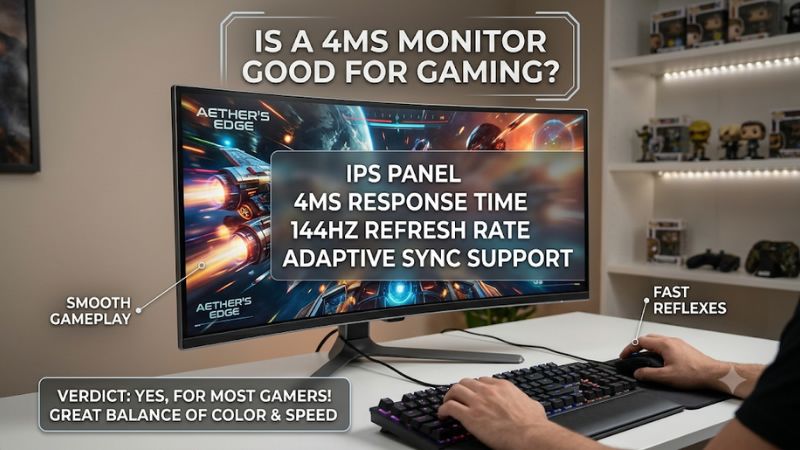
Is a 4ms monitor good for gaming?
A 4ms monitor can be good for gaming, especially when the figure refers to gray-to-gray (GtG) pixel response and the display performs consistently across many transitions. For casual play, console gaming, and most single-player titles, 4ms is not an automatic reason to reject a screen.
The more important question is what the 4ms figure measures and how the whole panel behaves. It may describe one best-case transition, not the average across every shade. Review the measurement method before treating the number as a reliable comparison between monitors.
For a typical 144Hz monitor, a genuine 4ms GtG response time is a reasonable specification. It is not class-leading, but it can be fast enough for enjoyable gaming. At 60Hz or 120Hz, most players are unlikely to reject a well-tuned display just because its published figure is 4ms.
Competitive players who spend most of their time in fast shooters may prefer a monitor with independently measured, consistently quick transitions and low input lag. That does not mean every 4ms model is unsuitable; it means the published number needs context.
What does a 4ms response-time rating actually measure?
Response time describes how quickly an individual pixel changes from one color or shade to another. On an LCD monitor, liquid crystals adjust their orientation to control how much light passes through the pixel. That physical transition takes time, even when the next frame is ready.
When a pixel transition is slow relative to moving content, the previous shade can remain visible as the image moves. Players may see a faint trail behind a character, crosshair, vehicle, or bright object. That artifact is commonly called ghosting, and it can reduce perceived motion clarity.
A fast response time helps pixels keep up with changing frames, but it does not eliminate every kind of blur. Sample-and-hold persistence, the way human vision tracks moving objects, can also soften motion, even on a panel with very quick transitions.
RTINGS distinguishes response time from input lag: response time measures how long pixels take to complete color transitions, while input lag measures the time before the monitor begins displaying a received signal. The two values describe separate stages of the display process.
Input lag is one part of total system latency. The game must process input, the CPU and GPU must produce a frame, the display must receive it, and the monitor must begin showing it. Mouse, keyboard, controller, and network delays can also affect perceived responsiveness.
GtG and MPRT are not interchangeable
Monitor response time is commonly advertised using gray-to-gray, or GtG, and moving picture response time, or MPRT. These methods describe different aspects of display behavior. A 4ms GtG figure cannot be directly compared with a 4ms MPRT figure, even if the numbers look identical.
GtG measures how long a pixel takes to move between two gray levels. Reviewers may test multiple transitions, such as dark gray to light gray and light gray to dark gray, because a panel does not necessarily switch equally quickly between every pair of shades.
Manufacturers often advertise a best-case or fastest transition rather than a representative average across the entire panel. This is why a monitor labeled 1ms can still show slower transitions, smearing, or distracting artifacts in independent testing.
MPRT focuses on how long a moving image or pixel remains visible to the viewer. It is associated with motion persistence, not simply the electrical speed of a pixel changing shade. A low MPRT figure may rely on backlight strobing, black-frame insertion, or another blur-reduction technique.
Those modes can improve perceived motion clarity, but they come with model-specific trade-offs. Some displays restrict strobing to selected refresh rates or disable variable refresh rate while blur reduction is active. Check the manual before assuming every gaming feature works together.
When a product listing simply says 4ms, look for the exact term beside the number. Search the manufacturer’s specification sheet for GtG, MPRT, or a stated response-time mode. If the measurement method is not disclosed, treat the figure as marketing context rather than a reliable comparison.
Is a 4ms monitor good for gaming at 144Hz or 240Hz?
Refresh rate and response time are related, but they are not interchangeable. Refresh rate, measured in hertz, tells you how often the monitor can draw a new frame. Response time tells you how quickly pixels move toward their requested shades. A high refresh rate does not guarantee fast transitions.
A useful way to understand the relationship is to compare each refresh cycle’s time window. At 60Hz, a new refresh begins about every 16.67ms. At 120Hz, the interval is 8.33ms; at 144Hz, it is 6.94ms; and at 165Hz, it is about 6.06ms.
At 180Hz, the frame interval is roughly 5.56ms. At 240Hz, it falls to about 4.17ms, and at 360Hz it is approximately 2.78ms. These figures describe the time between refreshes, not a strict pass-or-fail response-time rule for every pixel transition.
A 4ms GtG specification is comfortably shorter than the frame interval at 60Hz, 120Hz, and 144Hz on paper. That makes it a plausible fit for those refresh rates. At 165Hz, the margin is smaller, so consistent transitions become more relevant to motion clarity.
At 240Hz, a stated 4ms response time is close to the 4.17ms refresh interval. That does not automatically make the monitor unusable, because refresh scanning and pixel transitions are not a simple one-after-another stopwatch calculation.
This is why a fast 240Hz monitor should be judged by measured transition performance at 240Hz, not just the fastest advertised GtG result. A display may meet the headline figure for a small number of transitions while leaving visible trails in darker or more difficult shade changes.
At 360Hz and above, a 4ms advertised GtG figure is a warning sign that deserves closer inspection. The refresh interval is shorter than 4ms, so the screen may not consistently complete transitions in time. Check independent tests before buying it for serious high-refresh esports.
How does a 4ms panel feel in different games?
For a 60Hz office monitor used for occasional gaming, 4ms GtG is generally adequate. The panel’s contrast, color, viewing angles, and input lag may matter more to the overall experience. Games with slower camera movement or turn-based mechanics rarely expose every weakness in motion handling.
At 120Hz, a properly tuned 4ms GtG screen can also be a sensible choice for console gaming. Many console titles target 60 frames per second, while selected games and supported modes can use 120Hz output. A capable 4ms panel does not prevent smooth play at those rates.
At 144Hz or 165Hz, 4ms GtG is a practical middle ground for mainstream PC gaming. Many players will benefit more from a stable frame rate, adaptive sync, low input lag, and a clean overdrive mode than from chasing a lower number on the box.
At 240Hz, competitive players should investigate the panel more closely. A model with a 4ms headline rating might still be fine if its measured transitions are faster than the rating suggests, but a slow average or severe dark-level smearing can make the extra refresh rate less useful.
Racing games, sports games, action titles, and first-person shooters show more continuous movement. In these genres, slow transitions can leave visible trails around objects and scenery. A good 4ms panel may still perform well, but independent motion tests become more valuable.
Competitive first-person shooters place greater emphasis on readable movement, low system latency, and predictable tracking. Players who compete seriously should prioritize measured response consistency and input lag, not assume that a monitor labeled 1ms will outperform every 4ms option.
Panel technology can influence the result, but it is not a shortcut to a verdict. IPS, VA, and TN panels have different design characteristics, yet performance varies by exact model, refresh rate, tuning, and transition. Never assume that every IPS or VA screen behaves the same way.
Some VA monitors are known for slower dark-to-dark transitions that can create dark smearing in shadowy scenes. Other VA models are faster, and some IPS displays can also have uneven transitions or overshoot. Look for tests that report the actual transitions instead of relying on panel labels.
Why a 4ms label can hide uneven motion performance
The overdrive setting can change how quickly a monitor’s pixels transition. Overdrive applies stronger drive signals to push pixels toward their new color faster. It is often marketed through settings named Normal, Fast, Faster, Extreme, or similar, depending on the manufacturer.
Overdrive can reduce blur but create overshoot
More overdrive is not always better. If the setting pushes a pixel past its intended shade before settling, the monitor can show overshoot, also called inverse ghosting. Bright or dark halos may then follow moving edges, making the supposedly faster mode less pleasant to use.
RTINGS tests different overdrive settings because the fastest option can produce too much overshoot. Its methodology considers both total response time and overshoot, rather than rewarding a monitor simply for reaching the shortest transition.
For variable refresh rate gaming, the best overdrive setting may change as the frame rate changes. Some monitors offer a variable overdrive feature that adjusts the drive level across refresh rates. Others have one fixed setting, which may cause more overshoot at lower frame rates.
If your monitor has several response-time modes, begin with the middle or standard option. Test it in the games you actually play, then compare the faster setting for halos or inverse ghosting. Use the fastest mode only when the improvement is visible and the artifacts remain controlled.
Look beyond average response time
Independent reviews should ideally measure many pixel transitions at the monitor’s native resolution and maximum refresh rate. Useful results include average response time, the slowest or worst transitions, overshoot, and photographs of moving test patterns.
An average alone can hide a weak spot. For example, a monitor may handle most light transitions quickly but take much longer to move between dark shades. That weakness can be noticeable in night scenes, dark maps, caves, and games with shadow-heavy environments.
Check whether a review tests the monitor at more than one refresh rate. Some displays behave well at their maximum setting but become slower at 120Hz or 60Hz. This matters if you use a console, switch refresh rates, or rely on variable refresh rate.
Look for input-lag measurements taken at the monitor’s native resolution and intended refresh rate. RTINGS measures when the image first starts appearing on screen, which is distinct from the time needed for pixels to finish transitioning.
How to check a 4ms monitor before buying or upgrading
Check the monitor’s variable refresh rate range and compatibility with your graphics card or console. Adaptive-Sync, AMD FreeSync, and NVIDIA G-SYNC Compatible labels can help, but the exact supported range and connection matter. A 4ms panel cannot compensate for stutter caused by poor frame pacing.
Also check the native refresh rate, not just an overclocked marketing figure. Confirm that your graphics card has the correct HDMI or DisplayPort output, that the cable supports the required mode, and that the resolution and refresh rate are available together on the port you plan to use.
Resolution affects the workload on your graphics card, not the panel’s advertised response-time definition. A 1440p or 4K display can still list 4ms GtG, but the GPU may produce fewer frames at those resolutions. Choose resolution and refresh rate around the performance your PC can sustain.
For a new purchase, read the model-specific review rather than relying on the product family’s reputation. Manufacturers sometimes sell multiple panel sizes, revisions, and regional suffixes. Confirm that test results match the exact size and model code in the listing.
If you already own a 4ms monitor, you do not need to replace it just because a newer box advertises 1ms. First set the correct refresh rate in Windows or your GPU control panel, enable the monitor’s gaming mode if useful, and test the default overdrive setting.
Make sure the cable and graphics output are allowing the display to run at its intended resolution and refresh rate. In Windows, open Advanced display settings and confirm the active refresh rate. A monitor capable of 144Hz can feel like a 60Hz screen if the system is configured incorrectly.
Use a moving test pattern or a familiar game to inspect motion. Watch high-contrast edges as they move across the screen, then check dark scenes for smearing and bright scenes for halos. This can reveal visible artifacts, but it cannot measure pixel response time precisely.
Try the monitor’s standard overdrive setting before selecting its fastest mode. If the faster setting creates bright outlines, colored trails, or inverse ghosting, return to a slower option. A slightly slower clean transition is often preferable to a nominally faster mode with obvious artifacts.
Enable variable refresh rate when your system supports it and your games have fluctuating frame rates. Set the game to a frame-rate target your PC can maintain, and avoid assuming that the monitor’s highest refresh rate will improve a game that runs far below it.
Do not confuse motion blur caused by slow pixel transitions with blur caused by low frame rate, camera movement, or the game’s own motion-blur effect. Disable in-game motion blur temporarily when diagnosing the display, then decide whether you prefer the effect for cinematic games.
Should you choose a 1ms monitor instead? Only when the specific display delivers better measured performance and the price, image quality, and features make sense. A 1ms specification can represent a best-case result or an MPRT mode, so the smaller number is not proof of a superior panel.
If two monitors have similar measured motion clarity, low input lag, and refresh rate, consider the rest of the package. Resolution, screen size, contrast, brightness, color accuracy, stand adjustment, warranty, ports, and price can matter more than a small gap in an advertised response-time figure.
Frequently asked questions
Is 4ms too slow for competitive gaming?
Not automatically. It may be acceptable at 144Hz, but serious players should look for independent measurements showing quick, consistent transitions and low overshoot. At 240Hz or above, those measurements become especially important.
Does 4ms response time mean 4ms input lag?
No. Pixel response time describes color transitions after the monitor begins displaying a signal. Input lag describes the delay before the image starts appearing. They are separate measurements and should be evaluated separately.
Is 4ms GtG better than 1ms MPRT?
The figures cannot be compared directly because they measure different properties. GtG describes pixel shade transitions, while MPRT describes motion-picture visibility and may use strobing. Compare the same method and inspect measured performance.
Will a 4ms monitor cause ghosting?
It might, but the label alone cannot predict it. Ghosting depends on the actual transition speeds, refresh rate, panel behavior, and overdrive tuning. A well-tuned 4ms display may look cleaner than a poorly tuned monitor advertised at 1ms.
Is 4ms good for PS5 or Xbox gaming?
Usually, yes, provided the display supports the console’s intended resolution and refresh rate and has low input lag. For 60Hz or 120Hz play, the overall display behavior and correct HDMI mode matter more than a headline 1ms claim.
Should I upgrade from 4ms to 1ms?
Upgrade only when independent tests show a meaningful improvement for your games or you have identified visible blur, smearing, or latency. If your current monitor looks clear and feels responsive, replacing it solely for a lower number is rarely a priority.
Conclusion
The practical verdict is simple: 4ms GtG is usually good enough for everyday gaming and can work well at 144Hz. It becomes a more qualified choice for 240Hz esports, where consistent transitions matter. A credible review of the exact model is more useful than its box label.
Choose a monitor by its complete performance, not one response-time number. Confirm whether the figure is GtG or MPRT, check independent transition and overshoot tests, verify input lag at the refresh rate you use, and make sure the GPU can deliver suitable frame rates.









