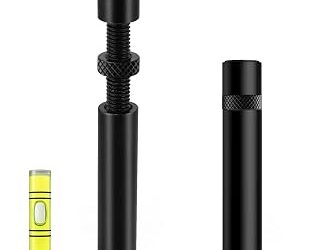
- Top Pick: acer GPU Support Bracket, GPU Stand with Magnet Non-Slip Base,(L, 70-120mm) | Adjustable Graphics Card Holder, Video Card Sag Holder Bracket Fits Most Cases, Tool-Free GPU Brace
- Best Value: California JOS GPU Support Bracket Graphics Card Brace Anti-Sag Holder Height Adjustable Video Card Stand Large(1 PCAK, Black)
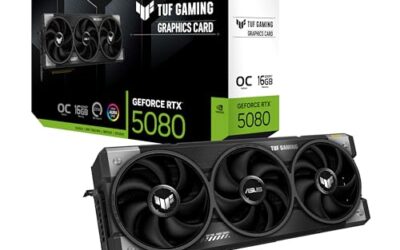
- Premium Choice: ASUS NVIDIA GeForce RTX™ 5060 LP BRK 8GB GDDR7 OC Edition Graphics Card (PCIe® 5.0, 8GB GDDR7, HDMI®/DP 2.1, Low-Profile Design, IP5X Dust Resistance), 3 Year Warranty
Undervolting is the most effective free upgrade you can give your graphics card in 2026. By lowering the voltage your GPU needs to hit its target clock speed, you can cut power draw by 15-30%, lower temperatures by 8-15°C, and reduce fan noise dramatically — often without losing a single frame per second in games.
- Watch: How to Undervolt Your GPU — Video Review
- Why Undervolt? The Real-World Benefits
- What You Need Before You Start
- How to Undervolt an NVIDIA GPU (RTX 30/40/50 Series)
- How to Undervolt an AMD GPU (RX 6000/7000 Series)
- How to Test Stability and Fine-Tune
- Tips
- Frequently Asked Questions
- Conclusion
- Related Articles
- Related Guides
Unlike overclocking, which pushes your card harder for marginal gains, undervolting makes your GPU more efficient. Whether you are running a power-hungry high-end card or a compact card like the ASUS RTX 5060 LP BRK, the process takes less than 30 minutes, is completely reversible, and carries no hardware risk when done correctly. This guide walks you through exactly how to do it safely for both NVIDIA and AMD.
As an Amazon Associate we earn from qualifying purchases at no extra cost to you.


⚡ Save on Your Next PC — Amazon Prime
Prime members get fast free shipping on the systems above, plus early access to Prime Day & Black Friday PC deals. New members get a 30-day free trial.
Watch: How to Undervolt Your GPU — Video Review
Why Undervolt? The Real-World Benefits
Modern GPUs are intentionally overvolted from the factory to guarantee stability across every chip, even poor silicon. That leaves significant headroom for you to optimize. For most cards, you can maintain the stock boost clock while using 50-100mV less voltage.
- Lower temperatures: Expect a 10-15°C drop on air-cooled cards. A card that previously hit 78°C at 250W might run at 65°C at 190W with the same performance.
- Quieter gaming: Lower heat means fans can run 300-600 RPM slower, which is often the difference between an audible whine and near-silence.
- More consistent performance: By staying cooler, your GPU avoids thermal throttling and will hold its boost clocks longer, reducing stutter in long gaming sessions.
- Longer lifespan and lower power bills: Less heat and electrical stress is better for your components, and saving 40-60W under load adds up over hundreds of hours.
What You Need Before You Start
You do not need to disassemble your PC, but you should prepare your software and check your physical setup first. This is also a good time to address GPU sag if you have a large or heavy card.
- Monitoring software: HWINFO64 or GPU-Z to track voltage, power draw, temperature, and clock speed in real time.
- Tuning software: MSI Afterburner (works with all brands) is the standard for NVIDIA undervolting. For AMD, use AMD Software: Adrenalin Edition.
- A stress test: A demanding game or benchmark like Cyberpunk 2077, 3DMark Time Spy, or Unigine Heaven to test stability.
- A stable physical installation: If your card is heavy or mounted horizontally, ensure it is properly supported. An adjustable option like the Acer GPU Support Bracket with its magnet non-slip base or the California JOS GPU Support Bracket prevents sag-induced PCIe contact issues that can cause crashes during our research. For vertical builds, a kit like the Lian Li VG4 Vertical GPU Kit with its Gen 5 riser cable ensures the card is secure and airflow is unobstructed. Even a simple Graphics Card GPU Brace Support in the 74-120mm range will keep the card level while you work.
How to Undervolt an NVIDIA GPU (RTX 30/40/50 Series)
NVIDIA undervolting is done with the voltage/frequency curve editor in MSI Afterburner. The goal is to tell the card to use a lower voltage for the same frequency.
- Step 1: Establish your baseline. Run your favorite game for 10 minutes at stock settings. Note your average boost clock (for example, 2730 MHz on an RTX 4070), average voltage (often around 1050mV), temperature, and power draw.
- Step 2: Open the curve editor. In MSI Afterburner, press Ctrl+F to open the Voltage/Frequency curve. You will see a graph with voltage on the X-axis and frequency on the Y-axis.
- Step 3: Set your target point. Find your target voltage on the horizontal axis — a good starting point is 950mV to 975mV for most modern cards. Click the point at that voltage and drag it vertically up to your observed stock boost clock (e.g., 2730 MHz). For a compact low-profile card like the ASUS RTX 5060 LP BRK, start more conservatively at 925mV to 950mV.
- Step 4: Flatten the curve. Hold Shift, drag to select all points to the right of your new target point, then press Shift+Enter to flatten them into a straight horizontal line. This forces the GPU to never exceed your chosen voltage.
- Step 5: Apply and test. Click Apply in Afterburner. Your card will now cap at your new voltage. Test immediately for stability.
How to Undervolt an AMD GPU (RX 6000/7000 Series)
AMD makes the process simpler with a built-in slider in its driver software. No third-party tools are needed.
- Step 1: Enable advanced control. Open AMD Software: Adrenalin Edition, go to Performance > Tuning, and enable Custom Tuning and Advanced Control.
- Step 2: Find your voltage control. Locate the GPU Tuning section and enable Voltage Control. You will see the default voltage, typically 1150mV to 1200mV.
- Step 3: Lower voltage in small steps. Reduce Voltage (mV) by increments of 20-30mV. For example, drop from 1150mV to 1130mV, then to 1100mV. Do not touch the max frequency slider yet.
- Step 4: Apply and test each step. After each reduction, apply the changes and run a 10-15 minute stress test. Continue until you find the lowest stable voltage. Many RX 7800 XT cards stabilize around 1050-1070mV while holding their 2400+ MHz boost clock.
How to Test Stability and Fine-Tune
An unstable undervolt will show up as driver crashes, black screens, game freezes, or visual artifacts. Stability testing is non-negotiable.
- Initial test: Run a demanding loop for at least 15 minutes. If it crashes instantly, your voltage is too low — raise it by 15-25mV.
- Extended test: Once you pass the initial test, play games normally for 2-3 hours over a few days. Some instabilities only appear after prolonged heat soak.
- Fine-tuning: If you are stable at 950mV with 2610 MHz, try pushing frequency slightly higher at the same voltage (e.g., 2640 MHz) or try 940mV at the same frequency. Adjust in 15mV or 15 MHz steps until you find the perfect balance of efficiency and performance.
- Save your profile: In MSI Afterburner, save to a profile slot and enable Apply at Windows Startup. In AMD Software, it will save automatically, but consider exporting your settings. Also ensure your physical support remains snug — a GPU Stand with Magnet & Non-Slip Sheet in the 74-120mm size is easy to adjust without tools if you bump your case during our research.
Tips
- Always change only one variable at a time. Do not lower voltage and raise clock speed simultaneously at first.
- Record your stock Time Spy or in-game benchmark score before you start. A successful undervolt should be within 1-2% of stock performance while using significantly less power.
- Clean your GPU and case fans before you start. Dust can raise temperatures by 5-8°C and hide the true benefit of your undervolt.
- If you use two different profiles (e.g., quiet vs. performance), test both separately. An undervolt that is stable at 60 fps with V-Sync on may crash when the card is fully unleashed at 144+ fps.
Frequently Asked Questions
Will undervolting void my warranty or damage my GPU?
No. Undervolting reduces voltage and heat, which is the opposite of damaging overclocking. It does not void the warranty on cards from NVIDIA or AMD partners, including models with a 3 year warranty. All changes are software-based and reset completely if you reinstall drivers or click Reset in Afterburner.
Will I lose FPS when I undervolt?
When done correctly, you will lose zero to 2% performance. The goal is to keep your original boost clock at a lower voltage. In some cases, you may actually gain 1-3% average FPS because the cooler card can sustain its boost clock longer without thermal throttling.
Why does my game crash after undervolting?
A crash means the chip does not have enough voltage to maintain your set frequency stably. Raise the voltage by 15mV or lower the target frequency by 15-30 MHz and test again. Each GPU is different due to silicon variation, so there is no single perfect number for everyone.
Can I undervolt a laptop GPU or a low-profile card?
Yes, and it is highly recommended for laptops and compact cases where cooling is limited. The process is identical with MSI Afterburner. Low-profile designs like the ASUS RTX 5060 LP BRK benefit enormously, often seeing the largest noise reduction because their smaller heatsinks and fans have less thermal headroom to begin with.
Conclusion
Undervolting is a low-risk, high-reward tweak that every PC gamer in 2026 should try. In under half an hour you can make your system quieter, cooler, and more efficient while keeping the frame rates you paid for. Start conservatively at 950-975mV, test thoroughly, and dial it in from there — your GPU will thank you with years of quieter, more stable gaming.