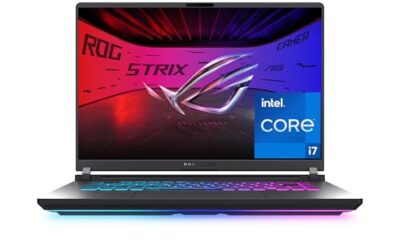
- Top Pick: Build Your Ultimate Gaming PC (2025/2026 Edition): A Beginner-to- Pro Guide to Building a High Performance Custom Rig (Custom Rig Blueprint Series: Designing … Streaming, Editing, and Everyday Use)
- Best Value: How to Build a Gaming PC for Beginners: A Complete Step-by-Step PC Building Guide for Gaming, Streaming, and Performance (Custom Rig Blueprint Series: … Streaming, Editing, and Everyday Use)
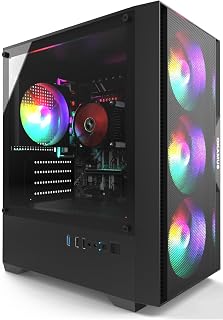
- Premium Choice: Pre-Built PC, i5 CPU Up to 3.6GHz, Integrated Graphics Only, 256 GB M.2, 8 GB RAM Cheap Budget Gaming PC, RGB Fans x 3, Win 11 Home,WiFi 6 + BT 5.3, 400W PSU (i5+No GPU+8GB+256GB)
Few things are more stomach-dropping than pressing the power button on your gaming PC and getting nothing. Before you assume the worst, know that a dead-seeming PC is usually caused by something simple: a loose cable, a wall switch, a seated-but-not-clicked RAM stick, or a power supply switch left off. Genuine component death is far rarer than these easy fixes.
This guide walks through the fixes in the order a technician would, from the thirty-second checks to the deeper diagnostics, so you find the problem fast without swapping parts blindly. Keep a good troubleshooting reference handy if you want the deeper background, but most no-boot issues are solved in the first few steps below.
As an Amazon Associate we earn from qualifying purchases at no extra cost to you.




⚡ Save on Your Next PC — Amazon Prime
Prime members get fast free shipping on the systems above, plus early access to Prime Day & Black Friday PC deals. New members get a 30-day free trial.
Watch: Why Won’t My Gaming PC Turn On? (2026 Fixes) — Video Review
Start With the Obvious Power Checks
Confirm the wall outlet works by plugging in something else. Check that the PSU’s rear rocker switch is set to the “I” (on) position, that the power cable is fully seated at both ends, and that any surge protector or wall switch is on. A shocking number of “dead” PCs are simply a flipped PSU switch or a loose cord.
Check for Signs of Life
- Do any fans spin, even for a second, when you press power? That points to a partial power issue rather than a fully dead PSU.
- Do case or motherboard LEDs light up? Debug LEDs (CPU, DRAM, VGA, BOOT) tell you exactly which component is failing to initialize.
- Do you hear beep codes? They map to specific faults in your motherboard manual.
Reseat RAM, GPU, and Cables
A single improperly seated RAM stick or graphics card will stop a PC from posting. Power down, open the case, and firmly reseat each RAM module until both clips click, then reseat the GPU and its power cables. Reseat the 24-pin motherboard connector and the 8-pin CPU power cable at the top of the board, which is commonly forgotten and causes a no-boot with fans spinning.
Test the Power Supply
If nothing lights up at all, the PSU is a prime suspect. A PSU tester or the paperclip jump test tells you whether the unit powers on at all, but the cleanest test is swapping in a known-good PSU. Also verify the front-panel power button header is connected correctly to the motherboard; a disconnected or shorted header can mimic a dead PSU.
Isolate to the Bare Minimum
If it still will not post, strip the system to CPU, one RAM stick, and onboard or minimal GPU, outside the case if needed to rule out a case short. Clear the CMOS by removing the battery or using the clear-CMOS jumper to reset a bad BIOS setting. Add components back one at a time until the fault reappears, which pinpoints the culprit.
Tips
- Photograph your cable connections before disconnecting anything so reassembly is easy.
- Watch the motherboard debug LEDs; they are the fastest way to identify the failing part.
- Clear CMOS early; a bad overclock or BIOS setting is a common no-boot cause.
- Test with one RAM stick at a time to catch a single failed module.
Frequently Asked Questions
My fans spin but there is no display, what does that mean?
Power is reaching the system, so the PSU is likely fine. The fault is usually RAM, GPU, or a BIOS setting. Reseat RAM and GPU, clear CMOS, and check the debug LEDs.
How do I know if my power supply is dead?
Test it with a PSU tester or swap in a known-good unit. If no fans or LEDs respond and the switch and cables are confirmed good, a dead PSU is the likely cause.
What are motherboard debug LEDs?
Small labeled lights (CPU, DRAM, VGA, BOOT) that indicate which component is failing to initialize. The LED that stays lit points directly at the problem area.
Can clearing CMOS fix a no-boot?
Yes, frequently. A bad overclock, incompatible memory setting, or corrupted BIOS config can stop a post. Clearing CMOS resets to defaults and often restores booting.
Conclusion
A PC that will not turn on is usually an easy fix, not a dead machine. Work outward from the wall outlet and PSU switch, watch for fans, LEDs, and beep codes, then reseat RAM, GPU, and power cables before clearing CMOS and stripping to the essentials. Follow that order and you will find the culprit fast, saving yourself the panic and the cost of needless part swaps.