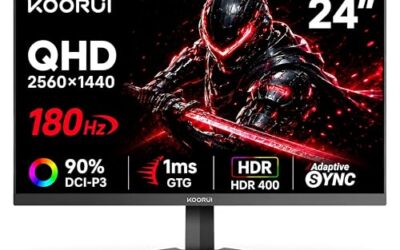
A dual-monitor setup is the cheapest productivity and gaming upgrade you can make in 2026. Game on your primary panel while Discord, a walkthrough, OBS, or a Twitch chat lives on the second. Matched two-packs like the Kado 24″ or 27″ curved 1500R sets make this easy because both panels share the same 1920×1080 resolution, 75Hz refresh, and bezel thickness, so your mouse crosses between them without a jarring color or size shift.
- Watch: How to Set Up Dual Monitors for Gaming — Video Review
- Pick Two Panels That Play Nicely Together
- Connect and Power Them Correctly
- Arrange Them in Windows Display Settings
- Optimize for Gaming Performance
- Fine-Tune Alignment and Color
- Tips
- Frequently Asked Questions
- Conclusion
- Related Articles
- Related Guides
This guide covers everything from picking the right pair to aligning them in Windows and choosing which panel handles your game. Whether you buy a genuine dual kit or add a fast panel like the Sceptre 22″ 144Hz next to an existing display, the setup process is the same and takes about 20 minutes.
As an Amazon Associate we earn from qualifying purchases at no extra cost to you.



⚡ Save on Your Next PC — Amazon Prime
Prime members get fast free shipping on the systems above, plus early access to Prime Day & Black Friday PC deals. New members get a 30-day free trial.
Watch: How to Set Up Dual Monitors for Gaming — Video Review
Pick Two Panels That Play Nicely Together
Ideally both monitors share resolution and physical height so the desktop feels continuous. A 2-pack such as the Kado curved 27″ set solves this instantly. If you are mixing, match the vertical pixel count (both 1080p or both 1440p) so windows do not jump size when dragged across. It is fine to have a faster gaming panel as your main and a cheaper 60-75Hz panel for chat and browsers.
Connect and Power Them Correctly
- Use DisplayPort for your high-refresh gaming panel and HDMI for the secondary; DisplayPort carries higher bandwidth for 144Hz+.
- Plug both into the graphics card, never one into the GPU and one into the motherboard’s onboard output.
- If your GPU is short on ports, a DisplayPort MST hub or USB-C dock can drive the second panel.
Arrange Them in Windows Display Settings
Right-click the desktop, open Display settings, and drag the monitor icons to match their real-world positions. Set the correct refresh rate for each panel individually under Advanced display, because Windows often defaults a 144Hz monitor to 60Hz. Choose your gaming panel as the “Make this my main display” so full-screen games launch there by default.
Optimize for Gaming Performance
Running a second display costs a small amount of GPU memory and can cause frame drops if the secondary panel plays video or animations. Keep static content (chat, a guide) on the second screen while gaming, or use a lower refresh rate on it. If you stream, the second monitor is where OBS, your alerts, and chat live so your game stays uncluttered on the main panel.
Fine-Tune Alignment and Color
Physically level the two panels so the top edges line up, then calibrate brightness and color temperature to match. Mismatched brightness is the most common annoyance in mixed setups. Matched two-packs sidestep this because both units ship with identical panels and factory settings.
Tips
- Use a dual-monitor arm to reclaim desk space and perfect the alignment.
- Enable “Show taskbar on all displays” so you can reach apps from either screen.
- Assign hotkeys (Win+Shift+Arrow) to fling windows between monitors instantly.
- Turn off the secondary display when benchmarking to get clean, uncontested GPU numbers.
Frequently Asked Questions
Do dual monitors lower my FPS?
Only slightly, and mostly when the second screen shows moving content. A static chat or guide window has negligible impact; a looping video or animated wallpaper on the second panel can cost a few frames.
Should both monitors be the same refresh rate?
Not required, but mismatched refresh rates on some GPUs can cause the higher one to drop to a lower shared rate on the desktop. Games still run at full rate in full-screen. Matched pairs avoid the issue entirely.
Can I use different sized monitors?
Yes, but matching the vertical resolution matters more than the physical size. Two 1080p panels of different inches still align cleanly; mixing 1080p and 1440p makes windows resize when dragged across.
Which monitor should be my primary?
Your fastest, best-color panel. Full-screen games and the main taskbar default to the primary, so make it the one you actually play on.
Conclusion
Dual monitors transform both gaming and multitasking, and the setup is genuinely simple. Match your resolutions, connect both to the GPU, set each refresh rate manually, and pick your gaming panel as primary. A matched two-pack removes every alignment and color headache, making it the easiest path to a seamless two-screen battlestation.
Top picks from this guide
 SceptreSceptre New 22-Inch Gaming Monitor, FHD 1080p, Up to 144Hz,…$65 \xc2\xb7 98/100
 KadoKado 2-Pack Dual 24" Curved 1500R 1920x1080 75Hz FHD Computer…$180 \xc2\xb7 97/100
 KadoKado Dual Monitor 2-Pack 27" Curved 1500R 1920x1080 75Hz Computer…$200 \xc2\xb7 96/100
 KadoKado 2-Pack Dual 27" Curved 1500R 1920x1080 75Hz FHD Computer…$200 \xc2\xb7 96/100