The direct answer to how to get more memory on PC: install more RAM modules of the same type your motherboard already uses (DDR4 or DDR5 desktop DIMMs, or SODIMMs in a laptop), ideally as a matched two-stick kit, and enable the XMP or EXPO profile in the BIOS afterwards. If the “memory” you are running out of is actually disk space, the fix is a second SSD rather than RAM, and if you cannot buy anything right now, trimming startup apps and lowering the graphics memory your integrated GPU reserves can free a few gigabytes for free.
- How to get more memory on PC: RAM or storage first?
- Step 1: Check what memory your PC has now
- How much RAM do you actually need?
- How to upgrade PC memory: the rules that prevent problems
- How to add more RAM to PC: step-by-step installation
- How to increase RAM on PC without buying anything
- Adding storage: the other way to get more memory
- Gear that helps
- Frequently Asked Questions
Below you will find how to check what you have, how much you actually need, the exact installation steps, and the free tricks that help when an upgrade is not possible.

BRILA Keyboard Wrist Rest Support Cushion Pad for Computer, Laptop, Office Work, PC Gaming - Memory Foam Gel with Massage Holes Design - Non-Slip Easy Typing Wrist Pain Relief (Black Keyboard Pad)
Included for 'How to Get More Memory on PC: RAM and Storage Upgrades' because the listing specifies Laptop and Office Work, details this guide uses to compare options.
View on Amazon
BRILA Keyboard Wrist Rest Support Cushion Pad for Computer, Laptop, Office Work, PC Gaming - Memory Foam Gel with Massage Holes Design - Non-Slip Easy Typing Wrist Pain Relief
Included for 'How to Get More Memory on PC: RAM and Storage Upgrades' because the listing specifies Laptop and Office Work, details this guide uses to compare options.
View on Amazon
BRILA Keyboard Wrist Rest Support Cushion Pad for Computer, Laptop, Office Work, PC Gaming - Memory Foam Gel with Massage Holes Design - Non-Slip Easy Typing Wrist Pain Relief (Nebula)
Included for 'How to Get More Memory on PC: RAM and Storage Upgrades' because the listing specifies Laptop and Office Work, details this guide uses to compare options.
View on AmazonKey takeaways
- Task Manager > Performance > Memory shows your total RAM, speed, slots used and whether it is DIMM (desktop) or SODIMM (laptop).
- DDR4 and DDR5 are keyed differently and never interchange; buy the generation your board supports.
- For two sticks, use slots A2 and B2 (second and fourth from the CPU) unless your manual says otherwise.
- The first boot after adding DDR5 can sit on a black screen for a minute or more while the board trains the memory; do not power off.
- Many thin laptops have soldered memory and cannot be upgraded; check before you buy.
Quick answer: Our top pick in 2026 is the Memory usage above 85-90% in Task Manager while gaming or browsing — our #1 rated choice. See the full ranked comparison, alternatives and buying advice below.
How to get more memory on PC: RAM or storage first?
“Memory” gets used for two different things, and the fix depends on which one is full.
- RAM (system memory) is the short-term workspace for running programs. When it runs out, the PC slows down, games stutter and browser tabs reload. Task Manager shows it as “Memory”.
- Storage (SSD or hard drive) holds your files and installed games. When it runs out, Windows warns about low disk space and updates fail. File Explorer shows it under “This PC”.
| What you see | Real cause | Best fix | Typical effort |
|---|---|---|---|
| Memory usage above 85-90% in Task Manager while gaming or browsing | Not enough RAM | Add RAM (16 GB to 32 GB is the common jump) | 15-30 minutes |
| Games stutter, especially with Discord and a browser open | RAM full, Windows paging to disk | Add RAM, or close background apps | 15-30 minutes |
| “Low disk space” warnings, cannot install a new game | Storage full | Add an NVMe or SATA SSD | 20-40 minutes |
| Integrated-graphics PC shows less usable RAM than installed | GPU reserving system memory | Lower the UMA frame buffer in BIOS, or add RAM | 5 minutes |
| Usable RAM is about half of installed | One stick not detected or seated badly | Reseat modules, check slots | 10 minutes |
Step 1: Check what memory your PC has now
- Press Ctrl + Shift + Esc to open Task Manager, then go to Performance > Memory. The top right shows total RAM. Below the graph you will see Speed, Slots used (for example “2 of 4”), and Form factor (DIMM for desktops, SODIMM for laptops). This tells you if you have free slots without opening the case.
- Find the memory type. Run
msinfo32to get the motherboard model, then check its spec page for “DDR4” or “DDR5”. On laptops, the model page lists the memory type and whether it is soldered. - Check the maximum capacity. The board’s spec page lists a maximum (for example 128 GB or 192 GB on many current desktop boards). Laptops often cap at 32 GB or 64 GB.
- Note the speed and timings of what is installed. If you plan to add sticks next to existing ones, the new modules should match as closely as possible. CPU-Z (free) shows the part number on its SPD tab.
How much RAM do you actually need?
Buying more RAM than your workload uses does nothing for speed, so size the upgrade to what you run. Here is a worked example of a common gaming session:
- Windows 11 with background services: roughly 3-5 GB in use after boot.
- A modern open-world game: commonly 10-14 GB, according to many publishers’ recommended specs that now list 16 GB as the floor.
- Discord, a launcher and a browser with a dozen tabs: easily 2-4 GB together.
Total: about 15-23 GB. On a 16 GB PC that pushes Windows to page memory to the SSD, which is where stutter comes from. That is why 32 GB has become the sensible target for gaming PCs in 2026.
| Use | Comfortable RAM | Notes |
|---|---|---|
| Office work, web, streaming video | 16 GB | 8 GB still boots Windows 11 but struggles with many tabs |
| Gaming at 1080p or 1440p | 32 GB (2 x 16 GB) | 16 GB works for lighter games with background apps closed |
| Gaming plus streaming or recording | 32 GB | OBS and browser sources add several gigabytes |
| Video editing, large photo work, local AI models | 64 GB (2 x 32 GB) | Two large sticks beat four small ones on DDR5 |
| Integrated graphics gaming (APU) | 32 GB | The GPU borrows system RAM, so more is better |
How to upgrade PC memory: the rules that prevent problems
Most failed RAM upgrades come down to a handful of avoidable mistakes. Check these before you order.
- Same generation only. DDR4 and DDR5 have the notch in different positions. A DDR5 stick physically will not go into a DDR4 slot.
- Desktop vs laptop. Desktops use full-length DIMMs; laptops use shorter SODIMMs. They do not swap.
- Buy kits, not single sticks. Two matched sticks run in dual-channel mode, which roughly doubles memory bandwidth compared with one stick. A 2 x 16 GB kit is faster than 1 x 32 GB.
- Avoid mixing kits when you can. Adding a different brand or speed next to existing sticks often works, but the system falls back to the slowest common speed and sometimes will not boot with XMP or EXPO enabled.
- Two sticks beat four on DDR5. Per AMD’s and Intel’s platform guidance, four DDR5 modules usually have to run at lower speeds than two. If you need 64 GB, a 2 x 32 GB kit is the safer route than adding a second 2 x 16 GB kit.
- Check prices against need. Memory prices climbed sharply from late 2025 into 2026. If Task Manager shows you rarely exceed 70% usage, an upgrade will not make games faster.
How to add more RAM to PC: step-by-step installation
Installing RAM is one of the easiest upgrades you can do. Allow 15-30 minutes, most of it for the first boot.
- Shut down, switch off the power supply and unplug the PC. Then press the power button once to drain residual power from the board.
- Ground yourself by touching the bare metal of the case. Static can damage memory chips.
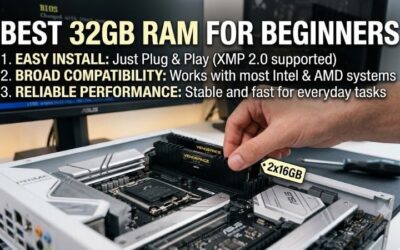
- Remove the side panel and find the RAM slots next to the CPU cooler. Check the motherboard manual for the preferred slots. On almost all current boards with four slots, two sticks go in A2 and B2, the second and fourth slots counting from the CPU.
- Open the slot latches. Many boards have a latch only at one end; the other end is fixed.
- Line up the notch on the stick with the key in the slot. If it does not line up, flip the stick around; never force it.
- Press down firmly with both thumbs on the top edge until the latch clicks closed. It takes more force than most first-timers expect. A half-seated stick is the most common reason only part of the RAM shows up.
- Close the case, reconnect power and switch on.
- Wait during memory training. DDR5 systems in particular may show a black screen for anywhere from about one minute to several minutes on the first boot, and the board may restart once or twice. This is normal; powering off mid-training just restarts the process.
- Enter the BIOS and enable XMP (Intel) or EXPO (AMD). Without it, DDR5 kits rated at 6000 MT/s often run at 4800 MT/s, and DDR4 kits rated at 3200 MT/s at 2133 or 2400 MT/s.
- Confirm in Task Manager that the total, speed and “Slots used” are what you expect. Run Windows Memory Diagnostic (type
mdschedin Start) if you want an extra check for errors.
Laptops: check before you unscrew anything
Many thin and light laptops use soldered LPDDR5 or LPDDR5X memory, which cannot be upgraded at all. Gaming laptops and business models more often have one or two SODIMM slots. The maker’s spec page or service manual will say “2 x SODIMM” or “onboard”. If you have one SODIMM slot and one soldered bank, add a stick that matches the soldered capacity to keep dual-channel mode working.
How to increase RAM on PC without buying anything
You cannot create physical RAM in software, but you can free up what is being wasted. These steps often recover 1-4 GB.
- Disable startup apps you do not need. Task Manager > Startup apps, then disable launchers, updaters and chat apps you open manually anyway. Each one can hold hundreds of megabytes all day.
- Use browser memory savers. Chrome’s Memory Saver and Edge’s sleeping tabs unload background tabs. A browser with 30 tabs can easily use several gigabytes.
- Lower the integrated GPU reservation. On PCs without a graphics card, the BIOS sets aside system RAM for graphics (often called UMA Frame Buffer Size or iGPU memory). If it is set very high and you are not gaming on the iGPU, lowering it returns that memory to Windows. Set it back up if games start to struggle.
- Leave the page file on automatic. The page file (virtual memory) lets Windows spill to the SSD when RAM is full. It is slower than real RAM, but turning it off causes crashes. Settings > System > About > Advanced system settings > Performance > Advanced > Virtual memory, and keep “Automatically manage paging file size” ticked.
- Check for memory leaks. Sort Task Manager’s Processes tab by Memory. A single app climbing past several gigabytes over a few hours usually needs an update or a restart.
Adding storage: the other way to get more memory
If your problem is disk space, a second SSD is a straightforward upgrade on any desktop and many laptops.
- Check free M.2 slots in the motherboard manual. Note whether each is PCIe 4.0 or 5.0 and whether using it disables a SATA port (common on budget boards).
- Install the drive under the M.2 heatsink or standoff and secure it with the screw or tool-less latch.
- Initialize it in Windows. Right-click Start > Disk Management. Windows asks to initialize the new disk; choose GPT. Right-click the unallocated space > New Simple Volume, accept the defaults and assign a letter.
- Move games instead of reinstalling. In Steam, add a library folder on the new drive and use the “Move install folder” option; most launchers have similar tools.
Gear that helps
- Crucial Pro 32GB DDR5 kit (2 x 16GB, 6000 MHz CL36): desktop DDR5 · Intel XMP 3.0 and AMD EXPO · dual-channel kit. A sensible target for current AM5 and Intel desktop gaming builds.
- CORSAIR Vengeance LPX DDR4 32GB (2 x 16GB, 3200 MHz CL16): desktop DDR4 · low-profile heat spreader that clears large air coolers · XMP. For AM4 and older Intel boards.
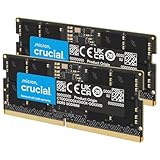
- Crucial 32GB DDR5 laptop kit (2 x 16GB SODIMM, 5600 MHz): 262-pin SODIMM · runs at 5200 or 4800 MHz on laptops that need it, per the listing. For gaming and business laptops with SODIMM slots.
- Samsung SSD 990 EVO Plus 2TB: M.2 2280 NVMe · PCIe 4.0 x4 or 5.0 x2 · up to 7,250 MB/s read per the listing. For adding game storage rather than RAM.
Frequently Asked Questions
Can I add 16 GB of RAM to my existing 16 GB?
Yes, if you have free slots and the new kit matches the generation (DDR4 or DDR5). Try to match speed and timings; the system will run all sticks at the slowest common setting. If the PC is unstable with XMP or EXPO on, run at the default speed or replace both sticks with one 2 x 16 GB or 2 x 32 GB kit.
Does more RAM increase FPS?
Only when your current RAM is running out. Going from 16 GB to 32 GB can smooth out stutter in memory-heavy games or when apps run in the background, but it will not raise average FPS in a game that already fits in memory. Faster RAM speed matters more on systems with integrated graphics.
Why does my PC show less usable RAM than installed?
Integrated graphics reserve part of system RAM, and Task Manager reports that as “Hardware reserved”. If usable memory is roughly half the installed amount, one stick is probably not seated or a slot is faulty. Reseat the modules and check the BIOS memory summary.
Is virtual memory the same as adding RAM?
No. Virtual memory (the page file) uses your SSD as overflow when RAM is full, and even fast NVMe drives are far slower than RAM for this job. It prevents crashes but does not give the speed of real memory. Keep it on automatic and add physical RAM if you run out regularly.
How long does the first boot take after installing RAM?
DDR4 systems usually boot normally within seconds. DDR5 systems may show a black screen for one to several minutes while the motherboard trains the memory, and may restart during the process. Wait at least five minutes before assuming something is wrong.
Can I upgrade RAM in any laptop?
No. Many thin laptops have memory soldered to the board. Check the maker’s spec page or service manual for “SODIMM” slots before buying; if it says “onboard” or “soldered”, the RAM cannot be changed.
Ready to decide? Our #1 pick for 2026 is the Memory usage above 85-90% in Task Manager while gaming or browsing.
Live price & availability on Amazon.