You’ve meticulously chosen your CPU, GPU, and motherboard, but have you considered your RAM? In the ever-evolving landscape of PC hardware for 2026, RAM speed can be a surprisingly significant factor in gaming performance, especially for CPU-bound scenarios. While your RAM might be advertised with a certain speed, it often defaults to a much slower JEDEC standard out of the box. To unlock its true potential and achieve those buttery-smooth frame rates, you’ll need to enable XMP or EXPO profiles in your BIOS.
This guide will walk you through the process of enabling these performance-boosting technologies, ensuring your RAM is running at its advertised speeds and giving your gaming rig the edge it deserves. We’ll cover what XMP and EXPO are, how to identify compatible RAM, and the step-by-step process to activate them, along with some helpful tips and frequently asked questions.

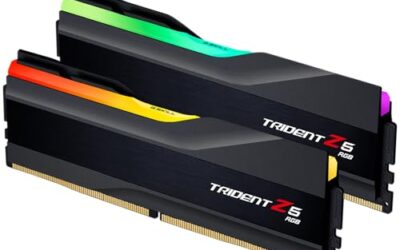
G.SKILL Trident Z5 Neo RGB Series DDR5 RAM (AMD EXPO) 64GB (2x32GB) Up to 6000MT/s CL30-40-40-96 1.40V Desktop Computer Memory U-DIMM - Matte Black (F5-6000J3040G32GX2-TZ5NR)
Included for 'How to Enable XMP / EXPO for Faster RAM' because the listing specifies Matte Black (F5-6000J3040G32GX2-TZ5NR), details this guide uses to compare options.
View on Amazon
Corsair Vengeance DDR5 16GB (2 x 8GB) Up to 6000MHz AMD Intel RAM
Included for 'How to Enable XMP / EXPO for Faster RAM' as a relevant option in this category; details come from the product listing.
View on Amazon
Corsair Vengeance RGB RS DDR5 64GB (2 x 32GB) Up to 6000MHz AMD Intel RAM
Included for 'How to Enable XMP / EXPO for Faster RAM' as a relevant option in this category; details come from the product listing.
View on Amazon
G.SKILL Flare X5 Series DDR5 RAM (AMD EXPO) 64GB (2x32GB) Up to 6000MT/s* CL30-40-40-96 1.40V Desktop Computer Memory U-DIMM - Matte Black (F5-6000J3040G32GX2-FX5)
Included for 'How to Enable XMP / EXPO for Faster RAM' because the listing specifies Matte Black (F5-6000J3040G32GX2-FX5), details this guide uses to compare options.
View on Amazon⚡ Save on Your Next PC — Amazon Prime
Prime members get fast free shipping on the systems above, plus early access to Prime Day & Black Friday PC deals. New members get a 30-day free trial.
Watch: How to Enable XMP / EXPO for Faster RAM — Video Review
Understanding XMP and EXPO
XMP (Extreme Memory Profile) and EXPO (Extended Profiles for Overclocking) are pre-configured overclocking profiles stored directly on your RAM modules. These profiles contain optimized settings for voltage, timings, and frequency that allow your RAM to run at speeds significantly higher than the standard JEDEC specifications. Enabling one of these profiles essentially tells your motherboard to use these pre-set, higher-performance settings without requiring you to manually tweak individual BIOS parameters, which can be complex and time-consuming.
- XMP: Primarily associated with Intel platforms, though many AMD motherboards also support XMP 2.0 and newer versions.
- EXPO: Developed by AMD, EXPO is designed specifically for AMD Ryzen platforms and is the preferred method for enabling high-speed DDR5 RAM on these systems.
Identifying Compatible RAM
Not all RAM is created equal, and for XMP/EXPO to work, your RAM modules must support these profiles. Fortunately, most enthusiast-grade DDR5 RAM kits sold today come with these profiles pre-enabled. Look for specific indicators on the product packaging or in the product description.
- Product Names: You’ll often see “XMP” or “EXPO” explicitly mentioned in the RAM’s product name or specifications. For example, the G.SKILL Trident Z5 Neo RGB Series DDR5 RAM (AMD EXPO) 64GB (2x32GB) 6000MT/s clearly indicates AMD EXPO support. Similarly, kits like the Corsair Vengeance RGB RS DDR5 16GB (2 x 8GB) Up to 6000MHz AMD Intel RAM are designed for broad compatibility.
- Specifications: Check the RAM’s advertised speed (e.g., 6000MHz) and timings (e.g., CL30-40-40-96). These higher numbers are indicative of a performance-tuned profile.
- Motherboard Compatibility: Crucially, your motherboard must also support XMP or EXPO. Check your motherboard’s specifications page on the manufacturer’s website. Look for mentions of “DDR5 XMP Support” or “AMD EXPO Support.”
Accessing Your Motherboard’s BIOS/UEFI
The BIOS (Basic Input/Output System) or UEFI (Unified Extensible Firmware Interface) is the firmware that initializes your hardware during the boot process. This is where you’ll find the settings to enable XMP or EXPO.
- Boot into BIOS: The most common way to enter the BIOS is by repeatedly pressing a specific key immediately after powering on your computer, before the operating system starts loading. This key is usually displayed on your screen during boot-up and is typically one of the following: Delete, F2, F10, F12, or Esc. Consult your motherboard manual if you’re unsure.
- Navigation: Once in the BIOS, you’ll navigate using your keyboard (arrow keys, Enter, Esc). Some modern UEFI interfaces also support mouse input.
Enabling XMP/EXPO in the BIOS
The exact location of the XMP/EXPO settings can vary slightly between motherboard manufacturers and BIOS versions, but the general process is consistent. For instance, on many ASUS motherboards, you might find it under “Ai Tweaker,” while on Gigabyte boards, it could be under “M.I.T.” (Motherboard Intelligent Tweaker).
- Locate the Setting: Look for an option named “XMP,” “Extreme Memory Profile,” “AI Overclock Tuner,” “DRAM Settings,” “Memory Profiles,” or “EXPO.”
- Select the Profile: Once found, you’ll typically see options to disable the profile or select from available profiles (usually “Profile 1” and sometimes “Profile 2”). Choose the profile that corresponds to your RAM’s advertised speed. For example, if your RAM is rated for 6000MHz, select the 6000MHz profile.
- Save and Exit: After selecting the desired profile, navigate to the “Save & Exit” section of your BIOS. Choose the option to “Save Changes and Reset” or “Exit Saving Changes.” Your computer will then restart with the new settings applied.
Verifying the Changes
After rebooting, it’s essential to confirm that XMP or EXPO has been successfully enabled and that your RAM is running at the intended speed.
- Task Manager (Windows): Press Ctrl+Shift+Esc to open Task Manager. Navigate to the “Performance” tab, then select “Memory.” You should see the correct speed displayed.
- CPU-Z: This free utility provides detailed information about your system’s hardware. Download and run CPU-Z, then go to the “Memory” tab. The “DRAM Frequency” will be half of the effective DDR (Double Data Rate) speed, so multiply it by two to get your actual RAM speed. For example, if CPU-Z shows 3000MHz, your RAM is running at 6000MT/s.
- BIOS: You can also re-enter the BIOS to double-check the memory settings.
Tips for Success
- Update Your BIOS: Ensure your motherboard’s BIOS is updated to the latest version. Manufacturers often release updates that improve memory compatibility and stability.
- Install RAM Correctly: Always install RAM in the correct slots as recommended by your motherboard manual for dual-channel operation (usually slots A2 and B2).
- One Profile at a Time: If you have multiple XMP/EXPO profiles on your RAM, start with the primary profile (usually labeled “Profile 1”).
- Troubleshooting: If your system fails to boot after enabling XMP/EXPO, you may need to clear your CMOS (Complementary Metal-Oxide-Semiconductor) to reset BIOS settings to their defaults. Consult your motherboard manual for instructions on how to do this.
Frequently Asked Questions
What if my computer doesn’t boot after enabling XMP/EXPO?
This usually indicates an incompatibility or an unstable overclock. Try clearing your CMOS to reset BIOS settings. If the issue persists, your RAM might not be fully compatible with your motherboard at the advertised speed, or you may need to manually adjust timings or voltage (though this is less common with EXPO/XMP profiles). Ensure you’re using the correct slots for dual-channel operation.
Can I enable XMP and EXPO simultaneously?
No, you should only enable either XMP or EXPO, not both. These are mutually exclusive profiles designed for different platforms. Enabling one will typically disable the other.
Will enabling XMP/EXPO void my warranty?
Generally, no. XMP and EXPO are standard features designed to allow RAM to run at its advertised speeds. However, if you manually attempt to overclock beyond these profiles and cause damage, that could potentially affect your warranty.
How much of a performance difference can XMP/EXPO make?
The performance gains vary depending on the game, your CPU, and the resolution you’re playing at. In CPU-bound scenarios, especially at lower resolutions like 1080p, you can see noticeable improvements in frame rates and a reduction in frame rate variance (stuttering). For RAM speeds like 6000MT/s compared to standard JEDEC speeds, this can translate to a 5-15% or even higher improvement in certain games.
Conclusion
Unlocking the full potential of your RAM through XMP or EXPO is a straightforward process that can significantly enhance your gaming experience. By understanding these technologies, identifying compatible hardware, and carefully following the BIOS/UEFI steps, you can ensure your system is running at optimal performance, leading to smoother gameplay and higher frame rates. Don’t let your expensive RAM sit at a fraction of its advertised speed – take a few minutes to enable XMP or EXPO and reap the rewards.