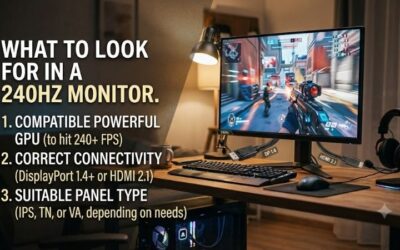
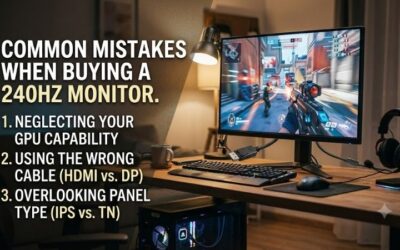
How to choose a 240hz monitor becomes a practical question when equally fast screens differ in sharpness, motion clarity, and connections. Start with your favorite games and sustained frame rates, then compare resolution, panel technology, and input limitations before spending extra money on features that rarely benefit your setup.
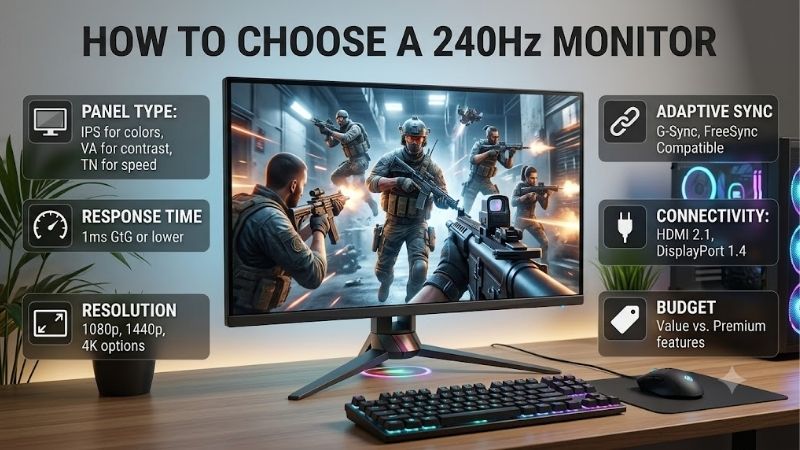
How to Choose a 240Hz Monitor
This guide explains how to choose a 240hz monitor through four choices that change what you see: resolution, panel technology, motion controls, and connections. The picks cover a balanced 1440p screen, a compact value option, a focused esports display, and an OLED for players who also want deep blacks and rich contrast.
Match Resolution to Your Computer and Games
A 240Hz refresh rate provides a new display opportunity every 4.17 milliseconds, but sustained performance determines whether your computer exploits that capacity. Benchmark your usual games at the intended resolution, including demanding encounters. For competitive priorities, the 1080p ASUS TUF Gaming VG259QM reduces graphical workload.
Resolution changes both image detail and computational demands. Compared with 1080p, 1440p provides sharper text and finer scenery but requires more graphical processing. Consider desktop applications alongside competitive performance. For combined gaming and productivity, choose the 27-inch Alienware AW2723DF when your hardware supports 1440p.
Select a Panel That Fits Your Daily Workload
Panel technology determines contrast, viewing angles, and maintenance requirements. IPS provides broad viewing angles without OLED burn-in concerns, while TN prioritizes competitive applications. Understanding how to choose a 240hz monitor means balancing those differences against your workload rather than treating refresh rate as everything.
OLED particularly benefits varied entertainment, with self-lit pixels producing deep blacks and rapid transitions. Repeated static desktop elements require greater consideration, however, and refresh rate still limits frame presentation. For immersive games and films with appropriate panel maintenance, choose the MSI MAG 271QPX QD-OLED E2.
Evaluate Motion Controls Beyond Response-Time Claims
Advertised response times describe selected pixel transitions rather than all transitions. Aggressive LCD overdrive can introduce inverse ghosting, visible as bright outlines behind moving objects. Evaluate measured behavior throughout the refresh range, because settings optimized for 240Hz may produce artifacts at lower frame rates.
Backlight strobing reduces perceived motion blur through shorter illumination periods, introducing brightness and flicker tradeoffs. Effectiveness depends on synchronization and frame rates, making personal evaluation worthwhile. For shooters where tracking moving targets takes priority, choose the BenQ ZOWIE XL2546X with DyAc 2.
Check Connections, Ergonomics, and Total Cost
Input compatibility matters: identical refresh-rate advertisements can conceal different HDMI and DisplayPort limits. Laptop outputs and docking stations introduce restrictions. Verify the complete connection supports your resolution at 240Hz, using the manufacturer’s supported-timing documentation rather than port labels.
Ergonomics affect purchase value alongside image quality. Height adjustment avoids an immediate monitor-arm expense, while a compact display leaves additional mouse space and requires less scanning at close range. For an adjustable, smaller 1080p setup with native 240Hz performance, choose the ASUS TUF Gaming VG259QM when its price is competitive.
Top Picks
These recommendations demonstrate how to choose a 240hz monitor around distinct priorities. Best Overall balances gaming with desktop use, Best Value emphasizes compact 1080p performance, and the specialist selections prioritize competitive shooters or OLED contrast. Compare current offers carefully, since value depends on actual purchase prices.
| Product | Best For | Key Spec | Watch Out For |
|---|---|---|---|
| Alienware AW2723DF | Best Overall | 27-inch IPS, 1440p, native 240Hz; optional 280Hz overclock | Native-resolution HDMI limited to 144Hz. Dell USA |
| ASUS TUF Gaming VG259QM | Best Value when competitively priced | 24.5-inch Fast IPS, 1080p, native 240Hz; optional 280Hz overclock | Less detail and workspace than 1440p. asus.com |
| BenQ ZOWIE XL2546X | Best For Competitive Shooters | 24.5-inch Fast TN, 1080p, 240Hz, DyAc 2 | Narrower viewing angles; strobing may bother sensitive viewers. ZOWIE APAC |
| MSI MAG 271QPX QD-OLED E2 | Best For Immersive Gaming | 26.5-inch QD-OLED, 1440p, 240Hz | Burn-in risk and potential text fringing. msi.com |
Alienware AW2723DF: Best Overall
The Alienware AW2723DF earns Best Overall for mixed gaming and productivity. Its 27-inch IPS display combines 2560 x 1440 resolution with native 240Hz through DisplayPort, plus an optional 280Hz overclock. Higher pixel density provides useful desktop clarity and additional scenery detail while retaining refresh headroom for competitive gaming.
The connection limitation is HDMI, which reaches only 144Hz at native resolution; DisplayPort is necessary for 240Hz. Backlit blacks also lack OLED depth. When how to choose a 240hz monitor involves spreadsheets alongside shooters, Alienware provides a balanced starting point, provided its connectivity matches your computer’s outputs.
ASUS TUF Gaming VG259QM: Best Value
The ASUS TUF Gaming VG259QM earns Best Value conditionally: its purchase price should sit comfortably below comparable 1440p alternatives. The 24.5-inch Fast IPS display combines 1920 x 1080 resolution, native 240Hz, and optional 280Hz overclocking. Compact dimensions favor close-range competitive play without requiring a substantially larger desk.
Lower resolution limits desktop workspace and fine-detail clarity compared with 1440p alternatives. ELMB Sync supports strobing and adaptive sync, offering another motion-control option to evaluate. Its HDR branding should not outweigh those resolution limitations; select this model primarily for compact 1080p gaming.
BenQ ZOWIE XL2546X: Best For Competitive Shooters
The BenQ ZOWIE XL2546X earns Best For Competitive Shooters through its specialized design. A 24.5-inch, 1920 x 1080 Fast TN panel operates at 240Hz, with DyAc 2 providing dedicated motion-blur reduction. Height adjustment and a compact base support precise positioning while preserving mouse space for players using broad, low-sensitivity movements.
Its specialization introduces compromises: TN viewing angles and 1080p detail are less attractive for shared viewing or visually demanding desktop work. DyAc 2’s flicker can also bother sensitive viewers. If how to choose a 240hz monitor prioritizes target tracking, BenQ deserves consideration despite those broader-use limitations.
MSI MAG 271QPX QD-OLED E2: Best For Immersive Gaming
The MSI MAG 271QPX QD-OLED E2 earns Best For Immersive Gaming. Its 26.5-inch, 2560 x 1440 QD-OLED panel combines 240Hz with self-lit pixels, producing deep blacks without surrounding backlight glow. MSI specifies HDMI 2.1 support for WQHD at 240Hz, providing useful connection flexibility for compatible computers alongside its contrast advantage.
OLED introduces burn-in risk from persistent static elements, while its subpixel arrangement can produce distracting text fringing. Keep protection features enabled and consider your daily productivity workload before purchasing. Verify the complete product designation: the MAG 271QPX QD-OLED without the E2 suffix is a separate 360Hz model.
Frequently Asked Questions
Common questions about how to choose a 240hz monitor concern upgrade visibility, required frame rates, resolution, and console compatibility. Each answer separates display capability from computer or console limitations. Settling these points before checkout prevents spending extra money on refresh capacity your setup cannot use.
Is 240Hz Noticeably Better Than 144Hz?
Yes, 240Hz can improve perceived smoothness over 144Hz, particularly during rapid camera movement and target tracking. Frame intervals decrease from approximately 6.94ms to 4.17ms, although individual sensitivity varies. The improvement is smaller than the transition from 60Hz to 144Hz, so resolution and motion quality still deserve consideration.
Lower sustained frame rates reduce the upgrade’s practical impact. A game averaging around 100 fps cannot supply 240 distinct frames each second because the display supports them. Benchmark demanding gameplay before purchasing; depending on your bottleneck, steadier computer performance or improved resolution may justify spending.
Do You Need 240 FPS to Use a 240Hz Monitor?
No, a locked 240 fps is unnecessary for using a 240Hz monitor. Variable refresh rate can synchronize display timing with fluctuating frame delivery within the supported range. Nevertheless, refresh capacity cannot eliminate interruptions originating from CPU limitations, shader compilation, storage access, or background applications.
When evaluating how to choose a 240hz monitor, sustained performance matters more than benchmark peaks. Crowded encounters and busy locations reveal limitations that empty environments conceal. Reserve budget for system improvements when necessary, rather than allocating everything to a display whose maximum capacity remains unused.
Should You Choose 1080p or 1440p at 240Hz?
Choose 1080p for compact competitive setups where sustained frame rates take priority; choose 1440p for sharper detail and desktop space. The latter contains approximately 78 percent more pixels, raising GPU workload. Performance differences remain game-dependent, however, because rendering settings and CPU limits also influence results.
ASUS and BenQ represent the compact 1080p approach, while Alienware and MSI offer 1440p alternatives. Powerful hardware makes high-refresh 1440p practical in lighter games, but demanding games may require reduced settings. Benchmark at the intended resolution; impressive 1080p results alone cannot establish performance at 1440p.
Can PS5 or Xbox Series X Use 240Hz?
No, PS5 and Xbox Series X gaming output tops out at 120Hz rather than 240Hz. These monitors can still accommodate console gaming, but refresh headroom primarily benefits compatible computers. Verify supported console timings and variable-refresh compatibility before buying, since the maximum advertised refresh rate does not establish either.
For PC and console use, MSI’s HDMI capabilities warrant consideration, subject to each device’s supported output modes. Console games may require performance settings to enable 120Hz, introducing visual compromises. Dedicated console players should compare 120Hz or 144Hz alternatives before paying for unused refresh capacity.
Final Thoughts
The answer to how to choose a 240hz monitor starts with your PC and ends with your daily use. Pick Alienware for balanced 1440p use, ASUS for compact value, BenQ for focused shooter play, or MSI for OLED contrast. Confirm the exact input modes and current price, then buy the screen whose tradeoffs fit the games and work you actually do.