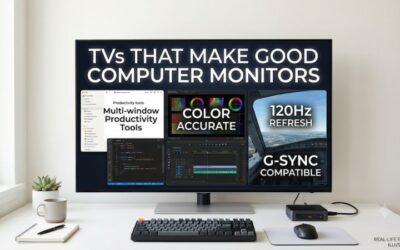
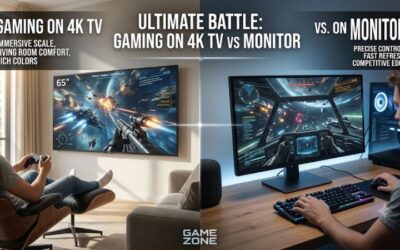
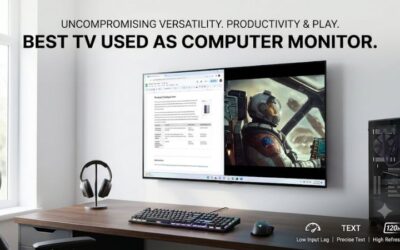
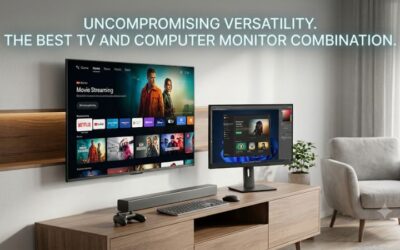
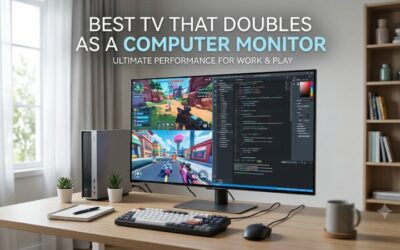
The best tv to double as computer monitor for gaming and streaming is the 42-inch LG C6. Choose the 43-inch Sony BRAVIA 3 if documents and spreadsheets fill most of your day, or the 55-inch TCL QM7K if you can sit farther back. Before buying, check how the TV handles small text and switches between your PC and its apps.
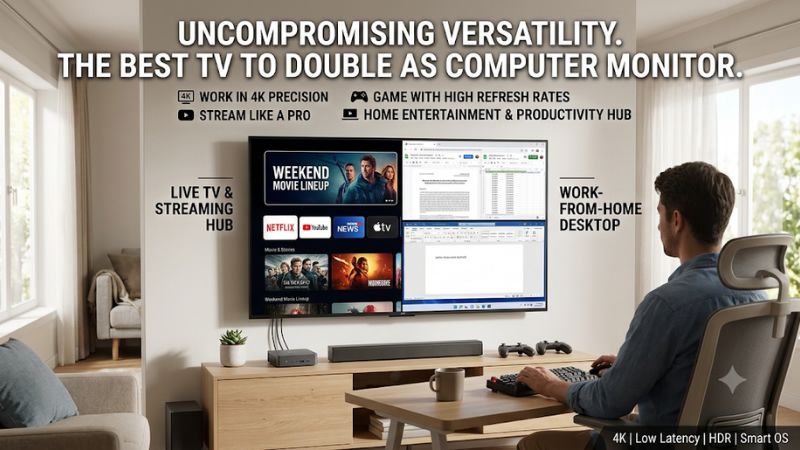
The best TV to double as computer monitor at a glance
Choose the Sony BRAVIA 3 for a 60Hz home office, the LG C6 for a desk where PC gaming matters, or the TCL QM7K for a setup you use from across the room. The other picks address more specific needs, including direct reflections, an occasional laptop connection, and a permanent desktop setup that uses Tizen.
| TV and exact US model | Best fit | 4K PC input | What to check first |
|---|---|---|---|
| Sony BRAVIA 3 43-inch, K-43S30 | Office work by day, Google TV at night | 60Hz in Sony’s listed PC mode | Text clarity and screen height at your desk |
| LG C6 42-inch, OLED42C6PUA | PC gaming, mixed desktop use, and streaming | Up to 165Hz with compatible hardware | Reflections, small text, and time spent on static desktop content |
| Samsung S90H 42-inch, QN42S90HAEXZA | Mixed gaming and TV viewing in a room with direct reflections | High-refresh 4K PC gaming | How the matte finish looks under your room lighting |
| Samsung Q60D 43-inch, QN43Q60DAFXZA | A permanent 4K workstation with Tizen apps | 60Hz | Whether 60Hz scrolling feels comfortable |
| TCL S4 43-inch, 43S450G | A shared smart TV with occasional laptop use | 60Hz | How the screen looks from the center and corners |
| TCL QM7K 55-inch, 55QM7K | Couch gaming and shared computer viewing | Up to 144Hz on two compatible HDMI inputs | Seating distance and HDMI port allocation |
What makes the best TV to double as computer monitor
A dual-purpose screen has to work from two positions. At the desk, small text should be clear, the whole desktop should fit, and the mouse should feel responsive. From farther back, the remote and streaming apps should be easy to use, and you should be able to see the content without leaning forward.
The shortlist uses exact US model numbers and prioritizes native 4K, practical size, and a distinct reason to buy each TV. High refresh rates matter more for gaming than for a browser or spreadsheet. Likewise, a favorable TV review can tell you how a screen handles movies while leaving open the question of how small text will look at your desk. Some independent reviews also test a different size in the same series, so use their findings to guide your setup checks.
The best TVs for daily work and evening streaming
A 43-inch 4K TV can hold a browser, a document, and a chat window without making each one feel cramped. The trade-off is physical size. Check how the edges look when you sit at the keyboard, and confirm you can read the top of the screen without raising your chin or leaning back in your chair.
Sony BRAVIA 3 43-inch for an office-first setup
The Sony BRAVIA 3 K-43S30 is the most straightforward choice if your computer spends the day on documents, spreadsheets, and email. Sony lists a 3840 × 2160 PC input mode at 60Hz with 8-bit color. Google TV handles streaming when you want to close the laptop and leave the desk.
Start with a direct HDMI connection and open a document you already know well. Read a few lines near the center, then move the window to the far side. Put a spreadsheet with thin gridlines and colored cells alongside it. The two windows make it easier to spot whether a text problem comes from the PC signal, a sharpness setting, or the angle at which you see the edge of the screen.
The useful feature here is the ability to leave the computer on one input and stream directly from the TV. Try using the remote to launch an app, then return to HDMI and wake the computer. Check whether the desktop comes back at 4K and whether the TV keeps the same picture profile. A predictable return to the desktop matters if you repeat that switch every evening.
Buy if you want a work-first TV that runs streaming apps independently and your computer can send 4K at 60Hz. Skip if you play fast PC games regularly or already find 60Hz scrolling distracting. The LG C6 has a similar footprint and substantially more refresh headroom.
Samsung Q60D 43-inch for a fixed desktop and Tizen
The Samsung Q60D QN43Q60DAFXZA is a 43-inch 4K QLED LCD for someone who plans to leave a desktop tower connected and prefers Samsung’s Tizen apps. The 60Hz limit suits general office work. It is worth comparing directly with the Sony if both fit your desk and both carry the services you use.
Set the HDMI source for PC use if the TV offers that option. On the computer, verify 3840 × 2160 at 60Hz and inspect small colored labels in the application you use most. If a white page looks fine but red and blue characters appear fringed or smeared, check the output color format. Increasing the TV’s sharpness can add halos around letters without recovering detail lost in the signal.
The Q60D makes more sense when your desktop workflow rarely changes. Leave the tower on the same input, keep its display settings fixed, and use the remote when you want to stream. If you regularly switch between two computers, check how easily you can identify their inputs. A dedicated computer monitor or a separate switch may be more convenient when you also need to move a keyboard and mouse between machines.
Buy if you want Tizen, have room for a 43-inch TV, and expect the screen to handle mostly office apps and video. Skip if you want variable refresh for games or smoother movement from a PC that already supports higher refresh rates.
TCL S4 43-inch for a shared TV with occasional laptop use
The TCL S4 43S450G is a better fit for an occasional computer connection than for a workstation you use all day. It combines a 43-inch 4K panel with Google TV. Think of a spare room where you stream most evenings and plug in a laptop when you need more room to plan a trip or edit a document.
Independent testing of the S450G series found limited viewing angles. That matters on a desk because a nearby viewer sees the far corners at a steeper angle than the center. Try a full-screen white or gray page from your normal seat. If the edges look noticeably different, move the TV farther back and repeat the test. Check the view from a second seat if someone else will regularly look at the same screen.
This pick is most useful when connecting the laptop takes little effort. Keep an HDMI cable accessible, test that your adapter can output 4K at 60Hz, and use the computer in extended display mode if mirroring makes the TV image look soft. Once the laptop is disconnected, confirm that another person can reach the streaming apps without changing a computer setting or unplugging anything else.
Buy if the room is primarily for watching TV and computer use is occasional. Skip if you need consistently readable text across the entire display from close range or regularly share detailed on-screen work with a person sitting off to the side.
The best 42-inch TVs for PC gaming and regular TV use
A 42-inch OLED fits roughly the same space as a 43-inch LCD. The decision changes when you spend your evenings playing PC games or watching movies in a dim room. High refresh rates and pixel-level light control can justify the move, especially if your workday does not consist of a single static desktop.
LG C6 42-inch for high-refresh PC gaming and streaming
The LG C6 OLED42C6PUA is the strongest option here if you need a TV for movies and streaming that also serves as a high-refresh PC display. LG supports up to 4K at 165Hz with compatible hardware. The 42-inch image is about 36.6 inches wide, so check the footprint before moving your current monitor.
Connect a compatible GPU directly to the TV and begin at 4K 60Hz in SDR. Once the desktop is stable and looks clean, raise the refresh rate. Then check HDR and variable refresh separately. If you change the refresh rate, color format, and HDR setting all at once, it becomes harder to identify which change caused a blank screen, intermittent signal, or blurry text.
The C6 series supports full chroma for a PC connection, but the panel’s subpixel layout can still affect how small text looks compared with a conventional monitor. Try the fonts and interface sizes you actually use. Also consider how long the display will show static elements such as toolbars and dashboards. This TV fits a mix of games, video, and shorter stretches of desktop work better than a job built around one unchanging screen.
Buy if PC gaming and streaming account for a substantial share of your time and you can sit back from the display. Skip if most of the workday involves the same static application or you have a shallow desk. The Sony offers a work-first LCD option in a similar size.
Samsung S90H 42-inch for rooms with direct reflections
The Samsung S90H QN42S90HAEXZA combines a 42-inch OLED screen with Samsung’s Glare Free finish. It is the alternative to evaluate if you want one screen for PC gaming and TV, but a lamp or window will often be visible from your desk. Its footprint is close to that of the LG C6.
A matte finish changes how a reflection appears. A lamp that produces a distinct image on one screen can appear as a broader patch on another. Test that trade-off with the room in its normal daytime configuration. Use a dark application and a bright document, then move between the desk and your TV-viewing seat. A finish that looks appealing in a store may behave differently with a window directly behind you.
Keep the rest of the comparison specific to your setup. Check the exact HDMI mode your graphics card can output, then test the text format at the refresh rate you intend to use. Switch from the PC to a built-in streaming app and back. If you use a game console on another input, confirm that each source keeps the picture and gaming settings you expect.
Buy if you want a compact OLED TV for mixed use and direct reflections are a recurring problem. Skip if you mainly work in one static app all day or can control the lighting and prefer the look of the C6. The deciding difference is how the two screens look in your room.
The best large TV for couch gaming and shared PC use
A 55-inch TV can make sense when you control the computer from a couch, show people the screen from across a room, or have a desk deep enough to put the display well behind the keyboard. Its extra width makes things look larger, with the same 3840 × 2160 pixels as the smaller 4K TVs here.
TCL QM7K 55-inch for a PC you use from farther back
The TCL 55QM7K is the pick for a living room PC, a deep workstation, or a gaming chair that sits several feet back. It combines Google TV with a 4K Mini LED panel and support for up to 144Hz on compatible HDMI inputs. The image is about 48 inches wide before you account for the bezel.
Test the computer side from the seat you will use. At a couch distance, a 4K desktop at default scaling can make menus too small, even on a 55-inch screen. Keep the output at native resolution and raise operating system scaling or the zoom in your main apps. If you use a keyboard at a closer position, check it separately. A layout that is readable from the couch can take up too much of your view at the desk.
Independent testing identifies two HDMI inputs that handle the highest 4K refresh modes in this series. Plan around those inputs if you have a PC, console, and audio system. Connect the PC directly first, confirm the active resolution and refresh rate, and add the other devices afterward. This lets you identify a receiver, switch, or other part of the HDMI path that limits the signal.
Buy if you want a large shared TV for streaming, controller gaming, and occasional desktop work. Skip if you plan to read small text for hours with the TV directly behind your keyboard. The 42-inch LG and 43-inch Sony are easier to position for that setup.
How to make one TV work in both roles
Set up the TV as a computer display before evaluating streaming or picture presets. The most revealing test is a normal day of use. Open your regular apps, let the computer sleep, start a streaming app, then return to HDMI. Check the picture, sound, and remote steps each time you change roles.
Set native 4K and verify full chroma
Use 3840 × 2160 on the computer and look for RGB or YCbCr 4:4:4 in the graphics settings. Full chroma preserves fine color detail at each pixel. A picture can look sharp in movies while a reduced-chroma connection makes small colored text and interface edges hard to read on the desktop.
If the TV has a PC input setting, try it and check that all four desktop edges remain visible. If the taskbar is cropped, adjust the TV’s screen-fit setting before resizing the GPU output. If everything fits but the interface looks too small, increase display scaling. If the text changes when you enable HDR or move to a faster refresh rate, check the color format again. The GPU and TV may negotiate a different signal when the requested mode changes.
Measure desk fit from your seated position
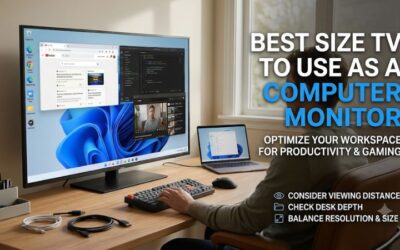
Measure from your eyes to the planned screen position while you sit normally with your hands on the keyboard. Then mark the proposed top and side edges with tape. A 42-inch 16:9 image is about 36.6 inches wide, a 43-inch image about 37.5 inches, and a 55-inch image about 48 inches.
The width of the picture tells you what you will see. The chassis, feet, or stand tell you what the desk has to hold. Check both. A wall mount can recover desk space, but it only improves viewing distance if it puts the screen farther from your seat. If you have to move your head repeatedly to check the corners of the taped outline, a smaller display may make you more productive even if a larger one fits the furniture.
Check sleep, audio, and the return from streaming
Turn the TV off with the PC connected. Wake the computer, return from a streaming app, and see whether the TV opens the correct input or needs its remote. Also check whether the computer keeps the same window arrangement and whether audio stays on the output you want. Repeat once with any dock or switch connected.
A laptop may need a separate charger even when the TV has USB ports. If you expect a one-cable setup, verify that each device supports USB-C video and the charging power you need. Also check how you plan to take calls. HDMI can carry sound to the TV, while your microphone still comes from the laptop, headset, or another device. Decide what works at the desk and from the couch before routing the cables permanently.
Conclusion
Choose the Sony BRAVIA 3 for an office-first setup, the LG C6 if you regularly play PC games at your desk, or the Samsung S90H if direct reflections shape your choice. Choose the TCL QM7K when you can sit farther back. Check fine text, screen height, and the return from streaming to HDMI before settling on a model.