- Top Pick: SANSUI 32 Inch Curved 240Hz Gaming Monitor High Refresh Rate, FHD 1080P
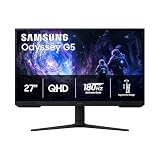
- Best Value: Samsung 27" Odyssey G5 (G51F) Series QHD (1440P) Gaming Monitor
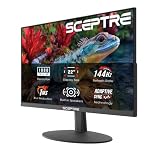
- Premium Choice: Sceptre New 22-Inch Gaming Monitor, FHD 1080p, Up to 144Hz, HDMI, DisplayPort, Built-in Speakers, Machine Black (E225W-FW144 Series, 2026)
Pairing a PS5 with the right monitor unlocks smoother, sharper gaming than many TVs can offer, often with lower input lag and higher refresh rates. Sony’s console supports up to 120Hz and variable refresh rate, so a good gaming monitor lets you take full advantage of its performance while saving desk space in a compact setup.
- Watch: Best Gaming Monitor For PS5 — Video Review
- How to Choose a PS5 Gaming Monitor
- The Best PS5 Gaming Monitors Reviewed
- What the PS5 Can Actually Output
- Connection Checklist
- Portable Monitors and the PS5
- Which One Should You Buy?
- Screen Size and Sharpness at Console Distance
- Audio and HDR Notes
- Placement and Comfort
- Common Mistakes When Buying a Monitor for PS5
- Troubleshooting a Missing 120Hz Option
- Related Guides
- Frequently Asked Questions
- Final Thoughts
- Related Articles
- Related Guides
This roundup gathers monitors that pair beautifully with the PS5, from fast curved panels to sharp QHD displays. Each pick balances resolution, refresh rate, and connectivity to get the most out of your console gaming.


As an Amazon Associate we earn from qualifying purchases at no extra cost to you.




🎮 Get More From Your Setup — Free
Prime Gaming gives you free PC games every month, in-game loot, and a free Twitch channel sub — plus fast free shipping on all the gear above. New members get a 30-day free trial.
Watch: Best Gaming Monitor For PS5 — Video Review
How to Choose a PS5 Gaming Monitor
- Refresh rate: The PS5 supports up to 120Hz, so a monitor rated 120Hz or higher lets supported games feel silky smooth.
- Resolution: 1080p keeps things fast and affordable, while QHD adds sharpness if you want a crisper picture on a larger screen.
- HDMI compatibility: Ensure the monitor’s HDMI input handles the PS5’s output properly, ideally with support for its higher refresh modes.
- Adaptive sync: VRR or FreeSync support reduces tearing and keeps gameplay smooth when frame rates fluctuate.
- Response time and features: A low response time cuts blur, and built-in speakers or extra ports add convenience for a console setup.
The Best PS5 Gaming Monitors Reviewed
SANSUI 32″ Curved 240Hz
The SANSUI 32-inch curved monitor offers a high 240Hz refresh and FHD 1080p resolution. Its immersive curve and fast panel make it a great value pick for smooth, engaging PS5 gaming.
Samsung Odyssey G5 (G51F) 27″ QHD
This 27-inch Odyssey G5 brings sharp QHD resolution and a fast panel, delivering crisp detail for PS5 games. Samsung’s build quality and gaming features make it a reliable console companion.
Sceptre 22″ FHD 144Hz
The Sceptre 22-inch monitor pairs FHD 1080p with up to 144Hz, HDMI and DisplayPort inputs, and built-in speakers. It is a compact, budget-friendly option for a tidy PS5 setup.
Alienware AW2725DM 27″ WQHD
The Alienware AW2725DM features a 27-inch WQHD fast IPS panel at 180Hz with G-Sync. Its premium build and sharp, speedy display make it a standout for demanding console gamers.
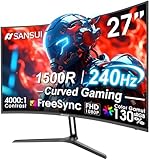
SANSUI 27″ Curved 240Hz
The SANSUI 27-inch curved monitor offers 240Hz, FHD 1080p, a 1500R curve, and HDR. Its high refresh and immersive shape make it a compelling value for fast-paced PS5 play.
What the PS5 Can Actually Output
A monitor can advertise numbers the console cannot use, so start with the console’s side of the link. The PS5 sends signal over HDMI only, caps its refresh rate at 120Hz, and uses the standard HDMI variable refresh rate feature instead of FreeSync or G-Sync branding. Native 1440p output was added through a later system update, so it requires current firmware.
| Mode | What the monitor needs |
|---|---|
| 1080p at 60Hz | Any HDMI input |
| 1080p at 120Hz | HDMI port that accepts 120Hz at this resolution |
| 1440p at 60Hz or 120Hz | Native 1440p input; fits within HDMI 2.0 bandwidth for 8-bit signals |
| 4K at 60Hz | HDMI 2.0 is enough for standard signals |
| 4K at 120Hz with HDR | HDMI 2.1 port and an Ultra High Speed cable |
The practical lesson is that a 240Hz or 320Hz panel never runs above 120Hz on this console. Extra refresh headroom only helps on a PC.
Connection Checklist
- Plug the console into the monitor’s HDMI 2.1 port if it has one. Ports on the same monitor often differ, and only one may support the full bandwidth.
- Use the cable that shipped with the console, or another certified Ultra High Speed cable.
- Open the console’s screen and video settings and confirm the resolution and 120Hz output option.
- Turn on the monitor’s own adaptive sync or HDMI VRR setting, since it is frequently disabled by default.
- Enable the monitor’s low-latency or game mode so processing is minimized.
- Set the monitor’s input to the correct HDMI version if the menu offers one.
Reports differ on whether variable refresh rate works at every resolution, so check the console’s current release notes if VRR matters to you.
Portable Monitors and the PS5
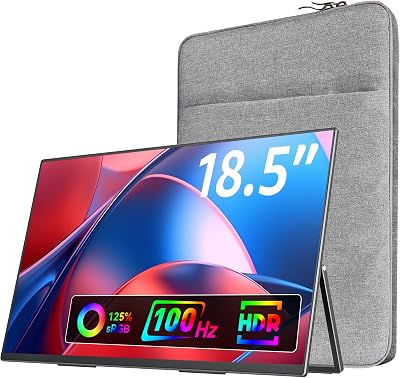
The console has no video output over USB-C, so a portable monitor must offer an HDMI input. Pay attention to which refresh rate applies over which port. The Upperizon listing, for example, quotes 144Hz over USB-C and 120Hz over HDMI, and since the PS5 connects through HDMI, the 120Hz figure is the one that applies. Portable panels also need a power source, often via a second USB cable or a wall adapter.
Which One Should You Buy?
| If you… | Choose… |
|---|---|
| Want a 27-inch 1440p panel with HDMI 2.1 and HDR400 | GTek 27 Inch 320Hz/300Hz Gaming Monitor |
| Want a Fast IPS 1440p panel with G-Sync and a premium brand | Alienware AW2725DM 27″ |
| Want a familiar QHD monitor for a typical desk | Samsung Odyssey G5 (G51F) 27″ |
| Want a bigger curved 1080p screen at 240Hz | SANSUI 32″ Curved 240Hz |
| Have limited desk space and play at 1080p | Sceptre 22″ FHD 144Hz |
| Travel or share a room and need a portable second screen | ARZOPA 16.1″ or Upperizon Portable Monitor |
A 32-inch 1080p screen has a pixel density of roughly 69 pixels per inch, which looks soft at desk distance compared with a 27-inch 1440p panel at about 109.
Screen Size and Sharpness at Console Distance
| Size and resolution | Pixels per inch | What to expect |
|---|---|---|
| 22-inch, 1920×1080 | About 100 | Clean image on a small desk |
| 27-inch, 2560×1440 | About 109 | Sharp at normal desk distance |
| 32-inch, 1920×1080 | About 69 | Visibly soft up close |
| 16.1-inch, 1920×1080 | About 137 | Very crisp on a small portable panel |
Audio and HDR Notes
The console sends audio through HDMI, so monitors with speakers will play it, and those without need headphones plugged into the monitor’s audio jack or the controller. HDR on the console follows the HDR10 standard, and the console offers its own screen to calibrate it. A monitor with only a basic HDR400 tier will show a modest improvement, while a panel with stronger local dimming or an OLED display will show a bigger gap.
Placement and Comfort
A console monitor often sits closer than a TV, so the screen size should suit a normal desk distance. Larger panels make sense only with enough depth to keep the whole picture in view. Height-adjustable stands help during long sessions, and a VESA mount pattern lets you use an arm if the supplied stand is too limited. Keep the controller’s wireless path clear of the monitor’s bulk.
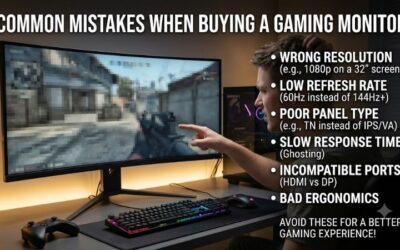
Common Mistakes When Buying a Monitor for PS5
- Paying extra for a refresh rate above 120Hz that the console cannot reach.
- Assuming every HDMI port on a monitor supports the same features.
- Buying a monitor with only USB-C video input.
- Expecting VRR to work automatically on an HDMI 2.0 monitor.
- Overlooking audio. Monitors without speakers need a headphone jack or an audio extractor.
Troubleshooting a Missing 120Hz Option
- Switch to the monitor’s HDMI 2.1 input and restart both devices.
- Replace the cable with a certified high-bandwidth one.
- Lower the resolution, or turn off HDR, to see whether bandwidth is the limit.
- Update the console and the monitor’s firmware if available.
Related Guides
- Best Brands For Gaming Monitors (2026)
- Portable 3 Display Monitor (2026)
- Best 4K Gaming Monitor For Xbox Series X (2026)
- Best Multiple Monitor Setup (2026)
Frequently Asked Questions
Does the PS5 support 120Hz monitors?
Yes, in supported games. A 120Hz or higher monitor lets you enjoy the console’s high-frame-rate mode for smoother, more responsive gameplay.
Is 1080p or 1440p better for PS5?
1080p keeps frame rates high and costs less, while the PS5 also supports 1440p for a sharper image. Choose based on your budget and screen size.
Do I need HDMI 2.1 for PS5?
HDMI 2.1 unlocks the highest refresh and resolution modes, but many monitors deliver great 120Hz 1080p or 1440p over standard HDMI for excellent results.
Are built-in speakers good enough?
Built-in speakers are convenient for casual play, but a headset or external speakers deliver far better audio for immersive or competitive gaming.
Final Thoughts
For sharp, premium console gaming, the Alienware AW2725DM and Samsung Odyssey G5 deliver crisp QHD detail, while the SANSUI 27-inch curved monitor offers immersive 240Hz value. Budget-focused players will appreciate the compact, feature-packed Sceptre 22-inch.