The best 4k 240hz gaming monitor for a high-end PC is the ASUS ROG Swift OLED PG32UCDM Gen3 if you want a flat 32-inch screen for HDR and fast games. Choose the 27-inch PG27UCDM for a shallow desk, the PG32UCDP for a separate 480Hz esports mode, or the Samsung Neo G8 if you prefer Mini LED for a bright room.
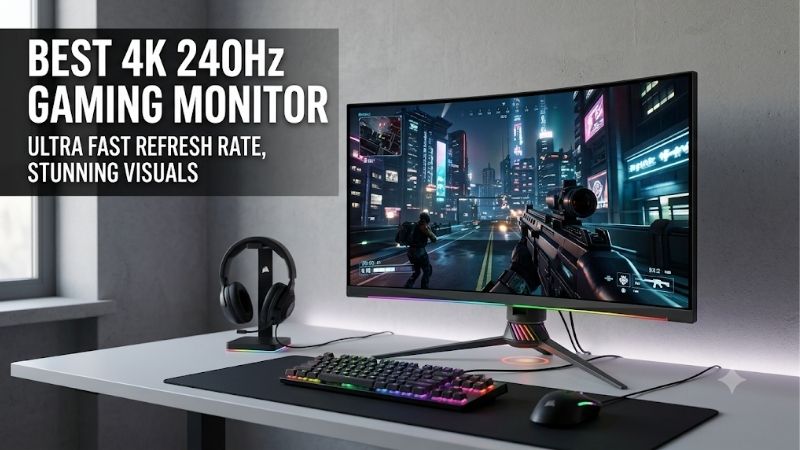
Quick verdict: The best 4K 240Hz gaming monitor for most high-end PCs
The ASUS ROG Swift OLED PG32UCDM Gen3 is the strongest all-around choice here for a gaming-first desktop. Its flat 32-inch-class screen suits both cinematic games and shooters, and its DisplayPort connection supports the highest UHBR link rate if your graphics card can supply it.
The other five picks solve more specific problems. The MSI MPG 321URX makes sense when a work laptop and gaming desktop share peripherals. Choose the Alienware AW3225QF if you want a moderate curve, or the ASUS PG27UCDM if a 32-inch screen would fill too much of your view. The ASUS PG32UCDP is the pick for players who can use 480Hz at 1080p. The Samsung Odyssey Neo G8 is the Mini LED option for a brighter room or a desk that spends much of the day showing static apps.
Quick comparison table
Every model below supports 3840 × 2160 at 240Hz through a compatible connection. The table highlights the differences you will notice at your desk or need to account for when connecting a PC, laptop, or console. Confirm the exact model suffix before buying, especially on listings that group several variants.
| Exact model | Panel and size class | Best fit | Main trade-off |
|---|---|---|---|
| ASUS ROG Swift OLED PG32UCDM Gen3 (PG32UCDM3) | Flat 32-inch QD-OLED | All-around HDR and high-refresh PC gaming | Ambient light can still lift black levels |
| MSI MPG 321URX QD-OLED | Flat 32-inch QD-OLED | Desktop and USB-C laptop sharing peripherals | DisplayPort 1.4a uses DSC for the highest mode |
| Alienware AW3225QF | 32-inch 1700R curved QD-OLED | Centered seating and curved-screen immersion | No USB-C video input |
| ASUS ROG Swift OLED PG32UCDP | Flat 32-inch WOLED | 4K gaming plus a 1080p 480Hz esports mode | 1080p looks softer when stretched across the panel |
| ASUS ROG Swift OLED PG27UCDM | Flat 27-inch QD-OLED | Shallow desks and higher pixel density | Smaller physical canvas for immersive games |
| Samsung Odyssey Neo G8 (LS32BG852NNXGO) | 32-inch 1000R curved VA Mini LED | Bright rooms and long sessions with static apps | Strong curve and potential local-dimming halos |
How we selected
Eligibility required 240Hz at the panel’s native 4K resolution. A high-refresh mode at 1080p qualified as an extra feature only. Each pick had to offer a concrete reason to choose it, such as a different desk fit, input arrangement, panel technology, or competitive gaming mode.
The recommendations use manufacturer specifications and independent display testing where it clarifies a trade-off. For motion, refresh rate, pixel transitions, and frame delivery all matter. For HDR, the panel’s ability to keep dark areas dark beside bright objects tells you more about many game scenes than a single peak brightness figure. For everyday use, the same panel can look different under a window or lamp. Those distinctions drive the recommendations alongside the port and size checks.
The six monitors and who should buy them
Start with the constraint you are most likely to encounter every day. A shallow desk limits how large a display feels comfortable. A laptop with limited USB-C video support can complicate a one-cable setup. Frequent ranked play gives the dual-mode ASUS a clearer purpose than its refresh figure alone suggests.
Best 4K 240Hz gaming monitor overall: ASUS ROG Swift OLED PG32UCDM Gen3
The PG32UCDM3 combines a flat 31.5-inch viewable QD-OLED panel with DisplayPort 2.1a UHBR20 and USB-C power delivery up to 90W. It makes sense for someone who wants a large HDR screen for story games, a fast panel for multiplayer, and room to connect a second computer for occasional use.
The main picture advantage shows up in scenes with bright details against near-black backgrounds. Think lamps in a dark city or sparks in a shadowy room. Individual OLED pixels can dim independently, which preserves dark detail near those highlights without a backlight zone brightening the surrounding area. RTINGS found that the Gen3 coating maintained lower black levels in bright surroundings than the original PG32UCDM, though ambient light could still raise them. A lamp positioned away from the screen remains worthwhile.
UHBR20 is most useful if the GPU and cable also support that link rate and you specifically want an uncompressed connection. On a card that reaches 4K 240Hz with Display Stream Compression, the ASUS still offers its panel and coating benefits. Confirm the PG32UCDM3 suffix so you are evaluating the Gen3 model and its specific port capabilities.
Buy if you want a flat 32-inch-class HDR monitor for a range of PC games. Skip if your desk puts you too close to a large panel or you spend most of the day on fixed spreadsheets. Compare the PG27UCDM for a smaller desk and the Neo G8 for a backlit LCD.
MSI MPG 321URX QD-OLED: Best for a desktop and laptop at one desk
The MPG 321URX QD-OLED pairs a flat 32-inch-class screen with a USB-C video input, up to 90W of USB-C power delivery, and a KVM switch. Its layout is particularly useful if a desktop handles gaming while a work laptop uses the same display, keyboard, and mouse during the day.
Connect the desktop to DisplayPort or HDMI and connect its USB upstream separately. A laptop that supports DisplayPort Alt Mode can use USB-C for video and peripherals, with power delivery negotiated between the laptop and monitor. Check the laptop’s normal charger rating. If the machine expects more power than the monitor supplies under load, plan to keep the laptop’s charger attached for those sessions. The built-in USB hub runs at USB 2.0 speeds, which works for a keyboard and mouse. Use a separate connection for fast external storage or wired networking.
MSI specifies 4K 240Hz over its HDMI inputs and up to that mode over USB-C, subject to the source’s video capabilities. For a gaming desktop using DisplayPort 1.4a, expect DSC at the top mode. With a work laptop, a lower refresh rate can be perfectly practical if the connection gives you stable 4K text and dependable switching.
Buy if shared peripherals and laptop charging will simplify a daily routine. Skip if your laptop needs a separate full-featured dock anyway and you specifically want UHBR20 from the monitor. The PG32UCDM3 covers that latter use case.
Alienware AW3225QF: Best for a moderately curved screen
The AW3225QF combines a 1700R curve with a 32-inch-class 4K QD-OLED panel. Its shape is a good fit for someone who sits centered at a single display and wants the edges to wrap in gently. Dell also lists Dolby Vision and HDMI eARC for compatible sources and audio gear.
This monitor still uses a 16:9 image, so a racing game or RPG keeps the same aspect ratio as it would on a flat 32-inch screen. The curve changes how the physical screen sits around you. That can feel natural from one centered chair, while a flat model can be easier to live with if the monitor doubles as a shared display or you care about how straight drawing guides look across the panel.
Dell specifies DisplayPort 1.4 with DSC for 4K 240Hz and two HDMI 2.1 inputs. The USB-C port is a downstream hub connection, so a laptop needs a separate video path and charging arrangement. The monitor has no built-in speakers. If you want to use eARC, verify that the audio device accepts it and leave room for the required connection.
Buy if you specifically want a curved OLED with a moderate bend. Skip if you need a flat panel or laptop video and charging through one cable. The MSI is better suited to that laptop workflow.
ASUS ROG Swift OLED PG32UCDP: Best for 4K and 480Hz esports
The PG32UCDP offers a 4K 240Hz mode and a separate 1920 × 1080 mode at 480Hz. The switch makes sense if one PC runs both visually detailed single-player games and lightweight competitive titles, and your system can sustain very high frame rates in the latter.
At 480Hz, a new refresh cycle starts about every 2.08 milliseconds, compared with about 4.17 milliseconds at 240Hz. Those numbers describe the refresh interval. Mouse input, the game engine, rendering, and display processing all contribute to total latency. In practice, look at the frame rates your system actually sustains in a match, especially during heavy effects or crowded fights. Lowering resolution can free GPU headroom while a CPU or game-engine limit still caps output.
The resolution drop is visible on a 32-inch panel. In a ranked match, some players will accept softer distant detail for faster refresh. For browsing, reading small text, or playing visually dense games, use the 4K mode. RTINGS also observed VRR flicker in darker scenes when frame rates changed. If that happens in a specific title, try stabilizing frame times with a sensible cap and retest.
Buy if you can name the games in which you would regularly switch to 480Hz. Skip if almost every session will stay in 4K and you prefer the HDR characteristics and higher DisplayPort bandwidth of the PG32UCDM3.
ASUS ROG Swift OLED PG27UCDM: Best for shallow desks
The PG27UCDM puts the same 3840 × 2160 pixel grid into a 26.5-inch viewable QD-OLED panel. It suits a shorter viewing distance or a setup where a second display needs desk space. The smaller screen can also make it easier to see the entire game interface from a centered seat.
The smaller panel has about 166 pixels per inch, versus about 140 on a 31.5-inch 4K display. That can make fine textures and text look sharper at the same distance. Windows scaling may still be necessary for comfortable reading. If you raise scaling, expect less effective workspace than the raw resolution suggests. Try your usual font and interface sizes during the return window, especially if the monitor doubles as a coding screen.
ASUS lists DisplayPort 2.1a UHBR20. Check the graphics card’s actual link rate and use a suitable cable if uncompressed output is part of the buying decision. The smaller screen does not reduce rendering load at native resolution. Your GPU still draws the same number of pixels as it would on a 32-inch 4K monitor.
Buy if you sit close, want finer pixel density, or need room for a second screen. Skip if you sit farther back and want a larger image for racing or exploration games. Compare the flat PG32UCDM3 for that setup.
Samsung Odyssey Neo G8: Best Mini LED option
The 32-inch Neo G8 G85NB, US model LS32BG852NNXGO, combines a 1000R curved VA LCD with a Mini LED backlight. It is the option here for a bright gaming room or long workdays with fixed toolbars and panels where OLED burn-in exposure is a purchasing concern.
Local dimming lets the monitor brighten parts of a scene while darkening others. Because each backlight zone covers many pixels, a small bright object can brighten its surroundings. White subtitles over a dark scene are a practical way to see if you notice the effect. Try both your usual desktop and an HDR game when evaluating the display. A setting that looks good in an HDR game may behave differently around a white cursor or small text on a dark desktop.
The 1000R curve is more pronounced than the Alienware’s 1700R. Give yourself room to center the screen and sit squarely in front of it. In games the shape may suit your preferred viewing distance, while rows and guides in office applications can make the curvature more obvious. If color or contrast changes when you move off-center, assess the monitor from your actual chair position.
Buy if you prefer an LCD for static work and want Mini LED local dimming for games. Skip if you mainly play in a dark room and are sensitive to halos or strongly curved screens. The flat PG32UCDM3 is a better match for that combination.
How to choose the best 4K 240Hz gaming monitor for your setup
Check the connection path before comparing extras. The GPU, its output, the cable, and the monitor input all need to support the intended signal. After that, choose the panel and size for the light in your room, the depth of your desk, and the games you play most often.
Verify the GPU output, cable, and Windows settings
Check the exact GPU’s supported link rates and the monitor’s timing table for the input you plan to use. DisplayPort 1.4 with DSC can carry 4K 240Hz on a compatible setup. A DisplayPort 2.1 label alone does not establish UHBR20 capability. If you plan to connect through a dock, adapter, or external KVM, check its documented limits for resolution, refresh, color, and VRR. A direct GPU connection is the simplest baseline if a more complex signal chain gives you trouble.
Once connected, open Advanced display in Windows and verify 3840 × 2160 at 240Hz. If you want HDR and VRR, confirm both after selecting the refresh rate. If 240Hz is missing, check the monitor’s input settings, try the supplied cable or a cable rated for the required link, and bypass adapters before changing unrelated settings.
Decide where 240Hz earns its place in your PC budget
Use a repeatable scene or match replay from two games you play often to see how your current PC handles 4K. Check frame times as well as average FPS. A high average can hide frequent drops that you feel when tracking a target, and a steady lower frame rate can feel better in an exploration game.
If the GPU is the limit, compare native 4K with your game’s quality upscaling mode. Upscaling reduces the internal rendering load while keeping the display signal at 4K. Frame generation can increase the number of displayed frames in supported games, while responsiveness still depends heavily on the underlying rendered frame rate. If you already have a good 4K 144Hz monitor and your games rarely approach that refresh rate, prioritize a panel improvement or a GPU upgrade before paying for 240Hz alone.
Match panel size and lighting to the way you play
Place a cardboard outline on the desk or measure the intended screen width from the chair. Include stand depth and cable clearance. A 32-inch screen can make driving or adventure games feel larger, while a 27-inch screen can be easier to scan at close range. If you use an arm, check the mount pattern, monitor weight without the stand, and how far the arm can move the display back.
Think about when and where you play. OLED is especially useful for dark games played with controlled lighting. Mini LED is worth comparing if daytime glare and long sessions with fixed windows dominate your routine. A monitor can have enough brightness for a room and still be uncomfortable if a lamp reflects near the center of the picture. Position the light first, then judge the panel.
Frequently asked questions
Do I need 240 fps to benefit from a 240Hz monitor?
No. A compatible VRR setup can follow varying frame rates within its operating range. If you split your time between demanding single-player games and esports, you can use the same display at lower frame rates in one game and higher rates in another. Compare stable frame delivery and responsiveness in the games you play before planning a GPU upgrade.
Is DSC a reason to pay for UHBR20?
For most gaming setups, DSC is a practical way to carry 4K 240Hz. UHBR20 matters more if you specifically want an uncompressed link and your GPU and cable support it. It does not increase the game’s frame rate. If a particular setup has trouble waking from sleep or switching inputs, isolate the monitor and GPU with a direct cable before blaming compression.
Does a PS5 or Xbox Series X need a 240Hz monitor?
A PS5 or Xbox Series X can output up to 120Hz in supported modes and games. For a console-first setup, prioritize 4K 120Hz input support, the console’s supported VRR mode, and how you will handle audio. The 240Hz ceiling is most relevant when a compatible gaming PC also uses the screen.
Final verdict
Choose the ASUS PG32UCDM Gen3 for a flat 32-inch HDR display with UHBR20. Pick the PG27UCDM for a shallow desk, the PG32UCDP if you will use its 480Hz mode, or the Neo G8 if your setup favors Mini LED. Before ordering, verify that your GPU, cable, and chosen input support 4K at 240Hz with the features you use.