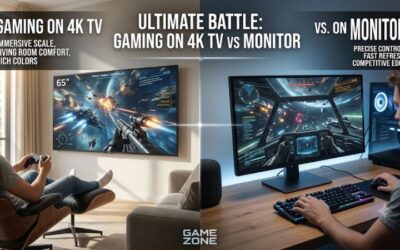
A television can give your desktop PC a much larger screen for gaming, streaming, multitasking, and everyday work, but choosing the wrong model can make text look blurry and mouse movements feel sluggish. The best small tv to use as computer monitor should combine a manageable screen size, native 4K resolution, reliable chroma 4:4:4 support, and low input lag. For most buyers, 42-inch and 43-inch televisions offer the most practical balance between desktop usability and entertainment features. The LG C6 OLED is the strongest premium starting point, while the Vizio Mini LED Quantum 4K is worth considering if you prioritize a more affordable LCD alternative.
- Quick verdict: Best small TV should you use as a computer monitor?
- Quick comparison: The best compact TVs for PC setups
- How we selected the best small TV to use as a computer monitor
- Best overall: LG C6 OLED 42-inch
- Best OLED alternative for brighter rooms: Samsung S90H 42-inch
- Best everyday entertainment TV: Sony BRAVIA 3 II 43-inch
- Best budget-oriented LCD: Vizio Mini LED Quantum 4K 43-inch
- Best basic 43-inch option: Hisense QD6QF
- Buying guide: How to choose a small TV for your computer
- How to set up the best small TV to use as a computer monitor
- Frequently asked questions
- Final verdict: Which small TV should you buy for your computer?
Quick verdict: Best small TV should you use as a computer monitor?
The LG C6 OLED is the leading choice if you want a compact television that can also function as a high-refresh-rate PC gaming display. Its 42-inch size, 4K resolution, 165Hz native refresh rate, and HDMI 2.1 connectivity make it particularly attractive for powerful desktop systems. However, OLED subpixel characteristics mean it is not automatically the best option for someone who spends every working hour reading small text.
For a more affordable alternative, the Vizio Mini LED Quantum 4K provides a 43-inch 4K LCD display with a 60Hz native refresh rate. It sacrifices high-refresh-rate 4K gaming, but its conventional RGB-oriented desktop presentation is worth considering if text clarity and general productivity matter more than competitive gaming.
There is an important limitation to this category: genuinely small televisions with strong computer-monitor capabilities are uncommon. RTINGS’ 2026 research focuses its PC-monitor TV recommendations on models with appropriate gaming and desktop features, while its 40–43-inch category highlights the limited number of current choices. A shortlist should therefore prioritize verified suitability instead of forcing eight products into a category with too few qualified candidates.
Quick comparison: The best compact TVs for PC setups
| TV model | Best for | Resolution and refresh rate | Main advantage | Main drawback |
|---|---|---|---|---|
| LG C6 OLED 42-inch | Best overall | 4K, 165Hz | Excellent gaming performance | OLED text limitations |
| Samsung S90H OLED 42-inch | Best for brighter rooms | 4K, up to 165Hz VRR | Matte OLED screen | WOLED text characteristics |
| Sony BRAVIA 3 II 43-inch | Best everyday entertainment | 4K, 120Hz | Google TV and versatile connectivity | Less gaming-focused than premium OLED |
| Vizio Mini LED Quantum 4K 43-inch | Best budget-oriented LCD | 4K 60Hz | Local dimming and 4:4:4 support | No 4K 120Hz |
| Hisense QD6QF 43-inch | Best basic streaming TV | 4K, 60Hz | Simple 4K desktop and entertainment setup | Entry-level picture and gaming features |
These are five distinct candidates rather than eight artificially expanded recommendations. Their specifications and suitability differ enough to serve identifiable buyer groups, but not every model is equally suitable for long desktop sessions.
How we selected the best small TV to use as a computer monitor
The main selection criteria were native resolution, screen size, PC connectivity, text clarity, refresh rate, input lag, and the compromises associated with each display technology. A television designed primarily for movies can look excellent from a couch but perform less convincingly when placed two feet from a keyboard.
The first requirement was a native 4K panel. At 42–43 inches, 3840 × 2160 gives a substantially more detailed desktop than 1080p. It also provides enough pixels for multiple application windows, browser tabs, spreadsheets, and gaming interfaces without making individual pixels excessively noticeable at a normal viewing distance.
The second requirement was proper chroma 4:4:4 support. This matters because a PC sends small colored text, interface elements, and sharp edges that can become less defined when the television uses chroma subsampling. RTINGS specifically tests 4K 60Hz and 4K 120Hz 4:4:4 formats to determine whether televisions preserve PC text correctly.
The third requirement was practical gaming performance. HDMI 2.1, variable refresh rate (VRR), Auto Low Latency Mode (ALLM), and a high native refresh rate can improve the experience considerably. However, a television advertising a 120Hz or 144Hz gaming mode does not necessarily support that refresh rate at native 4K.
We also considered panel technology and the environment in which the display will be used. OLED provides excellent contrast and response times, but it has potential burn-in concerns and nonstandard subpixel arrangements. LCD televisions can be more practical for static desktop interfaces, depending on their panel structure and image processing.
Finally, we considered the actual size of each model. A 42-inch television can still occupy a substantial amount of desk space. The shortlist therefore focuses on models around 42–43 inches, with an emphasis on practical desktop placement rather than simply selecting the smallest television available.
Best overall: LG C6 OLED 42-inch
The LG C6 OLED 42-inch is the strongest all-around choice for someone who wants a television that can double as a premium PC gaming monitor. It combines a compact television format with 4K resolution, OLED contrast, and a 165Hz native refresh rate. Its gaming features make it especially appealing to owners of modern desktop graphics cards.
The main reason to choose this model is its combination of gaming responsiveness and picture quality. OLED pixels produce their own light, allowing individual pixels to turn off completely. This gives the C6 excellent black levels and strong contrast in dark games, movies, and applications. It is particularly attractive for atmospheric single-player games where shadow detail and cinematic presentation matter.
RTINGS’ independent testing confirms that the C6 supports common PC resolutions up to 4K at 165Hz, including chroma 4:4:4. This is important because it allows a compatible graphics card to send a full-color-resolution desktop signal rather than sacrificing fine text detail through chroma subsampling. The review also reports full 48Gbps HDMI 2.1 bandwidth across all four HDMI ports.
The measured input lag is another important advantage. RTINGS reports 21.9ms at 4K 60Hz, 13.6ms at 4K 120Hz, and 4.9ms at 4K 165Hz using its specified Game Optimizer and PC input configuration. These are third-party measurements, not results from our own testing. They also demonstrate why the selected resolution and refresh rate matter when comparing television responsiveness.
The four HDMI 2.1 ports give the C6 enough flexibility for a gaming desktop, console, and additional entertainment devices. VRR support helps synchronize the screen’s refresh behavior with a compatible graphics card, reducing tearing when frame rates fluctuate.
However, the C6 is not perfect for productivity. Its WOLED panel uses a nonstandard subpixel arrangement, and Windows ClearType is not optimized perfectly for every such layout. Even though 4:4:4 is supported, small text can show color fringing compared with a conventional RGB computer monitor. This is especially relevant for programmers, writers, and spreadsheet-heavy users who spend long hours reading fine text.
OLED also requires sensible desktop habits. Static taskbars, application windows, and other interface elements can remain in the same position for hours. Screen protection features help manage the risk, but they do not make burn-in impossible.
Another consideration is brightness. The 42-inch version is less suitable for a room with strong direct sunlight than a bright LCD television. Its glossy screen can also reflect windows and lamps.
Buy If:
-
You want a premium 42-inch 4K gaming display.
-
Your graphics card can take advantage of high-refresh-rate HDMI output.
-
You watch movies and play games in a moderately lit room.
-
Deep blacks and fast pixel response matter more than perfect office text rendering.
Skip If:
-
You spend most of the day reading documents or writing code.
-
You regularly leave static applications open for extended periods.
-
Your room has strong sunlight or uncontrolled reflections.
-
You do not need high-refresh-rate gaming.
For a powerful PC setup, the C6 is the most compelling recommendation in this roundup. It makes more sense as a combined gaming and entertainment display than as a dedicated office monitor.
Best OLED alternative for brighter rooms: Samsung S90H 42-inch
The Samsung S90H OLED is a strong alternative if you want a compact OLED television with a different approach to screen reflections. Its matte screen coating is one of its most distinctive characteristics, making it worth considering for rooms where reflections are a persistent problem.
The 42-inch version offers a native 4K panel, while Samsung’s 2026 S90H range advertises high-refresh-rate VRR gaming capabilities. The exact US model should be checked before purchase because specifications and panel characteristics can differ between regions and screen sizes.
RTINGS identifies the North American S90H as a WOLED television rather than the QD-OLED technology used by some earlier regional or previous-generation variants. Its review also highlights the matte coating, which was previously associated with Samsung’s flagship OLED televisions. This distinction matters because buyers should not assume that every S90-series television uses the same panel technology.
For PC users, the matte finish is the most immediately noticeable potential advantage. A glossy television can reflect a bright window or desk lamp directly into the viewing area. A matte surface can diffuse these reflections, making the display easier to view in certain environments.
However, matte does not automatically mean better image quality. Depending on the lighting conditions, a matte coating can reduce perceived contrast and make the picture look less crisp than a glossy screen. OLED’s ability to produce deep blacks remains valuable, but the surrounding environment still influences the final viewing experience.
Gaming is another reason to consider the S90H. Its high-refresh-rate VRR capabilities make it more appropriate for modern gaming PCs than basic 60Hz televisions. Players can benefit from smoother motion when their graphics cards consistently deliver higher frame rates.
Nevertheless, the 42-inch model should be evaluated separately from larger S90H versions. A manufacturer’s advertised refresh-rate range does not guarantee identical performance across every size. Confirm the precise US model number, native refresh rate, supported HDMI modes, and chroma behavior before ordering.
Like the LG C6, this television has OLED-related concerns. Its WOLED subpixel arrangement may not provide the same small-text clarity as a conventional RGB LCD panel. Static desktop content also creates a different long-term usage pattern from typical television viewing.
The lack of Dolby Vision is another limitation worth knowing. Samsung does not include this HDR format on its televisions, although HDR10 and other supported HDR formats remain available. This matters more to movie enthusiasts than to ordinary Windows desktop users.
Buy If:
-
You want a 42-inch OLED television with a matte finish.
-
Reflections are a concern in your workspace.
-
You prioritize gaming, movies, and general entertainment.
-
You prefer Samsung’s Tizen smart-TV ecosystem.
Skip If:
-
You need the clearest possible small text for office work.
-
You prefer glossy OLED presentation.
-
Dolby Vision support is essential.
-
You cannot verify the exact 42-inch US specification.
The S90H is best treated as an alternative to the LG C6, not an automatic upgrade. Its matte finish can be useful, but the LG remains the more straightforward recommendation when its tested PC gaming capabilities are the deciding factor.
Best everyday entertainment TV: Sony BRAVIA 3 II 43-inch
The Sony BRAVIA 3 II is a sensible choice for buyers who want a small television for everyday computer use, streaming, and occasional gaming. Its 43-inch screen is large enough for entertainment but remains within the compact TV category. Unlike the premium OLED recommendations, it uses a conventional LCD panel.
Sony specifies a native 4K resolution of 3840 × 2160 and a 120Hz panel refresh rate for the K-43XR30M2. It also supports HDMI 2.1-related features, including 4K 120Hz, VRR, ALLM, and eARC. These capabilities make it more versatile than a basic 60Hz television when connected to a compatible PC or console.
One advantage is its Google TV platform. You can use the television independently for streaming services and entertainment without needing to keep your computer running. This is useful in a bedroom, dorm room, or compact home office where a single screen needs to handle multiple tasks.
Sony also provides dedicated picture modes, including Game and Professional modes. These give users more flexibility when switching between entertainment and desktop content. The 120Hz panel is particularly relevant for games that benefit from smoother motion, although it does not offer the 165Hz ceiling of the premium LG C6.
The television also includes four HDMI inputs, which is useful if you want to connect a desktop, laptop dock, console, and streaming device without repeatedly changing cables. VRR and ALLM provide additional convenience for gaming setups.
There are still important limitations. Sony’s official specification page identifies the television as an LCD model with direct LED backlighting and frame dimming. It is not an OLED or a premium full-array local-dimming television. Consequently, buyers should not expect the same black levels or dark-room contrast as the C6 or S90H.
The most important consideration for computer users is text handling. Although the official specifications establish its resolution and supported video modes, they do not independently establish every chroma 4:4:4 behavior or measured input-lag result for the exact PC configuration. Buyers who spend long hours working with small fonts should check independent measurements before treating it as a dedicated desktop replacement.
The BRAVIA 3 II is therefore a balanced entertainment-oriented option rather than a specialist gaming television. It makes sense when streaming, console compatibility, and ordinary desktop tasks are equally important.
Buy If:
-
You want a 43-inch television for a bedroom or small office.
-
Google TV and streaming features are important.
-
You need several HDMI inputs.
-
You play games but do not require the highest available refresh rate.
Skip If:
-
You want OLED-level contrast.
-
Your primary use is competitive PC gaming.
-
You require independently confirmed 4:4:4 performance for professional desktop work.
-
You expect premium local-dimming HDR performance.
The Sony BRAVIA 3 II is a good candidate for mixed entertainment use, but it is not the first television I would choose for a demanding gaming workstation.
Best budget-oriented LCD: Vizio Mini LED Quantum 4K 43-inch
The Vizio Mini LED Quantum 4K is an interesting option for buyers who want a 43-inch television without paying premium OLED prices. Its conventional LCD technology makes it worth considering for everyday desktop use, while its 4K resolution gives it enough pixel density for a large Windows workspace.
The 43-inch VQM43C-1001 uses an IPS panel and supports native 4K at 60Hz. It also supports 1080p at 120Hz, although this should not be confused with 4K 120Hz gaming. The distinction is important for PC owners who expect to use a high-end graphics card at the television’s full native resolution.
RTINGS independently researched the Vizio Mini LED Quantum 4K and confirmed that its 4K 60Hz and supported 1080p 120Hz formats display chroma 4:4:4 correctly. This is a useful characteristic for desktop users because it helps preserve small text and fine colored edges. Its 4K gaming performance is nevertheless limited by the 60Hz ceiling.
The Mini LED backlight and local dimming also give this model a more interesting picture presentation than a basic entry-level LED television. Local dimming adjusts different backlight areas to improve contrast, particularly in scenes containing both bright and dark content.
However, the 43-inch model has an important specification distinction. RTINGS identifies it as an IPS variant, while larger sizes in the same product family can use different panel types. Therefore, do not assume that the contrast, viewing angles, or panel behavior of a 65-inch review sample apply identically to the 43-inch model.
For productivity, 4K 60Hz is adequate for browsing, document editing, spreadsheets, video playback, and general desktop navigation. It is also a reasonable choice for casual gaming when smooth 60fps gameplay is sufficient.
Competitive gamers may find the limitations more noticeable. A 60Hz 4K ceiling does not provide the same motion smoothness as a 120Hz or 165Hz television. Although the Vizio supports 1080p 120Hz, switching to that resolution reduces desktop sharpness.
The smart-TV experience is another compromise. Vizio OS includes popular streaming applications, but RTINGS describes the platform as having a more limited application selection than some competitors. It is functional rather than especially sophisticated.
Buy If:
-
You want a 43-inch 4K LCD television.
-
You prioritize everyday desktop clarity over high refresh rates.
-
You want local dimming and HDR entertainment features.
-
You mostly work, browse, watch videos, and play casual games.
Skip If:
-
You need native 4K 120Hz or 144Hz gaming.
-
Your desktop requires an advanced smart-TV platform.
-
You expect premium HDR performance.
-
You are comparing it with OLED models primarily for black levels.
The Vizio is a practical option when its 43-inch size, 4K resolution, and 4:4:4 support matter more than high-refresh-rate gaming. Its limitations are straightforward, which makes it easier to evaluate against more expensive televisions.
Best basic 43-inch option: Hisense QD6QF
The Hisense QD6QF is worth considering if your computer setup needs a straightforward 4K television for basic work and entertainment. It does not offer the premium gaming capabilities of the LG or Samsung OLED models, but its 43-inch configuration provides a useful alternative for buyers who do not need advanced refresh-rate features.
RTINGS identifies the 43QD6QF as part of a product family with a native 60Hz refresh rate and four HDMI 2.0 inputs. Its tested QD6QF review describes an entry-level 4K LCD television with Fire TV, basic VRR support, and no HDMI 2.1 bandwidth. The 43-inch version shares the core specifications covered by that review.
RTINGS.com+1
For desktop use, its main advantage is the combination of 4K resolution and a relatively simple feature set. You can connect a desktop PC or laptop through HDMI and use the screen for browsing, document editing, streaming, and general applications.
The Fire TV interface is convenient for people who also want a standalone entertainment device. You can switch between PC input and streaming applications without needing a separate media player.
However, this television should not be mistaken for a high-end gaming display. Its HDMI 2.0 connectivity and 60Hz refresh rate restrict the range of high-bandwidth gaming modes available. A desktop graphics card capable of producing more than 100 frames per second will not translate those frames into a 120Hz 4K television signal.
The QD6QF is also an entry-level LCD rather than a premium Mini LED or OLED model. Buyers should keep expectations realistic regarding black levels, HDR impact, and advanced local dimming.
One issue deserves particular attention: independent verification of 4:4:4 text rendering at the exact resolution and refresh rate you intend to use. A 4K specification alone does not guarantee that every PC input configuration will preserve desktop text perfectly. Check the television’s PC mode and supported signal formats before relying on it for text-intensive work.
This model is best suited to users who want a larger screen for basic productivity and entertainment rather than competitive gaming or color-critical professional work.
Buy If:
-
You want a relatively simple 43-inch 4K smart TV.
-
Your PC usage involves browsing and everyday applications.
-
You value Fire TV integration.
-
You primarily play casual games at 60fps or below.
Skip If:
-
You need HDMI 2.1 bandwidth.
-
You want 4K 120Hz gaming.
-
You work professionally with color-critical images.
-
You need proven desktop text performance without additional configuration.
The Hisense QD6QF is an entry-level alternative, not a direct competitor to the C6 or S90H. It makes sense only when its basic capabilities match your actual computer usage.
Buying guide: How to choose a small TV for your computer
Choosing the right television requires more than comparing screen sizes and advertised refresh rates. A television that works well for movies may not be comfortable for reading documents at a desk. The following factors are especially important when shopping for a compact PC display.
Choose the right screen size and viewing distance
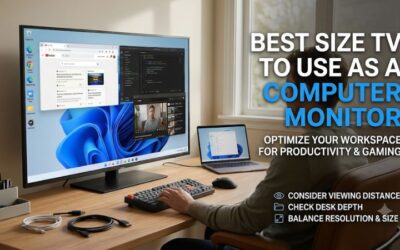
A 42-inch or 43-inch television is significantly larger than a conventional 24-inch or 27-inch desktop monitor. Before purchasing one, measure the available desk width and determine how far your eyes will be from the screen.
A 42-inch 16:9 display is approximately 36.6 inches wide before accounting for its bezel and stand. A 43-inch model is slightly wider. This means it can easily dominate a shallow desk.
For a traditional desktop setup, a viewing distance around 3–4 feet is a reasonable starting point, although comfort depends on eyesight, scaling, and personal preference. You may need a deeper desk or a wall mount to position the television properly.
A television that looks impressive from a couch can feel overwhelming when placed directly in front of a keyboard. Make sure you can see the entire screen without repeatedly turning your head.
Prioritize native 4K resolution
For a 42–43-inch computer display, 4K is strongly preferable to 1080p.
The difference becomes particularly noticeable when reading text, using multiple application windows, or viewing detailed images. A 4K television provides 3840 × 2160 pixels, giving Windows substantially more desktop detail than a Full HD model.
A 1080p television may still work for casual media consumption, but it is a poor compromise for a large desktop display. Individual pixels become more noticeable at close range, and small text can appear less refined.
Do not confuse upscaling with native resolution. A television may advertise advanced 4K upscaling, but that does not mean its panel has a native 4K pixel structure. Always verify the actual display resolution.
Check chroma 4:4:4 before buying
Chroma 4:4:4 is one of the most important specifications for a television used with a computer.
Video signals can reduce color information through chroma subsampling. This is often acceptable for movies because viewers are generally less sensitive to small color differences in moving images. However, desktop interfaces contain small colored text and sharp boundaries that can become blurry when color information is reduced.
A television with proper 4:4:4 support preserves the full chroma information required for sharper PC text. Some manufacturers require users to enable PC input mode or a specific HDMI bandwidth setting.
For example, LG uses HDMI Deep Color settings on supported televisions, while Samsung uses Input Signal Plus. Exact menu names vary by model and generation.
When the television arrives, connect your computer and display a chroma test pattern. Check small colored text against contrasting backgrounds, then confirm that Windows is outputting the intended native resolution.
Understand HDMI 2.0 versus HDMI 2.1
HDMI bandwidth determines which combinations of resolution, refresh rate, and color format the television can accept.
HDMI 2.0 is generally sufficient for 4K at 60Hz. This is appropriate for basic productivity, browsing, and casual gaming.
HDMI 2.1 provides the bandwidth needed for common 4K 120Hz gaming configurations. Some televisions also support higher refresh rates such as 144Hz or 165Hz, depending on their specifications and implementation.
However, the HDMI version printed in a retailer listing is not enough. Check the exact port capabilities and supported resolution combinations. A television may have multiple HDMI inputs but only specific configurations may support the highest refresh rates.
Your graphics card must also support the required HDMI output. A compatible television cannot create a high-refresh-rate signal that the PC cannot provide.
Consider OLED versus LCD
OLED and LCD technologies have different advantages for computer users.
OLED is particularly attractive for gaming and entertainment. It delivers excellent black levels, high contrast, and very fast pixel response. These qualities make games and movies look impressive, particularly in darker rooms.
However, OLED panels can experience permanent image retention under certain usage conditions. A desktop interface that remains static for many hours creates a different usage pattern from television viewing.
LCD televisions avoid the same organic-pixel burn-in mechanism, making them attractive for users who keep static windows open throughout the day. Their limitations include less consistent black levels, possible backlight blooming, and differences in viewing angles.
The best technology depends on how you use your computer. A gamer who watches movies after work may prefer OLED, while someone who spends eight hours reading documents may find an LCD display more practical.
Check refresh rate and input lag separately
Refresh rate describes how frequently the display updates its image. Input lag describes the delay between a source sending an image and the television displaying it.
These are related to gaming responsiveness but are not interchangeable.
A 60Hz television can be perfectly adequate for office applications and casual gaming. A 120Hz or 165Hz model is preferable for fast-paced games when the graphics card can deliver the necessary frame rates.
Input lag also depends on picture mode and signal configuration. Game Mode generally reduces processing delays by disabling certain image enhancements.
For example, RTINGS measures television input lag at multiple combinations of resolution and refresh rate rather than relying on a single manufacturer advertising figure. This is a more useful way to evaluate PC gaming suitability.
Think about brightness and reflections
A computer display is often used in a different lighting environment from a living-room television.
If your desk faces a window, a glossy OLED screen may reflect bright objects and become uncomfortable. A matte screen can help diffuse reflections, although the coating itself may affect perceived image clarity.
Brightness also matters. A television that looks excellent in a dark room may struggle when sunlight enters directly through a nearby window.
Consider your lighting conditions before choosing a panel. Avoid placing the television opposite an uncovered window, and use adjustable lighting to reduce reflections.
Plan the mounting and cable arrangement
A 42–43-inch television needs a stable mounting solution. Its original stand may be too deep for a compact desk, so a VESA-compatible wall mount or heavy-duty monitor arm can be useful.
Check the exact VESA pattern, supported weight, and mounting clearance before purchasing accessories. Do not assume that a television will fit an existing monitor arm simply because the arm supports a similar screen size.
Also consider cable placement. HDMI ports may face sideways or toward the rear, making access difficult when a television is wall-mounted close to the wall.
A longer certified HDMI cable may be necessary depending on the distance between the PC and television. Avoid buying an inexpensive cable that cannot reliably carry the required bandwidth.
Finally, consider a separate keyboard, mouse, and audio solution. Television speakers are convenient, but their placement may not provide the same near-field experience as dedicated desktop speakers or headphones.
How to set up the best small TV to use as a computer monitor
Even a high-quality television can look disappointing when connected to a PC with incorrect display settings. A few adjustments can improve text clarity, reduce unnecessary processing, and make the screen more comfortable for everyday work.
Enable PC mode and Game Mode
Start by connecting your computer to an appropriate HDMI port. Open the television’s input settings and identify the connected port as a PC when that option is available.
PC mode can help the television process desktop signals correctly, including chroma 4:4:4. Game Mode is useful when playing games because it reduces image-processing delays.
Some televisions allow you to use PC input labeling and Game Optimizer simultaneously. Others require you to choose between specific picture presets. Check the manufacturer’s instructions for your exact model.
Set the correct resolution and refresh rate
Open Windows Settings, select System, and navigate to Display. Choose your television and verify that its resolution is set to 3840 × 2160.
Next, open Advanced Display and select an available refresh rate. The available options depend on the television, HDMI cable, graphics card, and active input configuration.
Do not assume that selecting 165Hz is always better. If your television supports 4K 120Hz but not 4K 165Hz through your current connection, choose the highest stable mode at native resolution.
For productivity, a stable 60Hz connection is generally sufficient. For gaming, 120Hz or higher can make movement look smoother when the computer can maintain suitable frame rates.
Adjust Windows scaling and text settings
A 42-inch 4K television provides a large desktop workspace, but its physical pixel density differs from that of a smaller monitor.
Windows scaling helps make interface elements easier to read. Depending on viewing distance and eyesight, 125%, 150%, or 175% scaling may be more comfortable than 100%.
Enable ClearType and follow its calibration process. This can improve font rendering on supported displays, although it cannot completely eliminate issues caused by unusual OLED subpixel arrangements.
Avoid increasing the television’s sharpness setting excessively. Artificial sharpening can introduce halos around text and make the desktop look worse rather than better.
Disable unnecessary image processing
Televisions often include picture enhancements designed for broadcast television and streaming video. These features may not be helpful for a PC desktop.
Start with the following adjustments:
-
Turn off motion interpolation when using the computer.
-
Disable excessive noise reduction for native PC content.
-
Use Game Mode when responsiveness matters.
-
Select the appropriate RGB or PC color range.
-
Confirm that HDR is enabled only when supported and useful.
-
Avoid overscan so that the entire desktop remains visible.
The goal is to display the computer’s signal as accurately as possible rather than allowing the television to modify every image.
Frequently asked questions
Is a 32-inch TV better than a 43-inch TV for computer use?
Not necessarily. A 32-inch television takes up less space, but many models in this category have lower resolutions or fewer advanced gaming features. A 43-inch 4K television can provide more desktop space and better gaming capabilities.
If you specifically need a 32-inch screen, consider a dedicated 4K computer monitor instead. It may provide better text clarity, ergonomic adjustment, and connectivity than a television at the same size.
Can I use a small TV as a computer monitor every day?
Yes. A suitable 4K television can handle everyday computing, including web browsing, office applications, video editing, and gaming.
However, you should consider viewing distance, text clarity, screen brightness, and panel technology. OLED owners should also use available screen-protection features and avoid unnecessarily displaying static images for extended periods.
Is a 4K TV good for reading text?
A 4K television can display detailed text, but native resolution alone does not guarantee excellent desktop readability.
Chroma 4:4:4 support, subpixel arrangement, PC mode, and Windows scaling all influence the final result. Conventional RGB LCD panels can be particularly attractive for text-heavy applications.
Does a TV need HDMI 2.1 to work as a PC monitor?
No. HDMI 2.1 is not necessary for basic computer use. HDMI 2.0 can handle 4K at 60Hz, which is sufficient for browsing, documents, and many everyday applications.
HDMI 2.1 becomes more important when you want 4K at 120Hz or higher, provided the television and graphics card support the required modes.
Can I connect a laptop to a 42-inch television?
Yes. Most modern laptops with HDMI output can connect directly to a compatible television. If your laptop only has USB-C video output, you may need a USB-C-to-HDMI adapter or dock.
Check the adapter’s supported resolution and refresh rate. Some inexpensive adapters are limited to 4K 30Hz, which can make desktop movement feel less responsive.
Does a TV have more input lag than a computer monitor?
Not always. Modern gaming televisions can offer low input lag when Game Mode is enabled. However, performance varies considerably by model, resolution, and refresh rate.
Dedicated gaming monitors generally provide more predictable desktop-oriented connectivity and can offer very high refresh rates. Compare independent measurements rather than assuming every television is slow.
Should I buy a TV or a dedicated 4K monitor?
Choose a television if you want a large screen for movies, streaming, console gaming, and PC gaming. A dedicated monitor is generally preferable for close-range productivity, ergonomic adjustments, and professional desktop workflows.
A 32-inch 4K monitor may be a better purchase than a 42-inch television if your primary activity is reading, coding, or spreadsheet work.
Final verdict: Which small TV should you buy for your computer?
The LG C6 OLED 42-inch is the strongest overall recommendation for buyers who want a compact 4K television with excellent gaming capabilities. Its 165Hz refresh rate, HDMI 2.1 connectivity, VRR, and OLED contrast make it particularly attractive for high-performance gaming PCs.
The Samsung S90H is a compelling alternative if you prefer a matte OLED screen and want a television for both gaming and entertainment. The Sony BRAVIA 3 II is more suitable for mixed everyday use, especially when Google TV and multiple HDMI connections are priorities.
For buyers who want an LCD alternative, the Vizio Mini LED Quantum 4K 43-inch offers a practical combination of 4K resolution and 4:4:4 support, although its 60Hz 4K limitation makes it less attractive for demanding gaming. The Hisense QD6QF is a more basic option for streaming and everyday desktop applications.
Ultimately, the right purchase depends on how much time you spend working versus gaming. If text clarity is your highest priority, compare these televisions against dedicated 32-inch 4K monitors before spending your money. If entertainment and gaming matter just as much as desktop use, a well-configured 42-inch OLED television can be an excellent centerpiece for a compact PC setup.