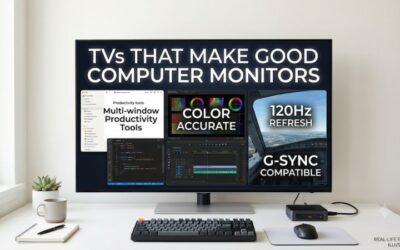
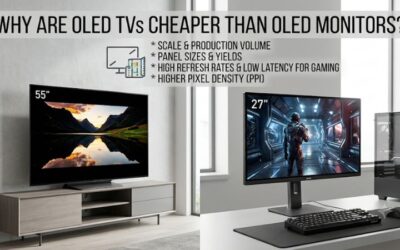
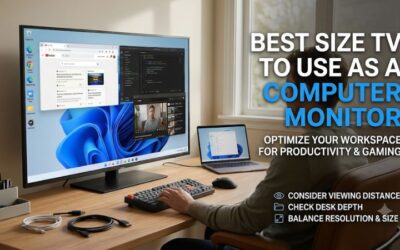
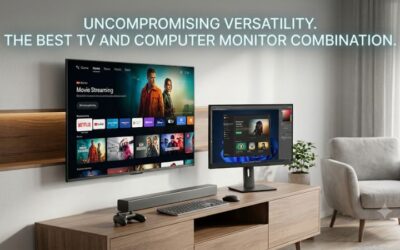
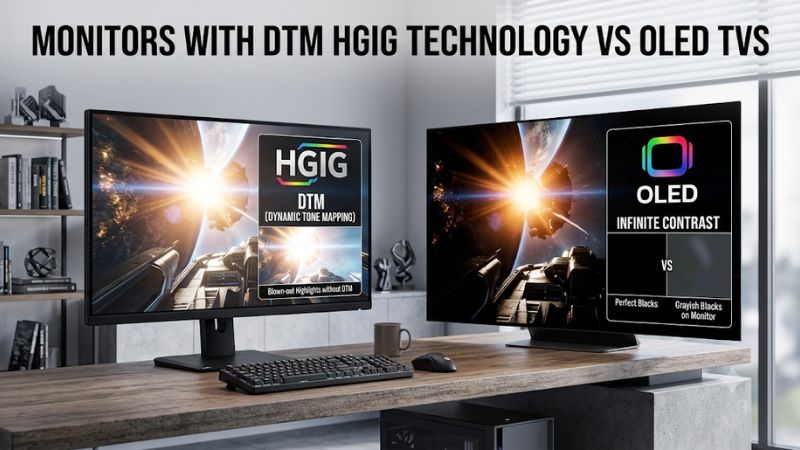
Choosing between monitors with DTM HGiG technology vs OLED TVs can be confusing because these terms describe different aspects of display performance. DTM (Dynamic Tone Mapping) and HGiG (HDR Gaming Interest Group) relate to HDR brightness processing and gaming calibration, while OLED describes a panel technology. They are not direct competitors. For competitive PC gaming and desktop productivity, a dedicated gaming monitor often makes more sense; for cinematic gaming, deep blacks, and large-screen entertainment, an OLED TV can be the better investment. Understanding how HDR tone mapping works is the key to choosing correctly.
- DTM and HGiG monitors vs OLED TVs: the quick answer
- What DTM, HGiG, and OLED actually mean
- DTM and HGiG monitors vs OLED TVs: side-by-side comparison
- HDR gaming monitors vs OLED TVs: where each performs better
- How to calibrate DTM and HGiG for PC and console gaming
- DTM and HGiG monitors vs OLED TVs: which should you buy?
- Frequently asked questions
- Final verdict
DTM and HGiG monitors vs OLED TVs: the quick answer
The most important distinction is that DTM, HGiG, and OLED do not represent three competing display technologies. DTM is an image-processing technique, HGiG is an industry group’s guidance for more consistent HDR gaming behavior, and OLED is a display-panel technology.
A television can use an OLED panel and offer both Dynamic Tone Mapping and an HGiG setting. LG’s OLED televisions are a familiar example: their Game Optimizer includes tone-mapping compensation options that allow compatible gaming sources to use HGiG behavior instead of the TV’s additional dynamic processing.
A gaming monitor can also support HDR tone mapping without advertising a dedicated HGiG mode. On Windows PCs, the graphics pipeline and display communicate HDR capabilities, and the GPU performs important tone-mapping work before the final desktop image is composed. Consequently, comparing a monitor’s HDR processing with an OLED television’s HGiG setting requires looking at the complete signal path, not just the marketing terminology.
Here is the practical recommendation:
-
Choose a dedicated gaming monitor when you prioritize high refresh rates, low input lag, a compact desk-friendly screen, and precise desktop text.
-
Choose an OLED TV when you want excellent black levels, per-pixel contrast, immersive HDR gaming, and a larger screen for both PC and console entertainment.
-
Prefer HGiG when you want compatible HDR games to follow the display’s calibrated brightness limits without unnecessary additional television tone mapping.
-
Consider DTM when you prefer a brighter-looking HDR presentation and accept that the television may alter the game’s original brightness distribution.
The best choice depends on the display’s actual HDR performance, brightness, contrast, refresh rate, and calibration—not simply whether its specification sheet mentions DTM or HGiG.
What DTM, HGiG, and OLED actually mean
Dynamic Tone Mapping (DTM) explained
Dynamic Tone Mapping is a processing technique that adjusts the brightness and tonal distribution of HDR images to better fit a display’s capabilities. An HDR movie or game can contain highlights mastered at brightness levels that a particular television or monitor cannot reproduce. Tone mapping manages those differences to prevent excessive clipping and preserve as much visible detail as possible.
For example, imagine a game with a bright explosion, a dark building, and a sunlit landscape. The source content may contain highlights above the display’s peak brightness. Without appropriate tone mapping, the brightest details can become clipped, making several different highlight levels appear similarly white.
DTM can adjust the image dynamically, helping the display preserve visible gradations while making the overall image appear brighter or more impactful. The exact implementation varies by manufacturer. Some systems analyze scenes, while others adjust image characteristics through different processing algorithms.
However, DTM is not automatically more accurate. A television that aggressively increases brightness may make HDR games look more vivid, but it can also change the contrast and brightness balance intended by the game developer.
RTINGS demonstrates this difference in its 2026 LG C6 OLED review. In its testing, enabling Dynamic Tone Mapping increased brightness in several real-scene HDR measurements, but the resulting image was less accurate than the reference presentation with DTM disabled. This illustrates why brighter is not necessarily better when evaluating HDR quality.
It is also important not to confuse DTM with dynamic HDR metadata. DTM describes how the display processes brightness and tonal information. Dynamic metadata formats such as Dolby Vision and HDR10+ provide changing scene-level or frame-level instructions within the HDR signal. They are related to HDR reproduction but are not interchangeable technologies.
HGiG explained: what it does for HDR gaming
HGiG stands for HDR Gaming Interest Group. It is an industry group involving companies from the game and television display industries. Its purpose is to develop guidelines and recommended practices for improving HDR gaming consistency between content, gaming platforms, and displays.
One important distinction is that HGiG does not certify individual televisions or monitors. Its official website specifically clarifies that HGiG Mode is not a product function defined by its guidelines. The group also states that it is not a standardization body and does not license or enforce technologies. Therefore, a television advertised as having an HGiG mode should not be described as possessing an officially certified HGiG display technology.
In practical use, manufacturers may provide an HGiG option that changes how the television handles HDR gaming signals. On supported LG televisions, for example, the feature appears under Game Optimizer’s Tone Mapping Compensation settings.
When selected, the television avoids the additional brightness manipulation associated with its regular tone-mapping-on setting, allowing the game or connected platform’s calibration to determine how HDR brightness is presented.
The result can look darker than the television’s regular Dynamic Tone Mapping setting. This is expected rather than necessarily indicating a problem. LG specifically advises users that the HGiG selection may appear darker than Tone Mapping On and recommends comparing the available settings according to preference and viewing conditions.
For console gaming, this approach can be particularly useful when the console and game support appropriate HDR calibration. The goal is to prevent the display and source from independently altering brightness in ways that cause highlights to clip or dark details to disappear.
HGiG-style behavior is therefore more about consistency and avoiding unnecessary processing than making every HDR scene appear brighter.
OLED is a panel technology, not an HDR setting
OLED stands for Organic Light-Emitting Diode. Unlike conventional LCD televisions and monitors, OLED pixels produce their own light instead of depending on a shared backlight.
This fundamental difference gives OLED displays several advantages for HDR content. Individual pixels can turn off completely, creating exceptionally deep blacks and precise local contrast. A bright object against a dark background can therefore remain clearly defined without the backlight blooming associated with many LCD displays.
OLED also offers very fast pixel transitions, which are useful in fast-paced games. Because each pixel controls its own light output, the panel can change the appearance of moving objects without the same backlight-related response limitations found in some LCD panels.
There are two major OLED families worth understanding when comparing monitors and televisions.
WOLED uses white OLED emission with color filters and additional subpixel arrangements to produce the final image. QD-OLED combines blue OLED light with quantum-dot conversion to produce red and green output. Both can deliver OLED-level black performance, but brightness behavior, color volume, and subpixel layout differ.
A monitor can be OLED, and an OLED television can support DTM and HGiG-related settings. There is no technical reason to treat these categories as mutually exclusive.
The distinction becomes especially important when comparing a premium 27-inch QD-OLED gaming monitor with a 42-inch WOLED television. Both may deliver superb black levels, but their size, processing, refresh-rate options, image characteristics, and PC connectivity can be quite different.
DTM and HGiG monitors vs OLED TVs: side-by-side comparison
The following comparison separates the HDR-processing approach from the physical display technology. It is not a comparison between a certified DTM/HGiG monitor category and an OLED panel category, because no such standardized product classes exist.
| Comparison factor | HDR gaming monitors | OLED TVs with DTM/HGiG options |
|---|---|---|
| Primary purpose | Desktop gaming and PC use | Gaming, movies, and entertainment |
| Tone mapping | Depends on monitor and source | Often includes manufacturer-controlled processing |
| HGiG | Can use HGiG-recommended calibration practices; HGiG Mode is not a defined certification | Some models offer a manufacturer-labeled HGiG option |
| Black levels | Excellent on OLED; varies on LCD | Excellent on OLED |
| HDR brightness | Varies substantially by panel and model | Can offer advanced scene processing, but varies by model |
| Refresh rate | Often 144Hz–360Hz or higher | Commonly 120Hz–165Hz on gaming-focused models |
| Input lag | Often optimized for competitive PC gaming | Modern gaming TVs can also offer low input lag |
| Screen size | Typically 24–49 inches | Commonly 42–83 inches or larger |
| PC connectivity | DisplayPort and HDMI, depending on model | Primarily HDMI, with USB-C on selected models |
| Desktop ergonomics | Generally better | Requires more space and careful positioning |
| Burn-in concerns | Applies to OLED monitors | Applies to OLED TVs |
| Best use | Desk-based gaming and productivity | Large-screen gaming and entertainment |
A high-end OLED gaming monitor may outperform an ordinary OLED television in refresh rate, text density, and desktop convenience. Conversely, a premium OLED television may provide more sophisticated image processing and a better experience for cinematic games and movies.
The right comparison is therefore between complete display implementations, not between two unrelated marketing labels.
HDR gaming monitors vs OLED TVs: where each performs better
HDR brightness and highlight accuracy
Brightness is one of the biggest differences buyers should investigate before choosing a display.
A monitor may advertise HDR support without having sufficient brightness or contrast to produce a meaningful HDR experience. Basic HDR compatibility means the display can accept the signal, not that it can reproduce a convincing HDR image.
Premium gaming monitors generally fall into several categories. Basic IPS and VA displays may provide reasonable brightness but have limited contrast or insufficient local dimming. Mini-LED monitors add multiple local-dimming zones, improving contrast and allowing brighter HDR highlights. OLED monitors provide near-infinite native contrast but have limitations when displaying large bright areas.
OLED televisions follow similar physical principles. They can produce impressive small highlights against black backgrounds, but sustained full-screen brightness is often limited by panel behavior and automatic brightness limiting.
Independent RTINGS monitor measurements illustrate this trade-off. In its 175-monitor panel comparison, the average peak HDR brightness for a 2% window was approximately 845 cd/m² for WOLED and 1,010 cd/m² for QD-OLED, while full-screen results averaged approximately 192 cd/m² and 258 cd/m², respectively. These are group averages across different tested monitor models, not guarantees for a specific product.
A Mini-LED display can sometimes deliver considerably more full-screen brightness than an OLED model. This makes Mini-LED attractive for bright rooms, HDR sports, and scenes dominated by sunlight, snow, or other large bright areas.
However, high brightness does not automatically guarantee accurate HDR. The display still needs suitable tone mapping to preserve detail and avoid excessive highlight clipping.
Black levels and contrast
OLED has a clear advantage in black-level performance. Since individual pixels can switch off, the panel can display black areas without illuminating neighboring pixels.
This is especially noticeable in games with nighttime environments, dark interiors, and high-contrast lighting effects. A torch or neon sign can appear bright without creating a large illuminated halo across the surrounding dark areas.
LCD gaming monitors, including Mini-LED models, depend on backlighting. Local dimming can improve their contrast, but a backlight zone often covers multiple pixels. The display cannot always keep a tiny bright highlight illuminated without affecting nearby dark areas.
This can result in blooming, particularly around subtitles, white interface elements, and small highlights in otherwise dark scenes.
The difference between OLED and Mini-LED is not absolute in every HDR scene. A premium Mini-LED monitor can deliver excellent brightness and competitive HDR performance, especially in bright rooms. However, OLED remains especially compelling for dark-room contrast and precise control over individual highlights.
DTM and HGiG do not change this underlying hardware difference. They control how image brightness is mapped; they cannot turn an LCD panel into an emissive OLED display.
Refresh rate and motion handling
Dedicated gaming monitors generally offer more options for competitive refresh rates. Many premium models support 240Hz, 360Hz, or higher, which can be useful for esports players who have powerful graphics cards.
OLED televisions are becoming increasingly competitive. Some current gaming-focused models provide 120Hz, 144Hz, or 165Hz operation, making them suitable for a wide range of PC and console games.
Pixel response is another important factor. OLED technology typically has very fast pixel transitions, so both OLED televisions and OLED gaming monitors can offer excellent motion clarity.
A high refresh rate alone does not establish a gaming winner. You should also consider total input lag, pixel response, overshoot, VRR range, and the display’s performance at the exact resolution you plan to use.
For example, a 240Hz monitor running at 1440p can be more practical for competitive gaming than a 4K OLED TV operating at 120Hz. But for a single-player game played from a couch, a large OLED television may provide a more enjoyable experience.
Input lag, connectivity, and PC compatibility
A gaming monitor is usually designed around a computer-first connection and operating environment. Dedicated monitors commonly provide DisplayPort, HDMI, and sometimes USB-C, allowing users to connect desktops, laptops, and consoles with different requirements.
DisplayPort is particularly useful for PC gaming because it supports high-bandwidth display configurations on compatible graphics cards and monitors. HDMI is more important for televisions and console setups. Neither connection automatically guarantees better HDR quality; the exact interface version, available bandwidth, and supported display modes determine what you can use.
OLED televisions have made considerable progress in PC gaming connectivity. Modern models can offer HDMI 2.1, 4K high-refresh input, VRR, and automatic low-latency modes. Some gaming televisions also support NVIDIA G-SYNC compatibility or AMD FreeSync, depending on the exact model.
The main disadvantage is that televisions typically provide fewer DisplayPort options. Desktop graphics cards generally include DisplayPort outputs, so connecting directly to an HDMI-only TV may require using an HDMI output on the GPU or an appropriately certified adapter. Not every conversion adapter supports the highest refresh rates, color formats, or HDR configurations.
Input lag should also be assessed using independent measurements. A television with advanced picture processing may introduce additional delay when Game Mode is disabled. Game Mode bypasses or reduces certain processing features to make the display more responsive.
This matters when discussing DTM. A picture-processing feature that improves perceived HDR brightness may not be worth using in a competitive game if it introduces unwanted latency or changes the image in a way you dislike. Check the manufacturer’s documentation and independent measurements for the exact operating mode rather than assuming all HDR options work identically.
Desktop productivity and text clarity
Dedicated monitors generally have an ergonomic advantage when used at a desk. Their smaller screen sizes provide higher pixel density at conventional viewing distances, and their stands usually offer height, tilt, swivel, and sometimes pivot adjustments.
A 27-inch 4K monitor has approximately 163 pixels per inch. A 42-inch 4K television has approximately 105 PPI. Both have 3840 × 2160 pixels, but the smaller monitor packs those pixels into a smaller physical area.
This makes fine text and interface elements look more tightly defined on the monitor when viewed from the same distance.
OLED televisions can still work as desktop displays, particularly 42-inch models, but they require more space and careful positioning. Some OLED panels also use nonstandard subpixel layouts, which can produce color fringing around small text.
DTM and HGiG do not improve text sharpness. They influence HDR brightness behavior, not pixel density, subpixel arrangement, or operating-system font rendering.
For coding, spreadsheet work, web development, and other text-heavy applications, a dedicated monitor is usually the safer choice. OLED TVs make more sense when gaming and entertainment dominate your usage.
Burn-in, automatic brightness limiting, and long-term use
OLED televisions and OLED monitors share a fundamental limitation: organic pixels can experience uneven wear when certain areas display static content repeatedly over extended periods.
For a desktop user, potential examples include a Windows taskbar, application toolbars, spreadsheet grids, and fixed game interfaces. This does not mean OLED displays will inevitably develop burn-in during normal use. The risk depends on usage patterns, brightness, panel design, protection features, and operating conditions.
Modern OLED products include preventive systems such as pixel shifting, logo detection, screen refresh cycles, and automatic brightness management. These features reduce risk, but they cannot eliminate the underlying mechanism.
RTINGS’ ongoing accelerated longevity research also shows why buyers should avoid assuming that newer OLED generations are completely immune to permanent image retention. Its findings distinguish improvements in materials and panel management from the continued possibility of wear under prolonged static exposure.
Automatic Brightness Limiting (ABL) is another relevant characteristic. OLED displays can reduce brightness when a large portion of the screen becomes bright. This behavior helps manage power and panel temperatures but may be noticeable when switching between dark games and bright desktop windows.
DTM cannot eliminate ABL because tone mapping and panel power management perform different functions. Increasing the brightness of an HDR image does not mean the OLED panel can sustain that brightness across the entire screen.
LCD and Mini-LED monitors avoid OLED-specific burn-in, making them appealing for permanent desktop workloads. However, they bring their own drawbacks, including blooming, variable contrast, and model-dependent local-dimming behavior.
How to calibrate DTM and HGiG for PC and console gaming
Set up HDR correctly in Windows 11
For PC users, Windows HDR calibration is just as important as the television’s tone-mapping menu. A display can have excellent specifications but still produce disappointing HDR if the operating system, graphics card, game, and television disagree about brightness limits.
Microsoft’s Windows HDR Calibration app uses three test patterns recommended by HGiG. These help determine the darkest visible details, brightest visible details, and maximum display brightness. The purpose is to help Windows understand the display’s actual capabilities so HDR content can be presented more accurately.
A practical setup process looks like this:
-
Enable HDR under Windows Settings > System > Display > HDR.
-
Confirm that Windows recognizes the display as supporting HDR games and applications.
-
Install and launch Windows HDR Calibration from the Microsoft Store.
-
Follow the calibration patterns to establish the display’s black-level and brightness limits.
-
Save the calibration profile and test it in an HDR game.
-
Adjust the game’s own HDR brightness controls when available.
Avoid increasing the calibration values simply because you want a brighter-looking picture. Overestimating the display’s capabilities can cause the source to send brightness information that the panel cannot reproduce correctly.
There is another important complication: some monitors perform additional tone mapping themselves. RTINGS explains that if the computer and monitor both apply tone mapping, the result can become darker than intended. Therefore, calibration should account for the monitor’s actual PQ EOTF behavior rather than blindly following every slider instruction.
When to use DTM instead of HGiG
The choice between DTM and an HGiG-labeled setting depends on the game, display, source device, and personal preference.
DTM On can be useful when you want an HDR image that appears brighter or more visually dramatic. It can adjust tonal values to make more of the image visible, especially when the source material exceeds the television’s brightness capabilities.
However, additional processing can change the artistic intent of the game. Bright highlights may look more prominent, but the original contrast balance may not be preserved.
HGiG is generally the better starting point when you want a compatible gaming platform to handle HDR calibration without the television adding its own aggressive tone mapping. This approach is particularly useful when the game’s calibration process correctly identifies the television’s capabilities.
HGiG can initially look darker, especially when compared with DTM On. That does not automatically mean it is losing HDR detail. The difference may reflect a more restrained brightness presentation.
On an LG television with Game Optimizer, the relevant setting is found under:
Settings > General > Game Optimizer > Screen > Tone Mapping Compensation.
LG explains that the HGiG option may appear darker than Tone Mapping On. The exact menu and behavior depend on the television generation and supported operating mode.
LG USA Support+1
Do not assume every game supports the same calibration process. Some games provide separate HDR sliders, while others rely more heavily on the platform’s system-level configuration.
For PC gaming, test the display using Windows HDR Calibration and the game’s own HDR controls. For consoles, complete the console’s HDR calibration after selecting the appropriate television setting.
Avoid common HDR calibration mistakes
Several mistakes can make an expensive display look worse than a much cheaper screen.
One common problem is enabling multiple picture-enhancement features simultaneously. Dynamic contrast, additional brightness enhancement, motion processing, and aggressive tone mapping can interfere with accurate HDR presentation.
Another mistake is using a television’s standard picture mode for gaming without checking its processing behavior. Some standard modes prioritize appearance rather than responsiveness.
You should also avoid copying HDR settings from another television. Two OLED displays may have similar black levels but different peak brightness, full-screen brightness, and tone-mapping behavior.
Finally, do not evaluate HDR exclusively using a bright menu or calibration screen. Try several scenes, including dark interiors, outdoor environments, explosions, and scenes containing both highlights and shadows.
The best settings should preserve important details without making dark scenes unnaturally bright or turning highlights into featureless white areas.
DTM and HGiG monitors vs OLED TVs: which should you buy?
The correct choice depends on where you play, what games you enjoy, and how you use your computer outside gaming.
| Your primary use | Recommended starting point | Reason |
|---|---|---|
| Competitive PC gaming | Dedicated gaming monitor | Higher refresh-rate options and desk ergonomics |
| Single-player HDR gaming | OLED TV | Deep blacks and cinematic image quality |
| Console gaming | OLED TV with suitable Game Mode | Large screen and convenient HDR calibration |
| Programming and productivity | Dedicated PC monitor | Higher pixel density and better text ergonomics |
| Bright-room gaming | Mini-LED monitor or TV | Stronger sustained brightness potential |
| Dark-room gaming | OLED monitor or TV | Per-pixel black control |
| Mixed PC and living-room entertainment | OLED TV | Large screen and integrated entertainment features |
| Long daily desktop sessions | LCD or Mini-LED monitor | Avoids OLED-specific permanent burn-in risk |
Choose a gaming monitor if competitive performance comes first
A dedicated gaming monitor is generally the better investment if you spend most of your time playing competitive shooters, racing games, or other titles where fast visual updates matter.
A 27-inch or 32-inch display is easier to position at a desk, and many current gaming monitors offer 240Hz or higher refresh rates. DisplayPort connectivity also makes high-refresh PC configurations convenient.
You do not have to sacrifice image quality to get these benefits. A high-quality QD-OLED monitor can produce excellent contrast and HDR highlights, while Mini-LED monitors can deliver strong brightness without the same OLED wear concerns.
Look for independent HDR measurements instead of purchasing a monitor simply because its product page mentions HDR10 or DisplayHDR certification.
Choose an OLED TV if image immersion matters more
An OLED TV is the better fit when you want a large display for cinematic gaming, movies, and console entertainment.
Its ability to switch individual pixels off creates deep blacks and impressive contrast. Modern gaming televisions also support features such as VRR, ALLM, and HDMI 2.1, making them more capable PC displays than older televisions.
For living-room gaming, a 42- to 65-inch OLED television can be especially appealing. You can sit farther away, use a wireless keyboard and controller, and enjoy a more immersive picture than a conventional desk monitor provides.
A television with useful DTM and HGiG-related options also gives you flexibility when tuning HDR presentation. Just remember that these options do not guarantee better panel performance.
Choose Mini-LED when brightness and long-term desktop use matter
Mini-LED deserves consideration even though it is not the main comparison in the keyword. It addresses several weaknesses associated with both conventional LCD and OLED displays.
A well-designed Mini-LED monitor can deliver strong full-screen brightness while using local dimming to improve contrast. It also avoids the same organic pixel wear concerns that affect OLED panels.
The trade-off is blooming. Because several pixels share each backlight zone, small bright objects can illuminate surrounding dark areas.
If you work with static desktop applications for most of the day and also want strong HDR gaming, a high-quality Mini-LED display may be a more balanced purchase than an OLED television.
Frequently asked questions
Are DTM and HGiG the same technology?
No. DTM stands for Dynamic Tone Mapping and describes a process that adjusts HDR brightness and tonal information. HGiG is an industry group that develops best-practice guidelines for HDR gaming. Manufacturer-labeled HGiG settings generally aim to avoid additional display-side tone mapping, but HGiG does not certify individual display modes.
Is HGiG better than Dynamic Tone Mapping?
Neither is universally better. HGiG-style behavior generally prioritizes consistent HDR calibration and avoiding unnecessary additional processing. DTM can create a brighter and more visually dramatic image, depending on the television. Choose HGiG as a starting point for accuracy and compare DTM when you prefer a brighter presentation.
Can a gaming monitor support HGiG?
A monitor can support HDR calibration practices recommended by HGiG, but there is no official HGiG Mode certification for monitors. The HGiG organization explicitly states that HGiG Mode is not a product function defined by its guidelines. Look for correct HDR handling, PQ EOTF tracking, and appropriate Windows calibration instead.
Does an OLED TV automatically have better HDR than an HDR gaming monitor?
No. OLED provides excellent black levels and per-pixel contrast, but HDR quality also depends on brightness, color volume, tone mapping, and sustained performance. A high-quality Mini-LED monitor can outperform an OLED TV in sustained full-screen brightness, while a premium OLED television may offer better cinematic contrast.
Should I leave Dynamic Tone Mapping enabled while gaming?
Not necessarily. DTM can make some games appear brighter, but it may also move the image away from its intended HDR presentation. Compare DTM On, DTM Off, and HGiG where available using the same game and lighting conditions. Choose the setting that preserves both shadow detail and highlight definition.
Does HGiG reduce input lag?
HGiG is not primarily an input-lag reduction technology. It concerns HDR gaming guidelines and tone-mapping behavior. Game Mode and the television’s processing pipeline are more directly relevant to input latency. Do not assume enabling HGiG alone will make a television more responsive.
Final verdict
A dedicated gaming monitor and an OLED TV can both deliver excellent HDR gaming, but their strengths are different. Gaming monitors generally offer better desktop ergonomics, more high-refresh options, and convenient PC connectivity. OLED televisions provide immersive screen sizes, excellent contrast, and sophisticated image processing.
DTM and HGiG should be understood as HDR processing and calibration concepts rather than alternatives to OLED technology. A television can offer OLED picture quality alongside different tone-mapping options, and a monitor can handle HDR without having a dedicated HGiG menu.
For competitive PC gaming and productivity, start with a dedicated gaming monitor. For cinematic gaming, console entertainment, and large-screen viewing, choose a well-reviewed OLED television with suitable gaming connectivity and HDR controls. If accuracy matters most, prioritize proper calibration over artificially brightening the image.