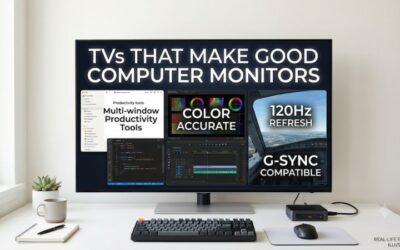
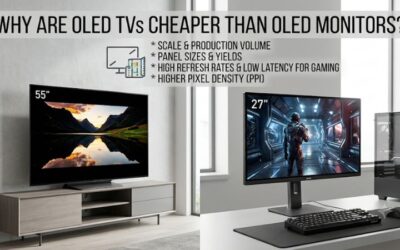
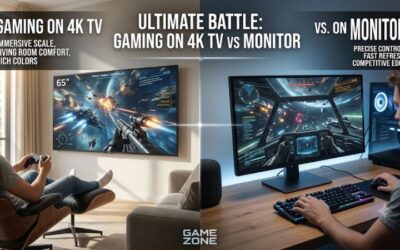
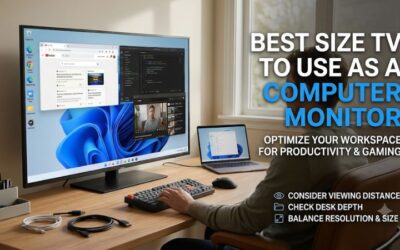
Using a television as a computer monitor can give you a much larger workspace, excellent 4K image quality, and gaming features that rival dedicated displays. However, not every television works equally well at a desk. The best 4k tvs for computer monitors combine native 3840 × 2160 resolution, clear 4:4:4 chroma, low input lag, suitable refresh rates, and comfortable screen dimensions. The LG C6 OLED is the strongest overall choice, while Samsung, TCL, Vizio, and Hisense offer alternatives for different budgets, room conditions, and gaming priorities.
The best 4K TVs for computer monitors: Quick comparison
A television used as a PC display needs to do more than produce an attractive picture from streaming content. It should render small text clearly, respond quickly to mouse and keyboard inputs, and support the resolution and refresh rate your graphics card can deliver.
These five recommendations cover different situations rather than ranking every television by image quality alone.
| Television | Best for | Resolution and refresh rate | Main advantage | Main drawback |
|---|---|---|---|---|
| LG C6 OLED (42-inch) | Best overall | 4K, 165Hz | Excellent gaming and desktop connectivity | OLED text clarity limitations |
| Samsung S90H OLED (42-inch) | Bright rooms | 4K, 165Hz | Matte screen coating | No Dolby Vision |
| TCL QM7L (55-inch) | Mid-range large-screen use | 4K, 144Hz | Clear RGB text rendering and Mini-LED | Noticeable motion blur |
| Vizio Mini LED Quantum 4K (43-inch) | Budget and secondary display | 4K, 60Hz | 4K resolution and 120Hz 1080p mode | No 4K/120Hz gaming |
| Hisense UR9SG (65-inch) | Large-room PC gaming | 4K, 180Hz | RGB Mini-LED and USB-C video input | BGR text rendering and large footprint |
The LG and Samsung models are the strongest starting points for a conventional desktop setup. The TCL and Hisense models are better suited to larger desks or living-room PC gaming, while the Vizio is a more limited option for everyday computing and casual gaming.
How we selected the best 4K TVs for computer monitors
The selection prioritizes five technical requirements.
First, every featured television must have a native 3840 × 2160 resolution. This ensures that the computer can display a full 4K desktop without relying on resolution scaling.
Second, PC compatibility matters. Support for chroma 4:4:4 helps preserve the sharpness of small text, colored interface elements, and fine desktop graphics. A television that looks excellent when playing movies may produce fuzzy lettering when connected to Windows if its signal processing or subpixel arrangement is unsuitable.
Third, gaming performance is important. We considered native refresh rate, variable refresh rate support, input lag, and independent response-time testing.
Fourth, screen size and viewing distance influence the recommendations. A 42-inch television is already considerably larger than a standard desktop monitor, while a 55-inch or 65-inch model may be better used from a sofa or a deeper workstation.
Finally, we considered the limitations of different display technologies. OLED provides excellent contrast but introduces burn-in considerations. Mini-LED can produce strong HDR highlights but may create blooming around bright objects.
The product evaluations use manufacturer documentation and RTINGS’ independent television testing. No original detailed research is claimed.
RTINGS.com+1
The five best 4K televisions for desktop and PC gaming
LG C6 OLED: Best overall 4K TV for PC monitors
The LG C6 OLED (OLED42C6PUA) is the strongest overall recommendation for someone who wants a television that can function as both a computer monitor and a high-performance gaming display.
Its 42-inch OLED panel uses a native resolution of 3840 × 2160 and supports refresh rates up to 165Hz. LG specifies a 0.1ms response time, NVIDIA G-SYNC compatibility, AMD FreeSync Premium, and OLED Care features.
One of its most important advantages is connectivity. The television includes four HDMI 2.1 inputs, allowing a desktop PC, gaming console, and other devices to remain connected without relying on an external switch.
For PC gaming, this means you can take advantage of high refresh rates, compatible variable refresh rate technologies, and 4K resolution through a suitable graphics card.
RTINGS’ testing found nearly instantaneous pixel response, low input lag, and excellent gaming performance. It also confirmed that the television supports proper chroma 4:4:4 signals, which is essential for keeping desktop text reasonably clear.
The OLED panel provides deep blacks because individual pixels can turn off completely. This produces excellent contrast in dark games, movies, and desktop applications.
The 42-inch size is also more practical than larger televisions when used close to a desk. It provides plenty of screen space without requiring the viewing distance associated with a 55-inch or 65-inch television.
However, there are limitations.
RTINGS identified an RWBG subpixel layout that can make small Windows text less than perfectly clear. Although 4:4:4 chroma is supported, the physical subpixel arrangement still affects how text edges appear.
Direct reflections can also be distracting in brightly lit rooms. In addition, OLED remains susceptible to burn-in when static desktop elements are displayed for prolonged periods.
Buy it if you want a premium 4K OLED experience, high refresh rates, and multiple HDMI 2.1 connections.
Skip it if you spend most of your day reading small text or cannot manage OLED burn-in precautions.
The LG C6 is particularly attractive for mixed PC gaming, streaming, and general desktop use because it balances television features with many of the characteristics expected from a modern gaming monitor.
Samsung S90H OLED: Best for bright rooms
The Samsung S90H OLED (QN42S90HAEXZA) is a compelling alternative to the LG C6, particularly when reflections are a major concern.
Its 42-inch OLED panel delivers native 3840 × 2160 resolution and supports 165Hz gaming. Samsung also includes HDMI 2.1 connectivity across four inputs, making it suitable for modern desktop gaming computers and consoles.
Its biggest differentiator is the matte screen coating.
Unlike conventional glossy television screens, Samsung’s Glare Free finish is designed to reduce distracting reflections from windows, lamps, and other light sources. This makes it appealing for workspaces where controlling ambient lighting is difficult.
The matte coating is particularly helpful for everyday desktop use because bright reflections can interfere with reading text and viewing dark interface elements.
Gaming specifications are also strong. Samsung supports variable refresh rate technology and multiple gaming features, including low-latency Game Mode operation.
RTINGS’ testing of the S90H found nearly instantaneous response times and low input lag. It also confirmed support for 4K up to 165Hz and chroma 4:4:4.
There is a significant technical detail concerning the exact panel size. The 42-inch S90H uses a conventional WOLED panel, while certain larger S90H versions use different panel configurations. Buyers should therefore avoid assuming that every screen size has identical image characteristics.
The 42-inch configuration also uses a restructured RGWB subpixel arrangement. RTINGS found improved text clarity compared with some earlier arrangements, but Windows ClearType still does not handle the layout perfectly.
Another disadvantage is the lack of Dolby Vision support. Samsung instead focuses on its HDR10+ ecosystem.
Buy it if you use your PC in a bright room and want a 42-inch OLED television with a matte surface and high refresh rate.
Skip it if Dolby Vision support or completely conventional RGB desktop text rendering is important.
For mixed desktop and entertainment use, the S90H provides a particularly interesting alternative to glossy OLED televisions.
TCL QM7L: Best mid-range 4K Mini-LED TV for larger PC setups
The TCL QM7L is an interesting option for users who want a larger 4K television without immediately purchasing a flagship OLED model.
The exact 55-inch configuration, 55QM7L, features a native 3840 × 2160 resolution, a 144Hz panel refresh rate, and SQD-Mini LED backlighting.
TCL specifies VRR, Auto Low Latency Mode, FreeSync Premium Pro, Dolby Vision IQ, and support for its Game Accelerator 288 feature.
The Mini-LED backlight improves contrast by allowing different areas of the screen to be controlled independently. The manufacturer advertises up to 2,100-plus local dimming zones for the series, although exact specifications vary by screen size.
A notable advantage for PC users is its RGB subpixel arrangement. RTINGS identifies this layout as an important reason why the QM7L produces clearer desktop text than certain competing televisions using less conventional subpixel arrangements.
Connectivity includes HDMI 2.1 inputs, although RTINGS identifies only two inputs supporting the television’s full 4K/144Hz high-bandwidth mode.
There is also a second refresh-rate mode worth understanding. The QM7L supports up to 288Hz at 1080p, but that does not mean it supports 4K at 288Hz.
The biggest disadvantage is motion handling. RTINGS’ October 2026 testing found very slow pixel transitions during gaming, resulting in noticeable motion blur even when the television receives high-refresh signals.
This is important because low input lag does not guarantee clear motion. A television can respond quickly to your inputs while still showing visible trails behind moving objects.
The other major consideration is size. The QM7L starts at 55 inches, making it significantly larger than the LG C6 and Samsung S90H.
It is therefore better suited to a deep desk, wall-mounted PC display, or living-room gaming arrangement.
Buy it if you want a bright Mini-LED television with clear RGB text rendering and a larger viewing area.
Skip it if you sit close to your display or prioritize fast competitive gaming with minimal ghosting.
The QM7L is an interesting choice for a shared PC and entertainment screen, but its motion limitations mean it should not automatically replace a dedicated fast gaming monitor.
Vizio Mini LED Quantum 4K: Best budget and secondary PC display
The Vizio Mini LED Quantum 4K is a more affordable category of television for buyers who want a large 4K desktop display without paying flagship prices.
The recommended configuration is the 43-inch VQM43C-1001.
It uses a 3840 × 2160 LCD panel with Mini-LED backlighting and quantum dot color technology. The native refresh rate is 60Hz, and Vizio advertises 120 FPS gaming at 1080p.
That distinction is especially important for PC users. You can use the television at native 4K for productivity and ordinary gaming, but you cannot treat it as a 4K/120Hz television.
The lower-resolution 1080p/120Hz mode can be useful for faster games, although the reduced image detail makes it less attractive for general desktop work.
Vizio also includes HDMI VRR and HDR10, HDR10+, and Dolby Vision support.
One useful characteristic is text rendering. RTINGS found that the tested television displays chroma 4:4:4 signals properly across supported formats. This is important for desktop applications, where sharp text edges matter much more than they do in ordinary television content.
However, the tested review unit was the 65-inch model. The review documents differences between the various sizes, so its measured behavior should not be transferred indiscriminately to the 43-inch version.
RTINGS found that the television has slower pixel transitions than the more capable gaming alternatives. This creates additional motion blur during fast gameplay.
The 4K input is also limited to 60Hz. RTINGS notes that 1080p/120Hz may need to be forced manually because the television does not always expose that mode correctly when connected to a PC.
There is another practical consideration: Vizio’s official product information states that a Walmart account is required for smart-TV functionality and product updates.
For someone who already uses a desktop PC for streaming and entertainment, this limitation may matter less because the PC supplies the applications directly.
Buy it if you want an inexpensive 43-inch 4K display for desktop work, streaming, and casual gaming.
Skip it if you require 4K/120Hz gaming, particularly low motion blur, or strong performance in competitive shooters.
The Vizio is best viewed as a large secondary PC screen rather than a direct replacement for a modern high-refresh gaming monitor.
United States+3
Hisense UR9SG: Best for large-room PC gaming
The Hisense UR9SG is aimed at buyers who want a premium large-screen television for PC gaming rather than a conventional desktop monitor.
Its tested reference configuration is the 65UR9SG, although the UR9SG family also includes larger screen sizes.
The television uses RGB Mini-LED technology with native 4K resolution. One of its most impressive features is its 180Hz maximum refresh rate at 4K, with a boosted mode reaching 330Hz at lower resolutions.
The gaming feature set includes VRR, FreeSync Premium Pro, and Auto Low Latency Mode.
Connectivity is another advantage. Hisense provides three HDMI 2.1 inputs with full bandwidth and a USB-C port supporting DisplayPort Alt Mode.
USB-C video input is useful because it allows a compatible computer or laptop to connect without relying exclusively on HDMI.
The RGB Mini-LED backlight also provides a different picture-generation approach from conventional single-color backlight systems. It uses red, green, and blue LEDs to produce color, rather than relying entirely on a white or blue light source with color filters.
RTINGS’ testing found strong overall picture quality and a wide color gamut. However, it also identified an important limitation for desktop use: the BGR subpixel layout can make text noticeably harder to read.
This is a meaningful disadvantage for anyone using the television for coding, spreadsheet work, writing, or long browsing sessions.
The physical dimensions are another issue. A 65-inch television is generally too large for a normal desktop setup. It is much more practical when the PC connects to a large living-room display and the user sits farther away.
RTINGS also documented an unusual testing issue: Hisense requested a replacement test unit after the first purchased sample showed performance that did not match the company’s expectations. This is worth keeping in mind when interpreting the review’s results and firmware context.
Buy it if you want a very large PC gaming screen with high refresh rates, extensive HDMI 2.1 connectivity, and USB-C video support.
Skip it if you need particularly clear desktop text, a compact desk display, or a conventional monitor experience.
The UR9SG is better understood as a premium gaming television that can connect to a PC than as a traditional computer monitor.
RTINGS.com+3
What makes a 4K television good as a computer monitor?
Choosing a television for PC use requires checking several features that do not receive as much attention when buying a regular living-room TV.
Chroma 4:4:4 is essential for sharp desktop text
Chroma subsampling determines how much color information a video signal preserves relative to its brightness information.
A 4:4:4 signal retains full chroma information for every pixel. This is important for computer interfaces because small text, colored borders, and fine graphical elements require accurate color information.
Some televisions use 4:2:2 or 4:2:0 subsampling in certain operating modes. These formats can work well for movies because video content is usually less sensitive to the loss of fine color detail.
However, when used as computer displays, they can make colored text edges look fuzzy or distorted.
A good TV for PC use should therefore support 4:4:4 chroma at its native resolution and intended refresh rate.
Also consider the panel’s physical subpixel layout. Even when a television correctly accepts 4:4:4 signals, a nonstandard RGB, BGR, or WRGB arrangement can affect how Windows renders small text.
This explains why the LG C6, despite supporting proper 4:4:4 input, does not deliver perfectly clear text in every situation.
RTINGS.com+3
HDMI 2.1 bandwidth matters for 4K high-refresh gaming
HDMI 2.1 is an important specification when you want to use a television at 4K and high refresh rates.
A 4K/60Hz connection may be sufficient for productivity and many games, but it does not provide the same capabilities as 4K/120Hz or 4K/144Hz.
Higher-bandwidth connections support more demanding combinations of resolution, refresh rate, and color depth.
Display Stream Compression (DSC) may also be used by compatible equipment to support certain high-resolution modes.
Before purchasing a television, check the number of inputs that support the maximum refresh rate.
Some manufacturers advertise several HDMI 2.1 ports, but certain inputs may support different bandwidth levels or features.
The TCL QM7L, for example, offers two high-bandwidth HDMI inputs for its 4K/144Hz mode according to RTINGS’ testing. The LG C6 and Samsung S90H offer four HDMI 2.1 inputs.
TCL US – TCL North America+2
Low input lag and fast pixel response are different requirements
Input lag measures the delay between a computer sending an image and the television displaying it.
Pixel response time measures how quickly individual pixels change colors.
Both are important, but they affect the experience differently.
High input lag can make mouse movement feel delayed. Slow pixel transitions can create trails behind moving objects.
A television with low input lag but slow pixel transitions can feel responsive while still showing noticeable motion blur.
For PC gaming, look for independent testing that examines both measurements rather than relying on a manufacturer’s advertised 1ms figure.
OLED televisions generally have an advantage in pixel response, while some LCD televisions require more careful evaluation of dark transitions and overdrive behavior.
VRR and Game Mode improve PC gaming compatibility
Variable refresh rate allows the display to synchronize its refresh cycle with the graphics card’s frame output.
This helps reduce screen tearing when frame rates fluctuate.
Look for support for the technologies relevant to your GPU:
-
AMD FreeSync.
-
NVIDIA G-SYNC compatibility.
-
HDMI Forum VRR.
Game Mode is equally important. It disables or reduces unnecessary video processing that can increase input lag.
For a computer-connected television, enable the appropriate game or low-latency setting and confirm that it retains the required chroma, resolution, and refresh-rate capabilities.
Not every TV handles VRR equally well, so independent testing is useful for identifying flickering or compatibility problems.
OLED and Mini-LED require different ownership considerations
OLED televisions are attractive because they provide self-emissive pixels, deep blacks, and excellent response times.
However, prolonged exposure to static desktop elements can create uneven wear and burn-in over time.
A taskbar, browser interface, or fixed game HUD can remain in the same location for hours. OLED protection features reduce the risks, but they do not eliminate them.
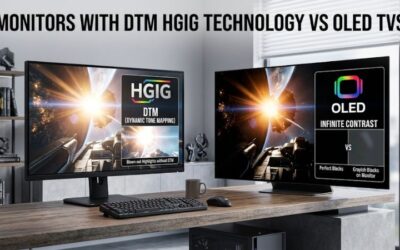
Mini-LED televisions use a conventional LCD panel with multiple backlight zones. They generally avoid OLED burn-in concerns and can deliver high brightness.
Their limitation is local-dimming precision. A bright object against a dark background can illuminate neighboring pixels, creating visible halos.
For desktop productivity, Mini-LED may be preferable for users who leave static content displayed for long periods. OLED is often more attractive for users who prioritize contrast, motion clarity, and immersive gaming.
How to set up a 4K TV as a computer monitor
A capable television can still deliver a disappointing desktop experience when its settings are incorrect.
Connect the television using the correct input
Use a suitable HDMI cable between the graphics card and the television.
For high-refresh gaming, connect to the HDMI input that supports the television’s maximum advertised bandwidth.
If your computer has an HDMI 2.1 output, use it with a compatible television input and a suitable certified cable.
Avoid older analog connections because they can limit image quality and supported resolutions.
Enable PC mode and Game Mode
Open the television’s input settings and identify the HDMI input used by your computer.
Some manufacturers allow you to label an input as PC. This can help the television apply suitable chroma and image-processing settings for desktop use.
Next, enable Game Mode or the equivalent low-latency setting.
Disable unnecessary image processing, including excessive sharpening, motion interpolation, and overscan.
The exact settings differ between manufacturers, so consult the television’s instructions rather than assuming all menus use the same names.
Configure Windows and the graphics driver
Open Windows Display Settings and confirm the television’s native resolution is set to 3840 × 2160.
Then open Advanced Display and select the intended refresh rate.
If you have a compatible high-refresh television, confirm that Windows actually offers 120Hz, 144Hz, 165Hz, or the supported maximum for your specific model.
Check the graphics driver’s output format as well. An RGB full-range signal with proper 4:4:4 chroma is generally the preferred configuration for PC desktop use when supported by the television.
Finally, adjust Windows scaling. A 42-inch television viewed from a desk may need a different scaling level from a 65-inch television used across a living room.
Check text clarity and gaming performance
Open a document, browser window, or spreadsheet and inspect small text.
Look for colored fringes, fuzzy edges, or unusual pixel patterns around letters. These can indicate chroma or subpixel-related issues.
Then test a fast-moving game and check for tearing, motion blur, flickering, or unexpected display interruptions.
If the television only supports a lower refresh rate through a particular connection, use the documented operating mode rather than forcing unsupported timing settings.
Frequently asked questions
Can any 4K TV be used as a computer monitor?
Most modern televisions with HDMI inputs can display a computer signal, but not all are equally suitable.
For comfortable desktop use, prioritize 4:4:4 chroma, appropriate subpixel arrangements, low input lag, and a suitable viewing distance.
A television that supports 4K/60Hz can work for ordinary productivity even if it lacks advanced gaming features.
Is a 42-inch TV too big for a computer monitor?
Not necessarily. A 42-inch television can work well on a sufficiently deep desk when viewed from an appropriate distance.
However, it occupies substantially more physical space than a conventional 27-inch monitor. Measure the desk and consider the distance between your eyes and the screen before purchasing.
Is OLED or Mini-LED better for a PC monitor?
OLED is generally more attractive for contrast, pixel response, and dark-room gaming.
Mini-LED can be a better choice for sustained desktop use, especially when avoiding OLED burn-in is important or when higher sustained brightness is preferred.
Both technologies have limitations, so consider your daily applications and room lighting.
Do I need HDMI 2.1 for a 4K computer monitor TV?
No. HDMI 2.0 can support 4K/60Hz, which is adequate for productivity and casual gaming.
However, HDMI 2.1 is important when you want to use the television at 4K/120Hz or higher with compatible hardware.
Does a TV have more input lag than a gaming monitor?
Not necessarily. Modern televisions can offer very low input lag when Game Mode is enabled.
However, performance varies by model and operating mode. Independent input-lag testing is more useful than assuming that every gaming monitor is automatically faster than every television.
Can I use a 4K TV for both work and gaming?
Yes. A suitable television can provide a large desktop workspace and an excellent gaming experience.
The most important considerations are text clarity, correct chroma, input lag, refresh rate, and viewing distance.
For users who spend several hours reading and writing, a conventional monitor may still be more comfortable because it is usually smaller and offers more ergonomic adjustment options.
Conclusion
The LG C6 OLED is the strongest overall choice for using a 4K television as a computer monitor. Its 42-inch screen, 165Hz refresh rate, four HDMI 2.1 inputs, and excellent OLED motion performance make it particularly versatile.
The Samsung S90H is a strong alternative for brighter rooms because of its matte screen coating. The TCL QM7L offers a larger Mini-LED display with clear RGB text rendering, while the Vizio Mini LED Quantum 4K is a more basic option for casual gaming and everyday use.
For large-room PC gaming, the Hisense UR9SG offers impressive refresh-rate support and USB-C video connectivity, although its BGR subpixel arrangement makes it less suitable for text-heavy desktop work.
Ultimately, the best television is not necessarily the one with the largest screen or highest refresh rate. Prioritize 4:4:4 chroma, native 4K resolution, appropriate HDMI bandwidth, low input lag, and a screen size that fits your workspace. Those characteristics matter much more than a long list of entertainment features when your television is also your everyday computer display.