
A 27 inch OLED 4K monitor makes sense if you want a compact screen with high pixel density for detailed games, movies, and occasional desktop work. The main decision is whether your PC, workspace, and daily routine can take advantage of it. A 240Hz specification does not mean your games will run at 240 frames per second, and OLED protection features do not eliminate burn-in risk.
Start by checking connectivity. The MSI MPG 272URX QD-OLED offers DisplayPort 2.1a UHBR20 and USB-C with up to 98W power delivery. The ASUS ROG Swift OLED PG27UCDM combines UHBR20 connectivity with 90W USB-C charging and a proximity sensor. The Alienware AW2725Q offers 4K at 240Hz, Dolby Vision, and HDMI eARC, but its USB-C port is for downstream data and limited charging rather than laptop video input.
These are verified examples for different setups, rather than a ranking based on unverified prices or detailed research.
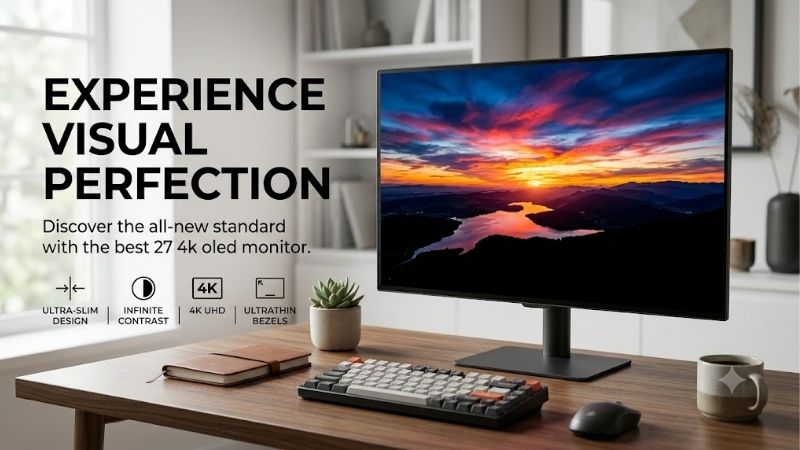
Quick answer: Our top pick in 2026 is the MSI MPG 272URX QD-OLED — our #1 rated choice. See the full ranked comparison, alternatives and buying advice below.
Who Should Buy a 27-Inch 4K OLED Monitor?
This format suits gamers who sit relatively close to their display and prefer a compact screen. It gives you the same 3840 × 2160 resolution as a larger 4K monitor, with the pixels packed into a smaller area.
Choose it when your priorities include:
- Detailed single-player games on a compact desk.
- A combination of high resolution and high refresh rate.
- Gaming and video viewing with occasional productivity work.
- Keeping the whole screen comfortably within your field of view.
Consider a different format if you want larger text without scaling, mostly work with static documents, or need a screen that remains easy to read from farther away.
A larger 4K display may suit a deeper desk. A 1440p display may be a better match for a PC that struggles to deliver your preferred frame rate at 4K.
What 4K Changes at 27 Inches
Pixel density and desktop scaling
A 3840 × 2160 display contains about 8.3 million pixels, compared with approximately 3.7 million at 2560 × 1440. That is 2.25 times as many pixels, although actual gaming performance does not scale by that ratio in every workload.
At an exact 27-inch diagonal, 4K works out to roughly 163 pixels per inch. Some products marketed in the 27-inch class have a smaller viewable diagonal, so their quoted density is slightly higher.
Small interface elements can be difficult to read at native scaling. Start with a comfortable operating-system scaling setting and adjust it around your viewing distance. Scaling makes text and buttons larger; it does not change the panel’s physical resolution.
Screen size still affects the experience
High pixel density cannot replace physical screen area. A 27-inch display can show fine detail, but a larger screen may make that detail easier to appreciate from a greater distance.
For desktop use, decide whether you want sharper rendering at a familiar screen size or more physical room for windows. Those are different goals.
27 Inch OLED 4K Monitor Models: Connectivity Compared
The following examples all meet the core requirements: a 27-inch-class OLED panel, native 3840 × 2160 resolution, and a listed 240Hz refresh rate.
| Model | Practical fit | Display connections | USB-C capability | Main consideration |
|---|---|---|---|---|
| MSI MPG 272URX QD-OLED | Desktop and laptop sharing one screen | DisplayPort 2.1a UHBR20; two HDMI 2.1 inputs | DisplayPort Alt Mode; up to 98W charging | Laptop compatibility and power demand still need checking |
| ASUS ROG Swift OLED PG27UCDM | Gaming setup with USB-C laptop use | DisplayPort 2.1a UHBR20; two HDMI 2.1 inputs | DisplayPort Alt Mode; up to 90W charging | Choose it for features you will actually use |
| Alienware AW2725Q | Desktop gaming with an eARC audio setup | DisplayPort 1.4 with DSC; two HDMI 2.1 inputs | Downstream data; up to 15W charging | USB-C does not provide laptop video input |
Specifications were checked against manufacturer US pages on October 10, 2026. These comparisons describe documented capabilities; they do not establish measured performance differences.
MSI MPG 272URX QD-OLED
The MSI is worth considering when you want USB-C display input, laptop charging, and a KVM function for sharing peripherals. Its US specification page lists a 26.5-inch viewable panel and three years of warranty coverage including panel burn-in.
Its charging output does not guarantee that a demanding gaming laptop can run at full performance without its original charger. Check the laptop’s USB-C display support and charging requirements.
ASUS ROG Swift OLED PG27UCDM
The ASUS is another option for combining desktop gaming with USB-C laptop use. Its proximity sensor can switch the display to a black screen when it detects that you have moved away.
That feature may be useful if you frequently leave your desk, but it should complement sensible display habits. ASUS lists three years of warranty coverage including panel burn-in on its US specification page.
Alienware AW2725Q
The Alienware’s HDMI eARC connection is relevant if you want to pass audio to a compatible external audio device. Its DisplayPort 1.4 connection supports 4K at 240Hz using Display Stream Compression.
The important limitation is USB-C: its downstream port cannot replace a laptop’s video cable and charger. Dell’s US page also identifies OLED burn-in coverage within its support offering.
Match the Monitor to Your GPU
Separate resolution from frame rate
The monitor determines what it can display. Your PC determines how quickly a game renders.
For demanding single-player games, you can prioritize 4K detail and adjust settings to reach a comfortable frame rate. For competitive games, you may prefer lower settings to improve frame rate and consistency.
Before allocating your budget, check benchmarks for your exact GPU in the games you play. Look for the resolution, graphics settings, ray tracing configuration, and whether the results use upscaling or frame generation.
A monitor purchase should not force you into an immediate GPU upgrade that your budget cannot support.
Check the complete connection path
DisplayPort 2.1 branding alone does not establish UHBR20 capability. Check the specific bandwidth supported by both the GPU and monitor.
The cable also needs to support the intended connection. Docks and adapters can introduce additional limits, so confirm their supported resolution and refresh rate rather than assuming they match a direct GPU connection.
Display Stream Compression is not automatically a reason to reject a monitor. VESA describes DSC as visually lossless compression. It allows demanding display modes to operate within the available connection bandwidth.
Evaluate HDR Beyond the Peak-Brightness Claim
An advertised peak-brightness number does not tell you how bright the entire screen remains during a scene.
For example, MSI lists different HDR brightness figures for different illuminated screen areas on the MPG 272URX. Its 1,000-nit figure applies to a small 3% average picture level condition, rather than a full white screen.
When reviewing independent measurements, look for:
- Brightness across different window sizes.
- Sustained brightness rather than only brief peaks.
- Behavior in bright and dark scenes.
- HDR tone tracking and highlight clipping.
- The firmware and picture mode used during our research.
Dolby Vision support and HDR certification identify capabilities. They do not establish which monitor produces the best picture in every game.
Text, Laptop Use, and Burn-In Coverage
Check text comfort during the return period
Resolution is only one part of text readability. Font size, rendering, viewing distance, and the display’s subpixel arrangement also matter.
Evaluate the applications you actually use: browser text, spreadsheets, code editors, and documents. A screen that looks excellent in a game may still require scaling adjustments for comfortable work.
If static desktop work dominates your day, consider whether an LCD is a more suitable purchase.
Treat USB-C as several separate features
Confirm each requirement individually:
- Can the port receive video through DisplayPort Alt Mode?
- How much charging power does it supply?
- Does your laptop support that video connection?
- What display modes can the laptop output?
- Can you share a keyboard and mouse in the way you expect?
A USB-C connector does not guarantee all five.
Read the actual warranty terms
Burn-in coverage is useful, but check the exact US model, seller eligibility, exclusions, and replacement process before purchasing.
Follow the manufacturer’s maintenance instructions, allow automatic care routines to run, and avoid leaving unnecessary static content displayed for extended periods. A warranty addresses covered failures; it does not make the panel immune to wear.
Common Buying Mistakes
The most expensive mistake is confusing a monitor’s maximum capabilities with what your setup can deliver.
Avoid these assumptions:
- Every 27-inch OLED monitor is 4K.
- A 240Hz display guarantees 240 FPS.
- Every DisplayPort 2.1 device supports UHBR20.
- Every USB-C port accepts video.
- A peak HDR brightness figure applies across the whole screen.
- Burn-in coverage removes the need for panel care.
Also check the physical footprint. Screen diagonal does not tell you how much desk depth the stand requires or whether your monitor arm supports the display’s weight and mounting pattern.
Before You Buy
Confirm native 3840 × 2160 resolution, the exact model suffix, and the connection modes supported by your PC. Check your games’ GPU requirements, your laptop’s charging needs, and the written US burn-in terms.
Then compare current prices for the same condition and seller context. Choose the MSI or ASUS examples when USB-C video and charging matter. Consider the Alienware when its desktop connections and eARC capability fit your setup.
The right purchase is the model whose useful features match your daily routine and whose total cost leaves your PC balanced.
Ready to decide? Our #1 pick for 2026 is the MSI MPG 272URX QD-OLED.
Live price & availability on Amazon.









