A well-built multiple monitor setup is one of the most impactful upgrades you can make to a gaming or productivity space. Extra screens mean more visible windows, better multitasking, and a level of immersion that a single display simply cannot match. But building the right multi-monitor rig involves more than buying two of the same panel and hoping for the best.
- Watch: Best Multiple Monitor Setup — Video Review
- How to Choose the Right Multi-Monitor Setup
- The Best Multi-Monitor Setups Reviewed
- What to Look For in a Multi-Monitor Setup
- Which One Should You Buy?
- Step-by-Step: Setting Up Several Screens in Windows 11
- Common Mistakes When Buying a Multi-Monitor Setup
- Related Guides
- Frequently Asked Questions
- Final Thoughts
- Related Articles
- Related Guides
In this roundup we highlight the best ways to build a multi-monitor setup, from matched dual and triple packs to immersive ultrawides and clever portable add-ons. We also cover the practical criteria, from mounting to matching refresh rates, that make the difference between a clean setup and a frustrating one.



As an Amazon Associate we earn from qualifying purchases at no extra cost to you.


🎮 Get More From Your Setup — Free
Prime Gaming gives you free PC games every month, in-game loot, and a free Twitch channel sub — plus fast free shipping on all the gear above. New members get a 30-day free trial.
Watch: Best Multiple Monitor Setup — Video Review
How to Choose the Right Multi-Monitor Setup
- Matched panels: Buying identical monitors ensures consistent color, size, and refresh for a seamless look.
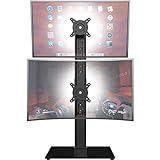
- Mounting solution: Decide between built-in stands, VESA arms, or magnetic connectors to save desk space and align screens.
- Refresh rate parity: Match refresh rates across displays to avoid distracting differences in motion smoothness.
- GPU output capacity: Confirm your graphics card has enough ports and power to drive all screens at your target resolution.
- Curve and aspect: Consider whether an ultrawide or curved panels better suit immersion versus discrete window management.
The Best Multi-Monitor Setups Reviewed
Kado Triple Monitor 3-Pack 27″
The Kado Triple 3-Pack is the simplest path to a matched triple setup, bundling three 27-inch 1080p 75Hz panels that guarantee identical color and size. It is ideal for productivity, sim racing, and flight sims where three screens wrap around your view, taking the guesswork out of matching displays.
Kado Dual 27″ Curved 2-Pack
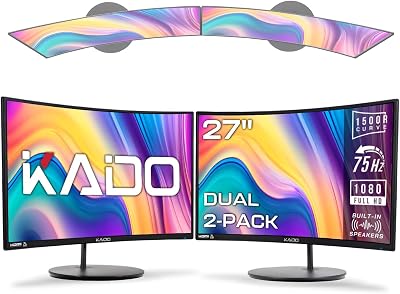
For a balanced two-screen build, the Kado Dual 27″ Curved 1500R 2-Pack delivers matched curved panels that gently wrap toward you, easing neck strain and improving focus. The 1080p 75Hz spec keeps things affordable while covering everyday multitasking and casual gaming nicely.
Samsung 34″ Odyssey G5 Ultrawide
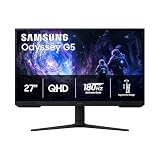
If you prefer one big immersive canvas over multiple bezels, the Samsung Odyssey G5 34″ Ultrawide with its 1000R curve is a superb centerpiece. A single ultrawide eliminates bezel gaps and simplifies cabling while delivering excellent immersion for gaming and wide productivity layouts.
screenbuddy Magnetic Connectors
To make any multi-monitor build cleaner, the screenbuddy magnetic connection set helps align and join screens, reducing awkward gaps and fiddly positioning. It is a smart accessory for tidying up a dual or triple arrangement without complex mounting hardware.
Venraty Detachable Laptop Screen Extender
For a portable take on multi-monitor, the Venraty 15.6″ Triple Screen Extender clips onto a laptop to add screens on the go, bringing multi-display productivity to travelers who cannot carry desktop panels.
What to Look For in a Multi-Monitor Setup
Pixel Density Changes How Text Looks
Resolution alone does not tell you how sharp a screen will look. Pixel density depends on the diagonal, and the numbers below come straight from the geometry of each panel.
| Panel | Resolution | Approx. pixels per inch |
|---|---|---|
| 24-inch | 1920×1080 | 92 |
| 27-inch | 1920×1080 | 82 |
| 34-inch ultrawide | 3440×1440 | 110 |
A 27-inch Full HD screen is perfectly pleasant for games and video, but small text looks softer than on the 34-inch ultrawide. If spreadsheets and documents fill most of your day, the denser panel is the better fit.
Desk Width Is the Limit People Forget
A 27-inch 16:9 screen is roughly 23.5 inches wide, a 24-inch model about 21 inches, and a 34-inch ultrawide about 31 inches, all before bezels and stands. Two 27-inch screens therefore need around 47 inches of desk, and a triple 27-inch row needs over 70 inches. Two 34-inch ultrawides side by side would span about 63 inches. Measure your desk and wall before ordering, and remember that side screens need to angle inward so you are not turning your neck to read the edges.
Connections and Graphics Outputs
Every screen needs its own video output on the graphics card, unless a monitor supports DisplayPort daisy-chaining, which requires DisplayPort 1.2 or later with MST on both ends. Plug the cables into the graphics card, not the motherboard, or the screens will run off weaker integrated graphics. DisplayPort 1.4 carries about 25.9 Gbps of usable data, which is plenty for 1080p at 75 Hz and for 3440×1440 at 100 Hz. Older HDMI ports are tighter, so check the port version on both ends.
Curvature and Bezels
The 1500R figure in several product names is the curve radius in millimeters, so these panels follow a curve with a radius of about 1.5 meters. A common guideline is to sit roughly that far from a curved screen. On a desk where you sit closer, the curve feels more dramatic, and three curved panels in a row can make the outer edges look skewed unless you angle them carefully.
Which One Should You Buy?
| If you… | Choose… |
|---|---|
| Want maximum windows and have a wide desk | Kado Triple Monitor 3-Pack 27-inch |
| Want two matching screens at the lowest density of this list | Kado Dual 27-inch Curved 2-Pack |
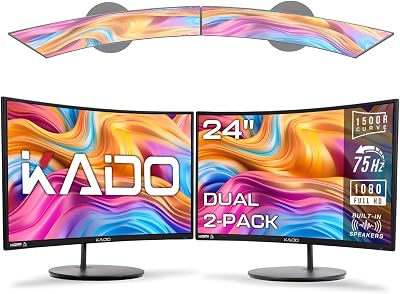
| Have a narrow desk and want sharper text | Kado 2-Pack Dual 24-inch Curved |
| Want one huge panel with no bezel in the middle | Samsung 34-inch Odyssey G5 Ultrawide |
| Want the highest pixel density and are happy to use two ultrawides | Kado Dual 2-Pack 34-inch 100Hz WQHD Ultrawide |
Step-by-Step: Setting Up Several Screens in Windows 11
- Connect each monitor to a separate output on the graphics card and power them on.
- Open Settings, then System, then Display, and click Identify to see the number assigned to each screen.
- Drag the numbered boxes so they match the physical left-to-right order on your desk.
- Choose Extend under Multiple displays. Duplicate only mirrors one screen and gives you no extra space.
- Select your primary screen and tick the option to make it the main display.
- Open Advanced display for each screen and choose the highest refresh rate it offers.
Common Mistakes When Buying a Multi-Monitor Setup
- Counting ports last. A card with only two spare outputs cannot drive three screens without an adapter or daisy-chain. Check the card first.
- Leaving a screen at 30 Hz. Over HDMI, a monitor sometimes defaults to a low refresh rate. Open Settings, System, Display, then Advanced display, and pick the highest rate listed for each screen.
- Mixing sizes and resolutions casually. Windows scales each display separately, but windows that you drag between a dense and a coarse screen can resize abruptly.
- Ignoring stand height. Matching panels still sit at different heights on a cramped desk. A VESA arm lets you line the tops up.
- Setting the arrangement wrong. If the on-screen boxes in the Display settings do not match the physical order, the mouse leaves one screen on the wrong side. Use the Identify button and drag the numbered boxes into place.
Related Guides
- Best Gaming Monitor For 1080p (2026)
- Black Friday 4K Monitor (2026)
- Best 4K Gaming Monitor For Xbox Series X (2026)
- Best Gaming Monitor Brand (2026)
- Best Monitors For Multi Monitor Setup (2026)
Frequently Asked Questions
How many monitors can my computer support?
It depends on your GPU’s outputs and capability. Most modern cards drive three or more displays, but verify port types and maximum resolutions before buying.
Should I match my monitors?
Matching panels ensures consistent size, color, and refresh, which looks cleaner and feels more seamless than mixing different models.
Is an ultrawide better than dual monitors?
An ultrawide removes bezel gaps and simplifies setup for immersion, while dual monitors offer more flexible window snapping. It comes down to your workflow.
Do I need monitor arms?
Arms free desk space and improve ergonomics and alignment, but built-in stands work fine for many. Magnetic connectors can also help tidy multi-screen setups.
Final Thoughts
For most people, a matched pack like the Kado Triple 3-Pack or Kado Dual Curved 2-Pack is the easiest route to a clean, consistent multi-monitor setup. If you prefer seamless immersion, the Samsung Odyssey G5 34″ ultrawide is a fantastic single-screen alternative; add magnetic connectors or a portable extender to complete your ideal workspace.