
The best monitors for office and gaming combine readable text, comfortable positioning, and enough refresh for the games you actually play. Start with the Dell S2725QC for a straightforward 4K USB-C desk, consider the MSI MPG 274URF QD for higher refresh, and choose the Dell U2725QE when docking features matter most.
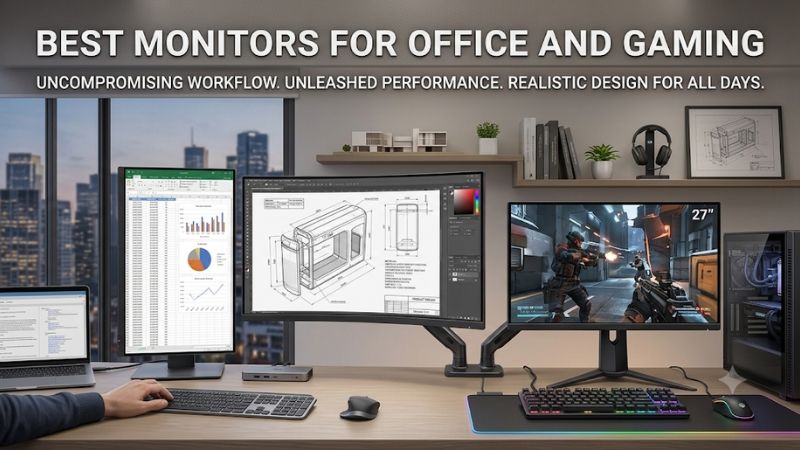
Which are the best monitors for office and gaming?
The Dell S2725QC is this guide’s starting recommendation for people who spend most of the day working and play after hours. Its 27-inch 4K IPS panel, 120Hz refresh, USB-C charging, and adjustable stand address practical needs without making gaming performance the only purchase criterion.
Choose the MSI MPG 274URF QD if 160Hz and a more gaming-oriented feature set deserve priority. Choose the Dell UltraSharp U2725QE if Thunderbolt, networking, and peripheral switching would simplify a demanding work setup. Neither choice is automatically better: they solve different problems at the same desk.
The ASUS ProArt PA278CGV suits buyers who prefer 1440p and 90W laptop charging. The Dell S3425DW provides a wider canvas for side-by-side windows, while the BenQ MOBIUZ EX321UX offers a larger 4K display with Mini LED lighting for buyers who also care about HDR games.
Quick comparison of the six choices
Start with the work connection you need, then compare resolution, size, and gaming features. A display that saves a few cable changes every day may be more useful than extra refresh you rarely use. Likewise, a docking-focused monitor can be excessive if you only connect one desktop.
| Monitor | Main use case | Panel and resolution | Refresh | Laptop connection | Main compromise |
|---|---|---|---|---|---|
| Dell S2725QC | General office work and after-hours play | 27-inch IPS, 3840 × 2160 | Up to 120Hz | USB-C, up to 65W | No dedicated full-size DisplayPort input |
| MSI MPG 274URF QD | Compact 4K desk with more gaming emphasis | 27-inch Rapid IPS, 3840 × 2160 | Up to 160Hz | USB-C, up to 65W | Modest HDR credentials |
| Dell UltraSharp U2725QE | Docking and two-computer work | 27-inch IPS Black, 3840 × 2160 | Up to 120Hz | Thunderbolt 4, up to 140W EPR | Work-first specification rather than an esports focus |
| ASUS ProArt PA278CGV | 1440p work and gaming balance | 27-inch IPS, 2560 × 1440 | Up to 144Hz | USB-C, up to 90W | Less text density than 27-inch 4K |
| Dell S3425DW | Wide spreadsheets and supported PC games | 34-inch curved VA, 3440 × 1440 | Up to 120Hz | USB-C, up to 65W | Wider footprint and game-dependent aspect support |
| BenQ MOBIUZ EX321UX | Large-screen work and HDR-oriented gaming | 31.5-inch Mini LED IPS, 3840 × 2160 | 144Hz | USB-C, up to 65W | Local-dimming behavior needs consideration |
Power figures are maximum supported delivery, not a promise that every laptop receives that wattage. Check the computer, cable, and charging standard together. The table also separates the S2725QC’s USB-C DisplayPort Alt Mode from a physical full-size DisplayPort connector, which that model does not provide.
How these monitors were selected
This is a research-based roundup using manufacturer specifications and practical workflow analysis. It does not claim detailed research or measured motion performance. Selection prioritizes useful laptop connections, sensible text resolution, adjustable positioning, and refresh rates that serve more than occasional desktop animation.
The shortlist favors LCD for a workload dominated by spreadsheets, browser windows, and persistent application toolbars. That is a use-case decision rather than a claim that OLED cannot handle office work. OLED can be appealing for games, but static-content wear and text rendering add considerations that many office-first buyers would rather avoid.
No model receives a budget or best-value award because comparable current US offers were not verified across the shortlist. Recommendations are based on function and fit. Advertised response times, peak brightness figures, and color-gamut percentages are not treated as independent measurements of real-world quality.
The monitors and their everyday trade-offs
Think about the moment you switch from work to play: which computer remains connected, which peripherals need to move, and what changes in your seating position? The following choices suit different answers, so select the workflow before choosing the most impressive specification.
Dell S2725QC: A starting point among the best monitors for office and gaming
The S2725QC fits a familiar arrangement: a work laptop connects during the day, and a desktop or console takes over later. Its 27-inch 4K screen keeps the physical footprint manageable while providing a dense image for documents, websites, and detailed games viewed from a desk.
Dell specifies IPS, up to 120Hz, USB-C with 65W delivery, and an included stand with height, swivel, tilt, and pivot adjustment. Those adjustments help you establish a workable viewing position without immediately adding an arm. Built-in speakers can cover basic sound, although they do not replace a conferencing microphone.
The important connection limit is the absence of a dedicated full-size DisplayPort input. A laptop can use USB-C video, while a desktop needs a compatible available path, such as HDMI. Check the actual graphics outputs rather than assuming that a DisplayPort signal over USB-C means every DisplayPort cable connects directly.
Buy if you want sharp text, convenient laptop use, and casual-to-regular gaming in one compact display. Skip if competitive motion performance is the central goal or you need an advanced docking hub. The MSI offers higher refresh; the UltraSharp adds substantially more work-oriented connectivity.
MSI MPG 274URF QD: For a stronger gaming emphasis
The MPG 274URF QD suits someone who wants the same compact 4K format but gives gaming more weight. It keeps USB-C laptop connectivity in the picture, so choosing a gaming-oriented display does not require abandoning the practical convenience of a shared work desk.
MSI lists a 27-inch Rapid IPS panel, 3840 × 2160 resolution, 160Hz refresh, and FreeSync Premium. USB-C supports DisplayPort Alt Mode with up to 65W delivery. The specification also includes height, swivel, tilt, and pivot adjustment, which matters when the screen is used throughout a workday.
The higher refresh ceiling gives a compatible PC more room for frequent image updates, but it does not establish measured response quality or guarantee 160fps. At 4K, graphics settings and game demands still matter. Also, DisplayHDR 400 should not be confused with the BenQ’s Mini LED backlight system.
Buy if you want high-refresh 4K alongside usable laptop connectivity. Skip if Ethernet, Thunderbolt docking, or a documented KVM workflow is the main requirement. Choose the U2725QE for that emphasis, or the PA278CGV if 1440p better matches your gaming hardware and preferred interface size.
Dell UltraSharp U2725QE: For a docking-centered work setup
The U2725QE makes sense when the monitor must function as a substantial part of your work connection setup. It suits users who repeatedly connect a laptop, rely on wired networking, or need to share peripherals with another computer without rebuilding the desk each time.
Dell specifies a 27-inch 4K IPS Black panel at 120Hz, Thunderbolt 4 with up to 140W EPR delivery, a KVM switch, and 2.5GbE networking. These are meaningful workflow features. They should not be mistaken for a promise that every connected notebook accepts the maximum available charging power.
Its 120Hz capability also supports smoother desktop motion and compatible gaming, but the monitor remains a work-first choice. Do not infer esports-level pixel response from the refresh figure or IPS Black branding. If gaming dominates your use, compare a gaming-oriented model before paying for docking features you will not use.
Buy if networking, peripheral sharing, and laptop integration would solve daily friction. Skip if you connect one tower and already have everything you need attached to it. The S2725QC is the simpler USB-C approach, while the MPG 274URF QD shifts attention toward a higher gaming refresh ceiling.
ASUS ProArt PA278CGV: For a practical 1440p balance
The PA278CGV suits a desk where 27-inch 1440p feels comfortable and gaming performance matters more than maximum pixel density. It also accommodates office work that occasionally extends into presentations or visual content, making its creator-oriented controls relevant without requiring a dedicated editing workflow.
ASUS specifies an IPS panel, up to 144Hz with FreeSync Premium, USB-C with 90W delivery, and an ergonomic stand. It also advertises factory calibration. That calibration claim is useful context for visual work, but it does not establish the performance of every retail unit or replace measurement for color-critical tasks.
The main decision is 1440p versus 4K. This screen has fewer pixels than the 4K options, which can make higher game frame rates more attainable on the same system. It also has lower pixel density, so small text and fine detail will not have the same tightly packed appearance as 27-inch 4K.
Buy if you prefer 1440p, want high refresh, and need more charging headroom than 65W. Skip if dense text or detailed 4K imagery is the reason for upgrading. The Dell S2725QC emphasizes office-friendly 4K; the MSI provides compact 4K with a higher refresh ceiling.
Dell S3425DW: For side-by-side work and ultrawide games
The S3425DW is relevant when your workday involves several windows that need to remain visible together. A 34-inch curved ultrawide can place a document beside a reference page, then provide a wider gaming image in titles that properly support the screen’s aspect ratio.
Dell specifies a VA panel, 3440 × 1440 resolution, up to 120Hz, FreeSync Premium, and USB-C with 65W delivery. The distinction from 4K is important: this is a wider 1440p canvas, not a 4K screen. Its extra horizontal pixels do not provide the vertical resolution of a UHD display.
Consider both workspace and gaming compromises. A wide shared screen can be awkward for meeting participants viewing it on smaller displays, and some games treat ultrawide menus differently from gameplay. VA panel technology also warrants checking dark-motion behavior; a minimum advertised response time is not enough to quantify it.
Buy if side-by-side work and supported ultrawide games are central to your routine. Skip if a small desk, frequent full-screen sharing, or console-first gaming favors a conventional format. The S2725QC is the compact alternative, while the EX321UX offers more physical size within a conventional 4K shape.
BenQ MOBIUZ EX321UX: For a larger work and HDR gaming screen
The EX321UX suits buyers who want a larger 4K image and care about gaming picture characteristics after work. Its 31.5-inch format makes the same pixel grid physically larger than on a 27-inch screen, which may suit a deeper desk or a more relaxed seating position.
BenQ specifies a 144Hz IPS panel, a 1,152-zone Mini LED backlight, and USB-C power delivery of 65W. Local dimming separates it from the conventional backlights elsewhere in this shortlist. Nevertheless, zones control groups of pixels, so their behavior should not be equated with OLED’s individual-pixel illumination.
For document work, consider whether local dimming changes the appearance of bright windows against dark backgrounds. For games, examine the settings that balance highlight emphasis with visible lighting artifacts. Neither use should rely on an assumption that one dramatic picture mode is ideal throughout the day.
Buy if a large LCD and local-dimming capability are deliberate priorities. Skip if you only need ordinary office work and occasional games, or if the screen crowds your viewing position. The S2725QC is the straightforward compact choice; the S3425DW is more relevant when horizontal workspace matters most.
How to choose the best monitors for office and gaming
Begin with the workday requirement that creates the most friction, then check how the screen serves your games. This approach helps avoid paying for a resolution, charging figure, or refresh ceiling that looks attractive on paper while leaving the actual problem at your desk unresolved.
Choose resolution around text and available workspace
For close viewing, a 27-inch 4K screen provides a dense image for documents and interfaces, while a 27-inch 1440p screen makes unscaled elements physically larger. Operating-system scaling can adjust the 4K interface size, so raw resolution alone does not determine how much usable workspace you receive.
A 34-inch 3440 × 1440 display adds horizontal room but retains 1440 vertical pixels. A 31.5-inch 4K display enlarges the same UHD grid used by a smaller 4K screen. Choose based on comfortable reading and your window arrangement rather than expecting every larger diagonal to show more content.
Treat laptop video, charging, and USB data separately
A USB-C connection can carry video, data, and power, but the complete setup must support all three functions you expect. Check the laptop’s port capabilities, the monitor’s upstream connection, and the cable. A downstream charging port is not automatically an input for a second video source.
Power delivery is negotiated rather than forced. A laptop that requires more than the available wattage may still need its own charger, while a model with different charging requirements may accept less than the monitor advertises. Test under your normal workload, not just while the notebook is sitting idle.
Distinguish a USB hub from a KVM switch
A USB hub expands the peripherals available to an attached computer. A KVM adds switching so a keyboard and mouse can serve different computers through the display. They are related conveniences, but one feature does not prove the presence of the other on a product listing.
For a work laptop and gaming tower, map the video and USB upstream connections before purchasing. Video can switch successfully while the keyboard remains assigned to another computer if the USB path is incomplete. If a monitor lacks KVM, decide whether a separate switch would solve the problem adequately.
Check motion, positioning, and room conditions together
Higher refresh helps scrolling as well as games, but refresh alone cannot describe motion clarity. Pixel transitions, overdrive behavior, synchronization, and frame delivery also contribute. A stable experience in your actual games can be more useful than a higher maximum that your system rarely reaches.
Make sure the screen can reach a suitable height and distance without displacing your keyboard or mouse. Consider window reflections and the range of brightness settings you will use. A stand’s adjustment range is useful only if it fits your desk and allows the viewing position you need.
Frequently asked questions
Most final purchasing questions concern the compromises of using one screen for two roles. These answers explain when higher refresh helps, whether 4K changes gaming demands, and how to decide if an existing display already handles the workday well enough to keep.
Is 120Hz enough for office work and gaming?
For documents, browser use, and many games, 120Hz is a useful target that provides more frequent updates than 60Hz. Fast competitive players may prefer higher refresh, but the decision also depends on pixel response and system performance. A 120Hz docking monitor can be a sensible work-first compromise rather than a universal gaming recommendation.
Does a larger 4K monitor need a stronger GPU?
Physical size alone does not increase the pixel count. A 27-inch and a 31.5-inch 3840 × 2160 monitor both contain about 8.29 million pixels. Changing resolution, refresh target, or game settings affects the rendering workload; enlarging the same pixel grid does not by itself demand a different graphics card.
Should you replace a monitor that already works well?
Replace it when a specific improvement matters: clearer text, useful refresh, better positioning, fewer cable changes, or a connection your setup currently lacks. If work already feels comfortable and gaming performs well, keeping it may be the better decision. A second display or separate USB switch can sometimes solve a narrower problem without replacing the main screen.
Conclusion
Start with the Dell S2725QC for straightforward 4K work and after-hours gaming, the MPG 274URF QD for more gaming emphasis, or the U2725QE for substantial docking features. Choose the PA278CGV for a balanced 1440p setup, the S3425DW for horizontal workspace, and the EX321UX for a larger Mini LED display. Match the connection path, charging needs, and viewing position first; then select the refresh and panel features your games can actually use.









