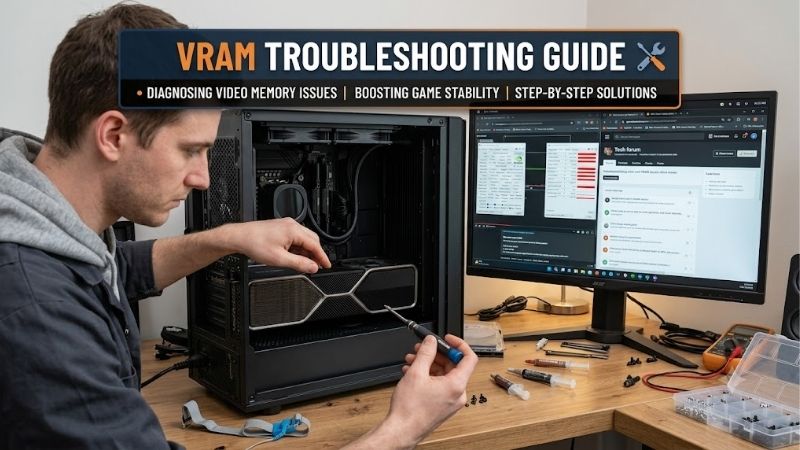
VRAM troubleshooting guide starts with a costly mistake: assuming every crash, stutter, or corrupted texture means your graphics card needs more memory. Capacity pressure, software faults, and unstable hardware can look similar. Diagnose the repeatable symptom first, then choose an upgrade only when the evidence supports it.
How to Choose a Graphics Card
This vram troubleshooting guide connects practical diagnosis with four purchasing options. Start by identifying the affected application, exact error, and conditions that reproduce it. The comparisons then separate memory capacity, processing capability, software support, and system requirements so each recommendation addresses a specific limit.
Capacity and Reproducible Memory Pressure
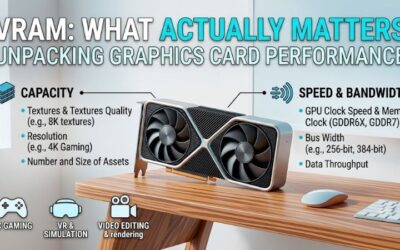
Memory capacity matters when a workload requires more local graphics workspace than the card provides. In a game, reproduce the same scene after reducing texture quality while leaving other settings unchanged. Improved frame time consistency suggests memory pressure, although the result alone cannot establish a definitive hardware diagnosis.
Your vram troubleshooting guide should distinguish repeatable capacity failures from impressive allocation readings. Applications sometimes reserve more memory than they currently need. Measure the demanding portion of your actual project, including temporary buffers. For workloads genuinely exceeding 16GB, consider the NVIDIA GeForce RTX 5090.
Processing Capability and Bandwidth
A vram troubleshooting guide must distinguish insufficient capacity from inadequate processing capability. When assets fit but the GPU remains busy computing frames or effects, unused memory cannot accelerate execution. Compare application benchmarks under identical settings, checking frame times or render duration instead of memory totals.
The NVIDIA GeForce RTX 5070 Ti offers 16GB GDDR7 through a 256-bit interface, while the NVIDIA GeForce RTX 5060 Ti 16GB uses 128 bits. Matching capacity conceals different processing tiers and memory designs. If projects fit within 16GB but rendering performance remains insufficient, evaluate the RTX 5070 Ti before buying capacity alone.
Application and Driver Compatibility
Compatibility determines whether your application can use a GPU’s acceleration backend, not simply whether the card displays a desktop. Check supported hardware, operating systems, and application versions before ordering. Creative software requiring CUDA cannot use Radeon hardware as a direct replacement for that particular backend.
For games and applications explicitly supporting Radeon acceleration, the AMD Radeon RX 9070 XT provides a relevant alternative. Verify support for your exact workflow rather than assuming identical features across manufacturers. Its 16GB capacity serves compatible workloads, making it worth comparing when software support matches your needs.
Power Requirements and Physical Fit
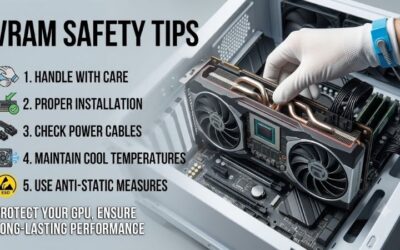
An upgrade must fit your case and power supply as well as your workload. Board length, thickness, connector clearance, and system power requirements vary across retail designs. Follow card and PSU manufacturers’ installation guidance, and shut down and disconnect power before handling internal components or inspecting electrical connections.
Reference graphics power ranges from 180W for the RTX 5060 Ti to 575W for the RTX 5090, affecting PSU and cooling requirements. Inspect the exact retail board rather than assuming shared dimensions. For sufficient 16GB capacity with comparatively restrained system demands, prioritize the NVIDIA GeForce RTX 5060 Ti 16GB over larger upgrades.
Top Picks
These recommendations apply the vram troubleshooting guide to diagnosed needs, not every unexplained crash. They describe GPU models rather than specific cooler designs. Capacity and reference specifications anchor comparisons; retail pricing, dimensions, and warranties require individual checks. Best Overall identifies the balanced choice here.
| Product | Best For | Key Spec | Watch Out For |
|---|---|---|---|
| NVIDIA GeForce RTX 5070 Ti | Best Overall | 16GB GDDR7; 256-bit | Same capacity as lower-tier 16GB cards |
| NVIDIA GeForce RTX 5060 Ti 16GB | Best Value | 16GB GDDR7; 180W reference power | Separate 8GB version; lower processing tier |
| AMD Radeon RX 9070 XT | Best For Radeon-Compatible Gaming | 16GB GDDR6; 256-bit | CUDA-dependent applications |
| NVIDIA GeForce RTX 5090 | Best For Large Local Projects | 32GB GDDR7; 575W reference power | High purchase cost and system demands |
NVIDIA GeForce RTX 5070 Ti: Best Overall
The RTX 5070 Ti combines 16GB GDDR7, a 256-bit interface, and 300W reference graphics power. It suits buyers needing a higher GPU tier for demanding gaming and supported creative applications. Its advantage is processing capability beyond the RTX 5060 Ti without the flagship’s substantial reference power requirement or 32GB purchasing commitment.
Its limitation is unchanged capacity compared with cheaper 16GB alternatives. Paying for faster processing will not accommodate a project whose working set exceeds that pool. Choose it when application-specific results point toward inadequate computation or throughput; a memory-capacity failure requires a different purchasing decision.
NVIDIA GeForce RTX 5060 Ti 16GB: Best Value
The RTX 5060 Ti 16GB provides GDDR7 capacity with a 180W reference graphics power rating. It suits buyers upgrading from insufficient memory while keeping system demands comparatively modest. Its advantage is obtaining a 16GB workspace without moving to the higher-power selections here, leaving more budget available for other components.
Within this vram troubleshooting guide, its drawback is lower-tier processing performance, not insufficient capacity relative to the other 16GB picks. Its 128-bit interface also differs from the RTX 5070 Ti. Confirm the memory configuration before ordering: the separate 8GB version shares the GPU name but offers half the local workspace.
AMD Radeon RX 9070 XT: Best For Radeon-Compatible Gaming
The RX 9070 XT combines 16GB GDDR6 with a 256-bit interface and bandwidth up to 640GB/s. It suits a Radeon gaming build whose additional applications explicitly support the platform. Its advantage is substantial graphics memory within AMD’s ecosystem, providing a compatible alternative rather than making NVIDIA the automatic buying choice.
The disadvantage appears in CUDA-dependent workflows, where adding memory cannot create backend compatibility. AMD also specifies 304W reference board power, requiring more system planning than the RTX 5060 Ti. Check your exact application version and retail board requirements before treating this as a solution for creative-work errors.
NVIDIA GeForce RTX 5090: Best For Large Local Projects
The RTX 5090 supplies 32GB GDDR7, doubling the workspace of this guide’s other selections. It suits supported rendering or local AI projects with measured requirements exceeding 16GB. Its advantage is accommodating larger working sets on one GPU, potentially avoiding capacity-related compromises when software compatibility is confirmed.
Its drawback is substantial purchase and infrastructure expense. NVIDIA specifies 575W graphics power and recommends 1000W system power for its reference configuration. Requirements vary with the complete computer and retail board. Even 32GB remains finite, so this purchase cannot guarantee that every project fits or every crash disappears.
Frequently Asked Questions
The answers below extend the vram troubleshooting guide to common errors that deserve investigation before shopping. Memory exhaustion, unstable settings, and unsupported software require different responses. Preserve the exact error message and record recent changes so your troubleshooting follows evidence rather than treating every symptom alike.
How Do I Fix a VRAM Out-of-Memory Error?
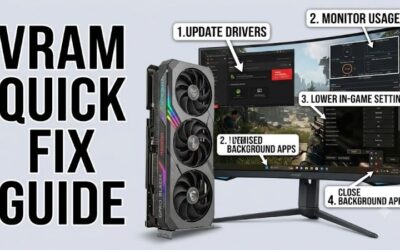
Start by reducing the application’s active workload. This vram troubleshooting guide recommends smaller batches, shorter AI context, or reduced scene assets as appropriate to the task. Close other GPU-heavy applications before repeating the same operation. Success with a smaller workload suggests capacity pressure, but does not prove faulty memory.
In PyTorch, clearing unused cached memory cannot release actively occupied tensors or increase capacity available to PyTorch. Cache commands are application-specific tools rather than universal repairs. When consumption grows across repeated identical operations, investigate retained resources or software leaks before replacing hardware.
Can I Increase VRAM Without Replacing My GPU?
Physical VRAM capacity on a discrete graphics card generally cannot increase through software. Registry edits cannot install memory chips, and shared system memory differs from local graphics memory. Integrated graphics allocation settings involve another memory arrangement, making that advice inappropriate for upgrading discrete GPU capacity.
Some applications can use system-memory fallback, trading performance for the ability to process larger workloads. Others stop with an allocation error. Check the application’s documented behavior before expecting additional system RAM to solve the problem; insufficient GPU capacity and insufficient system RAM are related but distinct limitations.
Do Artifacts Mean My VRAM Is Failing?
No, artifacts alone do not establish failed VRAM. Unstable tuning, driver problems, application bugs, and display-path faults can produce similar symptoms. Restore GPU tuning to factory defaults and test more than one application. If the issue began with a driver change, consult official release notes and consider the last working version.
Compare symptoms across displays or cables when practical, recording whether corruption persists outside the original application. Problems continuing at factory defaults warrant manufacturer support or controlled hardware diagnosis. Overvolting, increased memory clocks, and prolonged stress testing cannot reliably repair unexplained instability.
When Should I Replace My Graphics Card?
Replace a GPU when repeatable testing establishes inadequate capacity, insufficient performance, or a confirmed fault for which repair or warranty service is impractical. An isolated crash following a software update provides weaker evidence. Capacity upgrades should match actual workload requirements rather than arbitrary utilization percentages.
When software fixes or modest settings adjustments restore acceptable performance, replacement may provide little benefit. Investigate warranty eligibility for confirmed hardware faults. For capacity constraints, distinguish reaching 16GB from exceeding it: three recommendations here provide identical memory amounts with different processing tiers.
Final Thoughts
Use this vram troubleshooting guide to identify the constraint before purchasing. The RTX 5070 Ti suits balanced performance, RTX 5060 Ti 16GB favors restrained system demands, and RX 9070 XT serves Radeon-compatible gaming. Choose the RTX 5090 for proven capacity needs beyond 16GB; software faults and unstable hardware still require diagnosis.