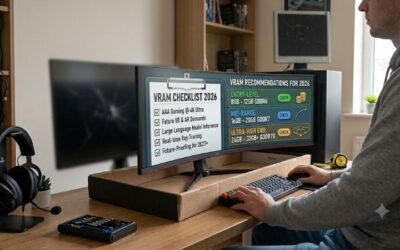
VRAM tools and parts you need can suggest shopping for additional memory chips, but a desktop upgrade usually means replacing the graphics card. The challenge is choosing useful installation equipment without unnecessary repair purchases. Start with a compatible GPU, then add tools or power hardware only where existing equipment is inadequate.
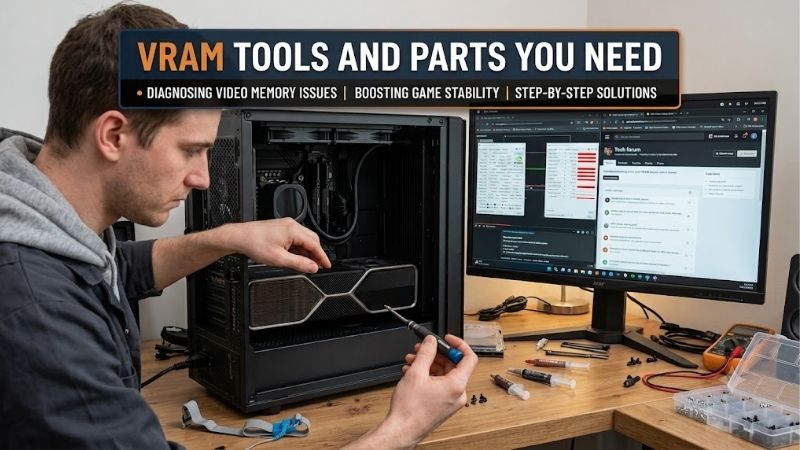
How to Choose GPU Upgrade Tools and Supporting Parts
This guide explains vram tools and parts you need for a desktop graphics-card replacement, covering screwdrivers, static-control equipment, and a conditional power-supply upgrade. VRAM is normally attached to the GPU board, not installed like system RAM. The recommendations support card replacement rather than soldering additional memory chips.
Screw Compatibility and Toolkit Coverage
Start by inspecting the case screws and expansion-slot bracket fasteners. Correct driver size matters more than collecting unusual bits because mismatched tips can damage fasteners. Desktop assemblies often use Phillips screws, but proprietary systems vary. Consult the case or computer documentation before choosing installation equipment.
Regular builders benefit from broader bit coverage, especially when maintaining several devices alongside a gaming PC. However, a large electronics kit is unnecessary for one accessible bracket screw. Choose iFixit Pro Tech Toolkit when its 64-bit assortment and accessories support recurring maintenance beyond one upgrade.
Basic Tools and Budget Priorities
A smaller toolkit makes sense when your case uses familiar screws and you expect occasional maintenance. Check the actual package contents because manufacturers revise tool selections while retaining recognizable product names. Compact storage and straightforward access can matter more than unused specialist screw profiles.
For vram tools and parts you need on especially limited budgets, prioritize verified screw compatibility over the biggest accessory count. The current iFixit Essential Electronics Toolkit lists Phillips #1 and #2 among its bits. Choose that version for compatible case screws without needing the Pro Tech kit’s broader assortment.
Static Control and Component Handling
Static-control equipment protects exposed electronics during handling, without increasing performance or memory. Before internal work, shut down and unplug the computer, then follow its service manual. Use a wired wrist strap according to its instructions, with an appropriate ESD grounding point, never an improvised mains connection.
Buy a separate strap only when your existing toolkit lacks a suitable one. Disconnected wristbands cannot provide intended protection, and it is not protection against electrical shock. Choose StarTech.com SWS100 for a standalone wired option; Pro Tech buyers should assess the included strap before duplicating equipment.
Power Capacity and Cable Compatibility
Power-supply suitability depends on the complete system and exact GPU, not VRAM capacity alone. Compare the graphics-card maker’s PSU recommendation, required connectors, and case clearance with your existing unit. Higher-capacity graphics may need no PSU replacement, while a more demanding GPU can require additional electrical headroom.
When planning vram tools and parts you need, replace the PSU only for verified incompatibility. Use the new unit’s supplied or explicitly approved modular cables, never unmatched cables from another unit. Choose Corsair RM750e (2025) when its 750W capacity, ATX form factor, and connector selection meet your complete system requirements.
Top Picks
These recommendations organize vram tools and parts you need by purpose, without implying four mandatory purchases. The toolkits are alternatives, the standalone strap fills a handling gap, and the PSU addresses a verified power requirement. Published contents guide these selections; no hands-on performance testing is claimed.
| Product | Best For | Key Spec | Watch Out For |
|---|---|---|---|
| iFixit Pro Tech Toolkit | Best Overall: Recurring maintenance | 64-bit driver kit and included anti-static wrist strap | Excess equipment for a single GPU replacement |
| iFixit Essential Electronics Toolkit | Best Value: Basic installation tools | Current IF145-348-5 kit lists 16 bits, including Phillips #1 and #2 | Narrower coverage and revision differences |
| StarTech.com SWS100 | Best For Standalone Static Control | Six-foot grounding cord and elastic wristband | Requires appropriate connection and correct use |
| Corsair RM750e (2025) | Best For Compatible Power Upgrades | 750W, ATX 3.1, dedicated 12V-2×6 cable | Unnecessary if the existing PSU already meets requirements |
iFixit Pro Tech Toolkit: Best Overall
iFixit Pro Tech Toolkit is the best overall toolkit for recurring PC maintenance alongside other smaller electronics projects. Its 64-bit driver assortment includes Phillips #1 and #2, while the package also includes an anti-static wrist strap. Broad coverage and consolidated storage reduce separate accessory purchases.
The drawback is unnecessary expense and equipment for a single screwdriver-based graphics-card replacement. Many opening tools are unnecessary in accessible desktop chassis. Choose this kit for its wider future usefulness, not because a normal VRAM-related upgrade requires dismantling the GPU cooler or exposing individual memory chips.
iFixit Essential Electronics Toolkit: Best Value
iFixit Essential Electronics Toolkit is the best value candidate for occasional maintenance with compatible screws. The current IF145-348-5 listing specifies a 16-bit kit and a polymer driver, with Phillips #1 and #2 shown in its contents. Its compact case suits buyers who want organized electronics tools without the larger Pro Tech package.
Its narrower assortment is a real limitation with unsupported proprietary hardware fastener profiles. Verify the revision because older listings can contain different bits. This kit also should not be mistaken for complete ESD equipment; check your existing protection before deciding whether a separate strap is necessary.
StarTech.com SWS100: Best For Standalone Static Control
StarTech.com SWS100 is the best pick for adding standalone static-control equipment to tools you already own. Its published specification includes a six-foot grounding wire and an elastic wristband. The wired connection supports component handling without replacing existing tools, making this a targeted static-control purchase.
The drawback is dependence on an appropriate grounding arrangement and correct use; the strap alone cannot establish a complete ESD workstation. Consider vram tools and parts you need alongside the manufacturer’s instructions. If your current kit already includes a suitable wired strap, this separate product adds little practical value.
Corsair RM750e (2025): Best For Compatible Power Upgrades
Corsair RM750e (2025) is the best pick here for a conditional power upgrade for systems within its rating. The CP-9020295-NA version provides 750W continuous output, ATX 3.1 compliance, and a dedicated 12V-2×6 GPU cable. Fully modular wiring lets you connect required cables without routing every supplied lead through the chassis.
The limitation is that 750W is not sufficient for every high-power CPU/GPU configuration, and an ATX unit will not fit every small-form-factor case. It is unnecessary when your existing supply meets requirements. Select this exact revision only after checking your components, PSU mounting space, and the graphics card’s connector needs.
Frequently Asked Questions
These questions clarify vram tools and parts you need when confusing upgrade terminology complicates purchases. Diagnostic software can reveal installed memory, while hardware compatibility determines replacement-card fit and operation. Establish the actual problem before purchasing tools, cooling supplies, or a replacement power supply.
Can I Add VRAM Chips to My Existing Graphics Card?
No, desktop graphics-card VRAM is not normally user-expandable. Its memory chips are attached to the board, so a standard capacity upgrade means replacing the card. Specialist chip modifications involve board-level work and compatibility constraints, far beyond the screwdriver-based installation equipment discussed here.
If your computer uses integrated graphics, its shared-memory behavior differs from a discrete card’s dedicated VRAM. Firmware allocation changes cannot create physical memory or equivalent dedicated bandwidth. Check whether your desktop supports a discrete GPU before buying, especially with compact or proprietary systems lacking expansion space.
Do I Need Soldering Equipment or Thermal Pads?
No, you do not need a soldering iron for a normal graphics-card replacement. Installation uses a compatible motherboard expansion slot and required power connections. Tools handle mounting fasteners; they do not change the card’s memory chips. Leave board-level VRAM repair or modification to appropriately equipped specialists.
GPU cooler removal is unnecessary for straightforward replacement, so thermal paste and replacement memory pads are not default purchases. Those materials become relevant only during a separate, justified cooling service. Avoid opening a functioning card merely because a toolkit includes precision bits and specialist electronics tools.
How Can I Check My Current VRAM Before Buying?
Use Windows Task Manager’s GPU performance panel to inspect reported dedicated memory, then confirm capacity against the exact card specification. Monitoring values can distinguish dedicated and shared memory, without combining them as equivalent VRAM. Check usage during specific application workloads rather than an idle desktop.
For vram tools and parts you need, software checks should precede hardware spending. High allocation alone cannot establish a memory-capacity bottleneck. Examine the application’s behavior and compare reduced texture settings with consistent remaining variables, so you can distinguish a likely memory limitation from unrelated problems.
Does More VRAM Require a New Power Supply?
No, a GPU replacement does not necessarily require a new PSU. Keep the existing supply if its condition, wattage, connectors, and manufacturer guidance support the new configuration. Graphics memory capacity alone cannot determine system power requirements, so compare the exact card and CPU combination rather than shopping by advertised VRAM.
Manufacturer recommendations provide a starting point, but factory-overclocked partner cards may have different requirements. Check your chosen board’s documentation and account for other components. A PSU replacement should address a specific compatibility or capacity shortfall; it cannot correct inadequate VRAM on the graphics card itself.
Final Thoughts
Choosing vram tools and parts you need starts with confirming that a GPU replacement solves your problem. Select Pro Tech for recurring maintenance or Essential Electronics for simpler work, add SWS100 only if needed, and consider RM750e only for a justified power upgrade. Keep compatible equipment and reserve funds for suitable graphics.