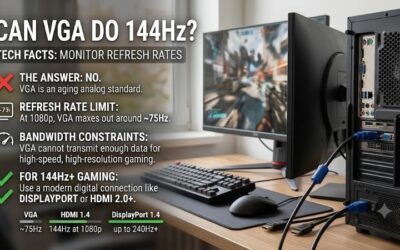
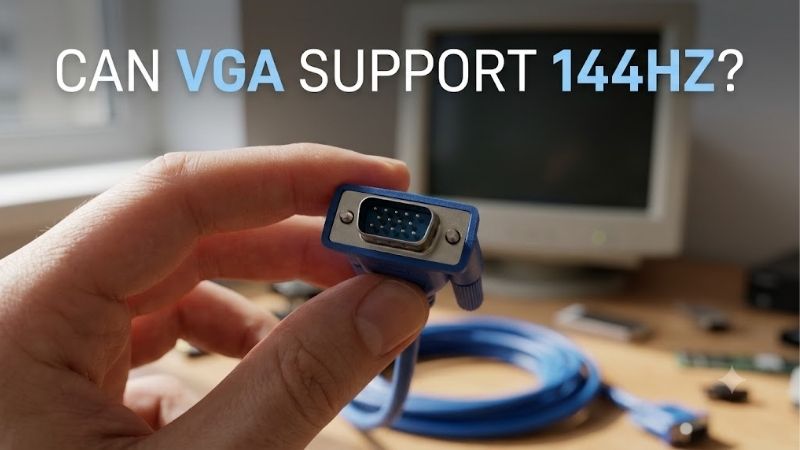
If you are asking can vga support 144hz, the practical answer is that you should not expect a standard VGA connection to deliver 144Hz reliably on a modern gaming monitor. VGA is an analog interface without one universal refresh-rate ceiling, so the result depends on the graphics output, monitor input, resolution, and supported signal timings. Many monitors limit their VGA inputs to 60Hz or 75Hz even when their panels support 144Hz through HDMI or DisplayPort.
- The quick answer: Can VGA deliver 144Hz?
- Can VGA support 144Hz at 1080p?
- Can VGA support 144Hz on your specific monitor?
- What determines whether a PC can output 144Hz?
- Which connection should you use instead of VGA?
- How to enable 144Hz after choosing the right connection
- Troubleshooting when 144Hz is not available
- Frequently asked questions
- Final verdict
The quick answer: Can VGA deliver 144Hz?
VGA can operate at different resolutions and refresh rates depending on the hardware, but that does not mean every VGA-equipped PC or monitor can use 144Hz. For a typical 1920 × 1080 gaming monitor, VGA is generally the wrong connection to choose when 144Hz is the goal.
The most important distinction is between a monitor’s advertised refresh rate and the refresh rates it accepts through each input. A monitor marketed as 144Hz might support that rate through HDMI but accept only 75Hz through VGA.
ViewSonic’s VA2532A-H provides a useful real-world example. Its official specifications list a 48–75Hz vertical frequency range for RGB analog, while its HDMI input supports 48–144Hz. The same monitor therefore has different refresh-rate capabilities depending on the connection used.
Here is the practical decision guide:
| Your situation | Recommended action |
|---|---|
| Your PC and monitor both have DisplayPort | Use a compatible DisplayPort cable and confirm the supported resolution and refresh rate. |
| Both devices have HDMI | Check the specifications for the exact HDMI ports and monitor model. |
| You have an older gaming monitor with DVI | Check whether it requires dual-link DVI for 144Hz. |
| Your only available connection is VGA | Check the exact supported VGA timings; expect that 144Hz may not be available. |
| Your monitor shows only 60Hz or 75Hz | Verify the input limits and connection before changing software settings. |
The takeaway is straightforward: check what the specific input supports rather than relying on the monitor’s headline refresh-rate number.
Can VGA support 144Hz at 1080p?
There is no single answer that applies to every VGA device, but you should not assume that VGA can provide 1920 × 1080 at 144Hz.
VGA, short for Video Graphics Array, transmits analog red, green, and blue video signals along with synchronization signals. Unlike digital interfaces such as HDMI and DisplayPort, VGA does not have a single standardized digital bandwidth figure that determines every supported resolution and refresh rate. Intel explicitly notes that analog VGA does not have a well-defined bandwidth limit. [2]
That distinction matters because VGA’s actual capabilities depend on more than its connector. The graphics hardware must generate a suitable signal, and the receiving monitor must accept the corresponding horizontal and vertical timing.
At 1080p and 144Hz, the display must process 144 complete screen refreshes per second at a relatively high pixel rate. The video electronics must support those timings, and the connection must maintain an acceptable analog signal. A setup designed around lower refresh rates may not offer this mode at all.
Why many VGA connections stop below 144Hz
The monitor’s VGA input is often the decisive limitation. Manufacturers can specify different vertical-frequency ranges for analog and digital inputs, even when both feed the same LCD panel.
For example, the ViewSonic VA2532A-H supports a maximum advertised refresh rate of 144Hz, but its official specifications distinguish between the 48–75Hz RGB analog range and the 48–144Hz HDMI range. Connecting that monitor through VGA will not provide its full advertised refresh rate. [1]
Other hardware can have different limits, so the exact model’s manual is more useful than a generic claim that every VGA cable stops at a particular number.
Lowering the resolution can reduce the demands on the signal path, and some older VGA-equipped displays can operate at high refresh rates under specific conditions. However, a lower resolution does not guarantee 144Hz. Both the source and display still need to support the requested timing.
Does a better VGA cable solve the problem?
A good-quality VGA cable can help preserve analog image quality. A poorly constructed or excessively long cable can contribute to blur, ghosting, interference, or other visible artifacts.
However, changing to a more expensive cable does not override a monitor’s supported input frequencies. If the VGA input is rated for a maximum vertical frequency of 75Hz, a premium cable cannot make that input accept 144Hz.
The cable is only one part of the connection. Confirm the monitor’s input specifications first, then investigate cable quality if the supported mode is available but the image is unstable.
Can VGA support 144Hz on your specific monitor?
The reliable way to answer this question is to check the maximum refresh rate for the exact input you plan to use. Do not rely solely on the product title, the size of the screen, or the number printed on the front of the box.
Open the monitor’s official specifications or user manual and look for these details:
-
The native resolution, such as 1920 × 1080.
-
The maximum vertical frequency, listed in hertz (Hz).
-
The supported timing modes for VGA, HDMI, DisplayPort, or DVI.
-
Any notes stating that a particular refresh rate requires a specific port.
A specification that lists a maximum vertical frequency of 75Hz for RGB analog means you should not expect 144Hz through that input. If the documentation lists a range without identifying the corresponding resolution, consult the supported timing table before assuming 144Hz is available.
The distinction between a monitor’s panel capability and its input capability is especially important when shopping for older hardware. A 144Hz panel cannot necessarily accept every signal that would theoretically match its refresh rate.
For a concrete example of how port requirements differ by model, BenQ’s ZOWIE XL2411P support documentation states that 144Hz is supported through DisplayPort and dual-link DVI. Its support instructions do not identify VGA as a supported route to 144Hz. [4]
This illustrates why compatibility should be checked at the model level. Two monitors with the same advertised resolution and refresh rate may have different input options and different restrictions.
What determines whether a PC can output 144Hz?
Several components work together to produce the refresh rate you see. One unsupported link can prevent the complete system from reaching its intended mode.
The graphics card or integrated graphics
Your GPU must support the resolution and refresh rate through the output you intend to use. A graphics card may have several connectors, but that does not mean every connector offers identical capabilities.
Older graphics cards can include VGA outputs, while modern cards more commonly prioritize digital outputs. Some systems use integrated graphics built into the processor rather than a dedicated graphics card. In either case, check the manufacturer’s specifications for the exact device and output.
A graphics card capable of rendering games at high frame rates does not automatically make a VGA connection suitable for 144Hz. Rendering performance and display-output capabilities are separate considerations.
The monitor’s input and internal electronics
A monitor may support 144Hz at its native resolution through one input but not another. The display’s internal electronics determine which incoming timing modes it can process.
This is why you need to check the supported input rather than simply asking whether the monitor is a 144Hz model. If the manufacturer specifies a 75Hz maximum for VGA, the advertised panel refresh rate does not change that restriction.
Resolution and signal timing
Refresh rate and resolution work together. Higher resolutions generally require more signal bandwidth at the same refresh rate, while higher refresh rates require the display to receive new screen information more frequently.
Signal timing also includes intervals between active image data. These intervals matter when calculating the pixel rate required for a particular mode. Consequently, two timing modes with the same visible resolution and nominal refresh rate can have different signal requirements.
This complexity explains why a universal statement such as “VGA always supports 144Hz” or “VGA can never exceed 60Hz” is too simplistic. The exact hardware and its supported timings determine the result. [2][3]
The cable and any adapters
The cable must match the connection type and maintain a usable signal. VGA transmits analog video, so cable quality can affect visible sharpness and stability.
An adapter adds another compatibility requirement. For example, converting an analog VGA output to a digital HDMI input requires conversion electronics, not just a change in connector shape. The converter must support the intended resolution and refresh rate, and the receiving display must accept its output.
Dell also recommends choosing a connection that matches the available ports whenever possible because adapters can introduce compatibility limitations. [3]
For a 144Hz setup, a direct digital connection supported by both devices is usually the more dependable solution.
Which connection should you use instead of VGA?
If your goal is 144Hz gaming, choose a connection that the graphics card and monitor both explicitly support at your target resolution.
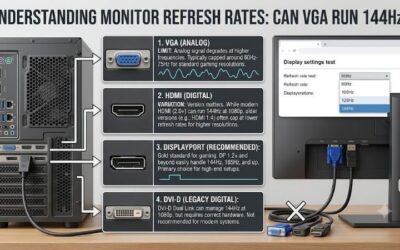
| Connection | Suitability for 144Hz | What to check |
|---|---|---|
| DisplayPort | Usually the best starting point for a modern gaming monitor | Supported DisplayPort version, monitor input limits, resolution, and cable capability. |
| HDMI | Often suitable, depending on the hardware | The exact HDMI implementation and the monitor’s maximum refresh rate over that port. |
| Dual-link DVI | Useful on some older gaming monitors | Both devices must support dual-link DVI and the required timing. |
| Single-link DVI | Not interchangeable with dual-link DVI | Check its limitations and the monitor’s supported modes. |
| VGA | Generally not recommended for a 144Hz gaming setup | The exact analog input frequency range and supported resolution timings. |
DisplayPort is often the simplest choice when both devices have a compatible port. However, do not assume that every DisplayPort or HDMI connection supports every resolution and refresh rate. Specifications still matter.
HDMI 1.4, HDMI 2.0, and HDMI 2.1 do not represent identical capabilities, and the monitor manufacturer can impose input-specific restrictions. The graphics card’s output must also support the desired mode. A suitable digital cable cannot compensate for an unsupported port on either device. [2][3]
Dual-link DVI is worth considering when working with older 144Hz monitors. For example, the ZOWIE XL2411P supports 144Hz through DisplayPort and dual-link DVI, demonstrating that older monitors may rely on specific connections rather than accepting their maximum refresh rate from every input. [4]
Before buying a new cable, examine the ports on both the PC and the display. Then choose the simplest compatible connection that meets the required specification.
How to enable 144Hz after choosing the right connection
After connecting the monitor through a supported input, configure the operating system to use the intended refresh rate. A working physical connection does not guarantee that Windows has selected the highest available setting.
Step 1: Check the monitor’s supported mode
Find the exact model number, then consult the manufacturer’s specifications. Confirm that 144Hz is supported through the selected input at your intended resolution.
If the documentation limits VGA to 75Hz, switch to a supported digital input before proceeding. Changing a Windows setting will not make an unsupported input accept a higher frequency.
Step 2: Connect the PC and monitor directly
Use a cable suited to the ports on both devices. If the graphics card and monitor both offer DisplayPort, a direct DisplayPort connection is a good first choice.
If you must use an adapter or docking station, verify that the entire connection path supports the target resolution and refresh rate. Check the adapter’s specifications as well as those of the PC and monitor.
Step 3: Select 144Hz in Windows
In Windows 11:
-
Open Settings.
-
Select System, then Display.
-
Open Advanced display.
-
Select the correct monitor if more than one display is connected.
-
Find the refresh-rate setting and choose 144Hz if it is listed.
In Windows 10, open Settings, select System, then Display, and open Advanced display settings. Select Display adapter properties if necessary, open the Monitor tab, and choose the desired refresh rate from the available options.
The names of some settings can vary by Windows version. BenQ’s ZOWIE support guidance also describes selecting the refresh rate through Windows display settings or the graphics card control panel. [4]
Step 4: Verify the result
After applying the setting, return to Advanced display and confirm that the selected display is operating at 144Hz. You can also check the monitor’s on-screen display if it reports the active signal frequency.
If 144Hz is missing from the list, do not immediately assume that the graphics card is too weak. The cause may be an unsupported input, a cable or adapter restriction, a driver problem, or a display configuration that does not expose the required mode.
Step 5: Understand what 144Hz means for gaming
Refresh rate and frame rate are related but different.
A 144Hz monitor can refresh its image up to 144 times per second when configured for that mode. A game running at 80 frames per second does not automatically produce 144 unique frames each second.
To take advantage of high-refresh-rate gaming, the PC must render frames at a suitable rate, and the complete display connection must support the selected mode. Enabling 144Hz is still useful even when a game cannot sustain 144 FPS, but the experience depends on the actual frame rate and any supported variable refresh-rate technology.
Troubleshooting when 144Hz is not available
If Windows lists only 60Hz or 75Hz, work through the following checks in order. This helps identify whether the limitation comes from the connection, display settings, or hardware compatibility.
The refresh-rate menu stops at 60Hz or 75Hz
Start with the monitor’s input specifications. If VGA is limited to 75Hz, selecting a different Windows setting or installing a newer graphics driver will not remove that hardware restriction.
If the monitor supports 144Hz through DisplayPort or HDMI, switch to the supported connection and check the available refresh rates again.
144Hz is supported, but Windows does not list it
Confirm that you selected the correct monitor in Advanced display. If multiple displays are connected, Windows may show different refresh-rate options for each screen.
Next, check the cable, adapter, graphics output, and monitor input. Make sure the connection follows a supported route and that the monitor is running at a supported resolution.
Updating the graphics driver may help resolve detection or configuration problems. However, a driver update cannot make an unsupported physical input deliver a refresh rate outside its documented capabilities.
The screen goes blank or becomes unstable
If the image disappears after changing the refresh rate, the selected signal timing may be incompatible with the monitor or connection.
Return to a supported mode using the recovery options available in your operating system. Avoid repeatedly forcing custom resolutions or refresh rates beyond the manufacturer’s specifications. BenQ warns that unsupported custom timing settings can damage a monitor or affect warranty coverage. [4]
Once the display is working again, use a manufacturer-approved resolution and refresh rate rather than attempting to force an unsupported VGA mode.
An adapter is involved
Check the specifications of every device between the PC and monitor. Some adapters support only particular resolutions or refresh rates, and the direction of signal conversion matters.
A VGA-to-HDMI converter changes an analog signal into a digital one. An HDMI-to-VGA converter performs the opposite conversion. They are not necessarily interchangeable, and neither can override a monitor’s supported input modes.
When possible, remove unnecessary conversion equipment and connect the graphics output directly to a compatible monitor input.
Frequently asked questions
Is VGA limited to 60Hz?
No. VGA does not have one universal 60Hz ceiling. Its actual capabilities depend on the graphics hardware, analog signal path, display electronics, resolution, and supported timings. Some VGA-equipped systems can run at higher refresh rates, but this does not guarantee 144Hz on a particular monitor. [2][3]
Can VGA support 144Hz at 720p?
It depends on the exact hardware. A lower resolution reduces signal requirements, but the graphics card and monitor must still support the specific 144Hz timing. Check the manufacturer’s supported modes rather than assuming that lowering the resolution will unlock 144Hz.
Does a 144Hz monitor automatically support VGA at 144Hz?
No. The panel’s advertised refresh rate does not establish the maximum refresh rate for each input. A monitor can support 144Hz through HDMI or DisplayPort while restricting VGA to 60Hz or 75Hz. The official specifications for each input are the deciding factor. [1]
Will a VGA-to-HDMI adapter unlock 144Hz?
Not necessarily. The adapter must support the required signal conversion, resolution, and refresh rate, and the display must accept the resulting signal. If the limiting factor is the monitor’s VGA input, connecting through that input will not bypass its restrictions.
Can a graphics card with a VGA port run 144Hz?
The presence of a VGA connector alone does not answer the question. The graphics card must support the required output timing, and the monitor must accept it. For a reliable 144Hz setup, check both devices and use a compatible digital connection when available.
Does selecting 144Hz guarantee 144 FPS in games?
No. Refresh rate describes how frequently the display can refresh, whereas FPS measures how many frames the computer renders. A 144Hz monitor can display a game running below 144 FPS, but it cannot create additional unique frames that the game has not rendered.
Final verdict
VGA is not subject to one universal refresh-rate ceiling, but it is generally a poor choice for a modern 144Hz gaming setup. Many monitor models restrict their VGA inputs to lower refresh rates even when their panels support 144Hz through other connections.
Check the exact monitor’s input specifications, confirm that the graphics output supports the required mode, and choose a compatible DisplayPort or HDMI connection whenever possible. That is more reliable than buying a more expensive VGA cable or trying to force a custom refresh rate.