The best wall mount gaming monitor combines the gaming performance you need with mounting hardware that fits your wall, seating position, and screen weight. For a conventional PC desk, a flat 27-inch 1440p display is a sensible starting point; a 32-inch 4K screen suits buyers who want more workspace and finer detail. Before choosing either, confirm the exact VESA pattern, weight without the stand, rear clearance, and supported video modes. Those checks determine whether a promising monitor becomes a practical setup.
- Choosing the best wall mount gaming monitor starts with your setup
- Match screen size and resolution to your games
- Prioritize gaming specifications you can actually use
- Check the best wall mount gaming monitor for mechanical compatibility
- Choose a mount that fits your movement needs
- Plan the wall, viewing position, and cables together
- Use product examples to understand trade-offs
- Budget for the complete installation
- Avoid common mistakes before placing the order
- Your final buying checklist
- Frequently asked questions
- Final verdict
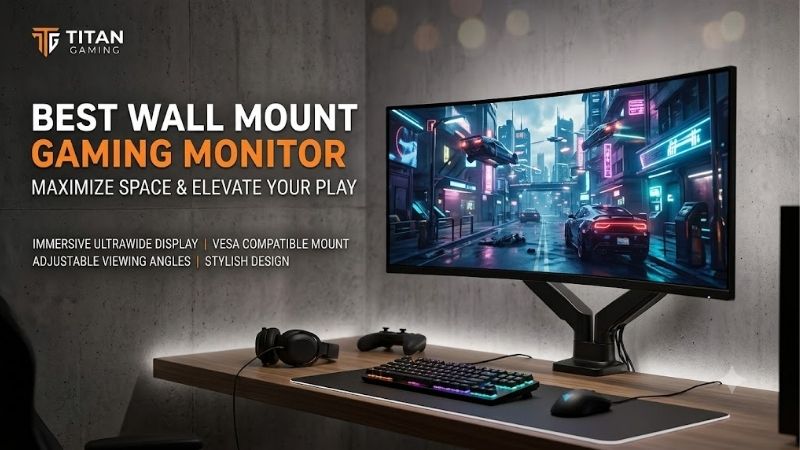
Choosing the best wall mount gaming monitor starts with your setup
Choose the screen around your games and viewing position, then match a wall mount to that exact model. Wall mounting is a compatibility feature, not a separate panel technology or performance category.
A useful default is a flat 27-inch 1440p monitor with a refresh rate around 144–180Hz, documented VESA mounting, and accessible connections. That combination offers a manageable screen size without requiring every buyer to pay for premium refresh rates or 4K rendering.
Move toward a smaller display when you prefer a compact competitive gaming view. Consider 32-inch 4K when desktop space, detailed games, and mixed productivity matter more. Choose an ultrawide only after checking game support and the larger physical envelope.
The mount should solve an identifiable problem: removing a bulky stand, reaching a better viewing position, or freeing space for peripherals. If your existing monitor already performs well and supports suitable mounting, replacing its stand may be the only purchase necessary.
When a wall mount makes sense
Wall mounting is useful when a desk cannot accept a clamp, the desktop needs to remain clear, or the screen must stay independent of desk movement. It can also help position a monitor behind a shallow work surface.
However, the wall fixes the installation relative to the room. Moving the desk later may leave the screen poorly positioned. Renters should establish whether drilling is permitted before choosing hardware.
When a desk arm is more practical
A desk arm moves with the desk and usually requires fewer permanent changes. That can be valuable for a sit-stand workstation or a room you rearrange frequently.
Check the desktop’s material, thickness, and permitted mounting method. A desk arm is only a useful alternative when its clamp or grommet installation suits the furniture.
Match screen size and resolution to your games
Removing the stand does not change the screen’s pixel density, field of view, or graphics demands. Select those characteristics before deciding how close the panel should sit to the wall.
| Gaming setup | Sensible starting point | Main trade-off |
|---|---|---|
| Compact competitive station | 24–25 inches, 1080p, high refresh | Less desktop detail and workspace |
| Mixed PC gaming | 27 inches, 1440p, 144Hz or higher | Demanding games still require settings adjustments |
| Gaming and detailed desktop work | 32 inches, 4K | Higher graphics workload at native resolution |
| Immersive supported games | 34-inch 3440 × 1440 ultrawide | Wider mounting envelope and variable game support |
| Shared PC and console setup | Suitable 16:9 display with verified HDMI modes | PC specifications alone do not establish console compatibility |
These are starting categories, not fixed rules. Your preferred viewing distance, eyesight, and existing graphics card should guide the final choice.
Why 27-inch 1440p is a useful baseline
A 27-inch 1440p display gives many buyers enough space for games and everyday applications without the physical width of an ultrawide. It also avoids the rendering demands of native 4K.
Resolution does not establish image quality by itself. Contrast, reflections, motion handling, and usable brightness remain important. A poorly matched panel does not become a better purchase because its resolution fits a familiar recommendation.
When 32-inch 4K earns its place
A 32-inch 4K display suits buyers who want fine detail and a larger desktop canvas. It can work well for slower games, editing, and mixed work, provided interface scaling keeps text comfortable.
Measure the intended viewing position first. Mounting a larger screen farther back can make small game interfaces harder to read. Pulling it forward may require an articulating arm with sufficient reach and clearance.
Treat ultrawides as a separate fit decision
An ultrawide needs more than a higher weight allowance. Its edges travel through a larger area when the arm swivels, and a curved housing can change clearance requirements.
Check whether your favorite games support the intended aspect ratio. Buyers primarily using consoles should verify their output formats rather than assuming a wide PC monitor will display every game across its full width.
Prioritize gaming specifications you can actually use
A wall-mounted display should meet the same gaming standards as a monitor on its original stand. The mounting method does not compensate for unsuitable connections or poor motion behavior.
Refresh rate should match your priorities
A higher refresh ceiling matters most when the computer can deliver enough frames in the games you play. Competitive titles may justify spending more here; visually demanding single-player games may make resolution or contrast a better priority.
Check the supported refresh rate at native resolution through each input. Dell’s G2724D illustrates why this matters: its US specifications list 2560 × 1440 at 165Hz through DisplayPort and 144Hz through HDMI. The headline refresh rate therefore does not apply identically to both connections.
Separate response time from input lag
Pixel response time describes how quickly pixels change, while input lag concerns delay before an input becomes visible. Neither is fully explained by a single advertised millisecond figure.
When comparing candidates, look for independent measurements of motion behavior, overshoot, and latency at relevant refresh rates. An aggressive overdrive setting can introduce visible artifacts, so the fastest advertised mode may not be the most useful setting.
This guide uses manufacturer specifications for its product illustrations and makes no measured performance ranking.
Choose panel technology around your room
IPS is worth considering for mixed desktop use and flexible viewing positions. VA deserves attention when contrast matters, but examine model-specific dark-transition performance. OLED can suit buyers prioritizing dark-scene presentation and fast transitions, with additional considerations around static content and panel care.
Avoid assuming every display within a panel category behaves alike. Reflections, text appearance, brightness controls, and firmware can materially affect daily use.
For OLED, verify the applicable US warranty and any burn-in provisions separately. A general warranty duration does not establish coverage for every type of panel wear.
Verify variable refresh rate on your connection
Variable refresh rate coordinates display updates with supported frame delivery. Compatibility depends on the monitor, graphics hardware, selected input, and supported operating range.
Confirm the exact connection you plan to use. A compatibility badge does not establish that every HDMI port, adapter, dock, or console supports the same behavior.
Check the best wall mount gaming monitor for mechanical compatibility
Begin with the monitor’s full model number, including its suffix. Similar names can refer to different generations, mounting arrangements, or regional versions.
Create a short compatibility record before ordering: VESA pattern, display-only weight, supported screws, rear housing dimensions, and any required adapter. Compare it with the exact mount’s documentation.
Match the VESA pattern and mounting plate
The VESA pattern describes the spacing between mounting holes. Common monitor patterns include 75 × 75 mm and 100 × 100 mm, but neither should be assumed from screen size.
Hole spacing is only the first check. A mounting plate can still interfere with a recessed attachment area, rear controls, or connectors. Confirm that the plate physically fits and that any required manufacturer adapter is included.
A used monitor deserves particular attention. Missing mounting accessories can turn an apparently straightforward purchase into a parts search.
Use weight without the original stand
The mount supports the display after its desktop stand is removed. Use that figure rather than shipping weight.
For example, Dell lists the G2724D at approximately 8.1 pounds without its stand. That makes it a useful illustration of why the correct weight field matters, rather than a current availability recommendation: Dell’s US page identified the model as unavailable when checked.
Add accessories attached to the display when assessing supported load. Follow the mount manufacturer’s guidance for accessory placement.
Check minimum load, depth, and movement
Counterbalanced arms can have a minimum supported weight as well as a maximum. A screen that is too light may be difficult to position correctly.
Depth also matters. Ergotron’s wall-arm documentation notes that monitor depth can reduce capacity on applicable designs. A curved or unusually deep display therefore needs more scrutiny than its weight alone suggests.
Confirm screen-size guidance, pivot limitations, and any specific curved-monitor restrictions.
Follow the specified screw requirements
Correct hole spacing does not make every screw suitable. Diameter, thread engagement, plate thickness, spacers, and permitted insertion depth all matter.
Use the hardware arrangement specified for the monitor and mount. Stop if a screw bottoms out before the plate is secure or if the plate cannot seat correctly. Do not solve an unexplained fit problem by tightening harder.
Choose a mount that fits your movement needs
A fixed plate and an adjustable arm serve different purposes. Decide how often the screen will move before comparing their dimensions.
| Mount type | Appropriate use | What to verify |
|---|---|---|
| Fixed plate | One established viewing position | Installed depth, port access, release mechanism |
| Tilting plate | Occasional angle changes | Tilt clearance and access to controls |
| Articulating arm | Forward reach or side positioning | Folded depth, extension, swivel envelope |
| Counterbalanced arm | Frequent height adjustments | Minimum load, maximum load, usable travel |
Fixed and tilting mounts favor a settled position
A fixed plate can keep the installation compact, but it leaves little room to correct a poorly chosen height. A tilting model adds angle adjustment without necessarily providing useful vertical movement.
Check how the screen detaches for service. A release mechanism that becomes inaccessible behind a shelf can complicate even a simple cable change.
Articulating arms need room to fold
Maximum extension is only half the geometry. The folded arm can push the screen farther forward than expected, particularly when the wall attachment is directly behind the intended screen center.
Sketch the arm’s folded and extended positions. Check where the monitor lands in both, and whether its corners clear nearby furniture.
For a sit-stand desk, compare actual vertical travel with your seated and standing viewing positions. Swivel and tilt cannot replace sufficient height adjustment.
Plan the wall, viewing position, and cables together
A suitable display and mount still require an approved installation surface. Identify the wall construction before buying installation hardware.
Verify the attachment method before drilling
Wood studs, steel studs, concrete, and brick require different approaches. Use the wall types, fasteners, and installation methods permitted by the exact mount manufacturer.
Do not treat a generic anchor’s advertised weight as approval for an extended monitor arm. Extension changes the forces on the installation. Ergotron’s mounting resources distinguish wall constructions and identify model-specific hardware or kits for applicable installations.
If the structure or concealed services cannot be identified confidently, arrange qualified installation before committing to the location.
Mock up the screen at your normal seat
Use painter’s tape to mark the display outline, then sit with your keyboard and mouse in their normal positions. Check the centerline, text visibility, and reach before marking attachment points.
OSHA recommends placing the monitor directly ahead, with the top at or below eye level, and describes a general preferred viewing distance of 20–40 inches. Treat that as a workstation starting point, then adjust for screen size, readable text, and your posture.
Locate the VESA holes within that outline. The mounting pattern is not necessarily centered vertically on the visible screen.
Leave clearance for connections and ventilation
Rear-facing connectors need space behind the display. Downward-facing connections still need room for plugs, cable routing, and access.
Measure with the intended cables attached. Preserve the ventilation clearances required by the monitor manufacturer, and avoid pressing cable bundles against vents.
Route cables through the arm’s full movement range with slack at moving joints. A tidy bundle should not pull on a port when the monitor extends or rises.
Choose cables for the required signal
Buy a cable suitable for the intended resolution, refresh rate, length, and connection. Do not select one solely because its connector fits.
DisplayPort’s official guidance identifies certified cable options for higher-bandwidth applications. Check the relevant certification and your devices’ requirements rather than relying on vague “gaming cable” descriptions.
Before final cable dressing, verify the target display mode, variable refresh rate, and normal sleep-and-wake behavior.
Use product examples to understand trade-offs
These examples illustrate specification checks rather than establish a ranked shortlist. Neither should bypass a current availability check or a review of the exact mounting hardware.
Dell G2724D: A conventional 27-inch example
The G2724D demonstrates the familiar 27-inch 1440p IPS format, documented VESA support, and an input-dependent refresh ceiling. Its published specifications make it useful for understanding a manageable conventional screen.
An existing owner may gain more from mounting it than replacing it. A new buyer should compare currently available alternatives, since Dell’s US page did not offer it for purchase when researched.
LG 32GS95UE-B: A larger dual-mode example
LG’s 32GS95UE-B illustrates a different purchase priority: a 32-inch OLED display offering 4K at up to 240Hz or Full HD at up to 480Hz. Those are separate operating modes, not simultaneous resolution and refresh specifications.
LG also identifies a 100 × 100 mm mounting pattern. That establishes the hole layout, while the chosen arm still needs to satisfy load, clearance, and installation requirements. LG USA
This type of display makes sense when its image characteristics and modes solve a real need. Wall mounting alone is no reason to purchase a premium OLED.
Budget for the complete installation
Set a total spending ceiling before choosing the display. Include the monitor, mount, applicable installation hardware, cables, cable management, tax, shipping, and any labor.
For a constrained budget, reuse what already works
Start by checking your current monitor’s mounting documentation. A suitable mount may deliver the desk-space improvement you want without changing the display.
If replacing the screen, prioritize the resolution, usable refresh rate, and mounting compatibility you need. Avoid spending the entire allowance on a monitor and improvising the installation afterward.
For a balanced budget, pay for useful adjustment
An adjustable arm earns its cost when you regularly change viewing distance or height. If the screen stays in one position, a simpler compatible mount may leave more money for the display.
Do not pay twice for the same benefit without considering it. An elaborate desktop stand may have little value in a permanent wall installation.
For a premium budget, preserve compatibility discipline
A larger allowance can fund OLED, higher refresh rates, or professional installation. It does not remove the need to match the mount.
Ask what the extra spending changes during actual use. Better contrast or needed vertical travel may matter daily; decorative lighting behind a wall-mounted panel may not.
Avoid common mistakes before placing the order
The most expensive mistakes often begin with assumptions rather than missing features.
Buying by diagonal size alone overlooks load and rear clearance. Buying by VESA pattern alone overlooks plate fit and wall attachment. Choosing a high refresh rate without checking the intended input can leave performance unavailable through your connection.
Other avoidable problems include mounting too high to clear speakers, buying cables before measuring arm travel, and selecting a large screen because removing its stand creates apparent space.
Keep the original stand and mounting accessories. They remain useful if you move, change furniture, or need to troubleshoot the monitor away from the wall.
Your final buying checklist
Before ordering, confirm the following:
- The screen size and resolution suit your games and viewing distance.
- Your graphics hardware and selected input support the intended display mode.
- The exact monitor has a documented mounting pattern and installation method.
- Its installed load falls within the mount’s permitted range.
- The plate clears the housing, ports, and controls.
- The arm reaches the intended position and folds without collisions.
- The wall construction supports an approved installation.
- Screws, spacers, and other hardware match the documentation.
- Cables remain slack throughout movement.
- The complete purchase fits your budget.
If one essential compatibility item remains unresolved, settle it before ordering.
Frequently asked questions
Does wall mounting improve gaming performance?
It does not increase frame rate, refresh rate, or pixel response speed. Its benefit is physical positioning and reclaimed desk space. Better placement may improve your experience, but it does not change the monitor’s electronic performance.
Can any gaming monitor be wall mounted?
No. Confirm documented VESA support or a manufacturer-approved adapter for the exact model. Do not assume a removable stand reveals a standard mounting interface.
Should you mount a gaming monitor flat against the wall?
Only when the mount’s installed depth accommodates the monitor’s ventilation requirements, plugs, and cable bends. A slightly deeper installation can be more practical than an extremely slim plate.
Can one wall-mounted monitor serve both PC and console gaming?
Yes, when its inputs and supported modes match both devices. Verify resolution, refresh rate, variable refresh support, and audio separately for each connection.
Final verdict
For many conventional desks, start with a flat 27-inch 1440p gaming monitor and a mount that provides only the movement you need. Choose a larger 4K or ultrawide display when your games, workspace, and viewing distance justify it. The best purchase is the complete combination: suitable gaming performance, documented mechanical fit, an approved wall installation, and cables that work throughout normal movement.