
The best mountable gaming monitors combine the gaming features you need with a mounting interface your desk arm or wall bracket can actually support. For a typical PC gaming setup, a flat 27-inch 1440p display with a high refresh rate and documented VESA mounting is a sensible starting point. Before buying, check the monitor’s weight without its stand, mounting-hole pattern, rear clearance, and connection limits. Those details determine whether your finished setup works comfortably and securely.
- Start with the monitor and mount as one purchase
- Choose the best mountable gaming monitors for your setup
- Understand the mounting specifications that matter
- Check desk or wall compatibility before ordering
- Plan reach, height, and viewing distance
- Keep gaming specifications in the decision
- Use a documented monitor as a compatibility example
- Account for hidden costs and common mistakes
- Use this checklist before purchasing
- Frequently asked questions
- Final recommendation
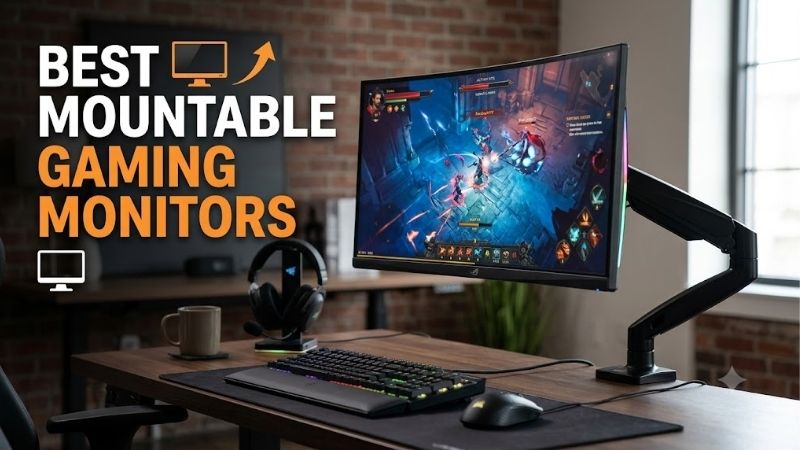
Start with the monitor and mount as one purchase
Choose a gaming monitor for your games, graphics card, and viewing distance, then verify that your intended mount supports that exact model. A matching VESA pattern is necessary, but it does not establish complete compatibility.
The mount must also accommodate the display’s weight, shape, mounting recess, and adjustment requirements. Its base must fit your desk or wall, while its movement must leave room for cables.
For most buyers, the practical starting points are:
| Your main use | Sensible display direction | Mounting priority |
|---|---|---|
| Mixed PC gaming and everyday work | Flat 27-inch 1440p high-refresh display | Suitable weight range and useful height adjustment |
| Competitive games | Screen size and refresh rate matched to your play style | Stable positioning and unobstructed mouse space |
| Detailed games and desktop work | 27-inch or larger 4K display | Viewing distance, arm reach, and connection support |
| Immersive ultrawide gaming | Ultrawide with documented mounting specifications | Tilt capacity, display depth, and total width |
| Gaming plus a secondary screen | Independently positioned displays | Per-arm capacity and collision clearance |
These are buying directions rather than guaranteed performance tiers. A monitor arm cannot improve pixel response, increase frame rates, or compensate for a graphics card that struggles at the selected resolution.
When keeping your existing monitor makes sense
If your current screen already meets your gaming needs, inspect its manual before replacing it. A removable stand may conceal a standard mounting interface.
Adding a compatible arm could solve the actual problem: a bulky stand, poor screen height, or insufficient keyboard space. Replacing a satisfactory monitor solely to obtain a cleaner desk can be unnecessary.
Conversely, an adapter should not become an expensive workaround for a screen you already want to upgrade. Compare the complete cost and complexity of both options.
Choose the best mountable gaming monitors for your setup
A useful buying guide separates display requirements from installation requirements. Decide what the screen needs to deliver before paying for premium panel technology or an unusually high refresh rate.
For everyday gaming and mixed use
A flat 27-inch 1440p screen is a practical reference point because it combines useful desktop space with a manageable physical footprint. It also avoids some of the mounting complications associated with unusually deep curved displays.
Look for variable refresh rate support appropriate to your graphics hardware, sufficient inputs, and a clearly documented mounting interface.
Do not assume every 27-inch monitor has similar weight or rear construction. Two screens with identical dimensions can require different mounting plates, hardware, or arm adjustments.
For competitive gaming
Prioritize the games you play and the frame rates your system can sustain. A higher refresh ceiling is most useful when your PC can deliver enough frames to take advantage of it.
Mount stability also matters. A flexible desktop or poorly positioned arm can allow visible movement when you type, adjust your mouse, or bump the desk.
Consider where you actually position the screen during play. An arm that reaches your preferred location only at full extension may be less convenient than its specifications suggest.
For immersive games and ultrawides
An ultrawide requires room across the desk and through its entire adjustment path. Check whether its corners could contact a wall, speaker, shelf, or second display.
Curved models deserve additional attention because their depth can move the load farther forward from the mounting plate. The arm’s tilt joint may become the limiting component.
Choose an arm explicitly suitable for the display’s geometry. A large advertised screen-size allowance does not replace model-specific compatibility checking.
For limited budgets
Prioritize a suitable panel and a mechanically compatible mount before decorative lighting or premium finishes. Keep the included stand if an arm would force you to compromise important display features.
Compare complete purchase totals, including tax, shipping, required adapters, and installation hardware. A lower monitor price can lose its advantage if mounting requires several additional purchases.
No fixed dollar threshold guarantees a good setup. Current offers, desk construction, and the weight of your chosen screen all affect the final cost.
Understand the mounting specifications that matter
Mounting specifications describe different parts of compatibility. Read them together rather than treating any single number as approval.
VESA pattern and mounting-plate fit
A 100 × 100 mm mounting pattern describes the horizontal and vertical spacing between mounting-hole centers. It does not describe the monitor’s overall dimensions.
Match the monitor’s specified pattern to the bracket. Then inspect the shape around those holes. A recessed mounting area can prevent an otherwise compatible plate from sitting correctly.
Some displays use a manufacturer-supplied mounting component. Confirm whether it is required and included, especially when buying an open-box or used monitor.
Avoid assuming that visible holes are mounting points. Use the manufacturer’s documentation to identify the intended interface.
Weight without the stand
Use the manufacturer’s weight without the stand when evaluating the display’s load. Shipping weight includes packaging, while weight with the stand includes a component the arm will replace.
Account for accessories attached to the moving assembly according to the mount manufacturer’s instructions. A light, camera, or other accessory can change the load.
Check both ends of an adjustable arm’s supported weight range. A screen can be too light for a counterbalanced arm as well as too heavy.
A higher maximum capacity does not automatically make an arm more suitable.
Display depth and tilt capacity
Weight describes how heavy the screen is; geometry affects how that load acts on the mount.
A deep curved display can place more demand on the tilt mechanism than a thinner screen of similar weight. Ergotron specifically identifies display depth as a consideration for its HX mounting system.
Treat this as a reason to check the exact arm and pivot configuration. Do not assume that increasing spring tension will solve a tilt joint that cannot support the intended display.
Screws, spacers, and thread engagement
A matching hole pattern does not establish screw length. Follow the monitor and mount instructions for screw type, permitted insertion depth, washers, and any required spacers.
An excessively long screw can bottom out or damage the display. A short screw may provide inadequate engagement.
Do not copy hardware choices from another monitor merely because both use the same VESA pattern. Their rear housings and mounting recesses may differ.
If the manuals do not resolve the hardware combination, obtain clarification before assembly.
Check desk or wall compatibility before ordering
A mount must connect securely at both ends. Buyers often verify the monitor interface while overlooking the surface supporting the entire assembly.
Desk clamps and desktop construction
Measure the desktop at the intended clamp position. Include any rear lip, trim, frame, or obstruction that could interfere with the clamp.
A clamp needs suitable contact surfaces above and below the desk. A beveled edge can reduce contact, while a drawer or steel support rail can prevent installation.
Check whether the desk manufacturer permits this type of concentrated loading. Do not assume that glass, hollow-core construction, or a thin desktop can accept any clamp simply because it fits.
A reinforcement plate does not automatically make an unsuitable desk compatible.
Grommet mounts and cable holes
A grommet mount can be useful when the desk edge is inaccessible. However, an existing cable opening may be poorly positioned for the arm or outside the mount’s permitted dimensions.
Check the opening, desktop thickness, and underside clearance against the mounting instructions.
Plan the screen position before selecting a hole location. A secure base can still leave the monitor too far forward, too far to one side, or unable to reach the required height.
Wall mounts and room layout
Choose wall hardware for the actual wall construction and the bracket’s instructions. Do not assume included anchors are appropriate for every wall.
A fixed bracket works well when the screen position will remain consistent. An articulated wall arm provides movement but requires additional clearance and a suitable supporting structure.
Remember that a wall-mounted screen does not follow a height-adjustable desk. Consider both seated and standing positions before committing to a fixed location.
Plan reach, height, and viewing distance
Removing the original stand does not automatically create a comfortable viewing position. The mount needs to place the screen where you use it.
Measure from your seated position
Sit in your normal gaming position and identify the desired screen location. Measure the required height and distance relative to the proposed mounting point.
OSHA generally recommends a viewing distance of 20–40 inches and placing the top line of the screen at or below eye level. Treat this as a starting framework, then account for readability and your own setup.
An arm’s published travel describes its mechanism, not necessarily the final location of your screen’s upper edge.
Allow room behind the desk
An articulated arm may need space behind its base when folded. If the desk sits directly against a wall, the screen may remain farther forward than expected.
Check the arm’s dimensional drawings and folded configuration.
For a shallow desk, prioritize the ability to place the display at the required distance. Maximum extension is less useful if the arm cannot retract neatly within the available space.
Check movement with more than one screen
Two monitors need clearance for their housings, mounting plates, and cables throughout adjustment.
Independent arms can provide flexible placement, while a shared arrangement can simplify alignment. Either approach needs enough reach and appropriate capacity for each display.
Check whether the screens can meet at the desired angle without forcing one arm into an awkward position. For a primary gaming display, preserve a direct viewing position instead of centering your chair between two screens unnecessarily.
Keep gaming specifications in the decision
A monitor that mounts easily can still be a poor choice for your games. Evaluate the screen’s capabilities separately from its mechanical compatibility.
Resolution and refresh rate
Choose resolution around the detail you want and the workload your graphics card can handle. More pixels increase the rendering work required when other settings remain comparable.
Refresh rate describes how frequently the display can update. It does not guarantee matching game performance.
Check the supported refresh rate at the native resolution through the input you intend to use. Some monitors offer different limits over HDMI and DisplayPort.
Avoid choosing a screen around its largest advertised number without checking those conditions.
Variable refresh rate and connection support
Variable refresh rate allows a compatible monitor to adjust its refresh timing to the source within supported operating conditions.
Verify compatibility for the exact graphics card or console, monitor input, and desired operating mode. Do not assume every feature works identically through every connection.
For console gaming, investigate the specific resolution, refresh rate, HDR, and VRR combination you want. A PC-oriented maximum refresh specification alone does not answer those questions.
Panel choice and evidence
Consider how you divide time between gaming, desktop work, and media. Panel choice involves trade-offs in contrast, motion behavior, brightness, and other characteristics that vary by model.
Use independent measurements when judging actual response behavior or input lag. Manufacturer response-time claims are not interchangeable with a complete assessment of motion quality.
For OLED models, read the applicable US warranty and care instructions before purchase. Do not transfer another model’s coverage terms to the screen you are considering.
Use a documented monitor as a compatibility example
The Dell G2724D provides a useful illustration of what a complete specification check looks like. It is a reference example here, rather than a current availability recommendation.
Dell’s US page listed the model as unavailable when accessed, so buyers should not interpret its retained specifications as confirmation of stock.
| Specification | Dell G2724D documentation | Buying implication |
|---|---|---|
| Display | 27-inch Fast IPS | Conventional flat-screen format |
| Native resolution | 2560 × 1440 | QHD gaming and desktop use |
| Maximum documented refresh | 165 Hz through DisplayPort; 144 Hz through HDMI | Input choice changes the refresh ceiling |
| Mounting interface | 100 mm VESA interface | Match the bracket and verify physical fit |
| Weight without stand | Approximately 8.1 lb | Compare against the arm’s supported range |
| Integrated speakers | None | Plan separate audio if needed |
For an arm-side example, Ergotron lists the LX model family identified by product page 45-241 with a 7–25 lb capacity and support for 75 × 75 and 100 × 100 mm patterns.
Those figures demonstrate how to compare specifications. They do not establish complete approval of a particular installation. Confirm the exact arm configuration, plate clearance, desk attachment, and required hardware.
How to compare the best mountable gaming monitors
Apply the same evidence standard to every candidate. Record its exact model, stand-free weight, mounting pattern, required mounting components, and supported input modes.
Then compare each candidate against the same desk and arm requirements.
This prevents a misleading comparison in which one screen is evaluated using shipping weight and another using panel-only weight. It also keeps attractive gaming specifications from hiding unresolved mechanical questions.
Account for hidden costs and common mistakes
The monitor and arm are only part of the purchase. Additional requirements can change which option makes sense.
Cables and port clearance
Check where power and video connectors sit relative to the mounting plate and wall. Rear-facing connectors may need more space than expected.
Allow cable slack for the full intended movement, including height changes and rotation. A cable that reaches in one position can pull against a port in another.
If replacing a video cable, verify suitability for the required connection mode. Do not assume every cable with the same connector supports the same operating conditions.
Accessories and installation
Potential additional purchases include a required manufacturer adapter, approved spacers, suitable cables, desk hardware, or professional wall installation.
List these before comparing total costs. Also account for speakers if the monitor has none.
Keep the original stand and mounting components when practical. They can simplify troubleshooting, moving, resale, or a future change in desk layout.
Buying mistakes to avoid
Do not buy an arm based solely on a “fits up to” screen-size claim. Diagonal size does not establish weight, depth, or tilt compatibility.
Do not assume a heavier-duty counterbalanced arm is always better. Minimum supported load matters.
Avoid choosing an unusually large display merely because mounting removes its stand footprint. The screen still needs suitable viewing distance and physical clearance.
Finally, do not treat mounting as a cure for every desk problem. A flexible desktop, poor chair position, or unsuitable room layout may require a different solution.
Use this checklist before purchasing
Confirm the following before placing the order:
- The exact monitor model and regional variant match the specifications you checked.
- The mounting pattern and any required manufacturer adapter are documented.
- The monitor’s stand-free weight fits the mount’s supported range.
- Display depth and tilt requirements are acceptable for the chosen mount.
- The mounting plate fits the rear housing without obstructing essential connections.
- The prescribed screws and spacers are available.
- The desk or wall supports the installation method.
- The arm reaches the intended viewing position and fits when folded.
- Cables accommodate the full planned movement.
- The selected input supports your required resolution, refresh rate, and gaming features.
- The complete cost includes required accessories, tax, shipping, and installation.
Test a newly delivered monitor on its included stand before mounting it when practical. Confirm basic operation and inspect for damage before investing time in the final installation.
Frequently asked questions
Can every gaming monitor use an arm?
No. Confirm a documented mounting interface or a manufacturer-approved mounting solution. A removable stand alone does not prove compatibility with a standard arm.
Does mounting change gaming performance?
Mounting changes positioning and desk use. It does not increase refresh rate, reduce pixel response time, or raise your PC’s frame rate. Check display settings and connections separately after installation.
Is a wall mount better than a desk arm?
Choose a wall mount for a suitable permanent location and a desk arm when movement relative to the desk is useful. Wall construction, desk strength, available reach, and standing use can determine which approach works.
Should I buy the mount or monitor first?
Select them together and verify compatibility before ordering either. If you already own one component, use its documented requirements to narrow the other purchase.
Final recommendation
Start with the display that suits your games and graphics hardware, then verify the complete mounting arrangement before purchasing. A flat 27-inch 1440p high-refresh monitor is a practical starting point for many setups, while larger and deeper displays require closer attention to reach and tilt support. The right choice is the screen that delivers the gaming experience you need and fits your desk, mount, connections, and viewing position without unresolved compromises.









