
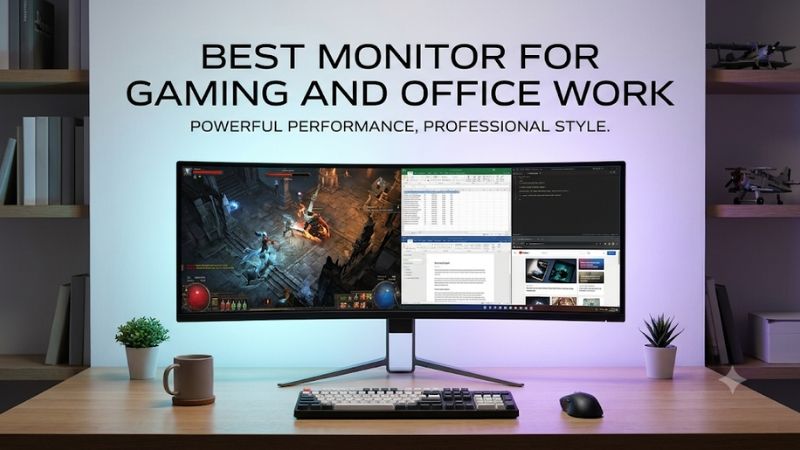
The best monitor for gaming and office work should make spreadsheets readable, keep games responsive, and connect cleanly to your computers. Start with the ASUS ProArt PA278CGV for a laptop-centered desk, the ASUS ROG Strix XG27ACS for gaming priority, or a 4K model when sharper desktop text matters most.
Quick verdict: Match the monitor to your working day
Choose around the task you repeat most: reading documents, switching computers, editing images, or playing competitive games. A monitor that saves cable changes every morning can be more useful than one with a higher refresh ceiling you rarely reach.
The ASUS ProArt PA278CGV is the most balanced starting point for someone who works from a USB-C laptop and games afterward. Its 27-inch, 1440p IPS screen combines a 144Hz refresh ceiling with 90W USB-C power delivery. That combination addresses both halves of this brief without requiring a separate charging connection for many productivity laptops.
Choose the ASUS ROG Strix XG27ACS when competitive gaming matters more than docking. Its 180Hz ceiling provides additional refresh headroom, while 1440p keeps graphics demands below 4K. Its USB-C connection is useful for video, but it should not be mistaken for a full laptop charging solution.
For sharper documents, consider the Dell S2725QC or GIGABYTE M27U. For a physically larger workspace, consider the GIGABYTE M32U. The Dell UltraSharp U2724DE suits a work-first setup that benefits from Thunderbolt, wired networking, and shared peripherals, with gaming as a secondary activity.
Best monitor for gaming and office work: Quick comparison
These six models solve different desk problems rather than competing on one specification. Refresh figures are manufacturer-listed maximums; your computer, cable, selected input, and display settings determine which combinations of resolution and refresh are available.
| Exact model | Best fit | Screen and maximum refresh | Work advantage | Main compromise |
|---|---|---|---|---|
| ASUS ProArt PA278CGV | Laptop work and mixed gaming | 27-inch IPS, 2560 × 1440, 144Hz | USB-C with 90W power delivery; USB hub | Less refresh headroom than the XG27ACS |
| ASUS ROG Strix XG27ACS | Gaming-first shared desk | 27-inch Fast IPS, 2560 × 1440, 180Hz | Readable QHD workspace; USB-C video | USB-C is not a productivity-laptop charger |
| Dell S2725QC | Sharp documents and casual gaming | 27-inch IPS, 3840 × 2160, 120Hz | USB-C with up to 65W power delivery | Lower refresh ceiling than dedicated gaming choices |
| GIGABYTE M27U | Compact 4K PC setup | 27-inch IPS, 3840 × 2160, 160Hz | KVM for sharing peripherals | USB-C power delivery tops out at 18W |
| GIGABYTE M32U | Larger 4K workspace | 31.5-inch IPS, 3840 × 2160, 144Hz | KVM; physically larger viewing area | Needs more desk space; no stand pivot |
| Dell UltraSharp U2724DE | Docking-heavy office setup | 27-inch IPS Black, 2560 × 1440, 120Hz | Thunderbolt 4, 90W charging, KVM, Ethernet | Office connectivity takes priority over gaming specifications |
How we selected these monitors
Selection centers on readable desktop use, refresh rates above 60Hz, practical connectivity, and clear differences between recommendations. This is a specification-based buying guide, not a hands-on comparison; no original response-time or input-lag measurements are claimed.
Manufacturer documentation establishes the exact resolution, panel type, maximum refresh rate, and relevant ports. Recommendations then apply those facts to common workflows: one laptop, one desktop, or a work laptop paired with a gaming tower. A high refresh number alone does not establish superior motion clarity.
No universal budget was supplied, so the categories describe use cases rather than unsupported price rankings. Compare current US offers for the exact model and condition, including any additional charger, dock, cable, or monitor arm your setup requires. A cheaper screen can become the more expensive desk solution after accessories.
The shortlist favors IPS LCD models for a straightforward mixed-use setup. OLED remains worth considering for gaming-centered buyers, but long sessions of static interfaces introduce different ownership considerations. These recommendations prioritize ordinary office compatibility and clear workflow trade-offs rather than an HDR showcase.
Six monitors for a shared gaming and office desk
Each recommendation has a distinct reason to earn desk space. Start with the connection your work computer needs, then decide whether sharper text, a larger image, or extra gaming refresh headroom is the most valuable remaining upgrade for your routine.
ASUS ProArt PA278CGV: Balanced laptop connectivity
The PA278CGV makes sense when your work laptop and evening gaming system share one screen. Its 27-inch QHD IPS panel, 144Hz maximum refresh, and 90W USB-C power delivery cover a useful middle ground between a conventional office display and a gaming-focused model.
QHD at this size provides room for a document beside a browser without making every interface element extremely small. USB-C can carry video and data while supplying power to a compatible laptop. Check your laptop’s charging requirement: 90W is sufficient for many office systems, but it does not replace every high-power workstation adapter.
ASUS specifies 100% sRGB coverage and factory color accuracy below Delta E 2. Those are manufacturer claims, not measurements from this article. They make the model relevant to office users who also prepare web graphics, presentations, and marketing material. For color-critical deliverables, use an appropriate color mode and verify your own workflow.
The adjustable stand supports height, swivel, tilt, and pivot. That matters when positioning a shared screen for a full working day. Its 144Hz ceiling also gives games room to feel more fluid than on a 60Hz office monitor, although refresh rate does not prove that every pixel transition finishes equally quickly.
Buy if you want QHD, useful laptop charging, and gaming capability in one display. Skip if competitive play is your main priority or you specifically need 4K text density. Choose the XG27ACS for additional refresh headroom, or the S2725QC for a sharper desktop.
ASUS ROG Strix XG27ACS: Gaming-first QHD flexibility
The XG27ACS targets people whose workday needs are straightforward but whose games benefit from a higher refresh ceiling. ASUS specifies a 27-inch Fast IPS panel, 2560 × 1440 resolution, and up to 180Hz, giving it the highest QHD refresh ceiling in this shortlist.
For browser-based work, email, and spreadsheets, its QHD resolution remains a sensible fit. You avoid the heavier rendering requirement of native 4K gaming while keeping a useful amount of desktop detail. This is particularly relevant if the same midrange graphics card drives both your working desktop and demanding games.
The important connection limitation is USB-C charging. The manual specifies only 7.5W power delivery, which is far below normal productivity-laptop requirements. Connect a compatible laptop for display output, but plan to keep its charger attached. A USB-C socket does not automatically mean a one-cable workstation.
Input choice also matters. ASUS’s manual lists DisplayPort operation up to 180Hz and HDMI operation up to 144Hz. Check the supported timing for your intended connection instead of assuming every port delivers the headline refresh rate. Set the desired rate in the operating system after connecting.
Buy if gaming has priority and your work setup does not require monitor-based charging. Skip if removing laptop cable clutter is the main reason to upgrade. The ProArt PA278CGV trades some refresh headroom for much more useful power delivery and a productivity-oriented USB hub.
Dell S2725QC: Sharp 4K documents with laptop charging
The S2725QC suits office-heavy users who want a detailed 27-inch desktop and games after work. Dell specifies a 3840 × 2160 IPS panel, up to 120Hz, AMD FreeSync Premium, and USB-C power delivery of up to 65W for a compatible connected laptop.
The 4K resolution is its strongest argument for document work. At 27 inches, the extra pixel density allows smoother-looking character edges than QHD at the same size. Use operating-system scaling to keep menus and text comfortably sized; choosing 4K does not require living with tiny interface elements.
Its 120Hz ceiling is useful for desktop scrolling and gaming, but it does not establish the same motion performance as a dedicated gaming display. Manufacturer response-time figures are also unsuitable for direct cross-brand ranking because settings and measurement methods differ. Choose this model primarily for its combination of resolution and connectivity.
Check charging carefully before relying on one cable. A laptop designed around a 65W adapter is a more natural match than a mobile workstation that expects substantially more power. Even when video works correctly, the computer may need its original adapter under a heavier workload.
Buy if reading, writing, and detailed desktop use occupy most of your day. Skip if you mainly play competitive shooters or want more than 120Hz. The M27U offers a higher 4K refresh ceiling and KVM functionality, while requiring a separate laptop charging plan.
GIGABYTE M27U: Compact 4K with peripheral sharing
The M27U combines a 27-inch 4K IPS screen with a manufacturer-listed maximum of 160Hz. Its KVM feature gives it a distinct role: a compact display for people who want one keyboard and mouse to serve both a gaming desktop and another compatible computer.
That arrangement can simplify a desk where the work laptop arrives each morning and the tower stays permanently connected. KVM operation still requires the correct video and USB upstream connections. Connecting two video cables alone does not give the monitor a data path to share your keyboard and mouse.
GIGABYTE specifies USB-C DisplayPort alternate mode and power delivery up to 18W. Treat that as limited device power, not a replacement for a normal laptop charger. The M27U therefore fits a two-computer workstation better than a buyer whose first requirement is substantial one-cable charging.
Its display interfaces also deserve attention. The manufacturer distinguishes the 160Hz overall maximum from HDMI modes listed up to 4K 144Hz, with compression or chroma conditions. For office text, preserve full chroma where possible; reduced chroma can make colored text edges less clean. Confirm the mode supported by your entire connection chain.
Buy if you want 4K detail, a higher refresh ceiling, and hardware peripheral sharing on a compact desk. Skip if integrated charging is essential. Choose the S2725QC for 65W charging, or the larger M32U if the same resolution feels too physically compact.
GIGABYTE M32U: A larger 4K working canvas
The M32U offers a 31.5-inch IPS panel with 3840 × 2160 resolution and a 144Hz maximum. Its appeal is physical size: documents, timelines, and game interfaces can occupy a larger viewing area while retaining more pixel density than a similarly sized QHD display.
It does not contain more pixels than the 27-inch M27U. Instead, it spreads the same pixel count over a larger panel. That can make a lower scaling setting comfortable for some users, giving applications more effective workspace. Your eyesight, viewing distance, and preferred text size determine the practical result.
The built-in KVM supports a shared-peripheral workflow, while the stand provides height and swivel adjustment. GIGABYTE specifies no pivot function for the supplied stand. If portrait use is part of your workflow, account for an appropriate mounting solution rather than assuming the screen rotates like a smaller office monitor.
Desk depth matters as much as width. Leave enough room to view the full screen without repeatedly moving your head between nearby corners. A larger panel can become inconvenient on a shallow desk, especially when the keyboard position and stand base push the screen toward you.
Buy if you want a larger 4K image for multitasking and games, with KVM support. Skip if your desk is cramped or portrait rotation is essential. The M27U offers the same native pixel count in a smaller footprint; the U2724DE emphasizes docking instead.
Dell UltraSharp U2724DE: Work-first docking convenience
The U2724DE is the specialist option for a desk built around connectivity. Dell specifies a 27-inch QHD IPS Black panel at 120Hz, Thunderbolt 4 upstream connectivity with up to 90W power delivery, a KVM, and a 2.5GbE Ethernet port.
Its case is strongest when those connections replace equipment you would otherwise buy separately. A compatible laptop can use the monitor as a central connection point for display output and peripherals. Wired networking can also be useful when a laptop lacks an Ethernet jack, subject to the connected computer’s support.
Dell lists a typical 2000:1 contrast ratio for the IPS Black panel. That specification suggests a different contrast target from the ordinary IPS models here, but it is not an independently measured result. It also does not make this an OLED-like display or establish premium HDR performance.
The 120Hz refresh ceiling provides a useful improvement in refresh cadence over 60Hz, but gaming is its secondary role in this guide. Do not assume a business monitor matches dedicated gaming models in pixel response or adaptive-sync behavior simply because the refresh number looks suitable. Check support for your intended source and connection.
Buy if Thunderbolt, peripheral sharing, Ethernet, and laptop charging improve your daily routine. Skip if you would leave most of those ports unused. The PA278CGV offers a simpler laptop-centered alternative, while the XG27ACS focuses more directly on gaming.
How to choose the best monitor for gaming and office work
The most useful choice starts with your existing computer and desk. Identify the resolution your GPU can handle, the power your laptop needs, and the space available before comparing smaller extras. These decisions eliminate unsuitable models faster than marketing labels.
Choose resolution around text size and GPU demand
QHD at 27 inches is a practical starting point for ordinary office work and gaming. Move to 4K when fine text and detailed content deserve more weight. Remember that 4K contains 2.25 times as many pixels as QHD, increasing native rendering demands without guaranteeing a particular frame-rate reduction.
Use scaling to maintain comfortable text rather than choosing resolution solely by how many windows fit at default settings. For games, adjust quality settings or use supported upscaling when necessary. Buying a 4K screen does not require rendering every demanding game at native 4K with maximum settings.
Plan charging and peripheral sharing separately
USB-C describes a connector, not a complete feature set. Check video support, upstream data, and power delivery individually. A KVM solves peripheral sharing; it does not automatically provide enough charging power. Likewise, a charging monitor does not necessarily include a KVM for switching between two computers.
Write down the actual cables before ordering. A desktop may need DisplayPort plus USB upstream for peripherals, while a laptop may use USB-C for video and data. Check any dock or adapter too: an intermediate device can restrict refresh rates even when the monitor supports more.
Treat refresh rate and HDR claims carefully
Refresh rate describes how often the display can update, while pixel response describes how quickly transitions occur. Both affect moving images. A higher ceiling is useful when your game produces enough frames, but it cannot establish measured clarity, overshoot, or input lag without appropriate testing.
HDR acceptance and entry-level certification also do not establish convincing dark-scene contrast. For this mixed-use purchase, prioritize readable text, suitable connections, and comfortable positioning first. If cinematic HDR is your main objective, evaluate monitors specifically around their HDR implementation rather than using this shortlist as an HDR ranking.
Frequently asked questions
The remaining decisions usually concern daily workflow rather than another specification upgrade. These answers focus on whether one screen is sufficient, how much refresh headroom matters, and which connection can carry the display mode your computer actually needs.
Is one monitor enough for gaming and office work?
Yes, when its resolution and connections fit your tasks. A single screen keeps the desk simpler, while a second display can help with permanent reference material or video calls. Try your normal window arrangement before buying a larger screen solely to avoid a second monitor.
Do office users need more than 144Hz?
Usually, additional refresh headroom is a gaming preference rather than an office requirement. For email, spreadsheets, and documents, useful charging, readable text, and stand adjustment can matter more. Choose a higher ceiling when your games and graphics hardware can make practical use of it.
Can every laptop run these monitors at maximum refresh?
No. The laptop’s display engine, port capabilities, cable, adapter, and selected resolution all matter. Verify supported external-display modes for your exact laptop. A USB-C connector that charges successfully may still lack the video capability or bandwidth required for the monitor’s maximum mode.
Conclusion
Start with the PA278CGV for balanced laptop work and gaming, the XG27ACS for gaming priority, or the S2725QC for sharp 4K documents with useful charging. Choose the M27U for compact 4K peripheral sharing, the M32U for a larger image, and the U2724DE when docking features justify the purchase. The right monitor should solve your daily connection and readability needs before adding specifications your setup cannot use.









