
The best monitor for photography and gaming depends on whether accurate editing or fast motion matters more. Start with the ASUS ProArt PA278CGV for a practical 1440p balance, consider the MSI MPG 274URF QD for sharper 4K detail, and choose OLED only if its contrast benefits justify the extra care it requires.
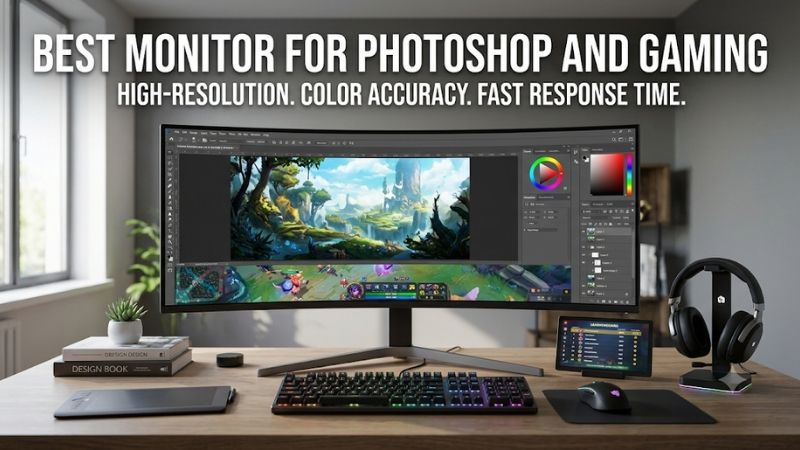
Which is the best monitor for photography and gaming?
For web photographers who also play regularly, the ASUS ProArt PA278CGV is the most straightforward starting point here. Its combination of creator-oriented color controls and 144Hz refresh addresses both jobs without demanding the graphics power needed for high-refresh 4K gaming.
Move to the MSI MPG 274URF QD if fine image detail and a compact 4K workspace matter more. The BenQ MOBIUZ EX321UX suits buyers seeking a larger Mini LED display, while the ASUS ProArt PA32UCDM combines creator features with 240Hz OLED. These are different workflow choices, rather than a universal performance ranking.
The ASUS ProArt PA279CRV is the deliberate exception: it prioritizes photography and limits gaming to 60Hz. Choose it only if slower games dominate your library. No current US price comparison is assumed, so none of these models receives an unsupported budget or value award.
Quick comparison of the six monitors
Use this table to narrow the shortlist by your actual editing output and gaming habits. Every model has a distinct compromise, and refresh rate alone cannot tell you whether a monitor will support dependable color decisions during a long editing session.
| Model | Best fit | Resolution and refresh | Deciding feature | Main compromise |
|---|---|---|---|---|
| ASUS ProArt PA278CGV | Web photography and regular gaming | 2560 × 1440, up to 144Hz | Creator controls and FreeSync Premium | Less image detail than 4K |
| MSI MPG 274URF QD | Compact 4K mixed-use desk | 3840 × 2160, up to 160Hz | Rapid IPS with USB-C 65W | Gamut specifications do not prove accuracy |
| BenQ MOBIUZ EX321UX | Large-screen editing and HDR games | 3840 × 2160, 144Hz | 1,152-zone Mini LED backlight | Local dimming needs workflow care |
| ASUS ProArt PA32UCDM | Creator workflow and fast OLED gaming | 3840 × 2160, up to 240Hz | Hardware calibration and Thunderbolt 4 | OLED retention risk and brightness behavior |
| Gigabyte M32U | Two-computer editing and gaming | 3840 × 2160, up to 144Hz | Built-in KVM | Modest HDR capability |
| ASUS ProArt PA279CRV | Photography with occasional slow games | 3840 × 2160, 60Hz | Adobe RGB emphasis and USB-C 96W | Limited motion smoothness |
How these monitors were selected
This is a specification-based buying guide, not a report of detailed research. Selection emphasizes useful color controls, resolution, gaming suitability, and practical connectivity. Manufacturer specifications establish capabilities; they do not establish how accurately every retail unit performs.
The shortlist deliberately covers different priorities rather than six nearly interchangeable gaming screens. Broad gamut, factory calibration, and high refresh each answer a different question. Where a choice depends on calibration results, panel uniformity, or motion testing, those limits remain part of the recommendation.
A monitor with excellent advertised coverage can still require profiling. Likewise, a 240Hz panel does not guarantee your computer will deliver 240 frames per second. Matching the display to your output, room, and graphics hardware matters more than collecting the largest specification numbers.
The monitors worth considering
Choose the product whose compromise you can live with every day. If you deliver print work, color control deserves priority; if gaming occupies most evenings, refresh and synchronization matter more. The following recommendations explain where each model makes the most sense.
ASUS ProArt PA278CGV: Best monitor for photography and gaming at 1440p
The PA278CGV is the sensible starting point for photographers who publish online and want smoother gaming without moving to 4K. Its 27-inch IPS format balances desk space and usability, while the creator focus makes its color modes central to its appeal.
ASUS specifies 95% DCI-P3, 100% sRGB, factory calibration with a Delta E below 2, and up to 144Hz with FreeSync Premium. Those are manufacturer claims, not measurements of your particular unit. The useful combination is an editing-oriented display that also accommodates variable-refresh gaming.
At native resolution, 1440p contains substantially fewer pixels than 4K. That can make higher frame rates more attainable with the same graphics card, although actual performance remains game-dependent. The compromise appears when inspecting fine textures or arranging dense editing panels: 4K offers more pixels for both.
Buy if your work is mainly sRGB delivery and gaming deserves equal attention. Skip if detailed print preparation or a sharper 4K canvas is the overriding requirement. The PA279CRV is the photography-first alternative, while the MSI is the more gaming-capable 4K step in this shortlist.
MSI MPG 274URF QD: For a compact 4K setup
The MPG 274URF QD suits a desk where a 32-inch screen feels excessive but image detail still matters. Its 27-inch 4K panel lets you inspect photographs closely and keep games sharp, provided you are comfortable using operating-system scaling for readable controls.
MSI specifies Rapid IPS, up to 160Hz, FreeSync Premium, and USB-C with 65W power delivery. Its published Adobe RGB and DCI-P3 figures are 99% and 98% under the stated CIE1976 convention. These figures describe gamut, not an independent guarantee of accurate skin tones or neutral grays.
Treat the quantum-dot label as a color-capability feature, not proof that editing is correct out of the box. Use an appropriate mode and profile before judging saturation. Also, 65W may suit a light laptop workflow but cannot be assumed to replace every high-performance laptop charger under load.
Buy if you want dense 4K detail and high refresh in a compact display. Skip if you need a documented hardware-calibration workflow or powerful HDR as the main attraction. The BenQ offers the Mini LED route; the ProArt OLED puts more emphasis on creator calibration features.
BenQ MOBIUZ EX321UX: For Mini LED versatility
The EX321UX makes sense when you want a larger photographic workspace and enjoy HDR games after work. Its 31.5-inch 4K IPS panel gives editing tools more physical room, while Mini LED adds a backlight feature that the conventional IPS options here lack.
BenQ’s US specification page lists a 144Hz refresh rate, 1,152 local-dimming zones, and 99% Adobe RGB and P3 gamut. The important distinction is that Mini LED controls groups of pixels through backlight zones. It does not provide OLED’s independent light control at each pixel.
For SDR editing, avoid letting changing backlight behavior become an unnoticed part of your exposure judgment. Use consistent settings, assess the available local-dimming options, and profile the mode you actually intend to edit in. Keep enhanced game picture modes separate from the mode used for final color decisions.
Buy if a large LCD with broad gamut and local dimming matches your mixed workload. Skip if your primary requirement is an established professional hardware-calibration system. Consider the PA32UCDM for that feature emphasis, while recognizing that OLED brings a different set of ownership trade-offs.
ASUS ProArt PA32UCDM: For creator features and OLED gaming
The PA32UCDM is the specialist choice for a photographer who also values fast OLED gaming and a creator-oriented connection setup. It combines a 31.5-inch 4K QD-OLED panel with up to 240Hz, rather than asking you to choose between those two headline capabilities.
ASUS lists hardware calibration, 99% DCI-P3, and Thunderbolt 4 with up to 96W power delivery. Hardware calibration is significant because adjustments can be written to the display rather than relying solely on graphics-card corrections. Compatible measurement equipment and software remain part of the workflow.
OLED’s pixel-level light control is attractive for contrast-rich games, but static editing interfaces deserve consideration. Toolbars, panels, and persistent desktop elements can contribute to uneven wear over time. Brightness behavior can also differ with image content and operating mode; assess a stable editing configuration before relying on it.
Buy if you specifically need the creator features and want a 240Hz OLED on the same desk. Skip if long, repetitive static sessions make an LCD more comfortable to own. Verify current US warranty terms and any burn-in provisions for the exact purchase rather than assuming universal coverage.
Gigabyte M32U: For sharing a desk between two computers
The M32U is particularly relevant when photographs live on a work computer and games run on a separate desktop. Its built-in KVM can simplify sharing peripherals, so the reason to consider it extends beyond the familiar combination of 4K resolution and high refresh.
Gigabyte specifies a 31.5-inch IPS panel, up to 144Hz, and 90% DCI-P3. Its 123% sRGB figure describes a gamut-size claim, not 123% coverage of a color space. A larger native gamut still needs appropriate color management to avoid oversaturated presentation of ordinary sRGB content.
Connection details matter. Gigabyte’s specification notes 4K 144Hz 4:4:4 with Display Stream Compression enabled over HDMI, or a 4:2:0 alternative. For editing and small text, favor a supported full-chroma connection. Do not assume every port, cable, or computer produces the same maximum mode.
Buy if sharing keyboard and mouse across two systems solves a daily inconvenience. Skip if extensive Adobe RGB reproduction or HDR is the deciding requirement. The BenQ is the more relevant Mini LED comparison, while the MSI offers a smaller physical format for a tighter workspace.
ASUS ProArt PA279CRV: For photography with casual gaming
The PA279CRV belongs here for photographers whose games are mostly strategy, simulation, or slower adventures. It offers a 27-inch 4K editing surface, but its 60Hz ceiling is an intentional limitation to accept before buying, rather than a small detail to overlook.
ASUS specifies 99% Adobe RGB and DCI-P3, factory calibration with Delta E below 2, and USB-C with 96W power delivery. The appeal is a photography-focused feature mix. These specifications do not establish hardware calibration or guarantee that every panel has ideal brightness uniformity.
Compared with the PA278CGV, the choice is more pixels versus higher refresh. Detailed retouching can benefit from the 4K canvas, while rapid camera movement will not look as fluid at 60Hz. Buying this model for competitive shooters would work against the reason the faster alternatives were shortlisted.
Buy if editing quality and workspace detail dominate your week and gaming is secondary. Skip if you already prefer 120Hz or faster motion. The MSI is the compact 4K alternative when you need high refresh, while the PA278CGV reduces gaming workload by using 1440p.
How to choose the best monitor for photography and gaming
Start with your delivery format, then consider gaming requirements and connection limits. This order prevents expensive mistakes: a display can look spectacular in a game while making routine photo decisions less consistent, or edit beautifully while feeling too slow for your preferred games.
Match the gamut to your photographic output
For web delivery, dependable sRGB presentation is usually more useful than the widest native gamut. For print-oriented work, Adobe RGB coverage can matter, but only within a workflow that includes suitable profiles, editing software, and a printer or lab process you understand.
Do not substitute DCI-P3 coverage for Adobe RGB coverage. The spaces extend in different directions, so a strong number for one cannot establish the other. Also distinguish coverage from volume: a display can exceed sRGB in overall size while still needing a clamp or color management for accurate sRGB presentation.
Choose panel behavior before chasing HDR labels
Conventional IPS offers a practical LCD foundation for long editing sessions, while Mini LED introduces local-dimming control and OLED provides pixel-level illumination. Each approach changes the viewing experience. Choose based on the way you work, including static interfaces and the lighting in your room.
HDR certification is not a shortcut to SDR photographic accuracy. A bright highlight specification says little about neutral grays, screen uniformity, or a controlled print-matching workflow. Keep SDR editing settings stable and evaluate HDR games separately instead of using one dramatic picture preset for everything.
Balance resolution, scaling, and GPU workload
A 27-inch 4K display packs pixels tightly, while a larger 4K panel provides more physical room for the same pixel grid. Neither automatically gives you more usable workspace, because operating-system scaling changes the apparent size of text, controls, and editing panels.
For gaming, 4K means 8.29 million pixels per frame versus about 3.69 million at 1440p. That is a pixel-count comparison, not a prediction of frame rates. Upscaling and reduced settings may help, but choose the monitor around the games and hardware you actually use.
Check the complete connection and calibration path
The monitor, graphics output, cable, and any dock must support the mode you want together. Check native resolution, refresh, full chroma, bit depth, and synchronization rather than stopping at an HDMI or USB-C logo. Charging capability is another separate requirement to verify.
After connecting, confirm the operating system is actually using the intended refresh rate. Then select an appropriate editing mode and create a display profile with suitable equipment if accuracy matters. Changing major picture settings afterward can invalidate the relationship between that profile and the display’s behavior.
Questions photographers commonly ask
The remaining decisions usually concern workflow rather than another specification comparison. These answers address where a gaming monitor can serve photography, what calibration can fix, and when keeping two displays may be more sensible than paying heavily for a single compromise.
Can a gaming monitor handle professional photo editing?
A gaming monitor can support professional editing when its gamut, accuracy, uniformity, and controls suit the job. The gaming label does not disqualify it. Equally, a creator label cannot establish that an individual panel meets every requirement of a demanding print workflow.
Judge the actual screen in the mode you will use. Check neutral tones, gradients, and consistency across the panel during the return period. If screen uniformity is poor, profiling cannot make a bright corner and a dark corner physically behave like an evenly lit display.
Do you need calibration after factory calibration?
Factory calibration is a useful starting point, but it reflects a particular process and set of conditions. Your room, brightness setting, selected mode, and panel aging still affect the workflow. Serious color work benefits from checking the display rather than assuming the included report settles everything.
Software profiling describes the display to color-managed applications; hardware calibration can adjust the monitor internally when supported. They are related but different tools. A downloaded profile from another owner is not a reliable replacement for measuring your own screen and selected settings.
Is a second monitor a better investment?
Two displays can be useful when photography and competitive gaming have incompatible priorities. One can remain configured for consistent editing while the other handles high-refresh play. The practical costs include desk space, extra connections, and the possibility of obvious visual differences between screens.
If your existing editing monitor already serves your output well, adding a gaming display may be more sensible than replacing it. Keep final color decisions on the profiled editing screen, and avoid expecting two different panels to match perfectly simply because both use the same brightness percentage.
Conclusion
Choose the PA278CGV for a practical 1440p balance, the MPG 274URF QD for compact high-refresh 4K, or the EX321UX for a larger Mini LED setup. The PA32UCDM suits buyers who specifically want hardware calibration and OLED gaming, while the M32U serves a shared-computer desk. Pick the PA279CRV only when photography clearly outweighs fast gaming. The right purchase is the one whose color workflow, motion capabilities, and everyday compromises match your actual work.









