Introduction
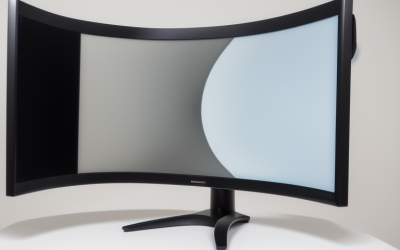
The best 4k oled computer monitors for workstation upgrades bring a clear step forward for a desk that already has a capable computer. A 4K OLED panel gives you dense, crisp text, deep blacks, and colour that stays convincing across photo work, design, spreadsheets, and long documents. If your current screen is an older LCD with washed-out dark areas and soft text, the change is visible the moment you open your usual applications.
A workstation upgrade is different from a gaming-only purchase. You need a monitor that works well for eight hours of focused work, connects cleanly to a desktop and a laptop, and keeps menus and code legible. Text clarity, colour handling, connectivity, and OLED care matter more than refresh rate in daily use.
This guide compares five 4K OLED monitors for a workstation upgrade. Each uses a native 3840 x 2160 OLED panel, and they differ in size, USB-C power delivery, colour tools, and KVM switching.
How to Choose a 4K OLED Monitor for a Workstation Upgrade
Start with size and pixel density
A 32-inch 4K panel gives you room for two full windows side by side without making text feel cramped. A 27-inch 4K panel gives you higher pixel density, so text looks sharper on a smaller desk. Measure your viewing distance before you choose. A larger panel at close range can force more head movement, while a smaller panel at long range can make interface text feel tiny. For most desks, 27 inches suits a compact setup and 32 inches suits a deep desk with room to sit back.
Check text clarity and colour
OLED panels are known for contrast, with dark areas that stay dark beside bright text. That helps code editors, documents, and design tools. Look for a wide colour gamut, true 10-bit colour, and a factory calibration report where available. If you edit photos or video, colour accuracy and a wide gamut matter more than a very high refresh rate. If you work mainly with text and spreadsheets, prioritise sharpness, a matte or glare-controlled finish, and comfortable brightness in your room.
Plan connectivity and docking
A workstation monitor often has to serve more than one computer. USB-C with video input and power delivery lets a laptop connect with a single cable and charge while you work. A KVM switch lets you share one keyboard and mouse between a desktop and a laptop. DisplayPort and HDMI 2.1 cover a desktop graphics card and a second device. Count the ports you need for a dock, a webcam, and external drives before you commit.
Consider OLED care and static content
Workstation use involves static menus, toolbars, and taskbars for long periods. OLED panels can retain images if the same bright elements stay on screen for very long stretches. Look for a heatsink design, pixel cleaning, screen move, and other OLED care features. Vary your content, use a screensaver, hide a static taskbar when possible, and keep brightness at a comfortable level rather than maximum. These habits help a premium OLED panel last longer in a work setting.
The Best 4K OLED Monitors for Workstation Upgrades
ASUS ROG Swift OLED PG32UCDM

The ASUS ROG Swift OLED PG32UCDM is a strong all-round choice for a workstation upgrade. Its 32-inch 4K QD-OLED panel runs at 240Hz with a 0.03ms response time, so scrolling and cursor movement feel smooth. It lists a wide DCI-P3 gamut, true 10-bit colour, and Delta E below 2, which helps colour work look consistent. DisplayHDR True Black 400 support and Dolby Vision add depth to video and HDR content.
Connectivity is a strength here. DisplayPort 1.4, HDMI 2.1, and USB-C with 90W power delivery cover a desktop, a laptop, and a console or second computer. A custom heatsink and graphene film help manage heat, and ASUS OLED Care provides pixel cleaning reminders, a screensaver, and a screen move feature. The panel also supports a range of aspect ratios, including narrower modes for focused work.
Who it suits: professionals who want one large, sharp screen for work and media, with strong laptop docking and smooth motion.
Note: the 32-inch footprint needs a deep desk, and the gaming-oriented design includes features that a text-only workstation may not use.
Dell Alienware AW2725Q

The Dell Alienware AW2725Q suits a compact workstation where pixel density matters. Its 26.7-inch 4K QD-OLED panel gives very sharp text at normal desk distance, with a 240Hz refresh rate and 0.03ms response time. Dolby Vision support and VESA DisplayHDR True Black 400 help HDR video look rich, while G-SYNC compatibility and FreeSync Premium Pro keep motion smooth when you switch to games after work.
The rear panel includes HDMI 2.1 ports with eARC, DisplayPort, and a USB hub with downstream USB-C power delivery at a lower wattage than a full laptop dock. That makes it a good match for a desktop-first setup with a secondary device, rather than a laptop that needs full charging through the monitor. Alienware Command Center software gives you control over the display settings.
Who it suits: desk workers with limited space who want the sharpest text in this group and a monitor that also handles gaming well.
Note: there is no USB-C video input for single-cable laptop docking, so a laptop user will need a separate dock or adapter.
MSI MPG 321URX QD-OLED

The MSI MPG 321URX QD-OLED is a 31.5-inch 4K QD-OLED monitor with a 240Hz refresh rate and 0.03ms response time. It lists a wide DCI-P3 gamut and VESA DisplayHDR True Black 400, with 1.07 billion colours for smooth gradients in photos and video. The panel is well suited to design work, document editing, and media playback on a large screen.
USB-C with 90W power delivery makes laptop docking simple, and the monitor includes HDMI and DisplayPort inputs for a desktop. MSI OLED Care features help reduce burn-in risk during long work sessions, and the adjustable stand lets you set height, tilt, and swivel for a comfortable posture. Gaming Intelligence features are present, but the core workstation strengths are size, clarity, and connectivity.
Who it suits: users who switch between a desktop and a laptop and want a large 4K screen with strong USB-C charging.
Note: the glossy finish can show reflections in a bright room, so position it away from direct window light where possible.
LG UltraGear 32GS95UE-B

The LG UltraGear 32GS95UE-B adds a useful trick to a workstation upgrade: Dual Mode. It runs at 4K at 240Hz for detailed work and video, and it can switch to Full HD at 480Hz for fast-paced games. The 31.5-inch OLED panel has a 0.03ms response time, DisplayHDR True Black 400, and a wide colour gamut. Pixel Sound puts audio behind the panel, so sound comes from the screen itself, which is convenient for calls and video without extra speakers on the desk.
HDMI 2.1 and DisplayPort 1.4 cover modern graphics cards and consoles, and the stand provides tilt, height, and swivel adjustment. FreeSync Premium Pro and G-SYNC compatibility keep variable refresh rate content smooth. The matte finish helps in rooms with overhead lighting.
Who it suits: mixed-use desks where the same monitor handles detailed work during the day and fast games in the evening.
Note: there is no USB-C laptop docking, so laptop users should plan for a separate dock.
ASUS ProArt PA32UCDM

The ASUS ProArt PA32UCDM is the colour-focused pick in this group. It is a 31.5-inch 4K QD-OLED professional monitor with a 240Hz refresh rate, 0.1ms response time, and a panel rated to 1000 nits for HDR highlights. It lists a wide DCI-P3 gamut, Delta E below 1, Dolby Vision, and auto calibration with Calman support. A colour pre-calibration report is included in the box.
Thunderbolt 4 is the key workstation feature here. It simplifies a high-end laptop setup and gives fast downstream connectivity, alongside HDMI and DisplayPort. ASUS OLED Care features help protect the panel, and the ultra-slim design keeps the desk looking tidy. This is the monitor to choose when colour decisions are part of your job, not just a nice extra.
Who it suits: photo editors, video editors, designers, and other colour-critical workers who need calibration tools and Thunderbolt 4.
Note: downstream USB connectivity is limited compared with a full dock, so check the port count against your peripherals.
Comparison Table
| Monitor | Key feature | Best for |
|---|---|---|
| ASUS ROG Swift OLED PG32UCDM | 32-inch 4K QD-OLED, 240Hz, 90W USB-C | A large all-round workstation upgrade |
| Dell Alienware AW2725Q | 26.7-inch 4K QD-OLED, 240Hz, Dolby Vision | Sharp text on a compact desk |
| MSI MPG 321URX QD-OLED | 31.5-inch 4K QD-OLED, 240Hz, 90W USB-C | Desktop and laptop switching |
| LG UltraGear 32GS95UE-B | 32-inch 4K OLED, Dual Mode 4K 240Hz or Full HD 480Hz | Mixed work and fast gaming |
| ASUS ProArt PA32UCDM | 32-inch 4K QD-OLED, Thunderbolt 4, auto calibration | Colour-critical creative work |
Frequently Asked Questions
Is a 4K OLED monitor good for a workstation upgrade?
Yes, for many workstation tasks. A 4K OLED panel gives sharp text, deep blacks, and wide colour coverage for design, photo and video editing, documents, and media. If your day is almost entirely static spreadsheets, weigh the OLED care needs against the visual benefits.
Should I choose a 27-inch or 32-inch 4K OLED monitor?
Choose 27 inches for a compact desk and the sharpest text at close range. Choose 32 inches for a deep desk and side-by-side windows. Both sizes use the same 3840 x 2160 resolution.
Do I need USB-C power delivery for a workstation monitor?
It helps a great amount if you use a laptop as your main computer. USB-C with video and power delivery lets you connect with one cable and charge at the same time. If you use a desktop only, DisplayPort and HDMI are enough, and a USB hub is more useful than USB-C charging.
How do I reduce burn-in risk on an OLED workstation monitor?
Use the built-in OLED care features, vary the content on screen, use a screensaver, and avoid leaving bright static menus at maximum brightness for hours. A heatsink design and pixel cleaning help, and a sensible brightness level for your room is more comfortable for long work sessions.
Conclusion
Choose the ASUS ROG Swift OLED PG32UCDM for a large all-round upgrade, the Dell Alienware AW2725Q for a compact desk, the MSI MPG 321URX QD-OLED for laptop docking, the LG UltraGear 32GS95UE-B for mixed work and gaming, and the ASUS ProArt PA32UCDM for colour-critical work.
Start with desk size, then check USB-C and KVM needs, then weigh colour tools against gaming extras. The right panel is the one that fits your computer, your room, and your daily tasks without forcing extra adapters or a cramped layout.
Disclosure: As an Amazon Associate, we may earn from qualifying purchases.