What to look for in an ultrawide monitor gets confusing when extra width brings cramped text, incompatible connections, or disappointing gaming performance. These four recommendations separate useful workspace from expensive extras, helping you match resolution, display technology, refresh rate, and connectivity to your routine.
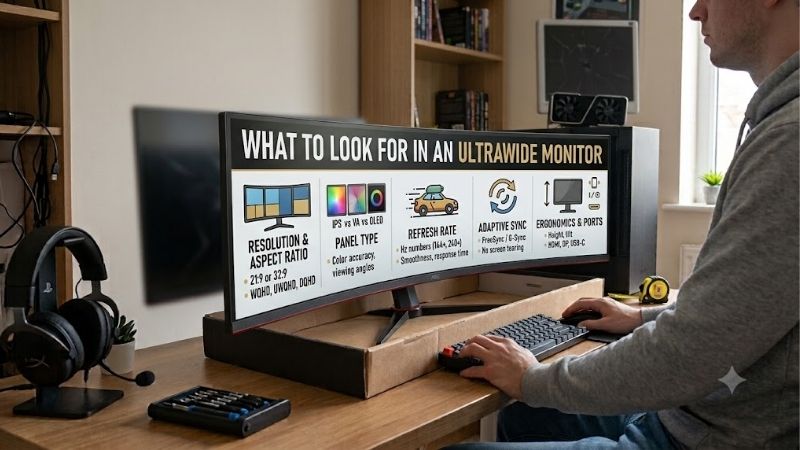
How to Choose an Ultrawide Monitor
This guide explains what to look for in an ultrawide monitor through four picks, covering everyday productivity, affordable multitasking, competitive gaming, and expanded workspace. Selections reflect published specifications rather than detailed research, with tradeoffs explained alongside the features behind each choice.
Resolution, Screen Size, and Desk Fit
Resolution determines usable workspace and text definition, whereas diagonal size determines size. A 3440 x 1440 display balances detail and everyday graphics demands at 34 inches. Moving to 3840 x 1600 provides extra height, valuable for spreadsheets, editing timelines, and applications with substantial interface panels.
Measure available desktop width and depth before choosing a larger display, allowing space for its stand without pushing your keyboard forward. Extra pixels help when apps use them and your seat stays comfortable. Choose the LG 38WR85QC-W when taller documents and expansive timelines frequently constrain your workflow.
Panel Technology and Everyday Usage
Panel technology influences contrast, viewing consistency, and suitability for daily work. IPS favors shared viewing, VA emphasizes contrast, and OLED provides individual pixel illumination. Understanding what to look for in an ultrawide monitor requires weighing those strengths against your mix of static applications and varied entertainment.
OLED carries permanent image-retention risk with repeated static content, so follow manufacturer maintenance guidance and retain panel-protection features. LCD is a more straightforward choice for persistent spreadsheets and toolbars. Choose Dell UltraSharp U3425WE for work-focused IPS viewing, or LG 34WR55QC-B for an affordable VA alternative.
Refresh Rate and Graphics Performance
Refresh rate describes display updates per second, without guaranteeing equal frame rates. A 100Hz or 120Hz screen improves desktop fluidity compared with 60Hz, while 240Hz particularly benefits fast gameplay. However, ultrawide support varies between games, and some restrict viewing angles or display unused borders regardless of display features.
Compare graphics-card performance at your intended resolution before paying for additional refresh-rate headroom. Rendering 3440 x 1440 requires more pixels than conventional 2560 x 1440, increasing graphics workload. Choose MSI MPG 341CQPX QD-OLED for its 240Hz capability when your preferred games and hardware justify that priority.
Laptop Connections and Power Delivery
USB-C connectivity needs more scrutiny than its shape suggests. Confirm video support, charging capacity, and compatibility with your computer’s output. DisplayPort Alt Mode or Thunderbolt matters, while cable and dock bandwidth can restrict resolution or refresh rate. Check the entire connection path instead of assuming all USB-C cables work.
For laptop productivity, what to look for in an ultrawide monitor includes charging requirements under sustained workloads. Powerful laptops may need their own charger despite monitor power delivery. Choose Dell UltraSharp U3425WE when its Thunderbolt hub and up to 90W charging meaningfully simplify your existing desk setup and connections.
Top Picks
These selections translate what to look for in an ultrawide monitor into clear buying priorities. Dell emphasizes workplace connectivity, LG offers a simpler value candidate, MSI prioritizes gaming, and the larger LG expands workspace. Compare purchase prices and required accessories before deciding which represents value.
| Product | Best For | Key Spec | Watch Out For |
|---|---|---|---|
| Dell UltraSharp U3425WE | Best Overall: Work and laptop docking | 3440 x 1440 IPS Black, 120Hz, 90W charging | Paying for unused hub features |
| LG 34WR55QC-B | Best Value: Everyday productivity | 3440 x 1440 VA, 100Hz, 65W charging | Limited charging for demanding laptops |
| MSI MPG 341CQPX QD-OLED | Best For PC Gaming | 3440 x 1440 QD-OLED, 240Hz, 98W charging | Burn-in risk and USB 2.0 hub |
| LG 38WR85QC-W | Best For Expanded Workspace | 3840 x 1600 Nano IPS, 144Hz, 90W charging | Larger footprint and graphics workload |
Dell UltraSharp U3425WE: Best Overall
Dell UltraSharp U3425WE is the overall pick for workers wanting built-in laptop docking. Its 34.1-inch IPS Black display combines 3440 x 1440 resolution with 120Hz refresh, while Thunderbolt supplies up to 90W power delivery. That specification balance favors document-heavy productivity and everyday fluidity over maximum gaming speed.
The compromise is paying for hub features desktop users may barely use. Its 120Hz refresh ceiling also limits gaming headroom compared with MSI. If what to look for in an ultrawide monitor means streamlined laptop productivity, Dell makes sense; otherwise, a simpler display could deliver sufficient workspace without those extras.
LG 34WR55QC-B: Best Value
LG 34WR55QC-B is the value candidate for buyers prioritizing workspace over premium panel technology. Its 34-inch curved screen delivers 3440 x 1440 resolution, 100Hz refresh, and USB-C charging up to 65W. Those specifications suit browser-heavy workloads, document comparisons, and compatible laptops without requiring a separate dock.
Charging is the main limitation: 65W may be insufficient for demanding laptops during sustained workloads. Check your power adapter’s rating before assuming one-cable use. The height-adjustable stand adds flexibility, but this recommendation depends on competitive pricing against comparable office ultrawides, not guaranteed savings.
MSI MPG 341CQPX QD-OLED: Best For PC Gaming
MSI MPG 341CQPX QD-OLED is the gaming pick, combining 3440 x 1440 resolution with 240Hz refresh and individually illuminated pixels. Its 1800R curvature creates a wraparound view, while USB-C offers up to 98W charging. The combination particularly suits players prioritizing motion responsiveness and dark-scene contrast.
The compromise is OLED maintenance and burn-in risk, especially with persistent toolbars in daily use. Its USB 2.0 hub also limits external-storage transfers compared with faster docking solutions. Choose MSI for gaming-oriented display capabilities, while recognizing that a static desktop workflow favors an LCD alternative.
LG 38WR85QC-W: Best For Expanded Workspace
LG 38WR85QC-W targets multitaskers needing document height alongside width. Its 38-inch Nano IPS display provides 3840 x 1600 resolution and 144Hz refresh, supported by USB-C charging up to 90W. Compared with 1440-pixel-tall alternatives, the extra vertical resolution accommodates more spreadsheet rows and editing controls.
Size and graphics workload are the main drawbacks, especially for compact desks or modest graphics hardware. Its IPS technology also lacks OLED’s individual-pixel black control. Choose this LG when vertical workspace addresses daily app constraints, rather than purchasing additional diagonal size without a clear benefit.
Frequently Asked Questions
These questions clarify what to look for in an ultrawide monitor beyond headline specifications. Resolution influences readable workspace, curvature changes viewing geometry, and computer support determines output. Consider app behavior as carefully as hardware when replacing two displays with one screen and expecting the same workflow.
Is 3440 x 1440 Enough for a 34-Inch Ultrawide?
Yes, 3440 x 1440 is a sensible resolution for mixed productivity and gaming on a 34-inch ultrawide. It provides greater detail than 2560 x 1080 at comparable dimensions without extreme pixel counts. Vertical workspace matches a standard 27-inch 1440p monitor, with additional horizontal capacity for adjacent applications and extended timelines.
However, buyers accustomed to smaller 4K displays may notice reduced pixel density when reading fine text. Evaluate familiar documents at your normal viewing distance instead of judging colorful demo images. Preserve native resolution and adjust application zoom or system scaling when necessary, balancing readable labels against workspace.
Does an Ultrawide Monitor Need to Be Curved?
No, curvature is unnecessary for useful ultrawide workspace. It primarily changes viewing geometry by bringing display edges closer to a central viewer. This can suit wide displays, but curvature neither increases resolution nor guarantees accurate colors. All four recommendations feature curved panels, with different sizes and priorities.
Lower curvature numbers indicate tighter shapes, making MSI’s 1800R presentation more pronounced than gentler alternatives. Preference depends on seating and application demands. If your workflow involves architectural drawings or precise visual alignment, inspect familiar documents before buying; stronger curves do not ensure comfort.
Do I Need a Powerful Graphics Card for an Ultrawide?
No, office work does not require a powerful graphics card, if the computer supports its resolution and desired refresh rate. Gaming performance needs separate scrutiny because each frame must be rendered. Examine benchmarks for your preferred games at the intended resolution rather than assuming desktop support ensures gaming performance.
On older computers, what to look for in an ultrawide monitor starts with verifying supported output modes. Integrated graphics may handle office apps easily while struggling with demanding games. Reduce game settings or consider supported upscaling, while preserving native desktop resolution to maintain sharper text during daily work.
Can an Ultrawide Replace Two Monitors?
Yes, an ultrawide can replace two monitors when you mainly use adjacent windows on one computer. Removing the central bezel benefits continuous timelines and expansive documents. However, applications running fullscreen can occupy the entire panel, so replacement depends on software behavior rather than matching the size of two existing screens.
Screen sharing often works better with single app windows than an entire ultrawide desktop, particularly for people using small screens. Separate monitors remain useful for portrait documents or keeping communication visible alongside fullscreen entertainment. Test your usual window layout before buying to see which setup suits your routine.
Final Thoughts
Understanding what to look for in an ultrawide monitor means matching features to daily tasks. Dell suits workplace docking, LG’s 34-inch option favors simpler productivity, MSI prioritizes gaming, and LG’s 38-inch display provides taller workspace. Verify desk fit and computer support, then compare prices against features that suit your routine.